

Fix a library food
Correct a food in the Fit+ food library, its names, nutrients or portions, have another admin publish or reject the fix, and check the counts and weights members log it by.
When a food in the Fit+ food library has a wrong name, nutrient or portion, any Platform admin can send a fix. Another admin reviews it. Members keep seeing the food as it is until the fix is published.
Before you start
- Platform admins can send, publish and reject fixes. Other admin roles can look at foods and fixes, but not change them.
- You can fix a published food that isn't archived and has no fix waiting already.
Send a fix
Open the food
Choose Catalogs in the sidebar, then the Foods tab, and open the food.
Choose Fix this food
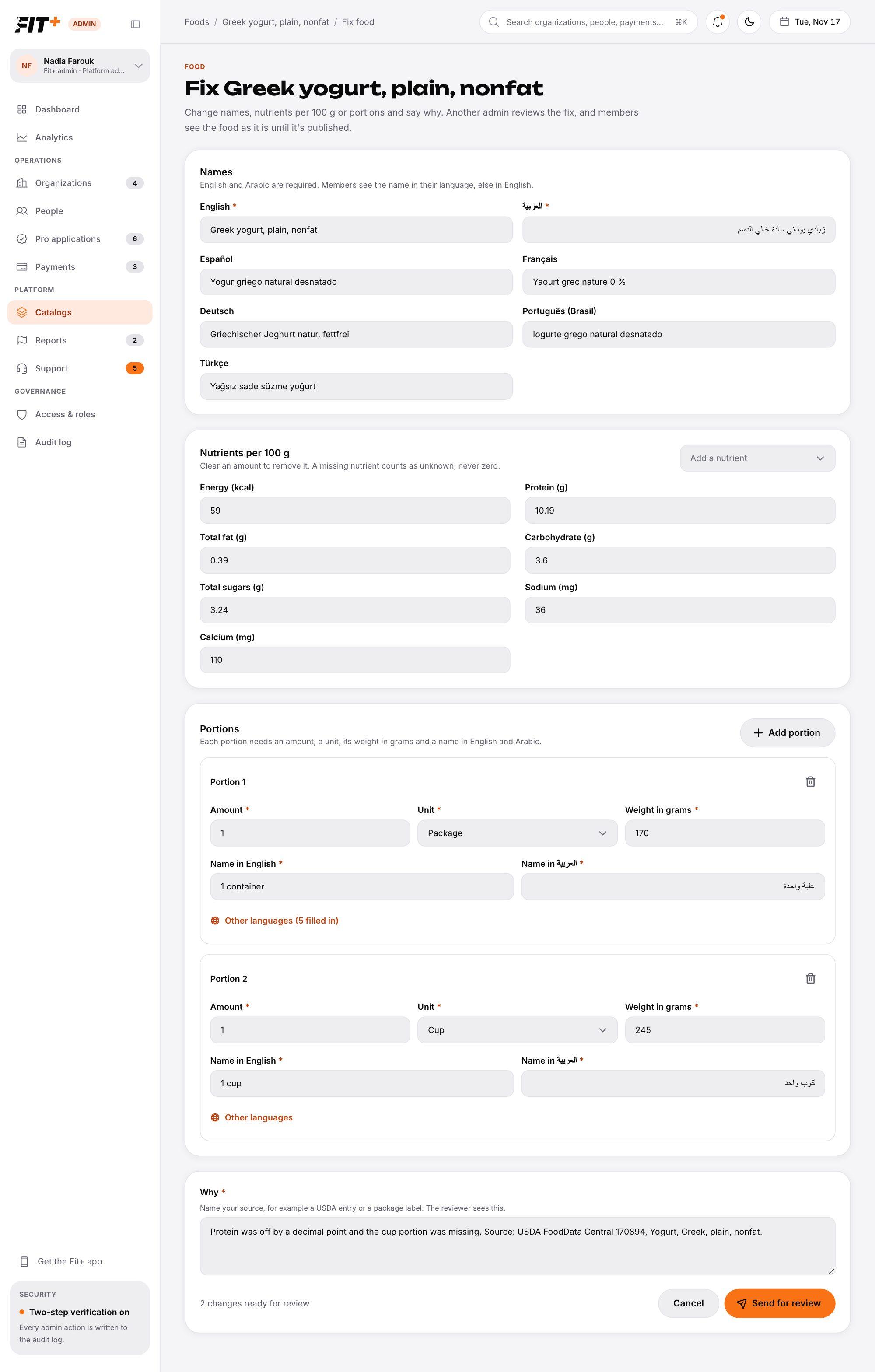
It's at the top of the food's page. An editor opens with the food's current values.
Change what's wrong
- Names: Each language has its own field. English and Arabic are required. Members see the name in their language, else in English.
- Nutrients per 100 g: change an amount, clear it to remove it, or choose Add a nutrient. A missing nutrient counts as unknown, never zero.
- Portions: each needs an Amount, a Unit, its Weight in grams and a name in English and Arabic. Open Other languages for the rest. Choose Add portion for another, or the remove button on a portion.
Say why
Under Why, name your source, for example a USDA entry or a package label. The reviewer sees it.
Choose Send for review
The editor shows how many changes are ready for review. A message says the food stays as it is until another admin publishes it.
Review a fix
Every fix waits for an admin other than the one who sent it.
Find fixes waiting
On the Foods tab, choose Fixes. The number shows how many are waiting. The Food fixes page lists them. Filter by Waiting, Published, Rejected, Withdrawn or All.
Check the changes
Each fix shows who sent it and when, Why, and a Changes table with each field Before and After.
Publish or reject
Choose Publish to show the fixed food to members straight away. Or choose Reject, write Why you're rejecting it and confirm. The food stays as it is, and the admin who sent the fix sees your note.
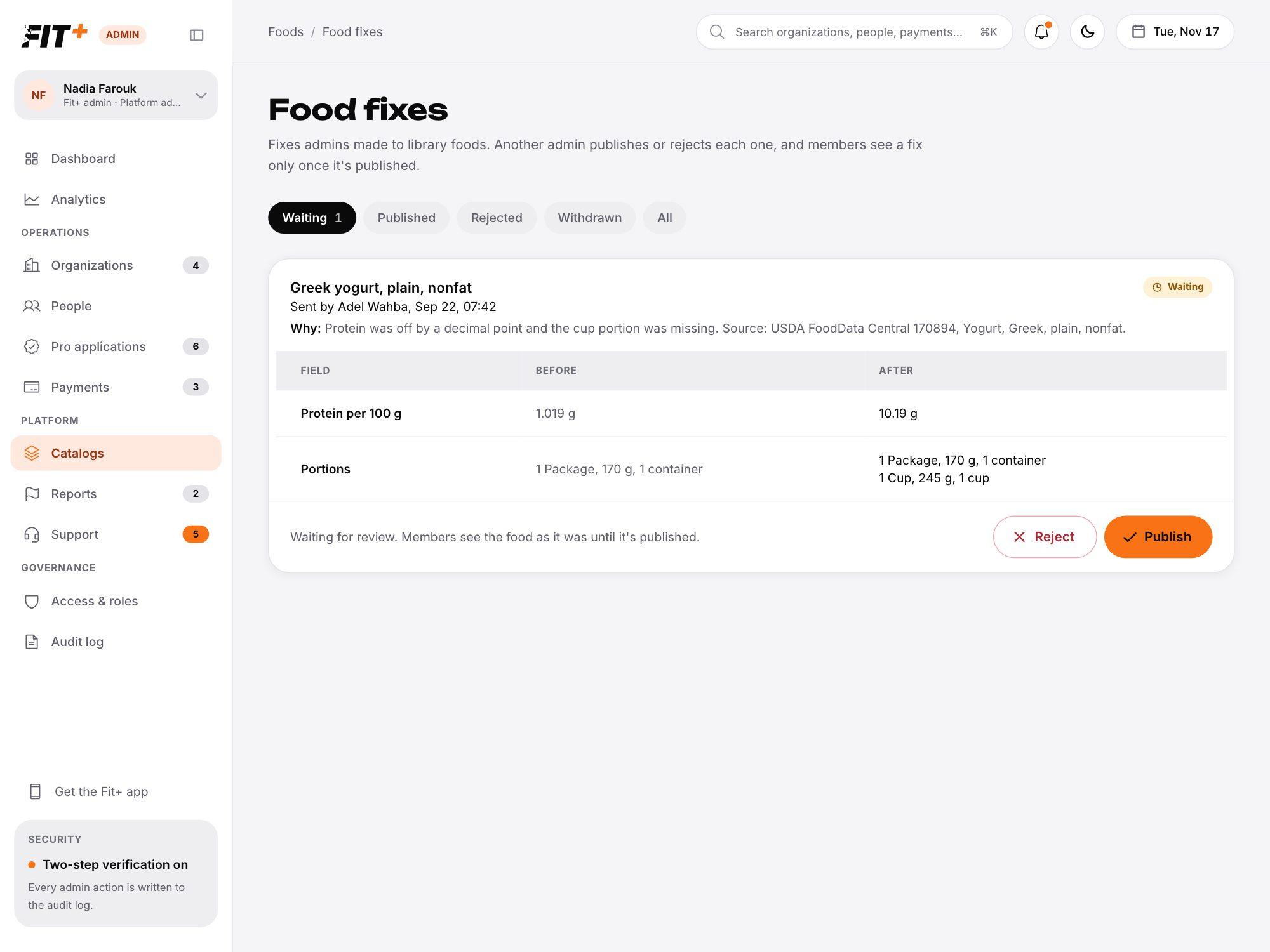
You can also review a fix on the food's page, under Fix waiting for review.
Withdraw your fix
While your fix is waiting, its card says "Waiting for another admin to review your fix". Choose Withdraw and confirm. The food stays as it is, the fix stays in its history, and you can send a new one.
Fix history
Every fix sent for a food, published, rejected or withdrawn, is listed under Fix history on the food's page, with who reviewed it, when, and any note.
Counts and weights
Members can log a library food by count, for example 2 large eggs, as well as in grams. Fit+ turns the count into grams from the weights on the food's Counts and weights tab.
Open the tab
Choose Catalogs in the sidebar, then the Foods tab, open the food and choose Counts and weights. You'll see the count members get first, then each count with its unit, its name in English and Arabic, its weight in grams and where the weight came from.
Fill a food that has no weights
Choose Fill with Fit+ AI. Fit+ AI suggests everyday counts, such as 1 piece, 1 slice or 1 tbsp, with their weights, and saves them as a draft marked as a Fit+ AI estimate. Members don't see a draft.
Check and publish
Compare each weight with a trusted source, such as a USDA entry or a package label, and change any that's wrong. Then choose Check. The weights are marked as checked by the Fit+ team, and members can log the food by count.
Fit+ AI estimates stay drafts until an admin chooses Check.
Common questions
Only once another admin publishes it. Until then they see the food as it was.
Every fix needs a second admin, so two people check each change to the library.
No. They stay a draft until an admin checks them and chooses Check.
The food isn't published, it's archived, a fix is already waiting for it, or your admin role can only view foods.