

Two-step sign-in
Turn on two-step sign-in on the Fit+ website, sign in with a code from your authenticator app, add a backup and remove one.
With two-step sign-in on, Fit+ asks for a 6-digit code from an authenticator app each time you sign in, so your password alone cannot open your account. It's the same account in the app and on the website, so you only set it up once.
Before you start: install an authenticator app, such as Google Authenticator, Microsoft Authenticator, 1Password or Authy.
Turn on two-step sign-in
Open Sign-in security
Open the account menu at the top of the sidebar and select Two-step sign-in.
Select Turn on two-step sign-in
Give the authenticator a Name, for example Work phone, then select Show QR code.
Add Fit+ to your authenticator app
Scan the QR code with the app. If you can't, select Can't scan the code? and type the key into the app instead.
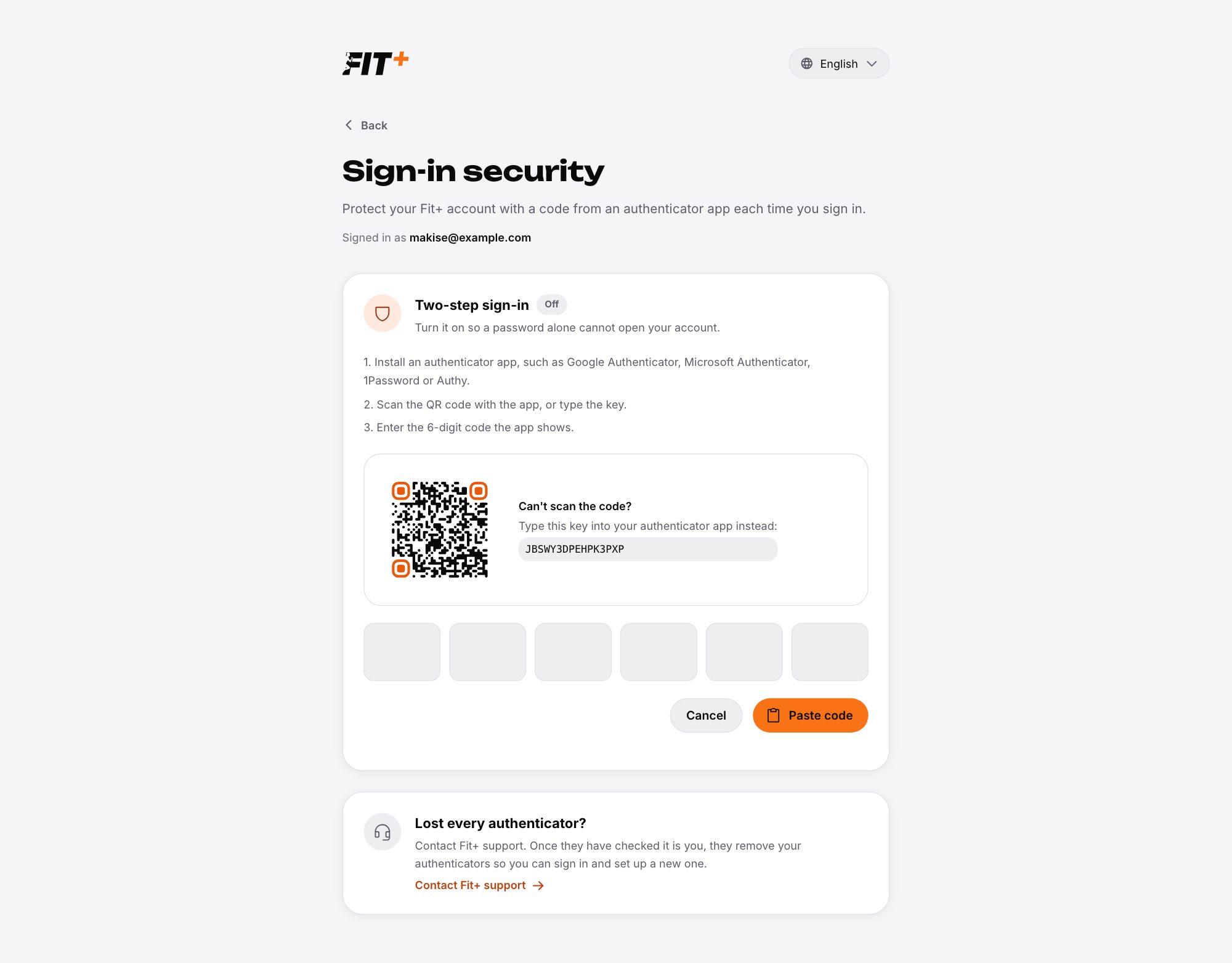
Enter the first code
Select Paste code if you copied the code in your authenticator app, or type the 6 digits the app shows. Then select Turn on.
You see "Two-step sign-in is on". Add a second authenticator as a backup.
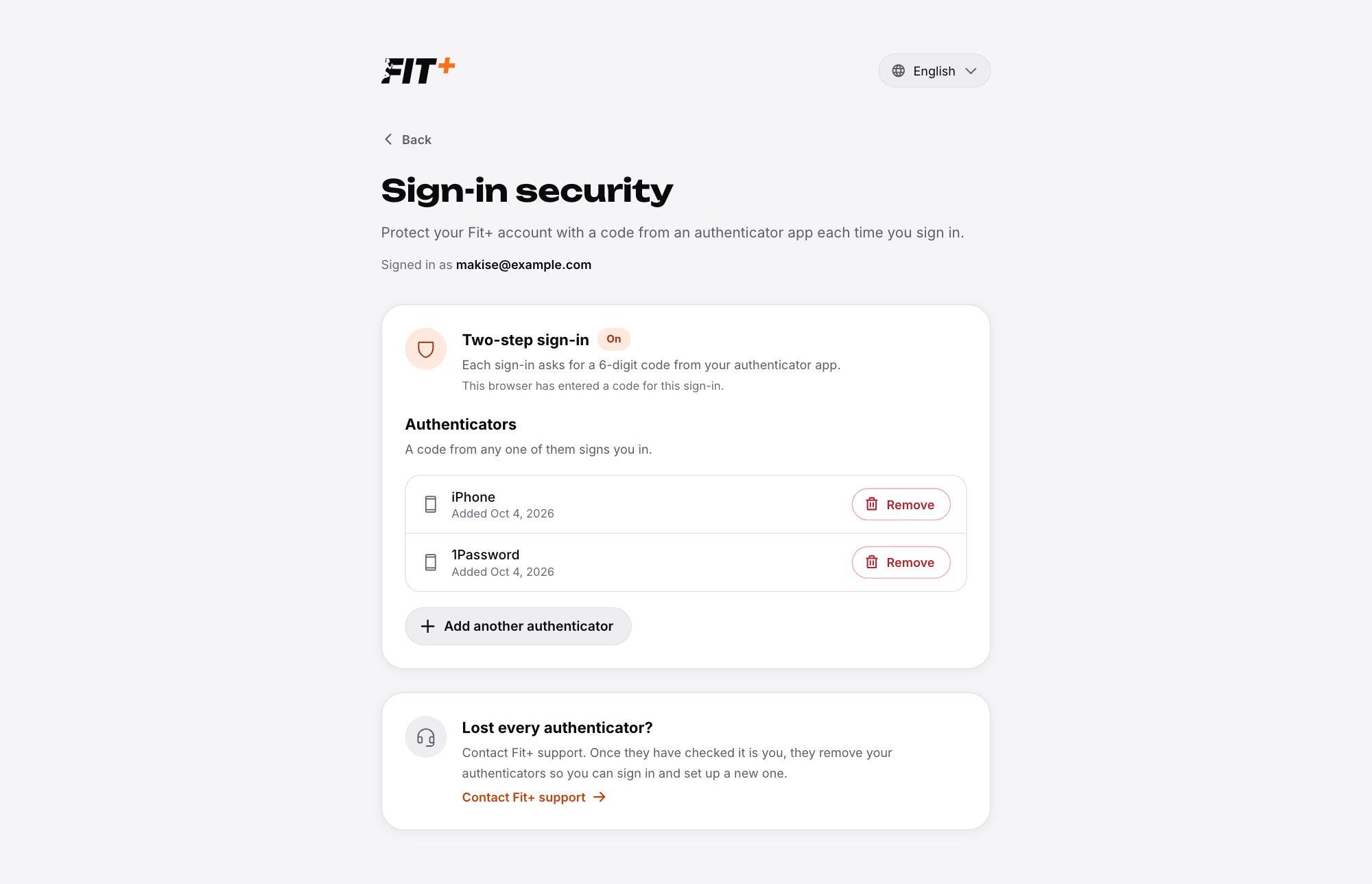
Sign in with a code
After you sign in with your password or an email link, Enter your code opens.
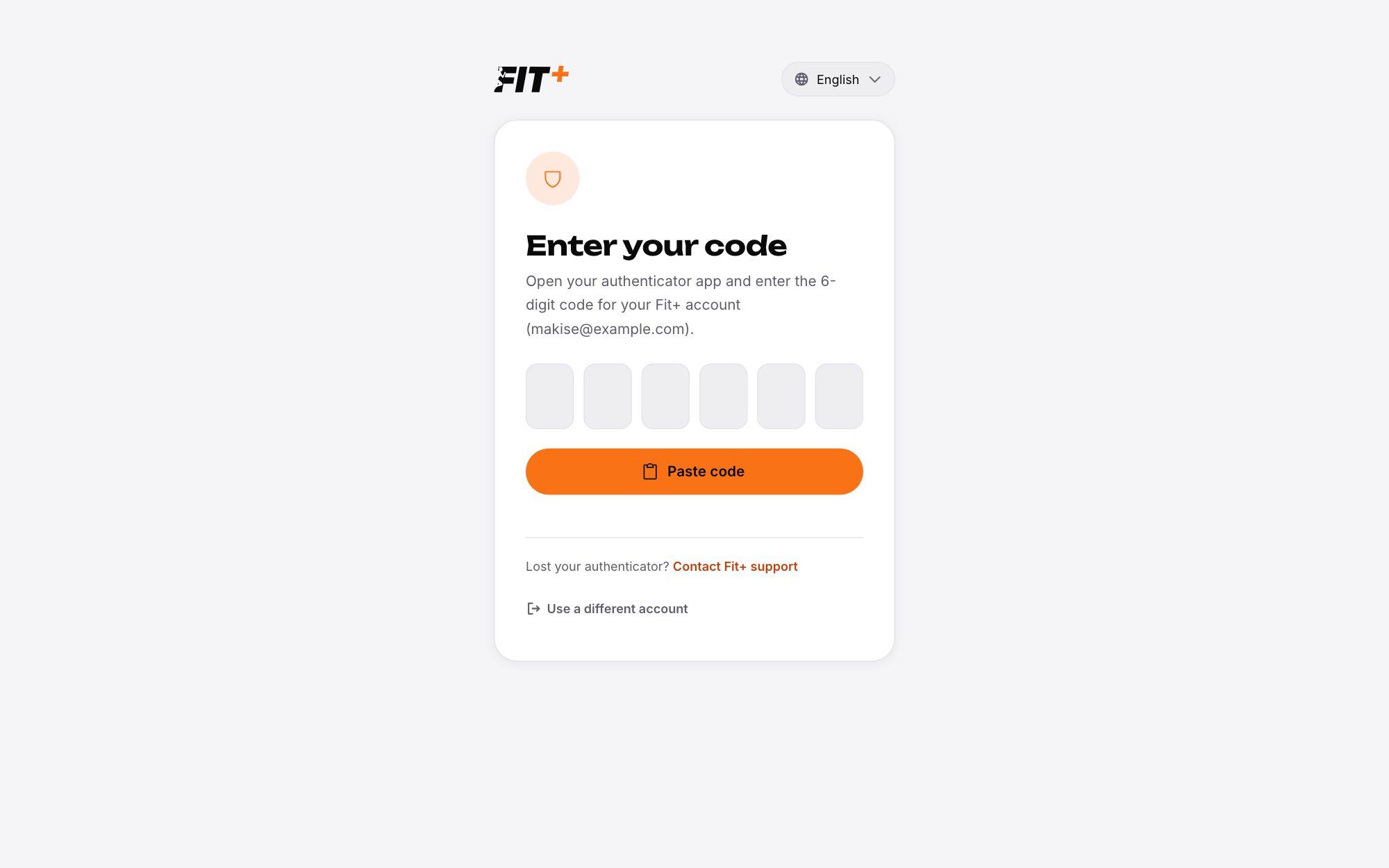
Open your authenticator app and copy the code for Fit+.
Select Paste code. The code fills in and is checked straight away. You can also type it, or paste it into the boxes with Ctrl+V (Cmd+V on a Mac).
- Paste code is the main button while the boxes are empty. When you type a digit it turns back into Continue.
- If you have more than one authenticator, choose the one your code comes from under Authenticator.
- If your browser doesn't let Fit+ read the clipboard, a message asks you to paste the code into the boxes instead.
- If the code doesn't work, wait for the next code in your app and try again. Pasting the same code again is blocked, so it can't use up your attempts.
Add another authenticator
Open Two-step sign-in from the account menu and select Add another authenticator. If Fit+ asks, enter a code from an authenticator you already have and select Continue. Then name it, scan the QR code and enter its first code, and select Add authenticator.
A code from any of your authenticators signs you in.
Remove an authenticator
Select Remove next to the authenticator. If Fit+ asks, enter a code first. Then select Remove again to confirm. Removing your last one turns two-step sign-in off: confirm with Turn off, and your password alone opens your account again.
Common questions
A gym can require two-step sign-in for its staff. Until you set it up, you can't use that gym's staff tools. Members are never required to use it.
On Enter your code, select Contact Fit+ support next to "Lost your authenticator?". Once support has checked it's you, they remove your authenticators so you can sign in and set up a new one.
Yes. It's one account, so the app asks for a code too. See Two-step sign-in in the app.