

Manage your sessions
See your upcoming sessions and requests, answer a new time, reschedule or cancel a session, and rate a session in the Fit+ app.
My sessions keeps every session you've booked with a coach or nutritionist in one place. From here you can check the details, move a session, cancel it or rate it afterwards.
Open My sessions
Tap Me, then My sessions. Tapping a notification about a booking also opens it.
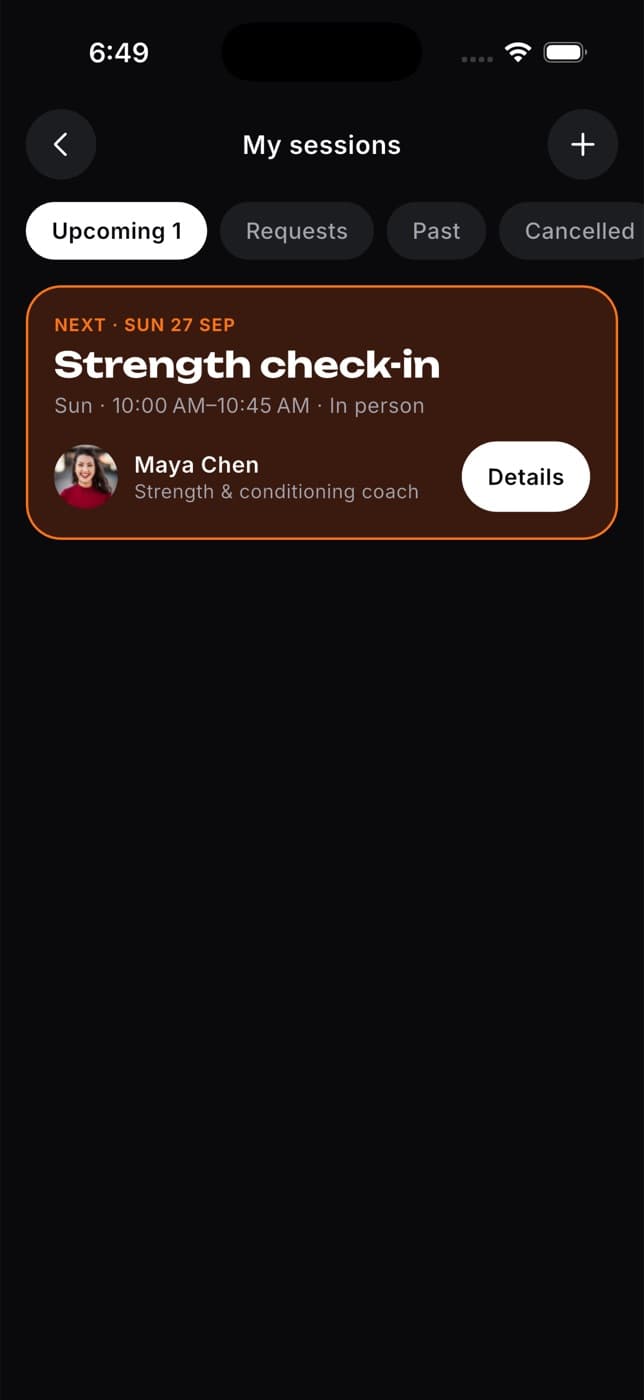
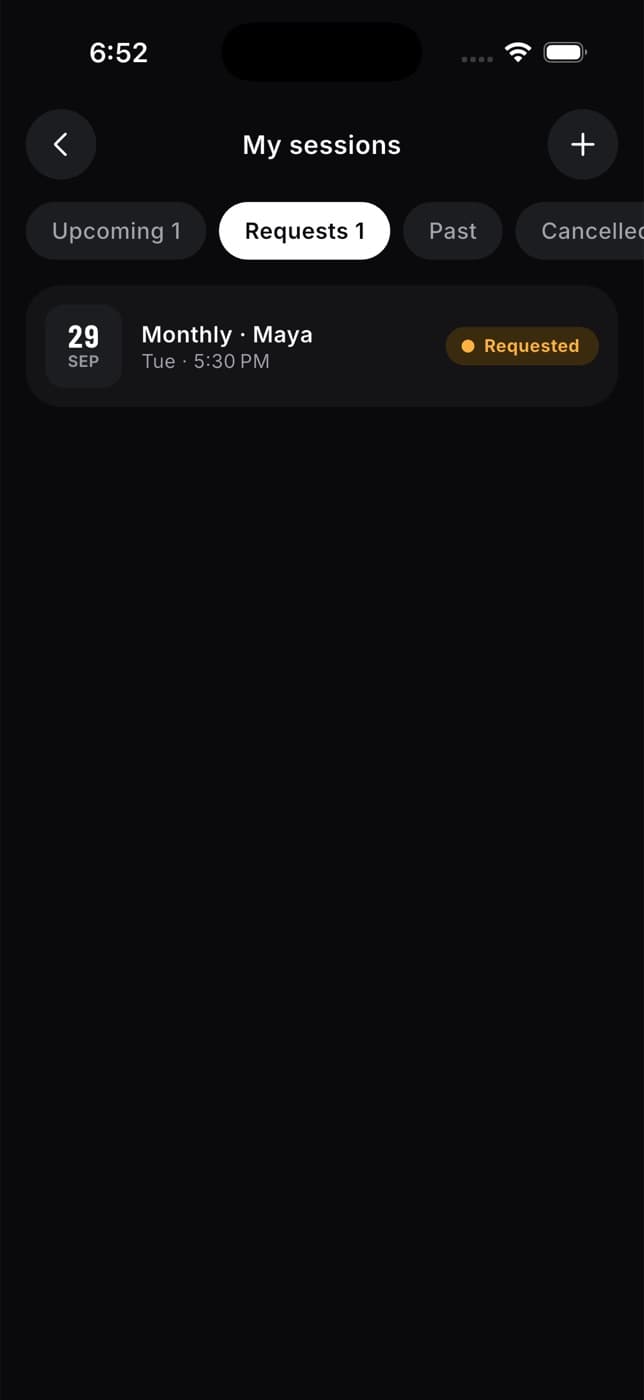
The tabs at the top sort your sessions:
| Tab | What's in it |
|---|---|
| Upcoming | Confirmed sessions that haven't happened yet. The next one is highlighted with a Details button. |
| Requests | Requests still waiting for an answer, including ones where the professional suggested a new time. |
| Past | Sessions that have already happened, newest first. |
| Cancelled | Sessions that you or the professional cancelled. |
Tap + in the top right to find someone new to book.
See a session's details
Tap a session to open it. You'll see the date and time, where it happens (the gym, an address or Online), who you're meeting and its status.
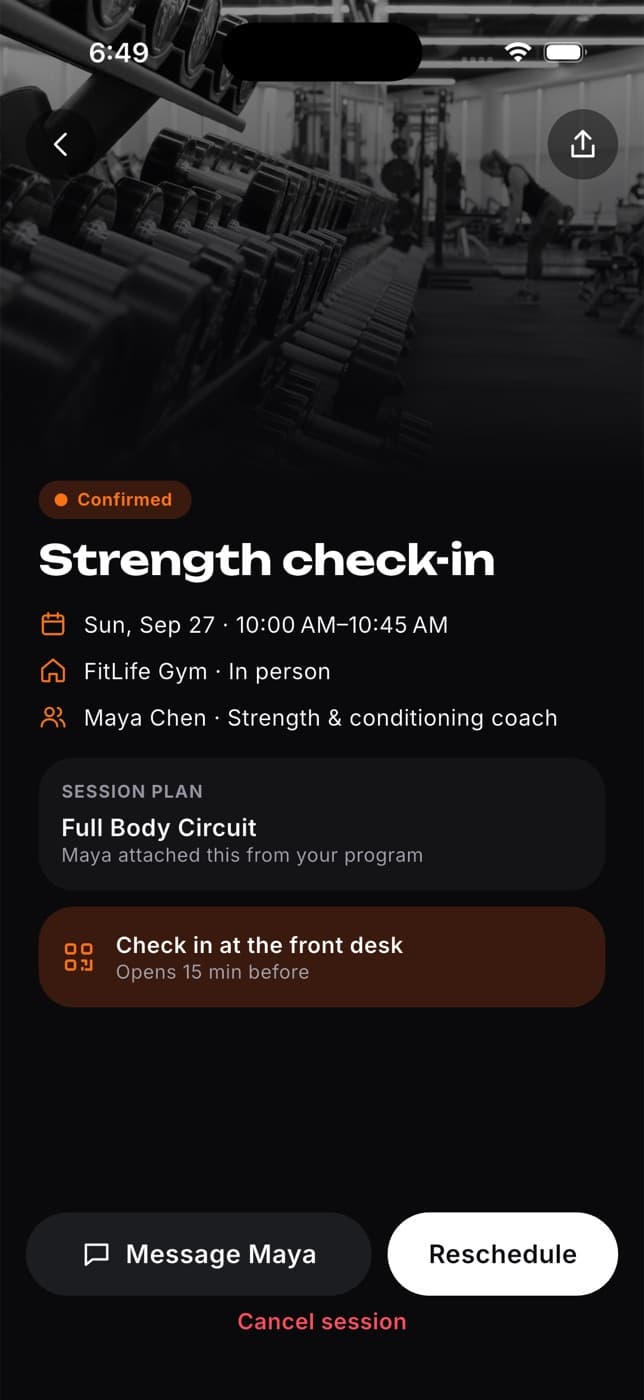
Depending on the session, you may also see:
- Session plan: the workout your coach attached from your program.
- Check in at the front desk: for sessions at a gym. It opens 15 minutes before the start and takes you to your check-in pass.
- Which session of your package this is, for example "Session 2 of 4".
- A message button to chat with the professional.
Answer a new time
If the professional can't make your time, they may suggest another one. You'll get a New time proposed notification, and the session shows a New time badge.
Open the session in My sessions, or open your chat with the professional.
Read the suggested time and any note they added.
Tap Accept to book the new time, or Decline to close the request. The professional is told either way.
If the suggested time has already passed, you can't accept it. Message the professional to find another time.
Reschedule a session
Open the session and tap Reschedule.
Pick a day in the next week, then a new start time. Times less than an hour away, or that clash with another of your sessions with this person, aren't available.
Check the From and To times, then tap Request new time.
What happens next: the professional gets a notification and needs to confirm the new time. Until they do, the session is back under Requests. Rescheduling is free up to 12 hours before the session.
Cancel a session
Open the session and tap Cancel session.
Check the reminder about timing. If the session is 12 hours or more away, it won't count against your sessions. If it's less than 12 hours away, the professional may count it as used.
Choose a reason: Feeling unwell, Schedule clash or Other.
Tap Cancel session to confirm, or Keep it to go back.
What happens next: the professional gets a notification with your reason, and the session moves to Cancelled.
Fit+ doesn't charge or refund anything. Whether a late cancellation counts as a used session is up to you and your coach, so check with them in chat.
Rate a session
After a session, your coach marks it as completed. You'll get a notification asking how it went.
Tap the notification, or open the session from the Past tab and tap Rate session.
Choose one to five stars.
Write a sentence or two about how it went.
Tap Post review.
Your review appears on the professional's profile with your first name and last initial, for example "Lina F.". You can review each session once.
Common questions
You can rate a session once your coach has marked it as completed. If it's been a while, ask them in chat.
Sessions your coach adds for you are managed by them. Message them from the session to ask for a new time or to cancel.
The request moves to Past with a Requested badge. Message the professional, or book a new time.
Not yet. Take a moment to check your review before you post it.
Yes. Open a past session and tap Book again.