

Manage notifications
Turn on notifications, see and filter your alerts, choose which ones reach your phone, including workout and meal reminders, and set quiet hours.
Notifications tell you when something needs you: a reply from your coach, a change to your plan, a session reminder, a new badge or a reminder to train or eat. This page shows you where to find them and how to choose which ones you get.
Turn on notifications
On Home, tap the bell.
The first time, Fit+ explains what you'll get. Tap Turn on notifications.
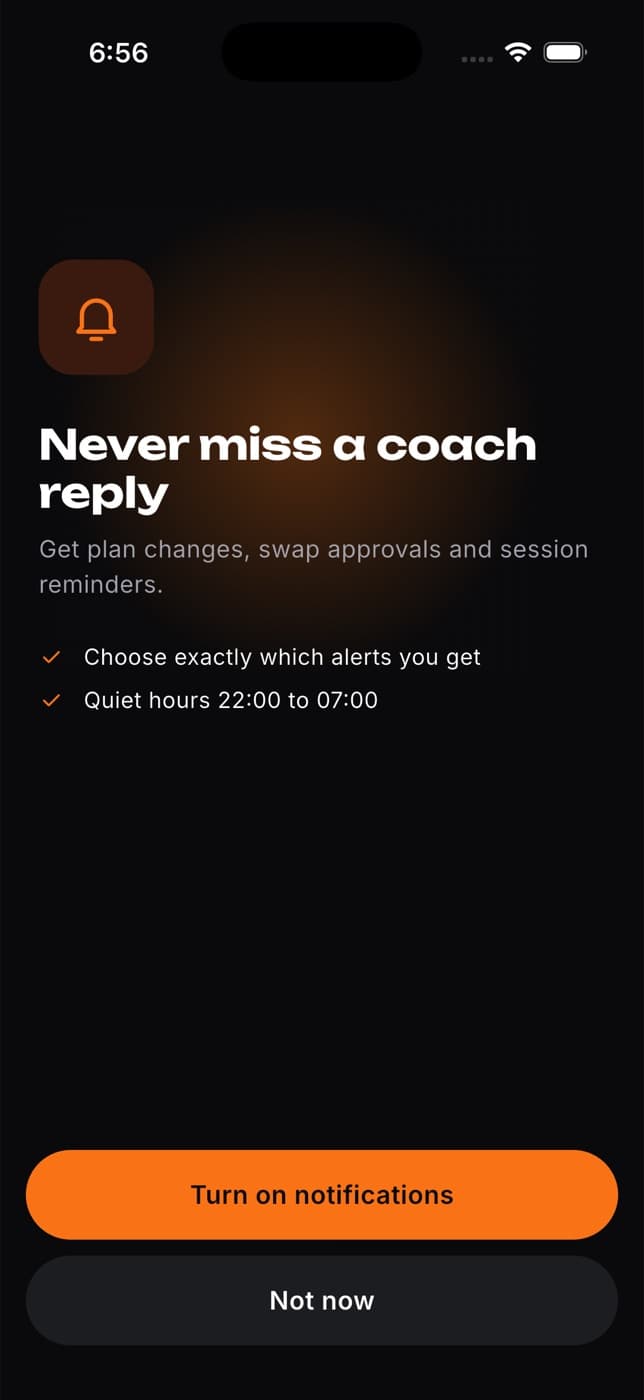
Your phone asks for permission. Tap Allow.
Prefer not to? Tap Not now. You can still see all your notifications inside the app, and you can turn them on later in settings.
See your notifications
Tap the bell on Home. A dot on the bell means you have something new.
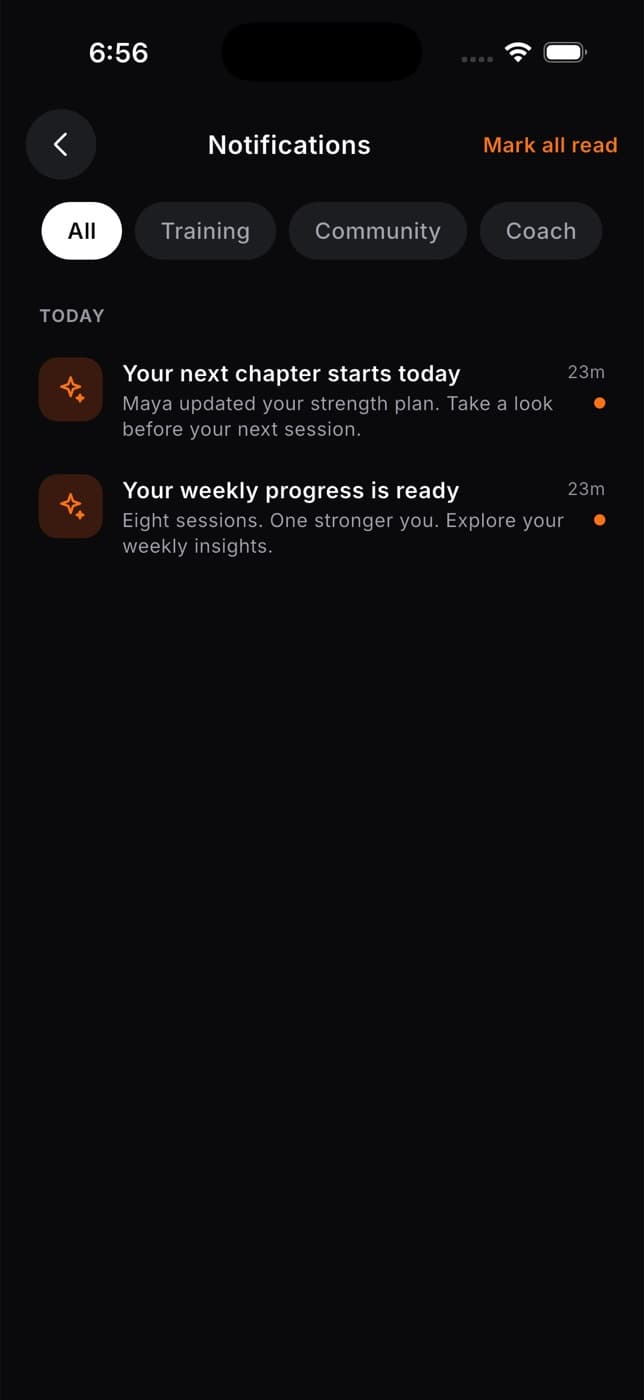
- Notifications are grouped into Today, Yesterday and Earlier.
- Tap a filter to narrow the list: All, Training, Community or Coach.
- Tap a notification to open what it's about, such as a message, your plan, a booking or your achievements.
- Tap Mark all read to clear the dots.
Choose which notifications you get
Tap Me, then the gear icon, then Notifications.
Turn each type on or off. Your changes are saved straight away.
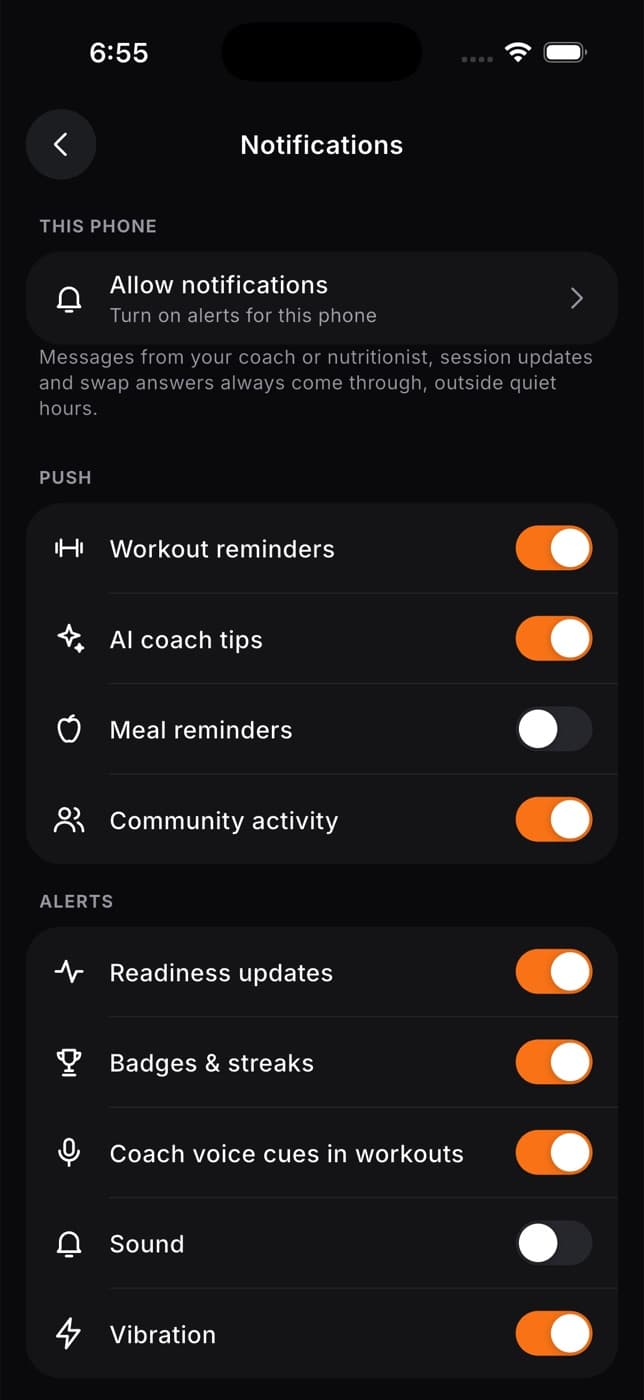
| Section | What you can turn on or off |
|---|---|
| This phone | Whether notifications reach this phone. If you see Allow notifications, tap it to turn them on. |
| Push | Workout reminders (with a Reminder time when it's on), AI coach tips, Meal reminders and Community activity |
| Alerts | Readiness updates, Badges & streaks, Coach voice cues in workouts, Sound and Vibration |
| Quiet hours | A time when Fit+ stays silent |
Workout and meal reminders are set by your phone from your plans, so they work on iPhone and Android, even offline. See Workout and meal reminders.
Messages from your coach or nutritionist, session updates and answers to your swap requests always come through, so you don't miss anything important. They still respect your quiet hours.
Set quiet hours
In notification settings, find Quiet hours and tap Edit.
Choose the start time, for example 22:00.
Choose the end time, for example 07:00.
During quiet hours, nothing buzzes or lights up your phone. Anything that arrives still waits for you in the notification list. Workout and meal reminders that fall inside quiet hours aren't shown.
Common questions
Notification settings in Fit+ will say notifications are off. Open your phone's Settings, find Fit+, then Notifications, and turn Allow Notifications on. When you come back to Fit+, it updates by itself.
Workout and meal reminders do. Other notifications, such as messages and plan changes, reach the lock screen on iPhone only for now. On Android, open the bell in Fit+ to see them.
No. After you log out, this phone stops receiving notifications for your account.
Coaches and nutritionists can also choose alerts for Finished workouts from clients and, if they run a gym, Gym join requests. Session requests, swap requests and client messages always come through outside quiet hours. See Using the app as a coach, gym owner or admin.
Join a gym, club or team
Join your gym, club or team with a code or QR, join a club from Community, buy a membership pass and check in at the front desk with your phone.
Workout and meal reminders
Get a reminder on your training days and at your meal times, choose when workout reminders go off and turn them off again.