

Manage your schedule
See your sessions for the week, confirm or decline booking requests, suggest another time and set your working hours.
Schedule shows every session booked with you, week by week. Members request sessions from your offers in the Fit+ app, and you confirm or decline them here.
See your week
Select Schedule in the sidebar, or Open schedule on your home page.
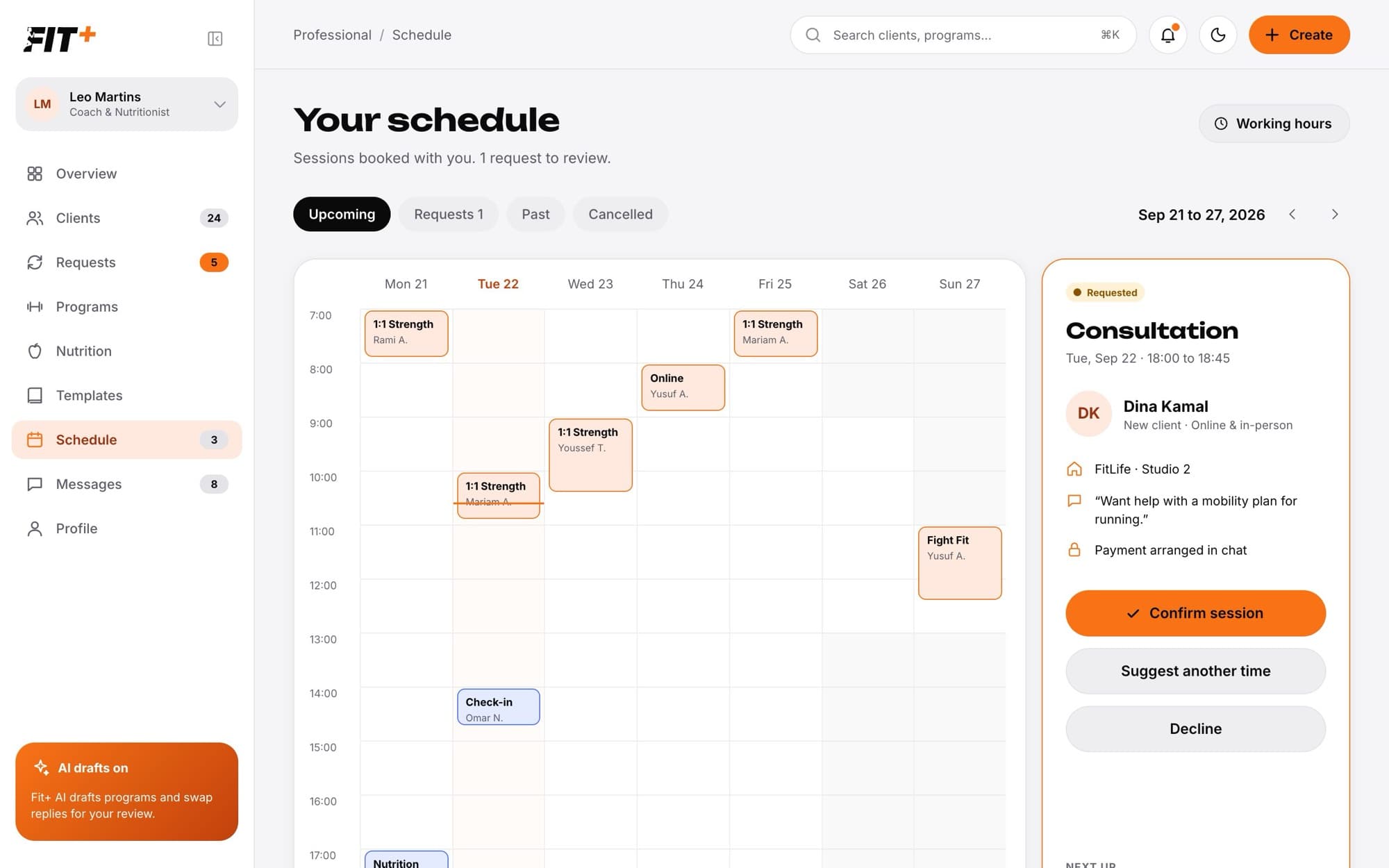
- Use the tabs to filter: Upcoming, Requests, Past and Cancelled.
- Use the arrows next to the dates to move to the previous or next week. Weeks start on Monday.
- A line marks the current time today.
- Select a session to see its details on the right: the client, time, place, offer and the client's note.
- Next up shows your next confirmed sessions.
Confirm or decline a session request
Select the Requests tab, then the session.
Read the details and the client's note.
Select Confirm session to accept it, or Decline to turn it down. Fit+ asks you to confirm before declining.
The client is told in the Fit+ app either way. When you decline, the time becomes free again.
Payment is arranged between you and the client in chat. The session shows Payment arranged in chat as a reminder.
Suggest another time
There's no button to move a session. Instead, you agree on a new time with the client in chat.
Select the session request, then Suggest another time.
Your chat with the client opens with a message ready, saying the time doesn't work and asking about another one. Edit it and send it.
Once you agree, the client requests the new time from the app, and you confirm it. Decline the original request so the old time is freed.
Cancel a confirmed session
Select the session, then Cancel session, and confirm. The client is told in the app and the time becomes free. To talk it through first, select Message [name].
Set your working hours
Your working hours tell members when they can ask you for a session.
Select Working hours at the top of your schedule.
For each day, add the times you work, or leave the day as Not working. You can add more than one time range to a day, and each one has to end after it starts.
Save. Members see your new hours when they request a session.
Select the Past tab. It shows completed sessions and confirmed sessions whose time has passed.
Not on the website. Members request sessions from your offers. You can add a session for a client in the Fit+ app. See Use Fit+ Pro on your phone.
You haven't set them yet. Until you do, members don't know when you are available.