

Use the dashboard and notifications
See what needs a decision, this week's numbers and platform health, download a report and keep up with notifications.
The dashboard is the first page you see after signing in. It puts what needs your decision at the top and the health of the platform underneath. Your notifications are one click away in the top bar.
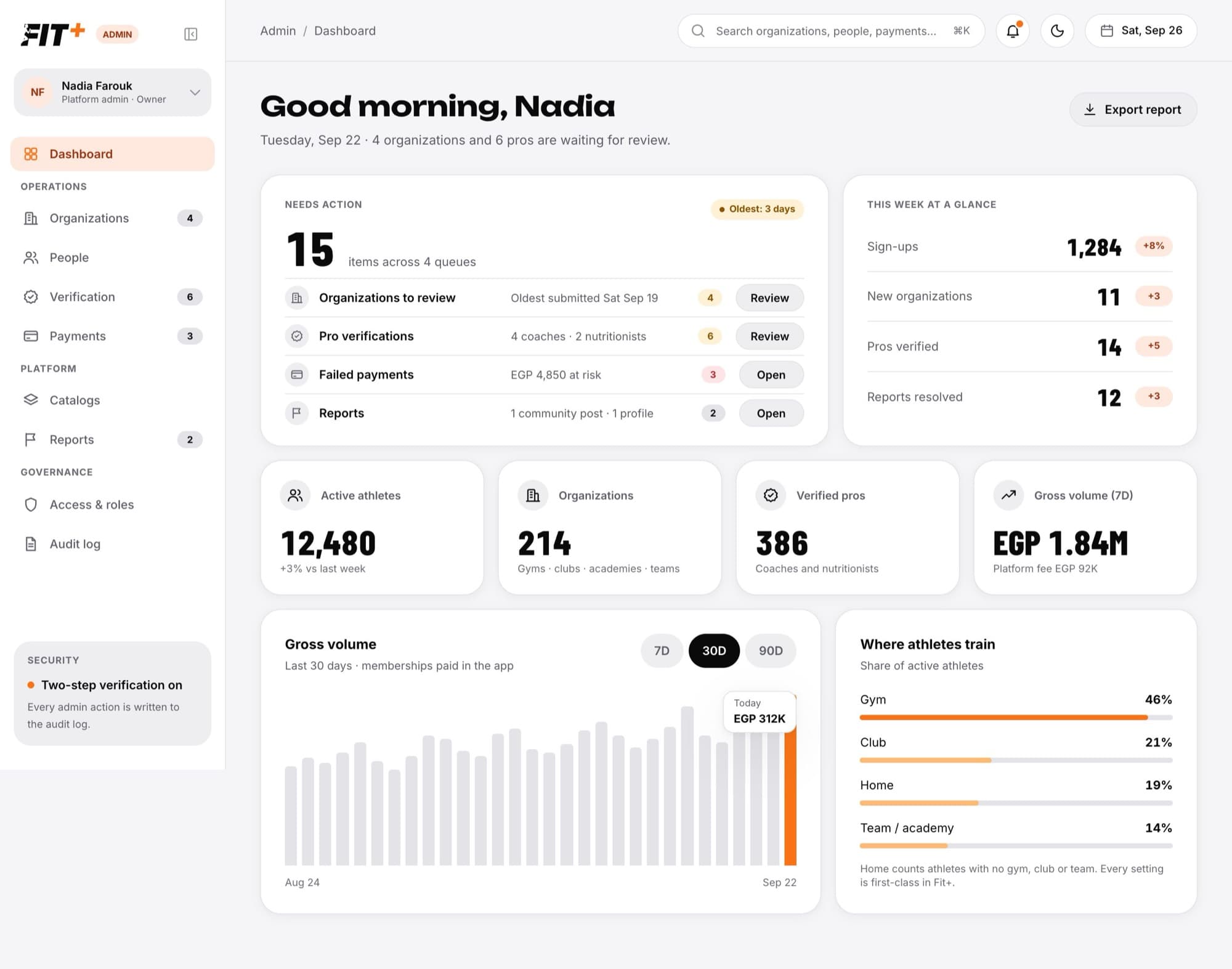
What's on the dashboard
Needs action shows how many items are waiting across four queues, and how long the oldest one has waited. Each row has a button that takes you straight to the list:
| Queue | What it tells you | Button |
|---|---|---|
| Organizations to review | When the oldest one was submitted | Review |
| Pro verifications | How many coaches and nutritionists are waiting | Review |
| Failed payments | How much money is at risk | Open |
| Reports | What kind of content was reported | Open |
This week at a glance compares sign-ups, new organizations, pros verified and reports resolved with the week before.
The four tiles show active athletes, live organizations, verified pros and gross volume for the last 7 days with the Fit+ fee.
Gross volume charts the membership payments made in the app each day. Choose 7D, 30D or 90D to change the period.
Where athletes train shows the share of active athletes at a gym, club, team or academy, or training at home.
Money is always shown in one currency at a time. Amounts in different currencies are never added together.
Download a report
Choose Export report at the top of the dashboard. You get a spreadsheet with the queue counts, this week's numbers, the tiles, where athletes train and the daily gross volume for the period you picked.
Check your notifications
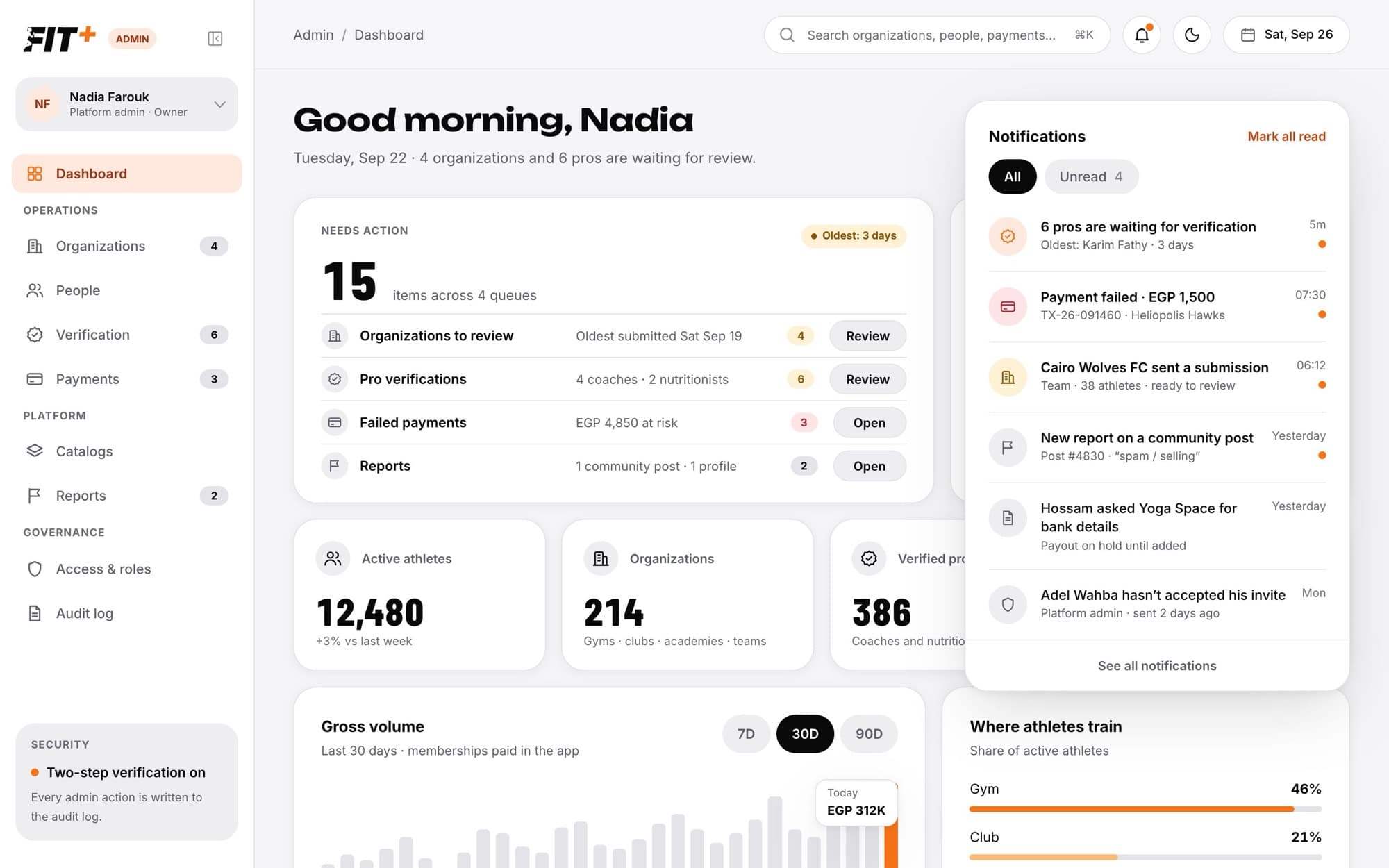
The bell in the top bar shows a dot when you have unread notifications. You're notified when:
- a new organization is submitted for review,
- a coach or nutritionist applies,
- a payment fails,
- someone reports content,
- an admin asks a gym owner for bank details,
- an admin invites someone to the team.
Open the bell
Choose the bell in the top bar.
Filter the list
Switch between All and Unread.
Open a notification
Choose a notification to go straight to what it's about. It's marked as read.
Clear the rest
Choose Mark all read when you've caught up. Choose See all notifications to open the full list on its own page.
Common questions
Yes, the whole team shares one feed. Read and unread is personal, so marking something read only changes it for you.
You're in your grace period and haven't set up an authenticator app yet. See Sign in with two-step verification.
Nothing is waiting there, or the count couldn't be loaded. Open the page to check.