

Sign in with two-step verification
Sign in to the admin website, set up your authenticator app the first time and enter your six-digit code.
Everyone on the Fit+ team signs in with their work email, their password and a six-digit code from an authenticator app. This page shows you how to sign in, how to set up two-step verification the first time, and what to do if something goes wrong.
Before you start
- You need to be on the Fit+ team. If you don't have an admin account yet, ask a Platform admin to invite you. See Accept an admin invitation.
- Install an authenticator app on your phone, such as Google Authenticator or 1Password.
Sign in
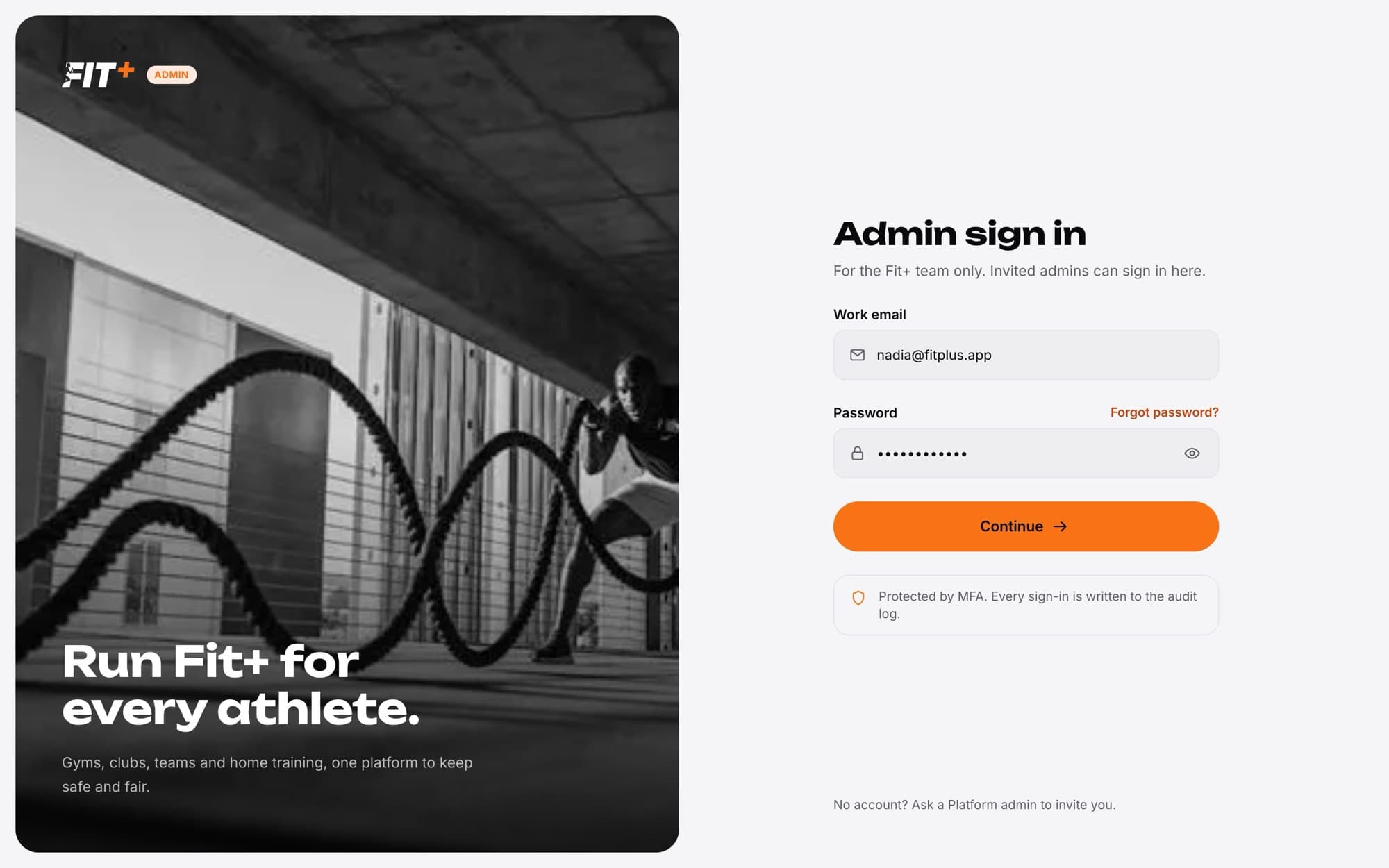
Open the admin sign-in page
Go to the Fit+ admin website. You'll see Admin sign in. You can also sign in from the main Fit+ sign-in page; you'll be taken to the right step either way.
Enter your work email and password
Type your Work email and Password. Use the eye button to show or hide your password.
Choose Continue
If you've already set up two-step verification, you'll be asked for your code next. If you haven't, you'll be asked to set it up.
Forgot your password? Choose Forgot password? above the password field and follow the email you receive.
Enter your code
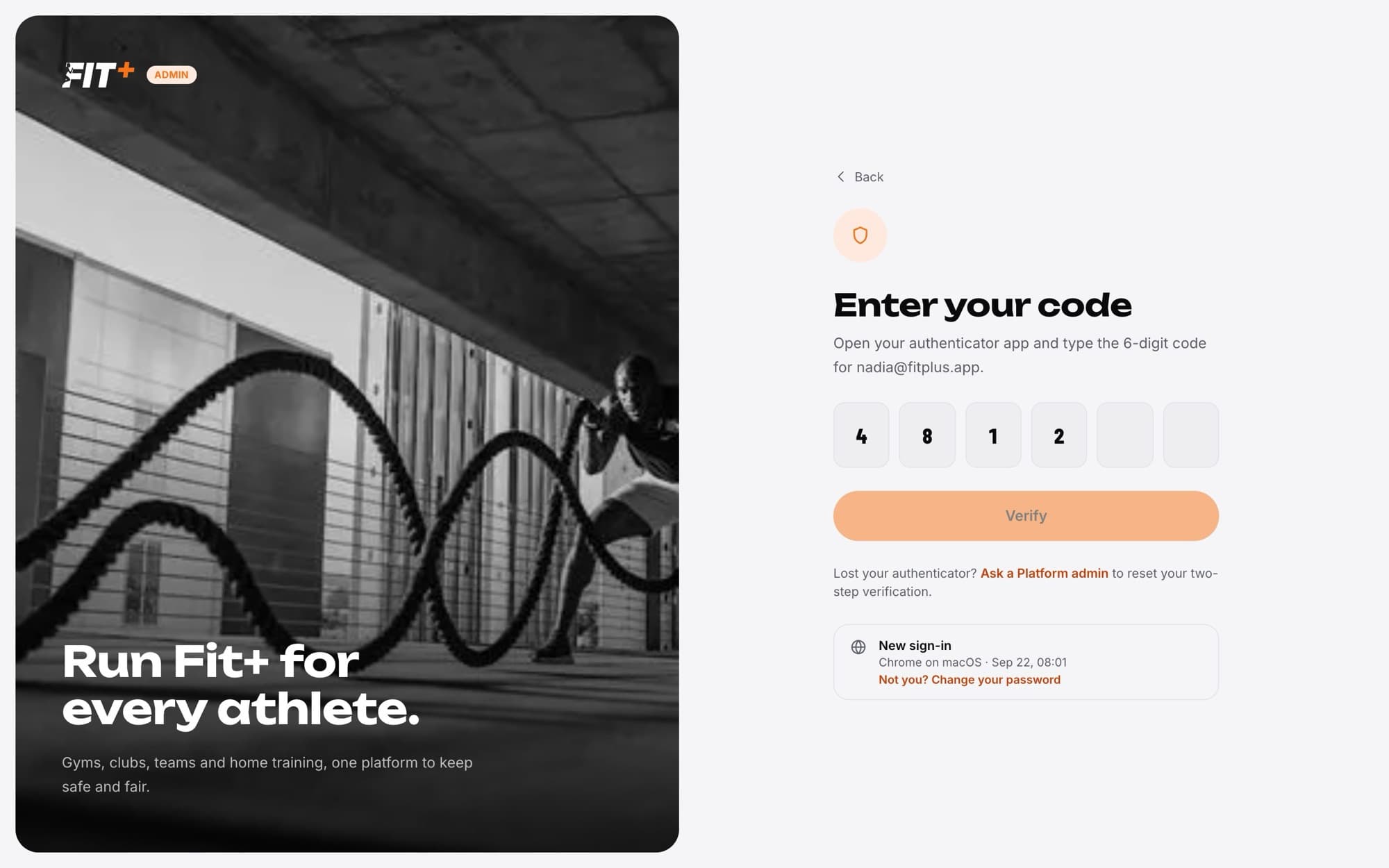
Open your authenticator app
Find the code for your Fit+ admin account.
Type the six digits
The code is checked as soon as you type the sixth digit. You can also choose Verify.
Start working
You land on the page you were trying to open, or on the dashboard.
If the code doesn't match, the boxes clear so you can try again with the newest code. The New sign-in card shows the browser, computer and time of this sign-in. If that wasn't you, choose Not you? Change your password. Choose Back to sign out and start again.
Set up two-step verification the first time
Open the setup screen
After your password, you'll see Set up two-step with a QR code and a secret key.
Scan the QR code
Open your authenticator app, add a new account and scan the QR code. If you can't scan it, type the secret key instead.
Enter the first code
Type the six-digit code your app now shows, then choose Turn on two-step.
From now on you'll need a code every time you sign in to the admin website.
Setting it up later
Some admins get a short grace period before two-step verification is required. During that time you'll see Remind me later on the setup screen, and a reminder with the deadline on your dashboard and in the sidebar. Once the deadline passes, you must set it up before you can open any admin page. If you joined through an invitation, you set it up straight away.
Common questions
Ask a Platform admin for help. Resetting two-step verification isn't available in the admin website yet, so it may take a little time to get you back in.
Your account isn't an admin account. Use the main Fit+ sign-in for your usual workspace, or ask a Platform admin to invite you.
Your admin access was given until a set date, and that date has passed. Ask a Platform admin to renew it.
Wait a moment and try again.
Yes. Every admin sign-in is added to the audit log, with the browser you used.