

Accept an admin invitation
Join the Fit+ team from your invitation email, choose a password and set up two-step verification.
When a Platform admin invites you to the Fit+ team, you get an email with a link. This page walks you through accepting it.
Before you start
- Open the invitation email on a computer if you can. You'll also need your phone for the authenticator app.
- The invitation is valid for 7 days.
Open the link in your email
If you're new to Fit+, the email asks you to set up your account. If you already have a Fit+ account, the email signs you in with it, so your password and history stay the same.
Check the invitation
You'll see Join the Fit+ team with your email and the role you've been given (Support, Finance or Platform admin).
Choose a password (optional)
Type a new password of at least 8 characters, or leave the field empty to keep your current one.
Choose Accept and continue
You're now on the Fit+ team.
Set up two-step verification
Scan the QR code with your authenticator app and enter the first code. You'll need this before you can open any admin page. See Sign in with two-step verification.
What happens next
You land on the admin dashboard. The Platform admin who invited you sees your two-step status change to On in the Admins list. What you can see and do depends on your role. See Admin roles and team.
Common questions
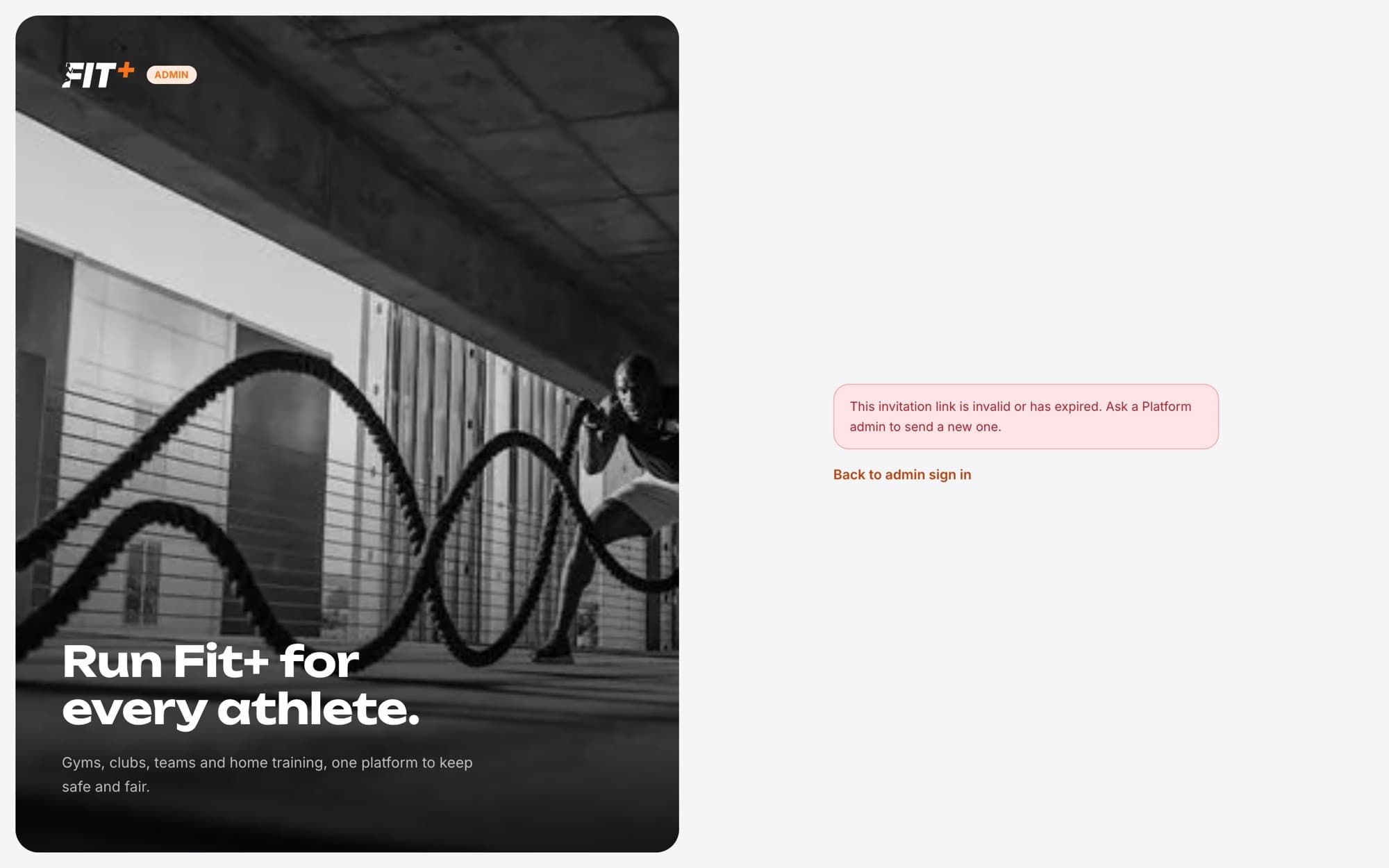
The link may be older than 7 days, or it was withdrawn. Ask a Platform admin to send you a new invitation.
The invitation may have expired, been withdrawn, or been sent to a different email. Make sure you're signed in with the email the invitation was sent to.
Check your spam folder first. If it isn't there, ask the Platform admin to withdraw the invitation and invite you again.
Yes. Your admin role is separate from your other workspaces. Switch between them from the account menu at the top of the sidebar.