

Admin roles and team
What each admin role can do, how to invite someone to the Fit+ team, and how to change a role or remove access.
Access & roles shows who on the Fit+ team can do what. Everyone on the team can read the roles. Only Platform admins can invite admins, change roles or give temporary access.
Admin roles and what each can do
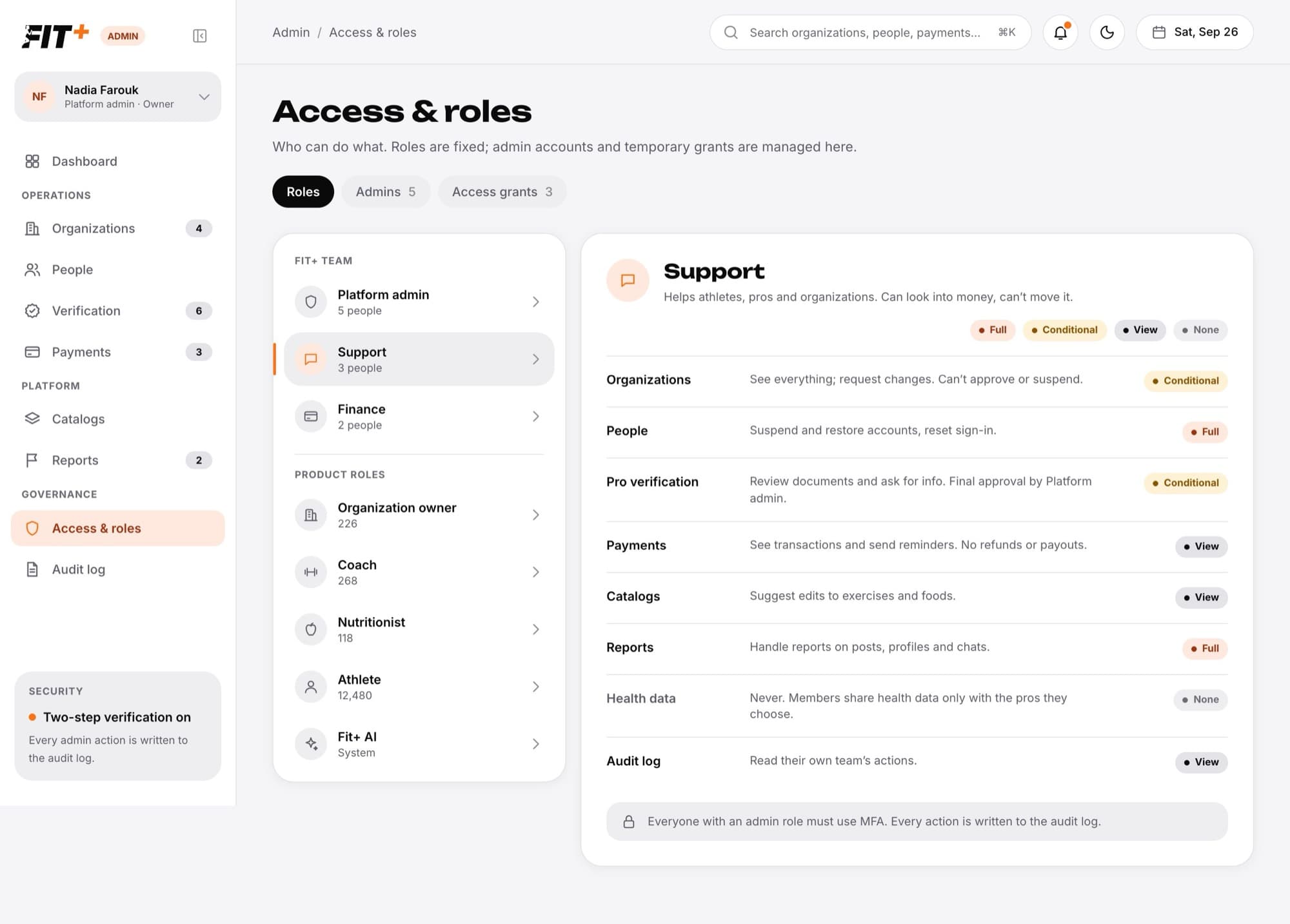
There are three admin roles. They're fixed, so you can't create new ones.
- Platform admin: everything, including approvals.
- Support: helps athletes, pros and organizations. Can look into money but can't move it.
- Finance: payments, payouts and fees.
| Area | Platform admin | Support | Finance |
|---|---|---|---|
| Organizations | Approve, request changes, reject, suspend, restore | See everything and request changes | Look only |
| People | Reset sign-in, suspend, restore, add professionals, delete accounts on request | Reset sign-in, suspend, restore, add professionals, delete accounts on request | Look only |
| Pro verification | Final approval or decline | Work through checks and ask for info | No access |
| Payments | Everything, including cancelling a membership and changing the fee | See payments, send reminders, request retries | Everything, including cancelling a membership and changing the fee |
| Catalogs | Add, edit and publish exercises | Look only | No access |
| Reports | Remove, warn, suspend, dismiss | Remove, warn, suspend, dismiss | No access |
| Health data | Never | Never | Never |
| Audit log | Read | Read | Read |
| Access & roles | Manage the team and grants | Read the roles | Read the roles |
A few rules apply to everyone:
- No one sees health data. Members share health data only with the coaches and nutritionists they choose.
- Nobody can change the audit log, including Platform admins.
- You can't change your own role or remove your own access. Ask another Platform admin.
- Everyone uses two-step verification. See Sign in with two-step verification.
The Roles tab also lists product roles (Organization owner, Coach, Nutritionist, Athlete and Fit+ AI) with how many people have each one. These come from organizations, pro verification and members' sharing choices, so you don't manage them here. Choose a product role, then See people to open People filtered to that role.
Coaches and nutritionists join through an application that Fit+ approves. Platform admins and Support can also create an account for one: choose Coach or Nutritionist on the Roles tab, then Add professional. The role you chose is already picked in the form. It's the same as Add professional in People. See Add a professional.
See the Fit+ team
Choose the Admins tab. Each admin shows their role, whether two-step verification is On or Not set up, when they last signed in and when their access ends. Pending invitations are listed underneath. Choose a name to open that person's page in People.
Invite an admin
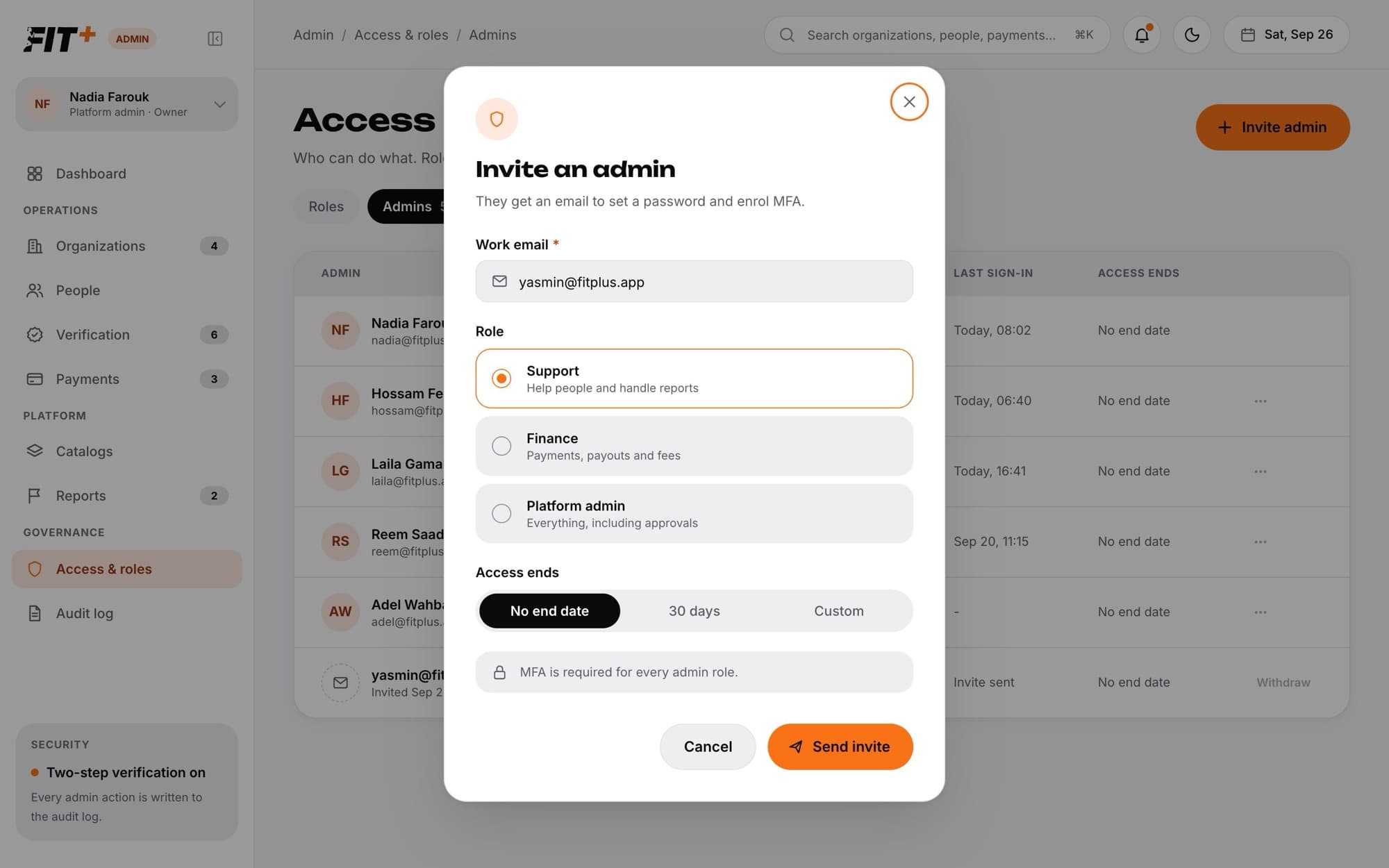
Choose Invite admin
It's at the top of Access & roles.
Enter their work email
Type it under Work email.
Pick a role
Choose Support, Finance or Platform admin. Give people the smallest role that lets them do their job.
Choose when access ends
Choose No end date, 30 days or Custom to pick a date.
Choose Send invite
They get an email to set a password and set up two-step verification.
What happens next
- The invitation appears under the Admins tab with Invite sent until they accept. It's valid for 7 days.
- The team gets a notification that you invited someone.
- When they accept, they show up in the list with their role. See Accept an admin invitation for what they do.
To cancel an invitation that hasn't been accepted, choose Withdraw on its row. If the email couldn't be sent, you'll see a message. Withdraw the invitation and send it again.
Change a role or remove access
Find the admin
Choose the Admins tab.
Open the menu
Choose ... on their row.
Choose what to do
- Change role, then pick one of the other two roles. Their access follows the new role straight away.
- Remove admin access. They leave the Fit+ team, but their Fit+ account stays.
Every change is recorded in the audit log. The menu doesn't appear on your own row.
Common questions
Only Platform admins can see the team list. Support and Finance can read the roles.
Don't change their role. Give them a temporary grant instead. See Give temporary access.
They can't open the admin website any more. When they sign in, they're told their access has ended and to ask a Platform admin to renew it.