

Find a person and manage their account
Look someone up, read their account details, add a coach or nutritionist, reset their sign-in, and suspend or restore their account.
People lists everyone on Fit+: athletes, coaches, nutritionists, organization owners and the Fit+ team. Use it to help someone with their account, check where they train, or pause an account that breaks the rules. Health data is never shown here.
Find a person
Search for them
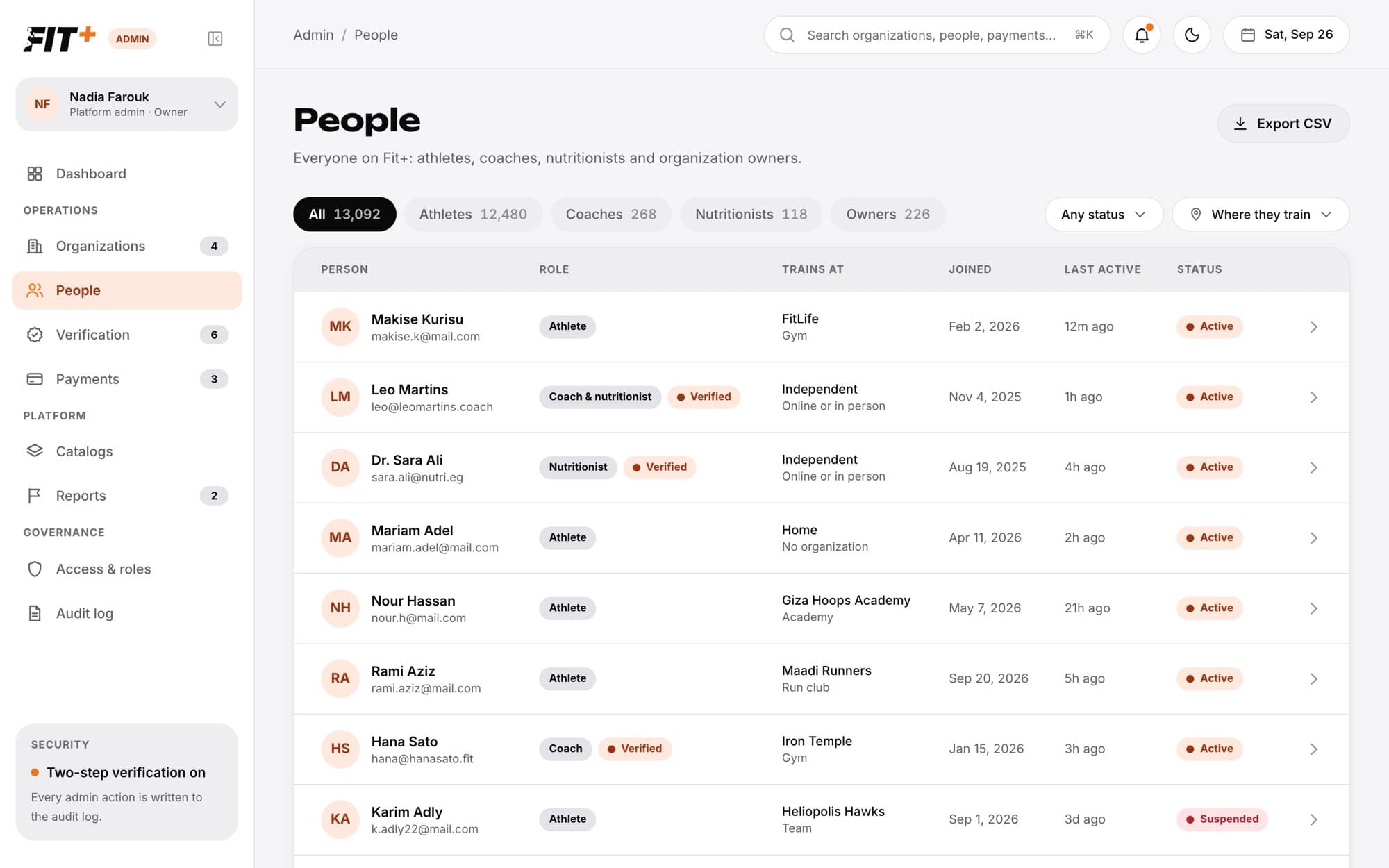
Type their name in the search box in the top bar and press Enter. Under People, choose the person, or choose View all to see the matches in the People list. The People list also matches on email and account reference.
Or browse the list
Choose People in the sidebar. Use the tabs to show All, Athletes, Coaches, Nutritionists or Owners. Filter by status (Any status, Active, Suspended) or by Where they train (gym, club, team or home).
Open their page
Choose a row to open the person's details.
Each row shows the person's role, where they train, when they joined, when they were last active and whether their account is active or suspended. Coaches and nutritionists with no gym show Independent, and athletes with no gym show Home.
To download the current list as a spreadsheet, choose Export CSV. It contains contact and role details only.
Read a person's details
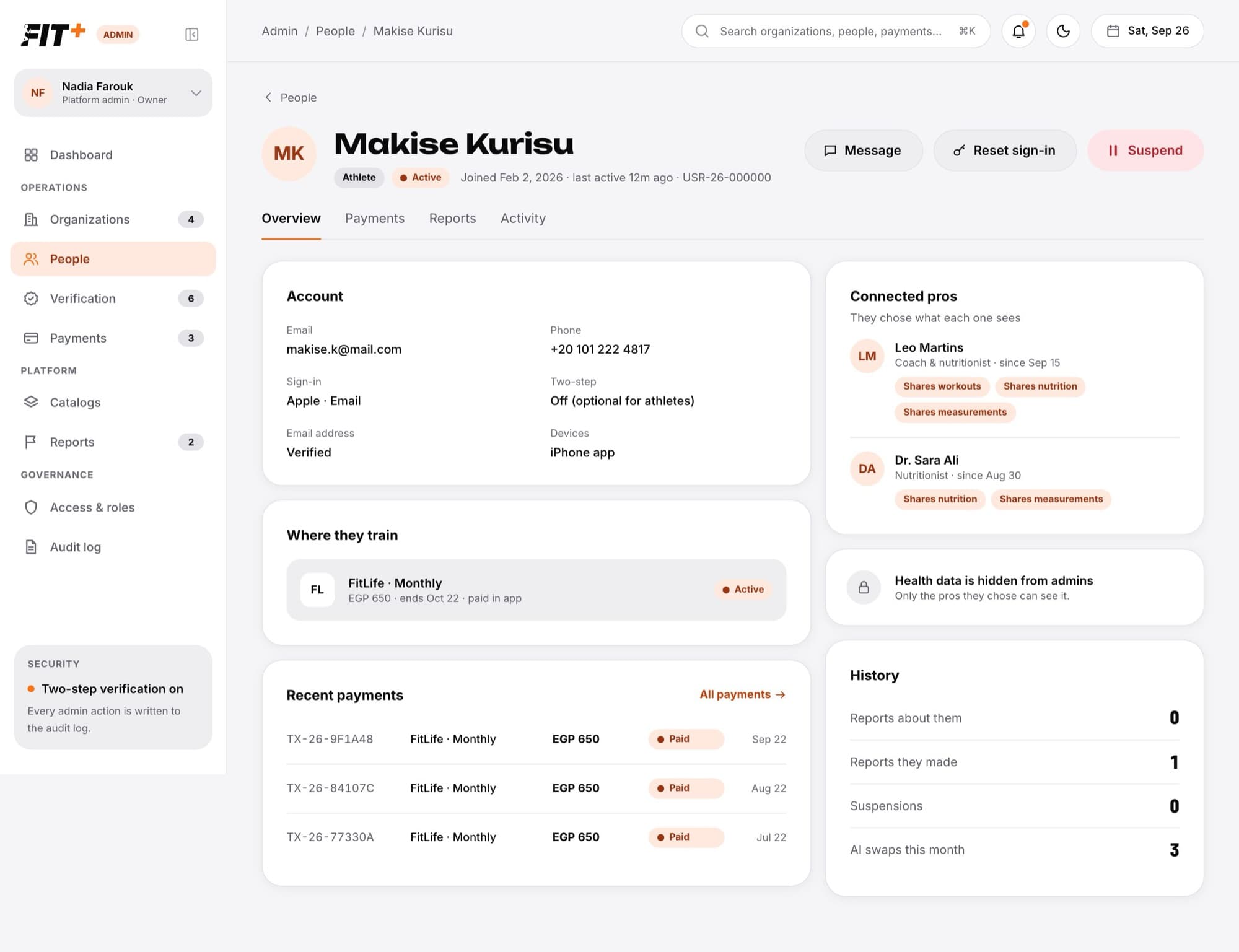
At the top you'll see their role, status, join date, last activity and a short account reference (starting with USR) that they can read out to you on a call. The page has four tabs:
- Overview: their email and phone, how they sign in (for example Apple or email), whether two-step verification is on, whether their email is confirmed, and which phones they use Fit+ on. It also shows where they train, their latest membership, the coaches and nutritionists they share with, their history (reports and suspensions) and recent payments and activity.
- Payments: their recent membership payments.
- Reports: reports about them and reports they made.
- Activity: recent actions by or about them, with a link to the full audit log.
Health data is hidden from admins
Under Connected pros you can see who a member shares with and what kind of data (for example "Shares workouts"). You never see the data itself. Only the pros they chose can see it.
Choose Message to write to them from your email.
Add a professional
Coaches and nutritionists usually apply and are checked in Verification. You can also create an account for one yourself.
Choose Add professional
It's at the top of People, next to Export CSV. If you're on the Nutritionists tab, the form starts with Nutritionist picked. You'll also find it on the Coach and Nutritionist entries in Access & roles.
Fill in their details
Enter their Full name and Email address. You don't choose a password for them. Choose the Professional role: Coach / personal trainer, Nutritionist, or Coach and nutritionist. You can also add a Headline, Qualifications, an About text and a Profile photo.
Choose Create account
Fit+ emails them straight away, with the subject "Your Fit+ professional account is ready" and a Set your password button.
What they do next
They open the email, select Set your password and choose their own password. Then they sign in to Fit+ on the website with the same email address and their new password.
The link works once and only for a limited time. If it has expired, they can still open it and ask for a new one there, or use Forgot password? on the sign-in page.
Until they choose their password, they show Waiting for password. If they can't find the email, or the link has expired, select Resend setup email next to their name. Fit+ sends them the email again with a new link.
They can finish their profile and pricing after they sign in. They only see a member's data when that member chooses to share it with them. The email must not already have a Fit+ account. Every account you create is recorded in the audit log.
Reset someone's sign-in
Use this when someone can't get into their account or thinks someone else has access.
Choose Reset sign-in
It's at the top of the person's page.
Check the email address
The dialog shows the address the reset email will go to.
Confirm
Choose Reset sign-in. They're signed out on every device and get an email to choose a new password.
If the email can't be sent, they're still signed out. Ask them to use Forgot password on the sign-in screen.
Suspend an account
Suspending stops someone from signing in on any device. Their plans, history and shared data are kept.
Choose Suspend
It's at the top of the person's page.
Write the reason
The person sees this reason in the app, so keep it clear and polite (at least 5 characters).
Choose how long
Choose Until reviewed, 7 days or 30 days.
Confirm
Choose Suspend account. They're signed out straight away and told why in the app.
Their page then shows a banner with the date, how long it lasts and the reason.
Restore an account
Open the person's page and choose Restore account. They can sign in again straight away and get a notification that their account is active again.
Common questions
Platform admins and Support. Finance can look at people but not change anything. See Admin roles and team.
No. Accounts are deleted from an Account closure request in Support. See Close a member's account.
These actions are hidden for admin accounts, and you can't use them on your own account. To stop an admin's access, remove it on Access & roles first.
When a 7 or 30 day suspension ends, the person can sign in again, but their status in People stays Suspended until you choose Restore account.
Yes. When you handle a report, you can choose Suspend account. It works the same way. See Handle reported content.
Gym roles are managed by the gym owner. Coach and nutritionist roles come from pro verification. Admin roles are managed on Admin roles and team.