

Handle reported content
Review what people flagged in Community, on profiles and in chats, then dismiss it, warn the author, suspend them or remove it.
Reports is where the Fit+ team handles posts, comments, profiles and chat messages that people have flagged. Aim to resolve each report within 24 hours. This page shows you how to read a report and make a decision.
Before you start
- Platform admins and Support can handle reports. Finance can't open Reports.
Open the queue
Choose Reports
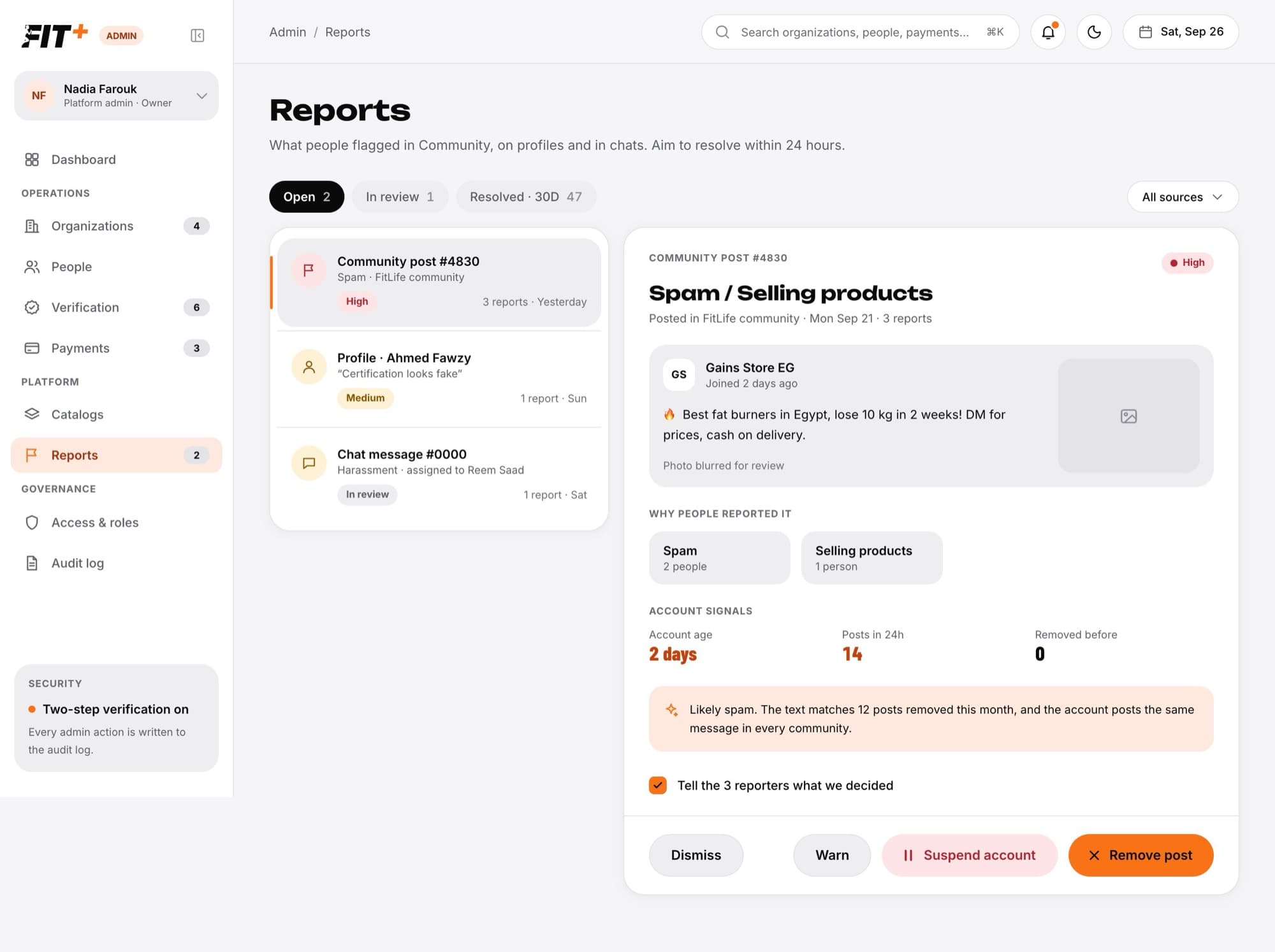
Choose Reports in the sidebar. The number next to it is how many reports are still open.
Pick a tab
Open shows new reports, In review shows those someone is working on, and Resolved · 30D shows decisions from the last 30 days. Use All sources to show only community posts, comments, profiles or chat messages.
Choose a report
The most serious reports come first, then the oldest. When several people report the same thing, it appears once, with the number of reports.
How serious is it?
| Severity | When |
|---|---|
| High | 3 or more reports, or any report of harassment or hate |
| Medium | 2 reports, or any report of fake credentials, impersonation or selling products |
| Low | Everything else |
Read the report
- What was reported: a copy of the post, message or profile as it was when it was reported, with the author and how long they've had an account. Photos are blurred. The copy is kept even if the content is later removed.
- Why people reported it: each reason and how many people chose it, plus anything they wrote.
- Account signals: the author's account age, how many posts they made in the last 24 hours and how many of their posts were removed before.
- A short summary from the Fit+ AI, when one is available. If there isn't one, decide from the content and signals.
The person who was reported never sees who reported them.
Make a decision
Decide whether to tell the reporters
The box to tell the reporters what you decided (for example Tell the 3 reporters what we decided) is ticked by default. Untick it if you don't want them told.
Choose a decision
- Dismiss: nothing changes. You can add a note about why it stays up. Reporters are told it doesn't break the community guidelines.
- Warn: write a message to the author (at least 5 characters). They get a warning in the app.
- Suspend account: write the reason they'll see and choose Until reviewed, 7 days or 30 days. It works the same as suspending from People.
- Remove (for example Remove post): the post, comment or message is deleted. For a profile, the headline, bio and photo are cleared and a professional profile is hidden. You can add a note for the author, who is told it went against the community guidelines.
Confirm
The report moves to Resolved · 30D.
What happens next
- The author and, if you chose, the reporters are told in the app.
- Your decision is saved in the audit log, with who was told.
- If another admin resolved the same report first, you'll see a message saying so. Refresh to see their decision.
Common questions
No. Removed posts, comments and messages are deleted. The copy kept with the report lets you look back at what was removed.
30 days, in the Resolved · 30D tab. After that you can still find the decision in the audit log.