

Verify coaches and nutritionists
Check a professional's identity, qualifications and workplace, ask for more information, and approve or decline their application.
Coaches and nutritionists apply from the Fit+ app or website. Before they can take clients, someone on the Fit+ team checks who they are and what qualifications they hold. This page shows you how to review an application and make a decision.
Before you start
- Platform admins can approve and decline. Support can work through the checks and ask for more information. Finance can't open Verification.
- Have a way to see the applicant's ID, such as a short video call.
Open the queue
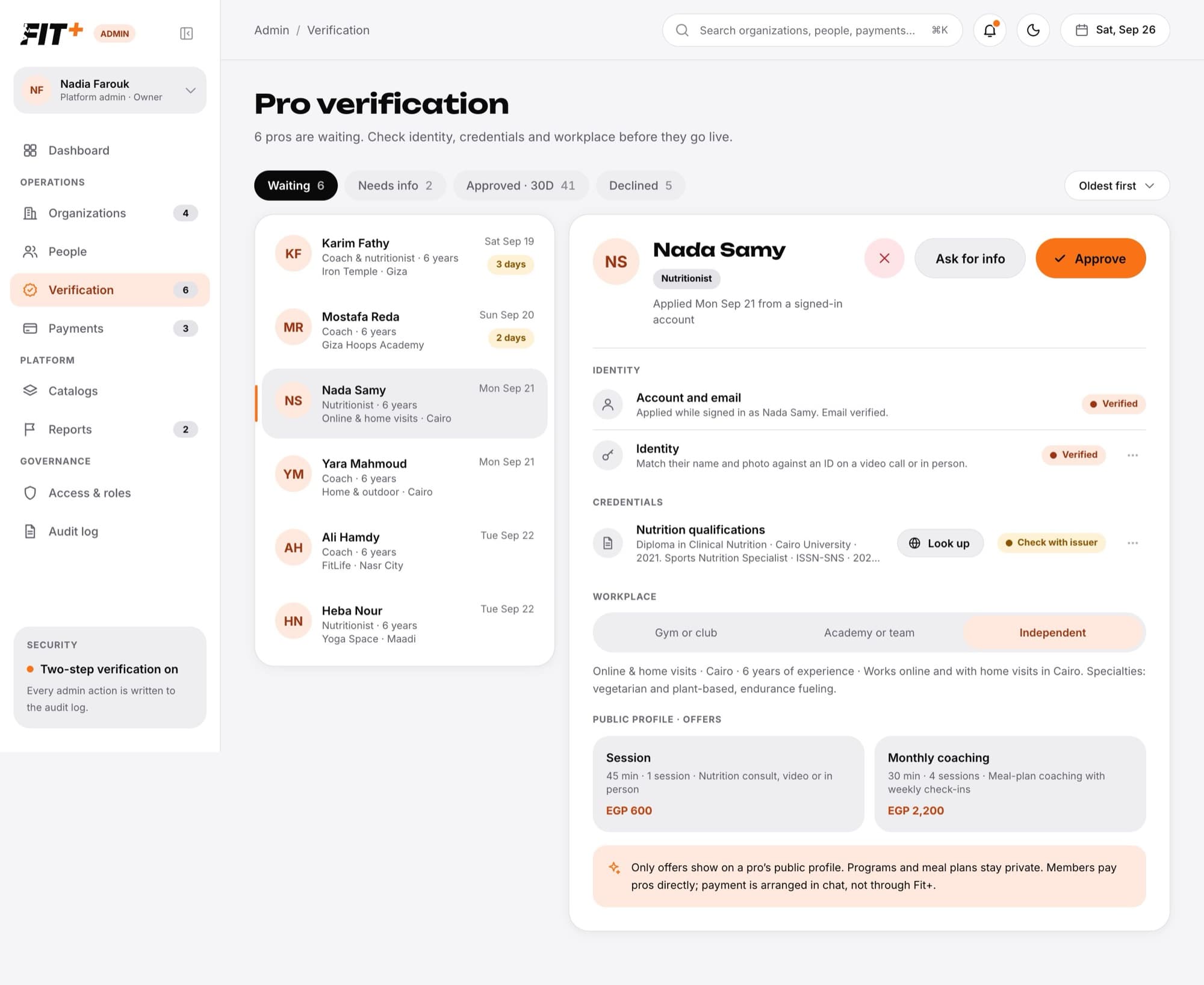
Choose Verification
Choose Verification in the sidebar. The number next to it is how many applications are waiting. New applications also show up in your notifications.
Pick a tab
Waiting shows new applications, Needs info shows those where you've asked for more, Approved · 30D shows approvals from the last 30 days, and Declined shows declined ones. Sort by Oldest first or Newest first.
Choose an applicant
Their details open on the right. Applications waiting 2 days or more have an age badge, so you can see who's been waiting longest.
Review an applicant
The applicant's page shows whether they're applying as a coach, a nutritionist or both, and whether they applied while signed in to Fit+ or without an account. Work through each section:
- Identity: match their name and photo against an ID on a video call or in person. Account and email shows the account they applied from, or the email they'll use to activate.
- Credentials: their coaching or nutrition qualifications. Choose Look up to search for the issuer online.
- Workplace: whether they work at a gym or club, an academy or team, or independently.
- Public profile · offers: the sessions and coaching packages they plan to offer, with prices.
Mark each check
Choose the ... menu next to a check, then Mark verified, Check with issuer or Mark failed. Choose Clear to start that check again. Only admins see these checks.
Members pay coaches and nutritionists directly, arranged in chat. Fit+ doesn't take payment for pro services, so offers are only shown for information.
Ask for more information
Choose Ask for info
It's at the top of the applicant's page.
Say what you need
Type it under What do you need?, for example a photo of their certificate from the issuer.
Send it
The application moves to Needs info.
If they applied while signed in, they see your message in the app. If they applied without an account, nobody is told automatically. The confirmation shows their email so you can write to them yourself.
Approve an application
Choose Approve
It's at the top of the applicant's page.
Add a note and confirm your checks
Add a Note for the audit log about what you checked, if you like. Tick I checked their identity and credentials.
Choose Approve again
The applicant gets an email with a link to set up their professional account.
If they applied while signed in, their coach or nutritionist access turns on straight away and they're told in the app.
Decline an application
Choose the decline button
It's the red X at the top of the applicant's page.
Write the reason
They're told the reason (at least 5 characters). They can apply again later.
Choose Decline
The application moves to Declined.
Follow their activation
After you approve someone, the application shows an Activation tracker with three steps:
- Approved, with the date and who approved it.
- Activated, when their professional access is on.
- Profile published, when they've finished setting up and appear in Find a pro.
Until they activate, you can choose Copy activation link to share it with them yourself, or Resend setup email. They open the link on any device and sign in with the email on their application.
Add a professional yourself
You don't always need an application. Platform admins and Support can create a coach or nutritionist account directly with Add professional in People. See Add a professional.
Common questions
No. A coach or nutritionist only sees a member's data after that member chooses to share it with them.
Two people decided at the same time. Refresh the page to see their decision.
Up to 3 times per application. If they still don't get it, copy the activation link and send it to them yourself.
Find a person and manage their account
Look someone up, read their account details, add a coach or nutritionist, reset their sign-in, and suspend or restore their account.
Check payments, payouts and subscriptions
See membership payments, follow up failed ones, check what each organization is owed, set the Fit+ fee and review subscriptions.