

Give temporary access
Add one extra permission to a team member for a limited time, including read-only access to financial records.
Sometimes a team member needs one extra permission for a short time: covering a colleague on holiday, helping with an audit, or looking into a payment problem. Instead of changing their role, give them a temporary grant. It ends on its own, and every use is logged.
Before you start
- Only Platform admins can give grants.
- You can give a grant to another member of the Fit+ team, not to yourself.
- A grant can last up to 90 days.
Choose the right permission
| Extra access | What it adds |
|---|---|
| Payouts · view | See payments and payouts |
| Payments · refunds | Full payments access, including cancelling memberships and changing the fee |
| Organizations · suspend | Full organizations access, including approving, suspending and restoring |
| Reports · handle | Handle reports: dismiss, warn, suspend or remove |
| Audit log · read only | Read the audit log |
| Finance workspace · view | Read-only access to financial records in the finance viewer, plus seeing payments |
A grant can only add access. It never takes away what someone's role already allows.
Give a grant
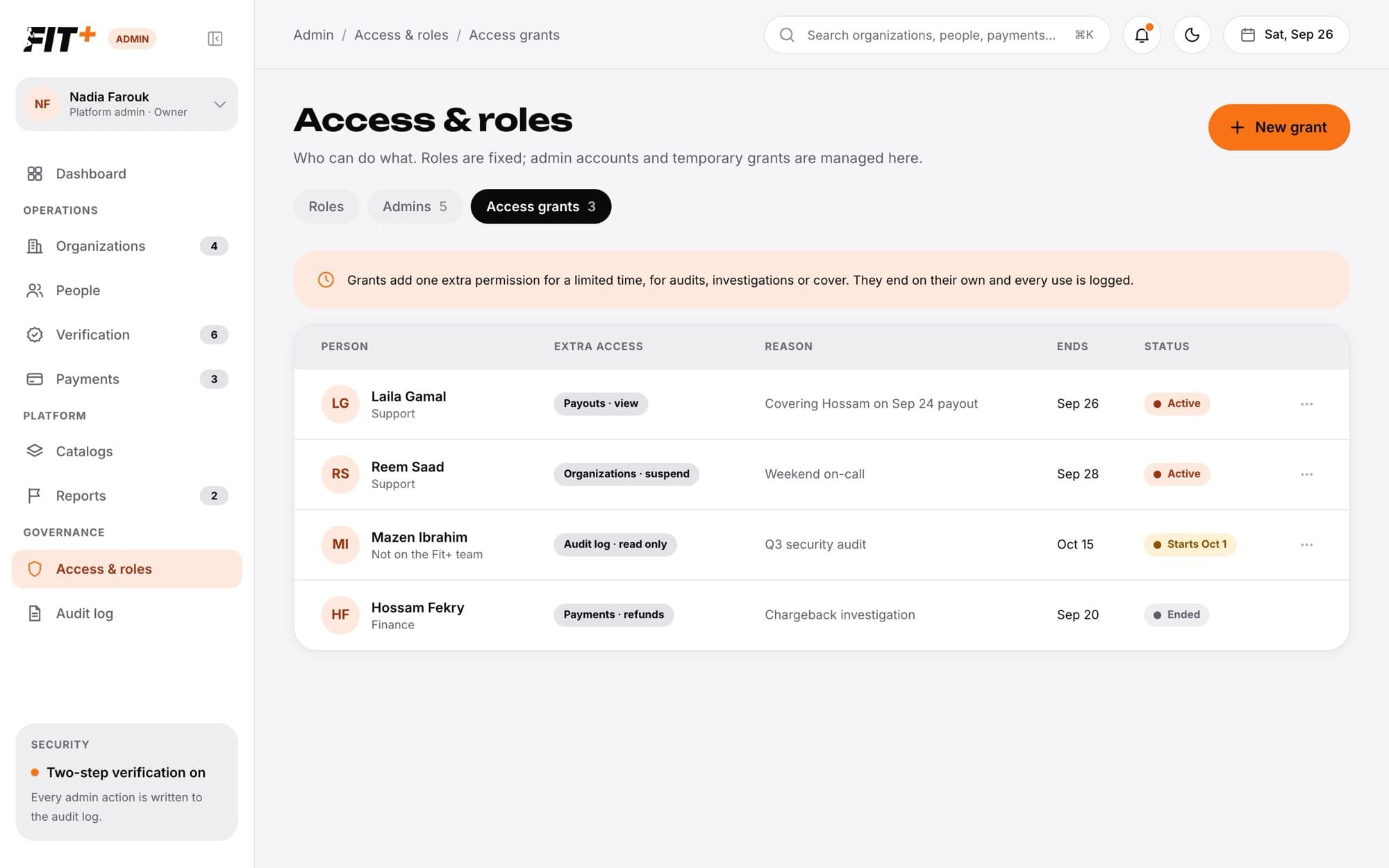
Open Access grants
Choose Access & roles in the sidebar, then the Access grants tab.
Choose New grant
The New access grant dialog opens.
Choose the person
Pick a Fit+ team member under Person.
Choose the extra access
Pick one permission under Extra access. For read-only financial records, choose Finance workspace · view.
Write the reason
Explain why they need it, for example "Covering Hossam on the Sep 24 payout". The reason is saved with the grant.
Set the dates
Choose when it Starts and when it Ends. The end must be within 90 days of the start.
Save
The grant appears in the list. It starts on the date you chose and ends on its own.
What happens next
- The grant shows as Active, or Starts with a date if it begins later. When it ends, it shows Ended and stays in the list.
- The grant is recorded in the audit log with the reason and end date.
- With Finance workspace · view, the person gets a Finance viewer workspace in their account menu. See View financial records.
End a grant early
On the Access grants tab, choose ... on the grant's row, then End grant now. The extra access stops straight away.
Common questions
The Person list in the admin website only shows Fit+ team members, so you can't set that up here.
No. Give a new grant when the first one ends, or change the person's role if they need the access for good.