

Edit the Fit+ lists
Keep the Fit+ lists of equipment, muscles and sports up to date in every language, see the diets and allergens members see, and add popular own entries to Fit+.
Lists holds the Fit+ lists that pickers show in the app and on the website: equipment, muscles, sports, diets and allergens. Everyone sees them in their own language. Each entry has a key that never changes, so what people saved keeps working.
Before you start
- Platform admins can change the lists. Other admin roles can look at them, but the buttons to change them don't show.
Open Lists
Open Catalogs
Choose Catalogs in the sidebar.
Choose Lists
Choose the Lists tab. You can also choose Edit this list on the Equipment or Muscle groups tab.
Pick a list
Choose Equipment, Muscles, Sports, Diets or Allergens.
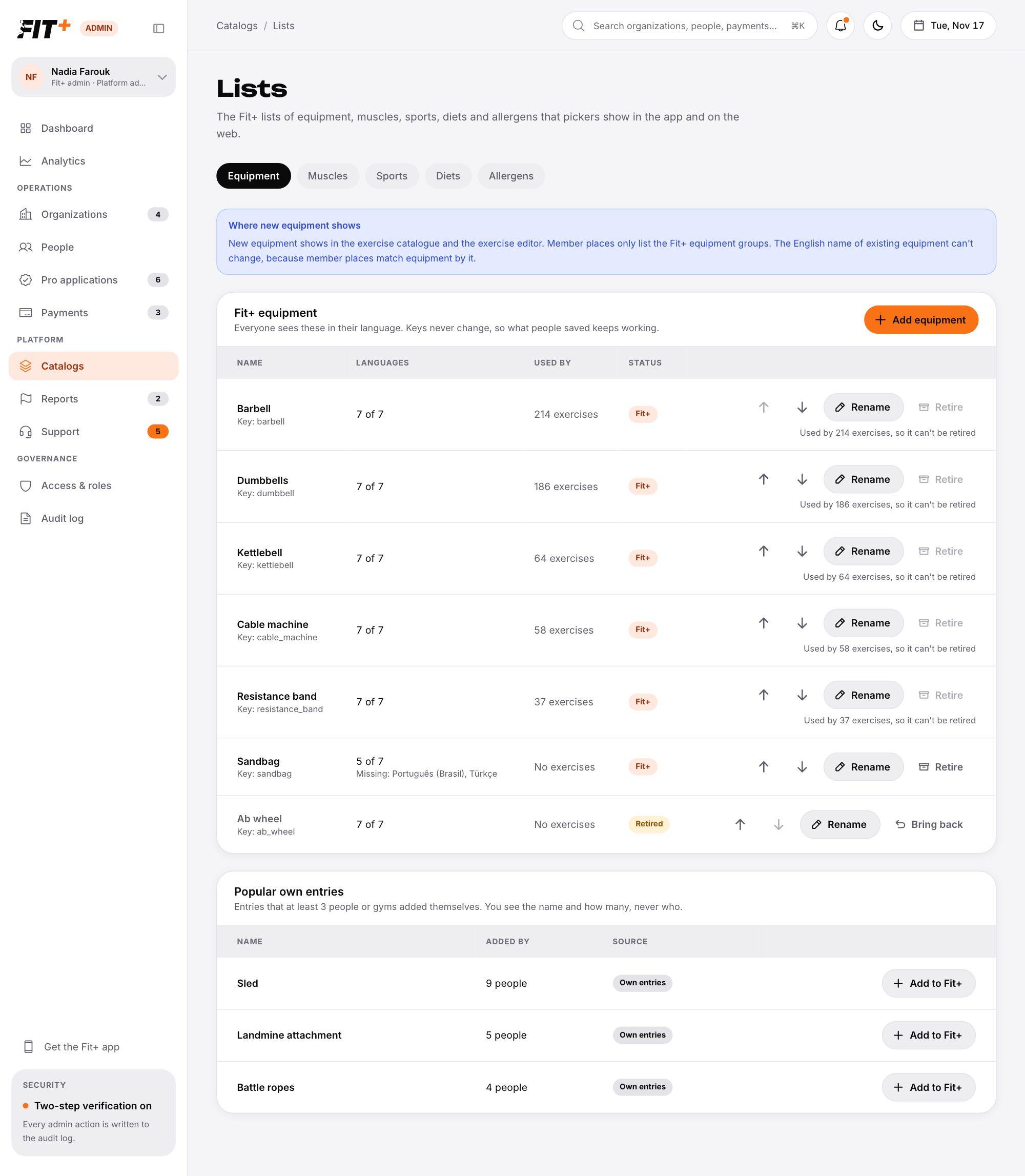
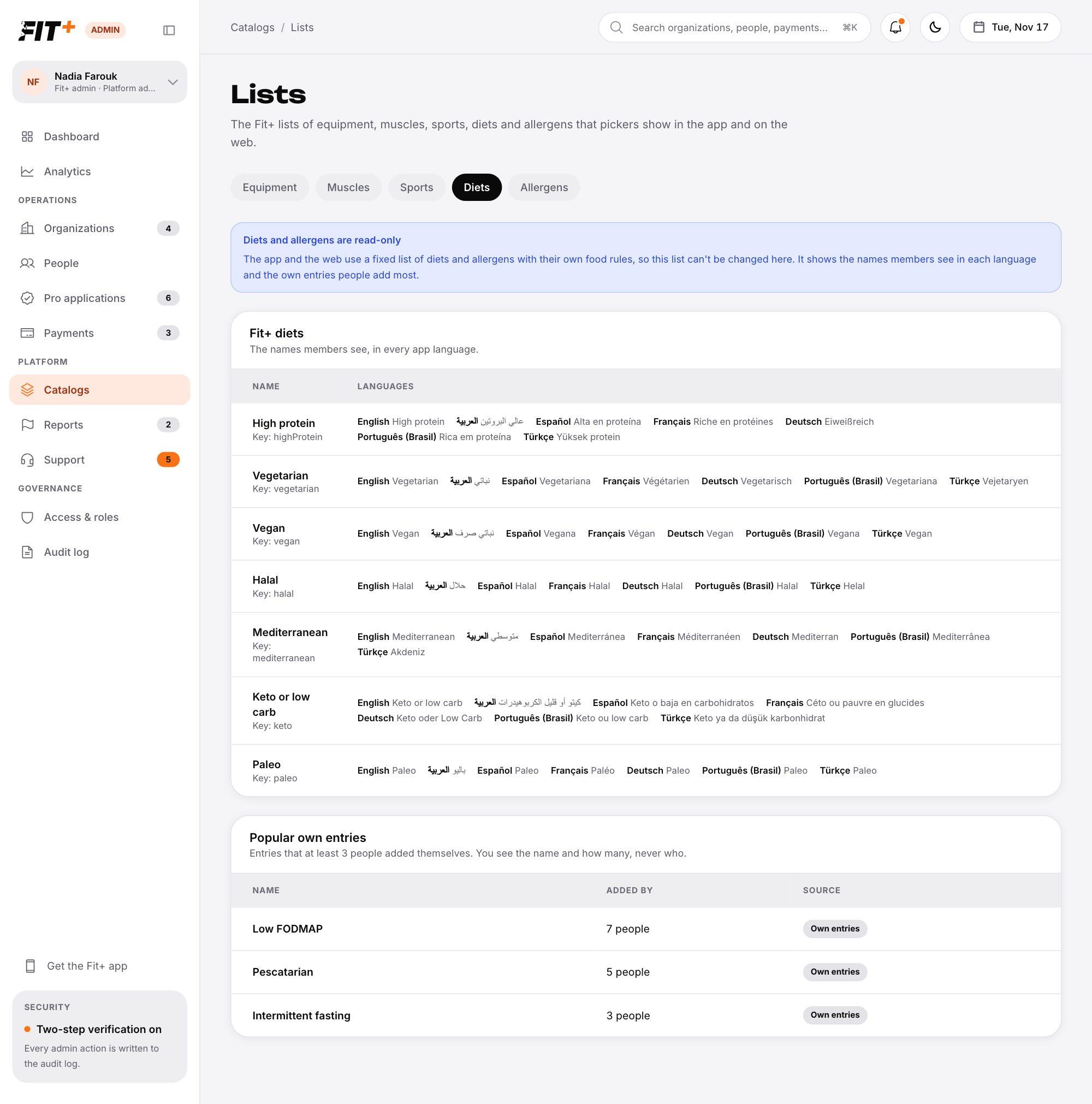
Each entry shows its Name and key, its Languages (for example "5 of 7", with the missing ones listed), how many exercises use it under Used by, and its Status: Fit+ or Retired.
What you can change on each list
| List | What you can do |
|---|---|
| Equipment | Add, rename, reorder, retire and bring back. The English name of existing equipment can't change. |
| Muscles | Rename and reorder only. Muscles can't be added or retired, so the muscle map and records keep working. |
| Sports | Add, rename, reorder, retire and bring back. |
| Diets and Allergens | Read only. The app and the website use a fixed list with its own food rules. You see the names members see in each language. |
Add an entry
Choose Add
For example Add equipment or Add a sport.
Name it
Name it in English and in as many other languages as you can. A missing language shows the English name.
Save
Choose Save. A message says it's on the list.
New equipment shows in the exercise catalog and the exercise editor. Member places only list the Fit+ equipment groups.
Rename or reorder an entry
- Choose Rename, change the names and choose Save. The key stays the same, so everything saved with it keeps working.
- For existing equipment, the English name stays as it is, because member places match equipment by it. You can still change the other languages.
- Use the up and down buttons to move an entry. The new order is saved straight away.
Retire or bring back an entry
Choose Retire, then Retire again. The entry leaves every picker. Plans, places and answers that already use it keep it.
An entry that exercises still use can't be retired. It says how many exercises use it.
Choose Bring back to put a retired entry back in the pickers.
Popular own entries
People and gyms can add their own entries, such as a piece of equipment that isn't on the Fit+ list. Under Popular own entries you see the entries that at least 3 people or gyms added themselves. You see the name and how many, never who.
To make one part of the Fit+ list:
Choose Add to Fit+
It's next to the entry.
Name it in every language you can
The English name is required.
Save
Choose Save. The entry is now on the Fit+ list. The people who added it keep their own entries.
On Diets and Allergens you can see the popular own entries, but not add them.
Common questions
Members' places match equipment by its English name. Changing it would break their places. Change the other languages instead.
In the audit log, like other catalog changes.