

Log a meal from a photo, barcode or label
Snap a photo of your plate for a calorie and macro estimate, scan a product barcode, or read a nutrition label, then check the result before you save it.
Logging food with your camera is quick. Snap your plate and Fit+ estimates the calories and macros, scan a barcode to look up a packaged product, or photograph a nutrition label to save a food with its exact values. You always check the result before anything is saved.
Before you start
- Fit+ needs access to your camera. The first time, you'll see Let Fit+ use your camera. Tap Allow camera, then allow it in the message from your phone.
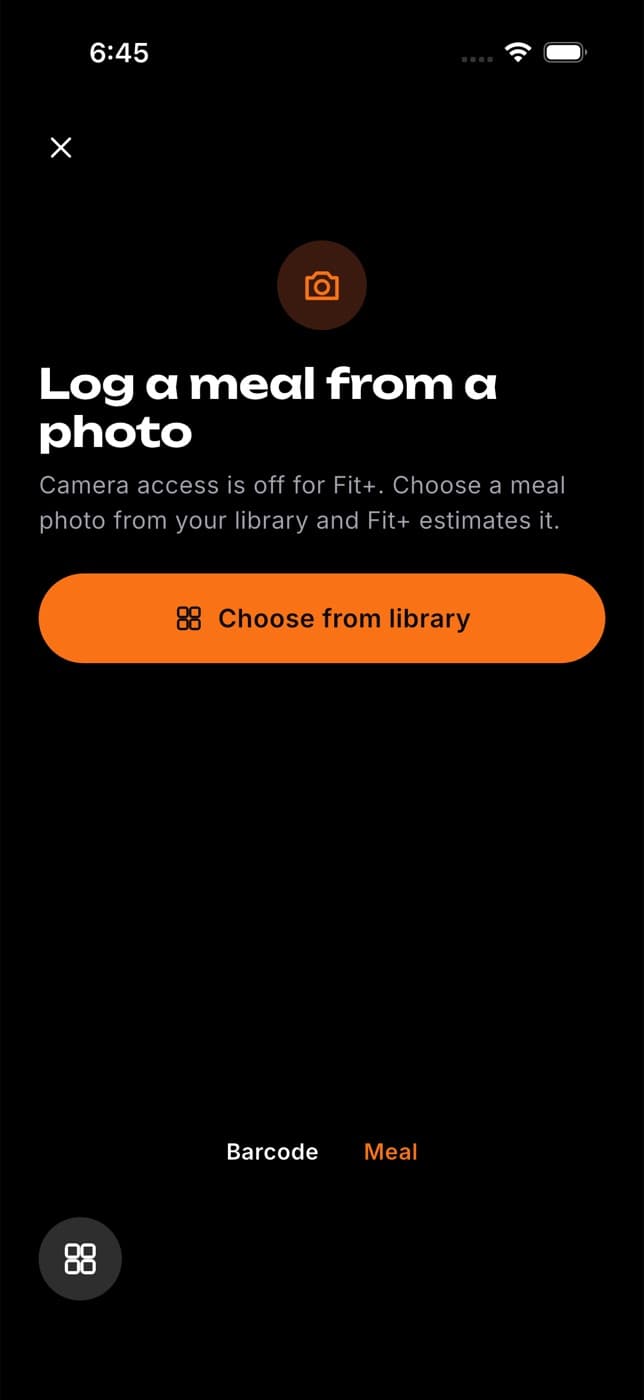
- If you tap Not now, you can still choose a photo from your library or type a barcode number.
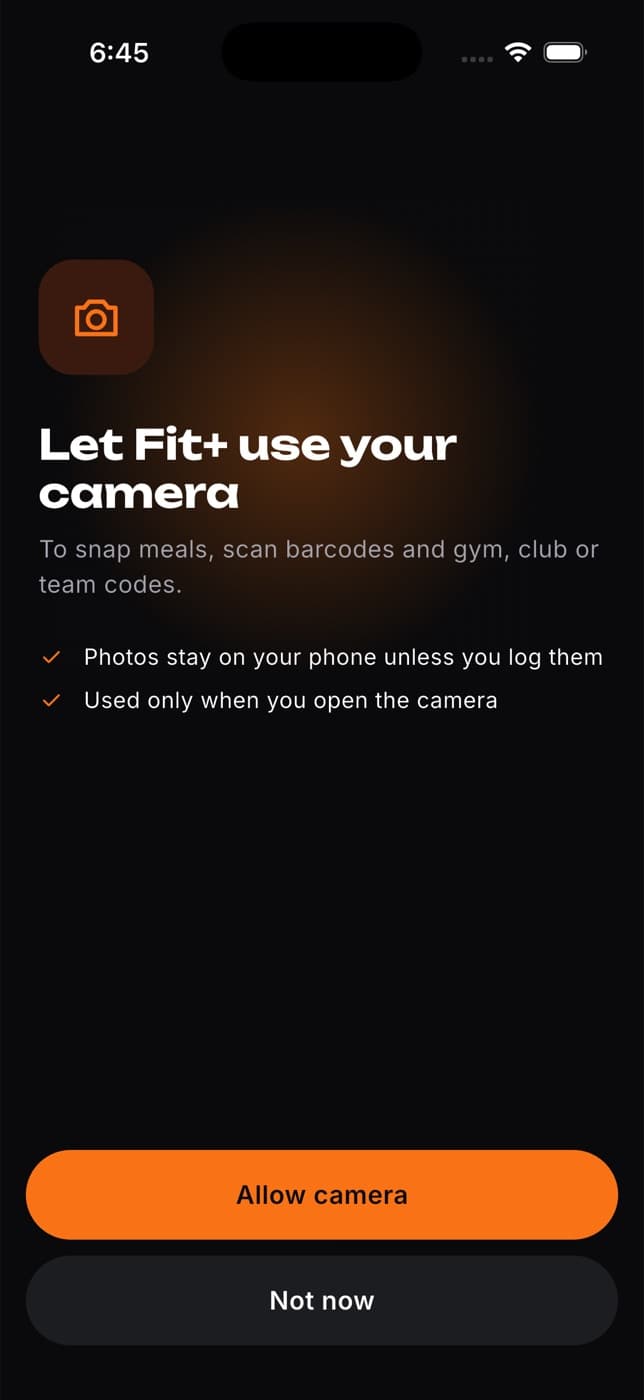
Your photos stay on your phone unless you log them, and Fit+ only uses the camera when you open it.
The camera has three modes at the bottom: Barcode, Meal and Label. Tap one to switch.
Snap a meal
On Fuel, tap Log food, then Snap a meal.
Make sure Meal is selected at the bottom of the camera.
Fit the whole plate in the frame and tap the shutter. To use a photo you already took, tap the photo library button.
The first time, Fit+ asks Allow AI meal estimates? Tap Allow AI processing to continue, or Keep AI off to stop. You can change this later in Me, then Settings, then Security.
Check the estimate (see below), then tap Log to and the meal name.
Scan a barcode
On Fuel, tap Log food, then Scan barcode.
Line up the barcode inside the frame. Fit+ reads it on its own.
If it won't scan, tap Type the number, enter the 8 to 14 digits under the barcode and tap Look up product.
Check the product details, set your portion, then tap Log to and the meal name.
Scan a nutrition label
Use this for a packaged food that has no barcode match, or when you want the exact values from the pack. Fit+ reads the label, and you can save the food to My foods to log it again later.
Open the camera from Snap a meal or Scan barcode, and tap Label at the bottom. You can also tap Scan a label on the empty My foods tab in Log food.
Fit the nutrition label in the frame and tap the shutter, or choose a photo of the label from your library.
The first time, Fit+ asks Allow AI label reading? Tap Allow AI processing to continue.
On Check the label, compare each value with the pack:
- Name of the food.
- Serving: the serving amount and unit the label gives. Add the Grams per serving if you know it (optional).
- Calories, Protein, Carbs and Fat are required. Fibre, Sugar and Sodium are optional.
Under How much you had, set the number of Servings. Tap change meal to pick another meal.
Tap Log to and the meal name. To keep the food for next time, also tap Save as a food.
Saved foods appear in My foods in Log food. See Log your usual foods and meals.
Check the result before saving
The result screen shows:
- where the numbers came from. A photo estimate says how sure Fit+ is, for example "72% sure, check it".
- the food's name, and the meal it goes in. Tap change meal to pick another.
- the calories, with + and - to change your portion (in grams for a product, or in portions for a photo)
- Protein, Carbs and Fat
- whether it fits your targets, for example "Fits your plan: 420 kcal left after this."
- for photos, the ingredients Fit+ spotted and their amounts
Nothing is saved until you tap Log to and the meal name.
A photo or label reading is a best guess. Check the portion and the numbers, and use Quick add if you know the exact values.
If something goes wrong
| You see | What to do |
|---|---|
| "We couldn't read this photo" | Try a clearer photo, or tap Enter it manually |
| "We couldn't read a nutrition label in this photo" | Try a sharper photo taken straight on, or type the values in |
| "This product wasn't found" | Scan the nutrition label instead, or tap Enter it manually |
| "Photo estimates are unavailable right now" | Try again in a moment, or enter it manually |
| "You've reached the hourly limit" | You can scan about 20 photos, barcodes or labels an hour. Use Quick add or try again later |
| A connection error | Tap Try again when you're back online, or enter it manually |
Enter it manually opens Quick add for the same meal and day. See Log food and track your day.
Common questions
No. Only meal photos and label photos use AI, and only if you allow it. Barcode scans, food search and Describe a meal look up a food database.
The product doesn't list that value. It's saved as zero, so add it with Quick add if it matters to you.
Yes. Choose a photo smaller than 4 MB.
Log food and track your day
Tick off planned meals, log other food by search, description or quick add, change or copy entries, and track your water and weight on Fuel.
Log your usual foods and meals
Log foods again from Recents, keep favourites, save whole meals and keep foods of your own, so logging takes one tap.