

Log food and track your day
Tick off planned meals, log other food by search, description or quick add, change or copy entries, and track your water and weight on Fuel.
Fuel shows one day at a time: what you've eaten, how much you have left, your water and weight, and a journal of everything you logged. This page shows you how to fill it in.
Read your day
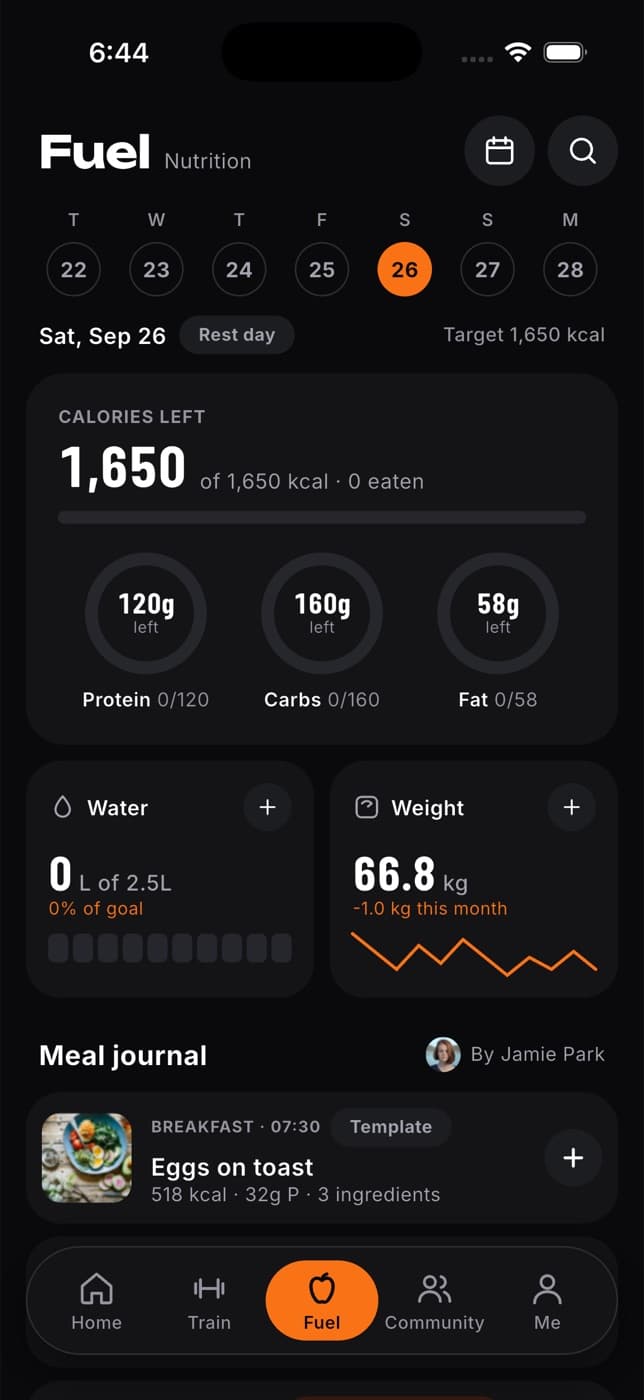
- Week strip: tap a day to see or fill it in. Days with food logged show a tick. Swipe the strip to see earlier weeks.
- Training day or Rest day, and your target for the day, when your plan feeds those days differently.
- Calories left, and rings for Protein, Carbs and Fat showing how many grams you have left. A ring changes colour if you go over. Tap the card to see all the day's nutrients.
- Water and Weight tiles (see below).
- Meal journal: your planned meals in order, then anything extra you logged.
Without a meal plan
You can track your day in full without a plan:
- Eaten today shows your calories and grams of protein, carbs and fat. Tap it to see the day's nutrients.
- Set a goal on the same card gives you daily targets. See Set your nutrition goal.
- Water and Weight work the same as with a plan.
- Below them, everything you logged that day, in the order you ate it, with a Log food button.
- To jump to any day, tap the calendar button at the top of Fuel (Pick a day).
Calories show in kcal or kJ, and water in litres or fluid ounces, depending on your units. Change them in Me, then Settings, then Units.
Tick off a planned meal
Find the meal in your Meal journal.
Tap + on the right of the meal. It turns into a tick and your totals update straight away.
You can also tap the meal to see its ingredients, then tap Mark as eaten.
Log other food
Tap Log food at the bottom of your journal.
Check the meal at the top (for example Lunch or Post-workout). Fit+ picks one from the time of day, and picks Post-workout if you finished a workout in the last two hours. Tap it to choose another under Which meal?: Breakfast, Snack, Lunch, Pre-workout, Post-workout or Dinner.
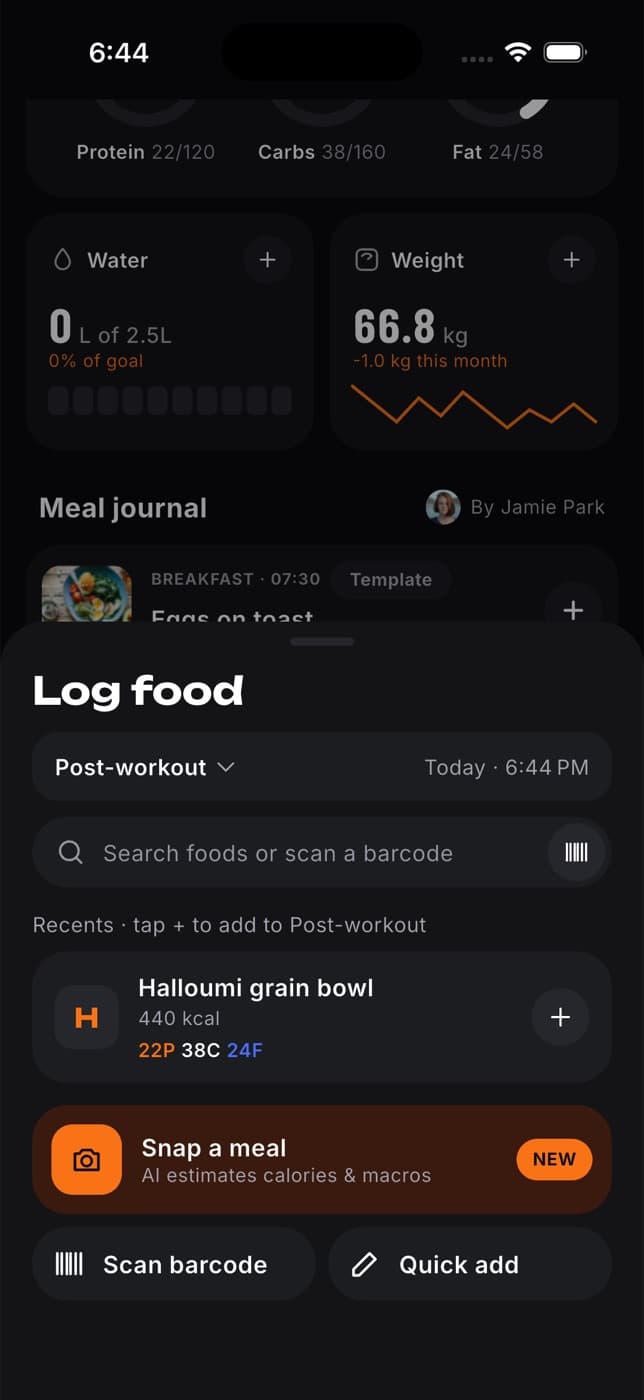
Choose how to log it:
- Tap the search field to search for a food. The barcode button inside it opens the scanner.
- Use the Recents, Favourites and My foods tabs to log something you've had before. See Log your usual foods and meals.
- Tap Snap a meal or Scan barcode to use your camera. See Log a meal from a photo, barcode or label.
- Tap Describe a meal to type or say what you ate.
- Tap Quick add to type in calories and macros.
- If you haven't logged the planned meal for that slot yet, tap Log it next to From your plan.
If you pick another day in the week strip first, anything you log goes on that day.
Search for a food
Tap the search button at the top of Fuel, or the search field in Log food.
Before you type, you'll see Recents & your plan: foods you've logged before and today's planned meals. Tap + to log one.
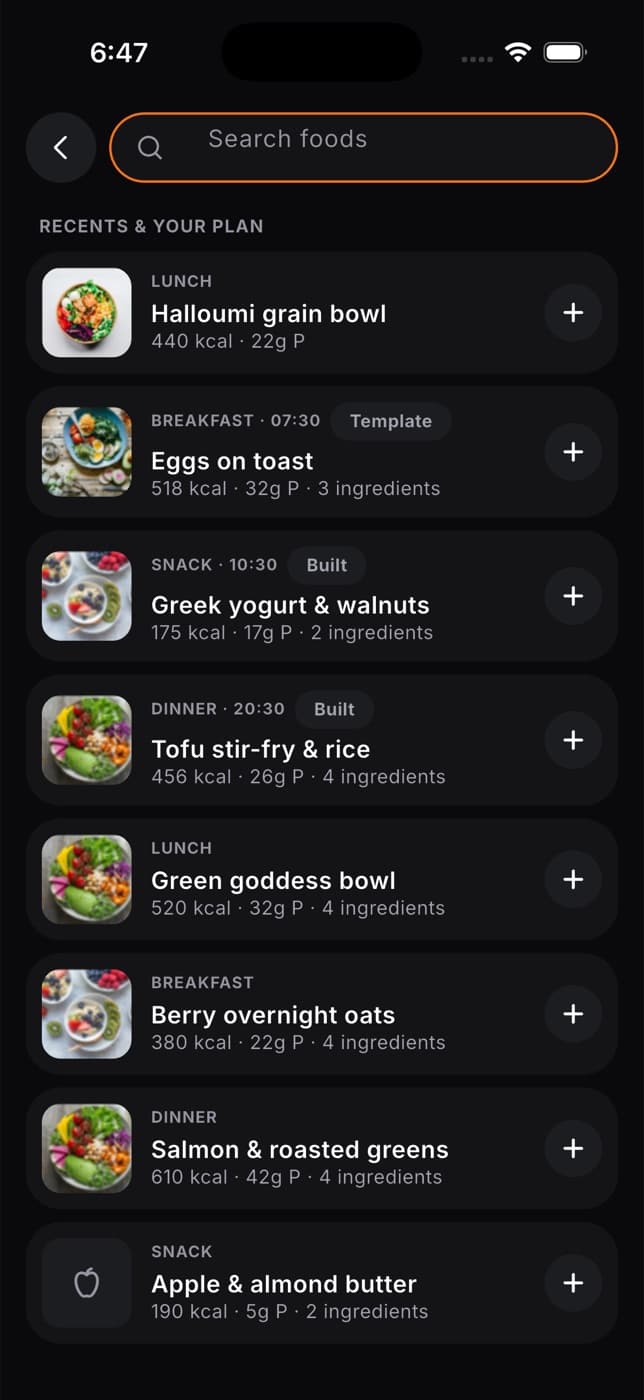
Type at least two letters to search the food database. Results show the brand and calories per 100 g.
Tap a result, set your Portion in grams and pick the meal.
Tap Log to and the meal name, for example Log to lunch.
Can't find it? Tap Quick add on the No foods match screen, and the name you typed comes with you.
Describe a meal
Write what you ate in your own words, or say it, and Fit+ finds each food for you.
In Log food, tap Describe a meal.
Type what you ate, for example "2 eggs scrambled, 2 slices of toast with butter and a flat white". To speak instead, tap the microphone (Say what you ate).
Tap Find foods. Fit+ looks up each food in the food database and shows what it found, with an amount and calories for each.
Check each food:
- Tap the amount to change it, for example from slices to grams.
- If Fit+ found a few close matches, pick the right one, or tap Add it yourself to type it in with Quick add.
- Tap the cross next to a food to remove it.
Check the meal and the Total, then tap Log and the number of foods, for example Log 3 foods.
Nothing is logged until every food has a match. Describing a meal uses the food database, not AI.
Quick add by hand
Tap Quick add.
Type a name (optional), pick the meal and enter the number of servings.
Enter the Calories per serving. Protein, carbs and fat are optional.
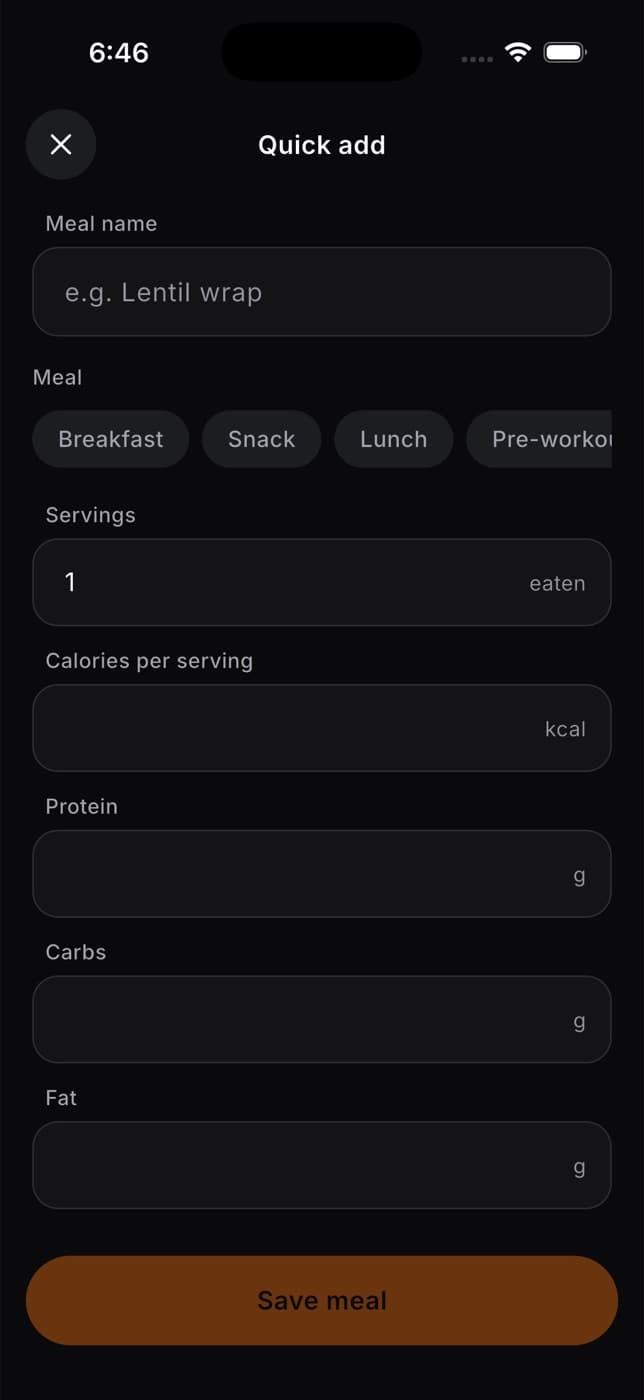
Tap Save meal.
Change an entry
You can change how much you ate, which meal it was and when.
Tap the entry in your journal.
Change the Amount with + and -. If the food has other units, such as slices, cups or servings, tap one to switch.
Tap Meal or Time to move it.
Tap Save changes.
Tap the star at the top of the entry to add the food to your Favourites.
Copy a meal or a day
Eat the same breakfast most days? Copy it instead of logging it again.
Tap the ... button next to a food you logged, then Copy to other days. (Ticked plan meals don't have this button.)
Choose This meal or Whole day.
Under Copy to, tap the days you want. You can pick any of the next seven days.
For a single meal, choose where it goes under Into: Same meal, or another meal.
To log it again later in one tap, turn on Also save as a meal and give it a name.
Tap Copy to and the number of days, for example Copy to 3 days.
The ... button also has Edit, Add to favourites and Remove from diary.
Remove an entry
Tap the entry, then Remove from diary. Or tap ..., then Remove from diary.
The entry goes straight away. Tap Undo in the message at the bottom of the screen if you removed it by mistake.
Track your water
The Water tile shows how much you've drunk today.
- With a meal plan, it shows your daily goal (2.5 litres if your plan doesn't set one) and how much of it you've reached.
- Tap + to add a 250 ml glass.
- Tap the minus button to remove the last glass you added.
Track your weight
The Weight tile shows your latest weight, in your units, and how it is changing.
- Tap + to add a new weight. See Add a health reading. Weight from Apple Health or Health Connect shows here too.
- Tap the tile to see your weight trend.
Get meal reminders
Fit+ can remind you when it's time to eat, at the times in your meal plan, or at breakfast, lunch and dinner if you don't have one. A meal you've already logged today isn't reminded. Turn on Meal reminders in Me, then Settings, then Notifications. See Manage notifications.
Common questions
Yes. Fuel shows your calories, macros, water and weight for the day, and everything you logged. To get daily targets, set a goal or pick a plan.
Yes, up to the end of the current week. Tap the day in the week strip first. To repeat a meal on the coming days, copy it.
Logging food needs a connection. If you're offline, Fuel shows your saved data but can't save new entries.
Your weekly check-in
Each Sunday, see how your week went and choose whether to use new daily targets. If a nutritionist set your plan, they approve the change first.
Log a meal from a photo, barcode or label
Snap a photo of your plate for a calorie and macro estimate, scan a product barcode, or read a nutrition label, then check the result before you save it.