

Browse the exercise library
Look up any exercise, watch its technique video, see which muscles it works and how you've done with it so far, and add it to a routine.
The exercise library has every exercise in Fit+. Use it to learn a new move, check your technique, see your progress and records, or add a move to one of your routines.
Find an exercise
Open Train and tap the book button at the top.
Type in Search exercises to search by name, muscle or equipment, or tap a body area: All, Legs, Back, Chest, Core, Shoulders or Arms. If you type an exercise's exact name, that exercise comes first, ahead of its variations (for example "Crunch" before "Reverse Crunch").
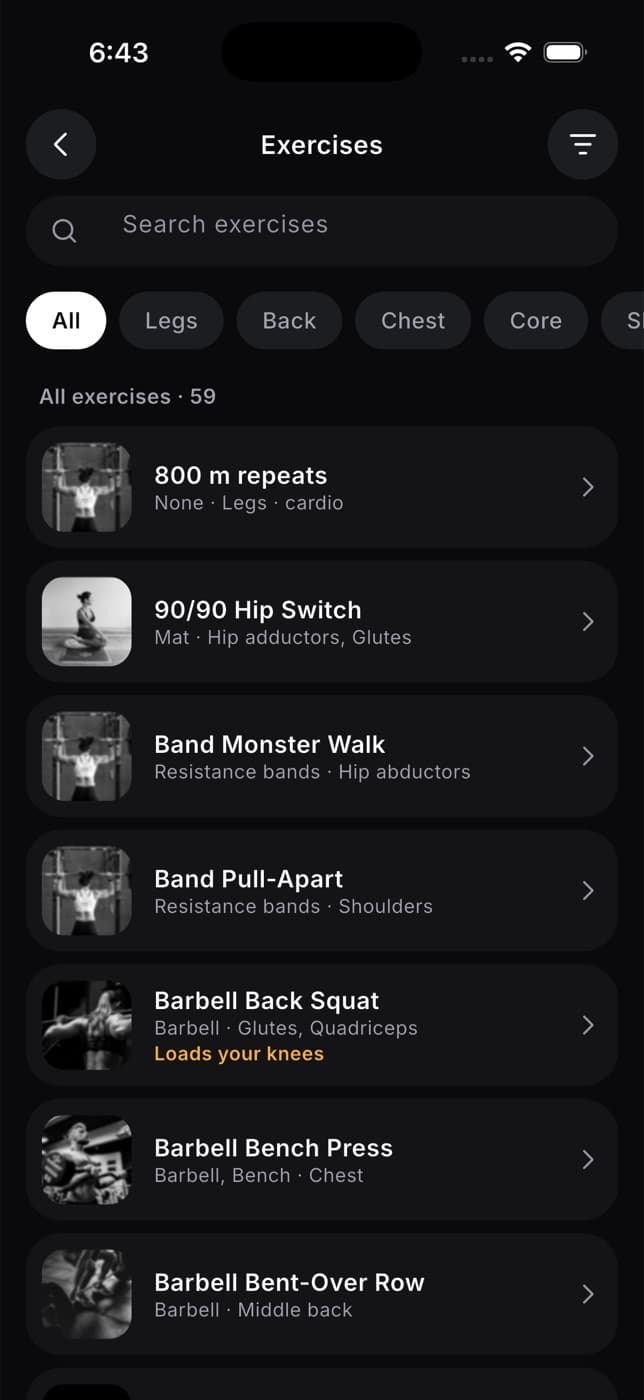
Tap an exercise to open it.
If a move loads a joint you told Fit+ is sore, it shows a warning such as Loads your knees. Exercises with a technique video show a small picture in the list that switches between the start and the peak of the move.
Use filters
Tap Filters to narrow the list by:
- Muscle, such as Quads, Glutes, Chest or Core
- Equipment, such as None (bodyweight), Dumbbell, Barbell or Band
- Level: Beginner, Intermediate or Advanced
- Classification: Compound (several joints) or Isolation (one joint)
- Joint-friendly only, if you reported sore joints. This hides moves that load them.
Tap Show exercises to apply, or Clear filters to start again.
Learn an exercise
Watch the technique video
Many exercises have a technique video at the top instead of a photo. It plays on a loop, with lines and labels drawn on the video that point out the key positions and cues.
- Tap the play or pause button at the top to stop or start the video.
- Under the video, a bar shows each step of the move. Tap a step to jump to it.
- Below the video, the current step is written out, for example "Step 2 of 3", with what to do.
If your phone is set to reduce motion, the video doesn't start on its own. Tap play to watch it.
Read the details
Each exercise has three tabs.
The muscles it works, strongest first, numbered How to steps and, where available, Common mistakes. If you've done the move before, Last session shows your top set.
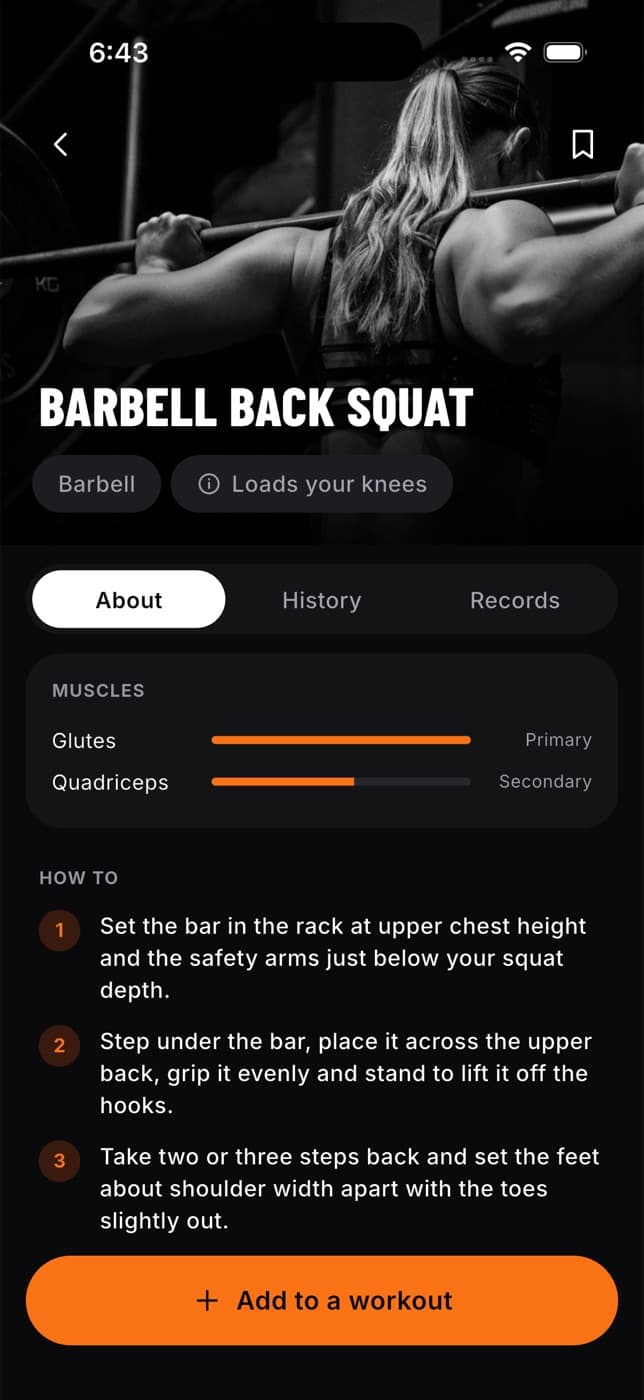
You'll see "No history yet" until you log the exercise in a workout.
Save an exercise or add it to a routine
- Tap the bookmark at the top to save the exercise.
- Tap Add to a routine, then pick one of your routines or New routine. The routine builder opens with the exercise added, so you can set its sets, reps and rest before you tap Save routine. See Build your own routine.
You can't add moves to a plan from your coach. Coach plans change through your coach: ask for a swap from the workout.
Common questions
The library needs a connection. Check your connection and tap Try again.
There isn't a list of saved exercises yet. The bookmark shows as filled when you open a saved exercise.
Yes, for many exercises. The technique video plays at the top of the exercise. Exercises without one have a photo, step-by-step instructions and, often, common mistakes to avoid.
Yes. In the routine builder, tap + Add exercise, then New exercise. Only you can see exercises you make. See Build your own routine.