

Fit+Help

Set up your venue, hours and equipment

Add your rooms, opening hours and holidays, keep your equipment list up to date and fix broken machine reports.

Venue & equipment holds the details of your space: your rooms, when you're open, holiday closures and the machines on your floor. Members can report a broken machine from the app, and you'll see it here.
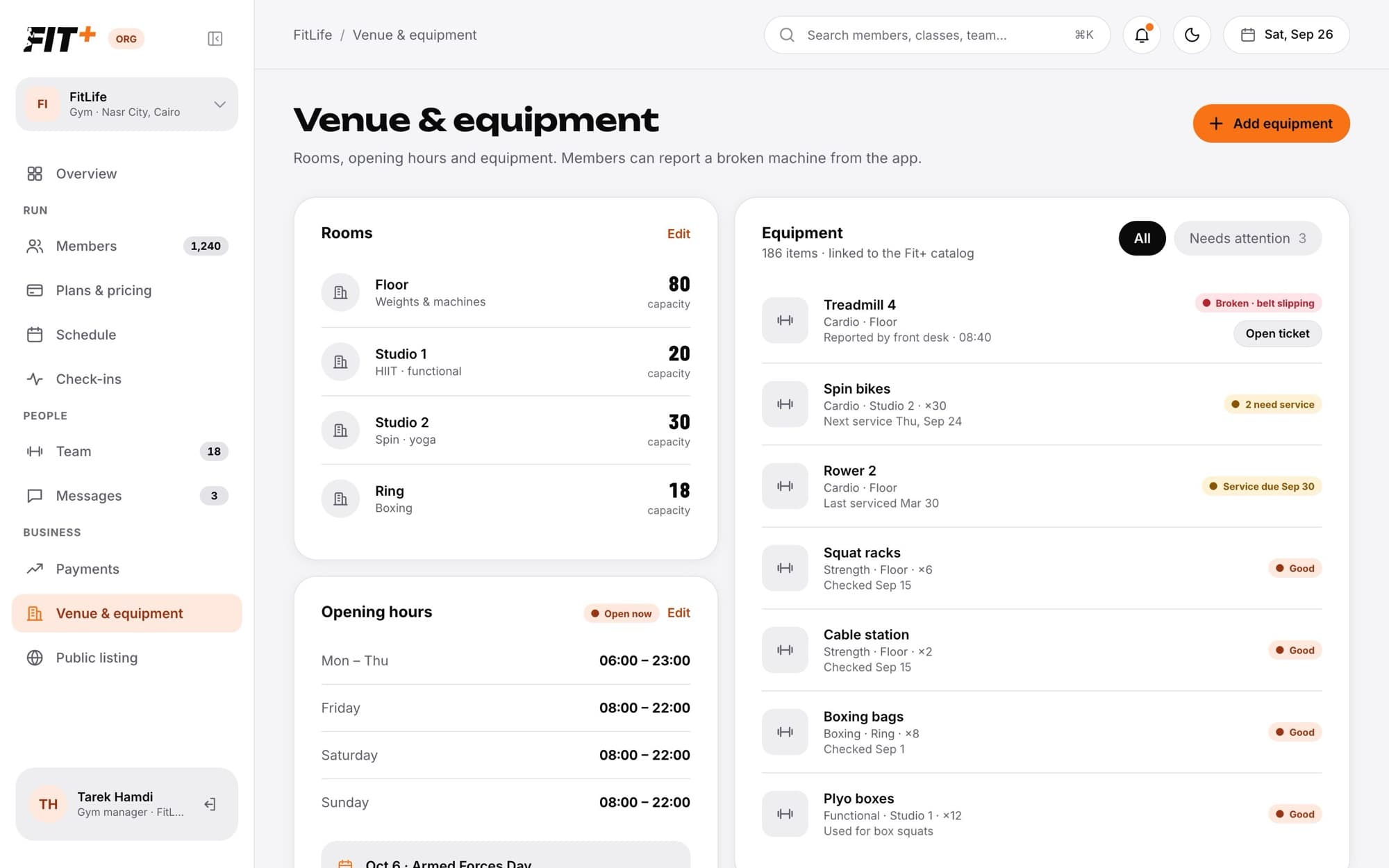
Venue & equipment with rooms and their capacity, opening hours, and an equipment list with a broken treadmill and machines due for service
Rooms, opening hours and equipment on one page.

Before you start

  • To change rooms, opening hours and holidays, you need to be the owner, or staff with Edit classes and plans.
  • Anyone on your staff can add and edit equipment and deal with broken machine reports.

Add your rooms

Click Edit next to Rooms.
Add each room or studio with its Name, what happens there and its Capacity. Rename or remove rooms here too.
Click Save rooms.

Classes are booked into rooms, and a room's capacity caps how many places a class can have.

Set your opening hours

Click Edit next to Opening hours.
For each day, set when you open (Opens) and close (Closes), or tick Closed. If you close after midnight, just set the closing time and Fit+ understands.
Click Save hours.

Your hours show on your public listing, for example "open until 23:00" or "closed now".

Add a holiday

Click + Add a holiday under your opening hours.
Choose the Day and give it a name, for example "Armed Forces Day".
Set the Opens and Closes times for that day, or tick Closed all day.
Click Add and notify. Members are told in the app straight away.

Add equipment

Click Add equipment, or click an item to edit it.
Enter the Name, choose the Type and Room, and set How many you have.
Set the Condition: Good, Needs service, Broken (with how many units are affected) or Retired, remove from the list.
Link it to the Fit+ equipment catalog if you can. This lets coaches build programs around what you actually have.
Add the Next service and Last checked dates if you track them, then save.

Fix a broken machine

When a member or staff member reports a problem, the machine is marked broken and shows under Needs you on your overview.

Click Needs attention above your equipment list to see what needs you.
Click Open ticket next to the machine. You see what was reported, for example "Belt slipping".
Click Mark fixed once it's repaired, or Checked, nothing wrong if there was no problem.

Mark fixed puts the machine back in use and thanks whoever reported it.

To report a problem yourself, open the item and click Report a problem.

Common questions

On this page