

Message your clients
Chat with your clients, answer their requests in the conversation and use suggested replies.
Messages is where you chat with your clients. Their swap requests show up right in the conversation, so you can answer without leaving the chat.
Send a message
Select Messages in the sidebar. You can also select Message on a client's profile, or Message [name] on a confirmed session.
Pick a conversation on the left, or type a name in Search. Clients you haven't written to yet are listed too, so you can start a new conversation.
Type your message (up to 4,000 characters), or pick one of the suggested replies.
Select Send.
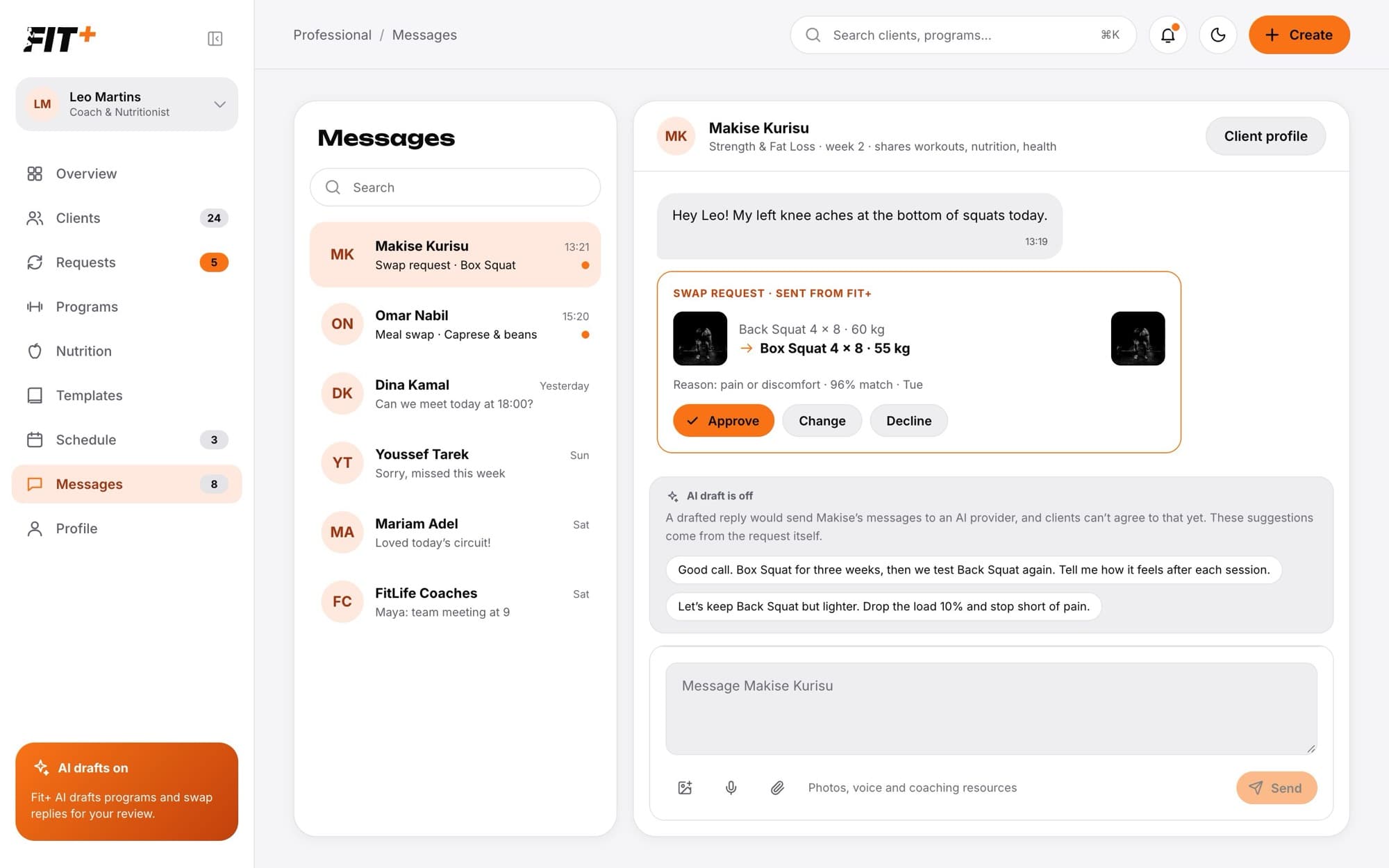
The client sees your message in the Fit+ app and gets a notification. Select Client profile at the top of the chat to open their profile.
Answer requests in the chat
A client's open swap requests appear as cards in your chat with them. On a card:
- Approve accepts the swap.
- Decline turns it down.
- Change opens the full request, where you can choose another option or how long the change lasts. See Answer client requests.
Suggested replies
Under a request, Fit+ offers ready-made replies based on the request, for example "Good call. Box Squat for three weeks, then we test Back Squat again." Select one to put it in the message box, then edit it before sending if you like.
AI-written replies are switched off in chat. Writing one would mean sending your client's messages to an AI service, and clients can't agree to that yet. Suggested replies come only from the request itself.
Messages Fit+ sends for you
Some actions post a message in the chat for you, so the client knows what changed:
- Assigning a program or plan, if you leave Tell [name] in chat on.
- Saving changes to a program or plan with Tell [name] what changed in chat ticked.
- Answering a swap request.
- Suggest another time on a session request opens the chat with a message ready for you to edit.
No. A conversation is private to you and the other person.
Messages show whether they have been read. Unread conversations have a dot, and the number next to Messages in the sidebar shows how many conversations have unread messages.
No. If you just notified the client, for example by assigning a plan, a message sent right after doesn't notify them again.