

Set your nutrition defaults
Choose how your new meal plans start, with targets you type or work out from the client's setup answers, training day targets, water, nutrient targets, meal slots, tags and Fit+ AI swaps.
The Nutrition part of My defaults saves you from setting up every meal plan from scratch. When you start a new plan, it starts with your targets, meal times, nutrient targets and tags. You can still change everything in the plan.
Changes apply to plans you start from now on. Plans you have already written stay as they are.
Open your nutrition defaults
- On the website: select Settings in the sidebar, then Open My defaults in the My defaults panel. If you are also a coach, select the Nutrition tab.
- In the app: on Home, tap your picture, then My defaults. If you are also a coach, tap Nutrition at the top.
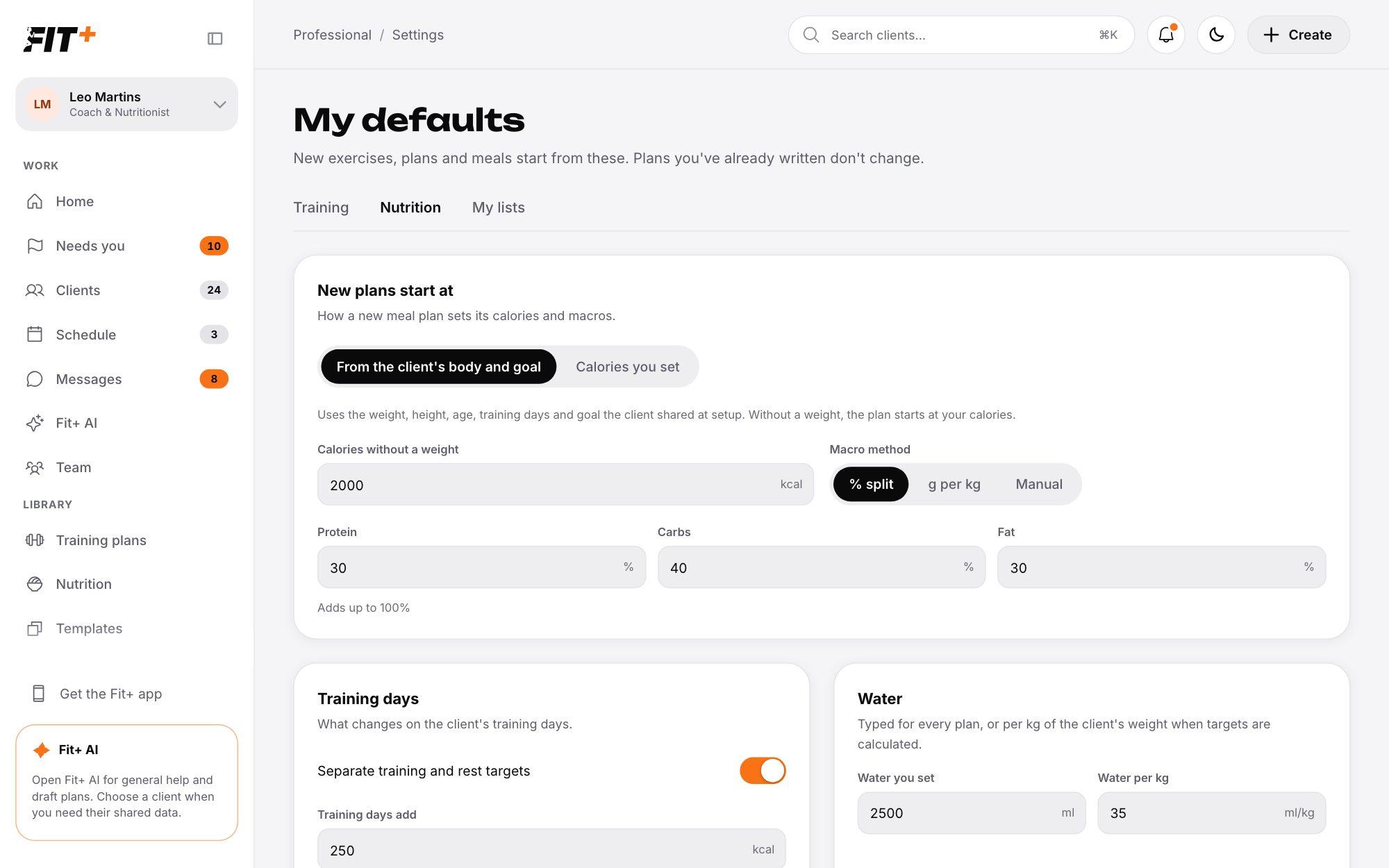
Where a new plan starts
A new plan starts from the Fit+ nutrition defaults. If your gym set its own, it starts from the gym's. Anything you save here comes first.
If you work at a gym that set its own defaults, a note says so. What you save is yours.
Choose how targets start
Under New plans start at, choose one:
| Choice | What a new plan starts with |
|---|---|
| From the client's body and goal | Calories worked out from the weight, height, age, training days and goal the client shared at setup. |
| Calories you set | The Starting calories you type, for every client. |
With From the client's body and goal, also type the calories to use when a client shared no weight. On the website this box is called Calories without a weight.
Choose the macro method
Under Macro method, pick how protein, carbs and fat follow the calories:
- % split: a share of the calories for protein, carbs and fat. It must add up to 100%.
- g per kg: Protein per kg and Fat per kg of the client's weight. Carbs fill the rest of the calories. Without the client's weight, plans use your % split.
- Manual: the grams you type. Typed grams can't follow worked out calories, so choosing Manual switches targets to Calories you set.
Training and rest days
Under Training days:
- Training days add: the extra calories on the client's training days. They're added as carbs.
- Turn on Separate training and rest targets to give each kind of day its own calories and macros in new plans. Turned off, training days add the extra as carbs.
Water
- Water you set: the water a plan starts with when you type its calories, or when the client shared no weight.
- Water per kg: water for each kilogram the client weighs, used when targets are worked out and the weight is known.
Nutrient targets
Under Nutrient targets, set the targets every new plan starts with:
| Nutrient | Kind of target |
|---|---|
| Fibre | At least, a minimum to reach each day |
| Sugar and Added sugar | Under, a limit to stay below each day |
| Saturated fat | Under, a limit to stay below each day |
| Sodium | Under, in mg |
On the website, leave a box empty for no target. In the app, tap Add a nutrient to add one, or tap a target to change or remove it.
Meal slots and shares
Meal slots and shares lists the meals new plans start with, the time of each and its share of the day's calories. The shares must add up to 100% to save.
- On the website: change a meal's name, time or share in its row. Select Add a meal slot for another meal, or the remove button on a row to take it out.
- In the app: tap Edit meal slots, then tap a meal to change its Name, Time and Calorie share, or tap Add a meal slot. Tap Save when the shares add up to 100%.
You can keep up to 10 meal slots, with names of up to 40 characters, such as Suhoor or Iftar.
Plan tags
Plan tags are the tags every new plan starts with, such as High protein or Ramadan. Type a tag and add it. You can keep up to 10.
Fit+ AI swaps
Leave Let Fit+ AI suggest swaps on to let clients ask for a meal swap within 10% of the calories. You review each one. Turn it off and new plans start with swaps off.
Save or reset
On the website, select Save. You'll see "Nutrition defaults saved". In the app, each change saves as you make it, except the meal slots, which have their own Save.
To start over, select Reset nutrition defaults on the website, or Reset to Fit+ defaults (or Reset to your gym's defaults) in the app, then Reset. Plans you have written stay as they are.
In the nutrition plan builder
When you start a new plan for a client, a note says "This plan starts from your nutrition defaults", or, when the targets were worked out, "Targets worked out from Sam's setup answers" with your client's name. On the website, select Edit defaults next to it to open your nutrition defaults. See Write a nutrition plan.
When Fit+ AI drafts a meal plan for you, it starts from your defaults too. Its card then says Starts from your own defaults.
Common questions
No. They only decide how a new plan starts. Plans you have already written, and plans you have assigned, don't change.
From the questions the client answered when they set up Fit+, such as their weight, height, age, training days and goal. If they didn't share their weight, the plan starts at your calories.
No. Your clients see the plan you write, with the targets and meals in it.