

Write a nutrition plan
Set a client's daily targets, mark training and rest days, fill each meal slot and send the plan to your client.
The nutrition plan builder is where nutritionists write day-by-day plans. You set the targets, choose which days are training days, and fill each meal slot with meals your client will see in the Fit+ app.
Before you start
- You need to be verified as a nutritionist.
- Your client needs to share nutrition with you. Clients who don't can't be picked. See What your clients share with you.
- Meals are quicker to add if you already have a few foods and meal templates. See Add your own foods and meals.
Your nutrition plans
Select Nutrition in the sidebar.
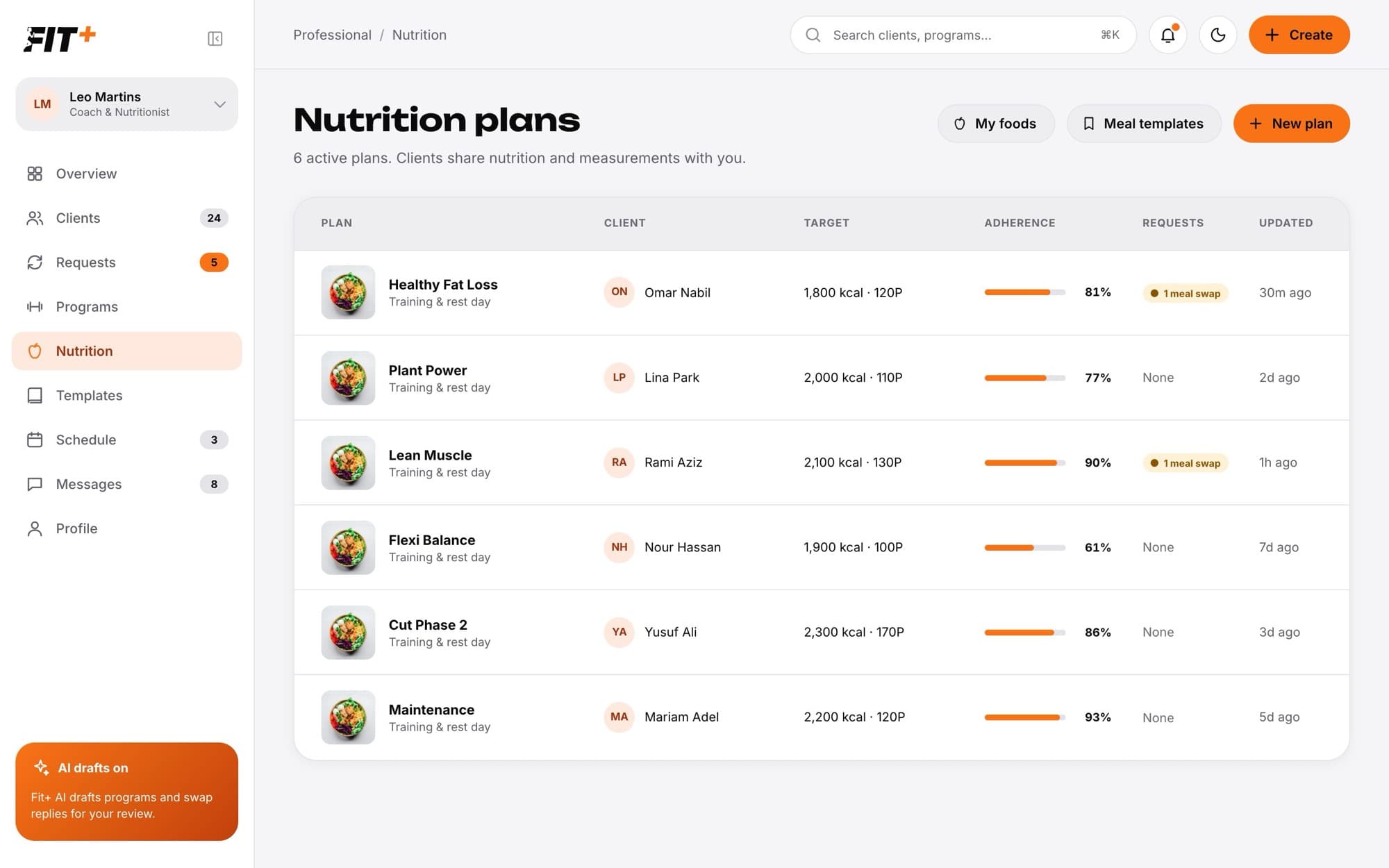
Each row shows the client, their daily target, their adherence this week, any meal swaps waiting for you and when you last changed the plan. Select a row to open the plan. My foods and Meal templates at the top open your libraries, and Check-ins opens the weekly check-ins waiting for you.
Write a plan
Select New plan. You can also select Nutrition plan on a client's profile, or Create, then Nutrition plan.
Choose your client. The header shows whether they also share measurements with you.
Enter a Plan name and pick a Diet: Balanced, Vegetarian, Vegan, High protein, Mediterranean or Low carb.
Under Targets, set the daily calories, protein, carbs and fat, and how much water to drink. Your client sees energy and water in their own units, for example kilojoules or fluid ounces.
Mark training and rest days: pick a weekday at the top, then choose Training day or Rest day. Each kind of day can have its own targets.
Fill each meal slot for the day (see below), then move on to the next day.
Add Guidance for your client, for example when to eat around training.
Select Assign, choose when the plan starts, add a note if you like, and confirm.
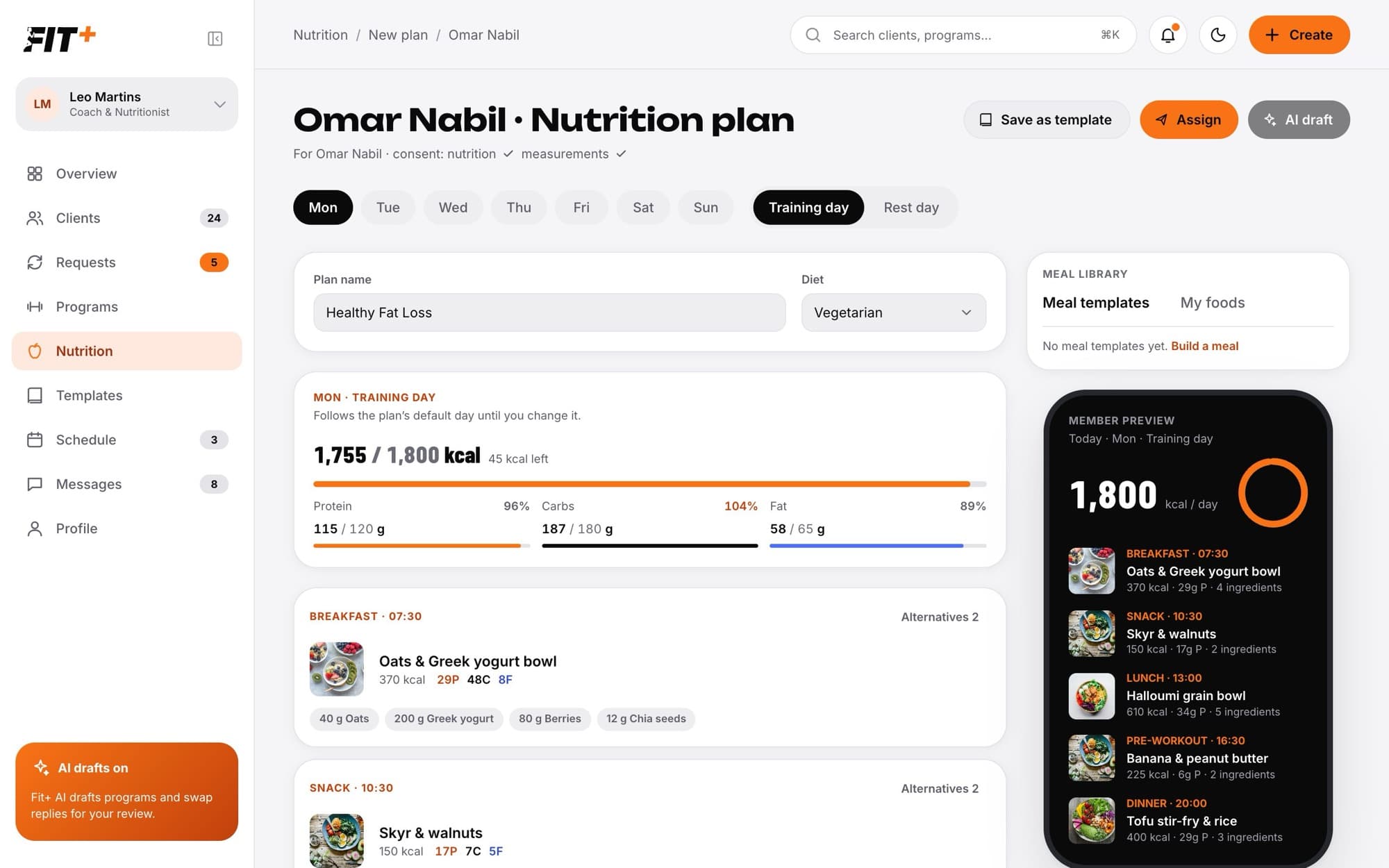
Days you haven't changed follow the plan's default day. Once you add meals to a day, a dot on its weekday shows that it has its own meals.
Fill a meal slot
The slots follow the order of the day: Breakfast (07:30), Snack (10:30), Lunch (13:00), Pre-workout (16:30), Post-workout (19:00) and Dinner (20:30). An empty slot says No meal yet.
Select Add meal on an empty slot, or Add to [slot] on a meal template in the Meal library on the right.
Choose how to add it: Use a meal template, Build from ingredients (pick foods from My foods and set the quantities) or Copy from another day.
Choose which days it goes on. Switch on Training days only to add it to every training day at once.
Pick a Portion (½×, 1×, 1.5× or 2×) or change single ingredients under Adjust for [name]. Only this copy changes, not your template.
Select the button at the bottom to add it, for example Add to 1 day.
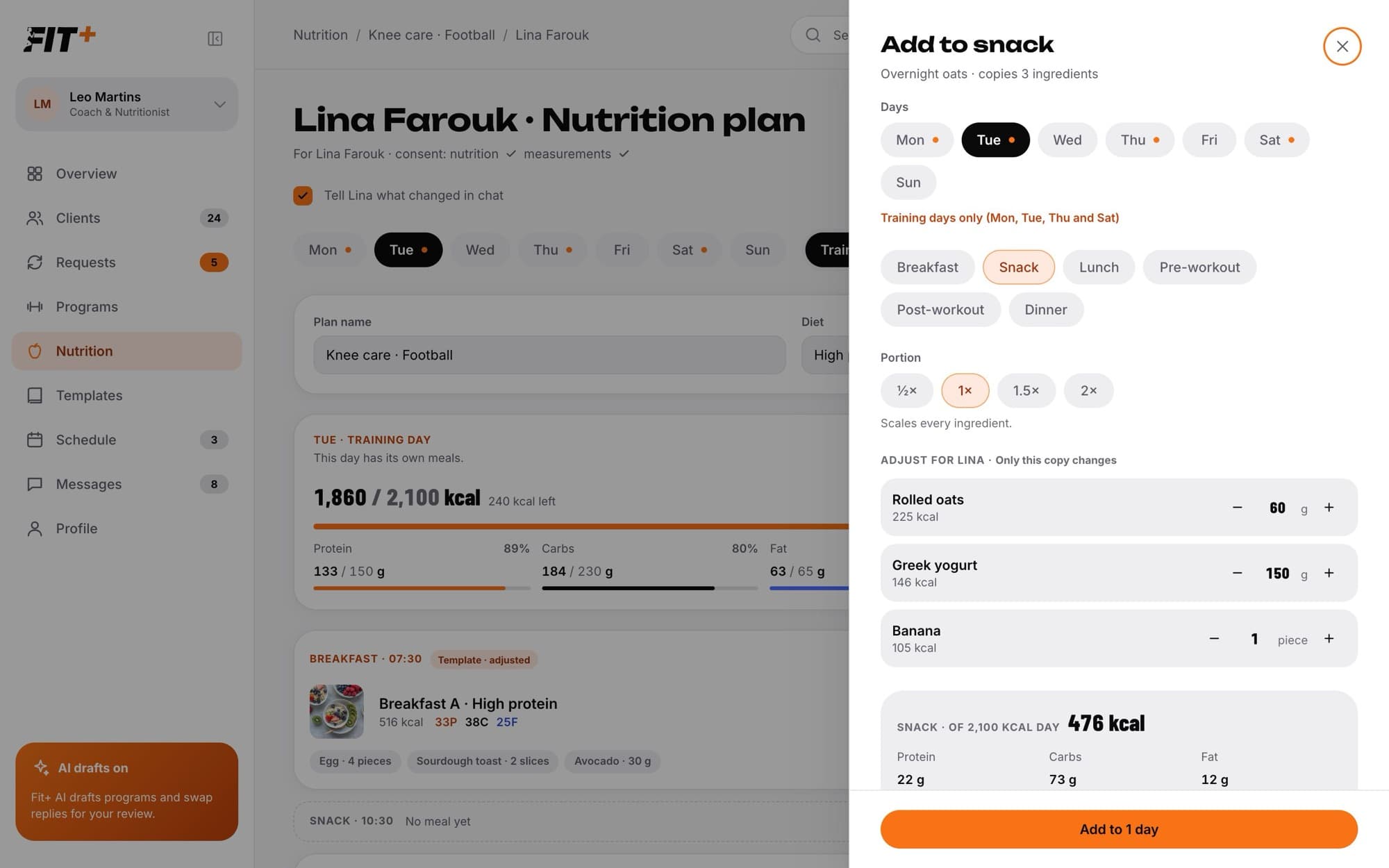
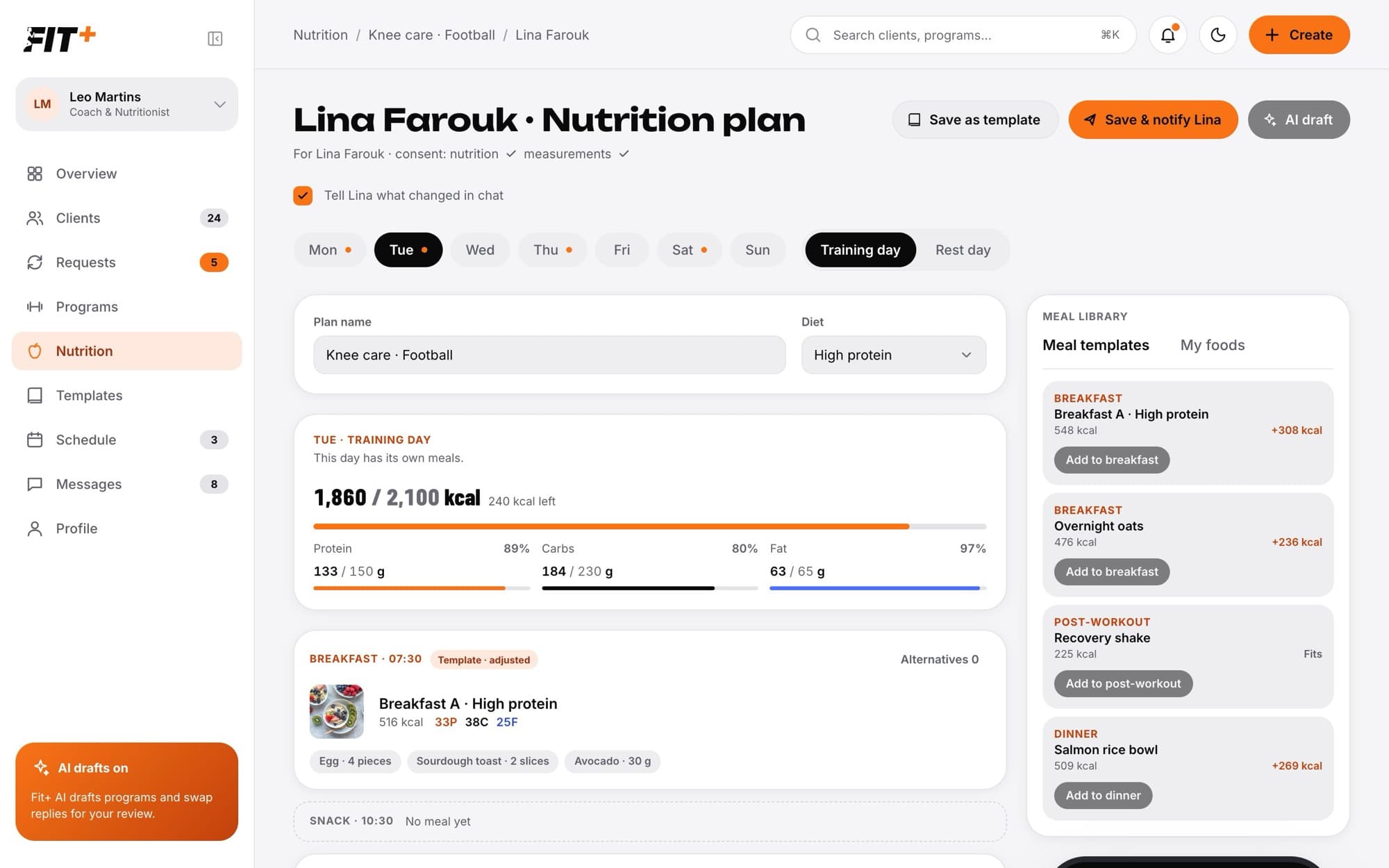
The targets card at the top shows the day's planned calories against the target and how much is left. In the meal library, templates that fit what's left are marked Fits, and others show how many calories they'd add.
To change a meal later, open its menu to Edit it, Copy to other days, Replace it or Remove it. Alternatives shows the other meals your client may choose instead.
Let clients ask for meal swaps
Switch on Let AI suggest swaps within ±10% kcal at the bottom of the plan. Your client can then ask for a similar meal in the app. Every swap still comes to you in Requests to approve or decline. See Answer client requests.
Weekly check-ins
Your plan always comes first. When a client who follows your plan runs a weekly check-in in the Fit+ app, the new targets it proposes wait for you, and the plan only changes if you approve them. See Approve nutrition check-ins.
Update a plan
Open the plan from Nutrition, or select Nutrition plan on the client's profile.
Make your changes.
Keep Tell [name] what changed in chat ticked if you want them to know, and select Save & notify [name].
What happens next
- Your client sees the plan in the Fit+ app and accepts it there.
- If you left the chat option on, they get a message with the start date and their daily calories and protein.
- If you already had an active plan with this client, the new one replaces it.
- Your plan's targets replace any goal the client set for themselves in the app.
Not for nutrition plans. To prepare a plan you'll reuse, select Save as template instead. See Build templates.
A plan ends when you assign a new one to the same client.
Calories between 800 and 8,000 kcal a day, up to 12 meals a day, and a plan length of 1 to 52 weeks.
Select AI draft, describe the plan in your own words and review what Fit+ fills in. Only your description is used, never your client's data.