

Build a training program
Set up a program's weeks and days, build each workout from blocks and exercises, and set sets, loads and progression.
The program builder is where coaches write training programs. What you build here is exactly what your client sees and follows in the Fit+ app.
Before you start
- You need to be verified as a coach.
- Your client needs to share workouts with you. Clients who don't are greyed out when you pick who the program is for. See What your clients share with you.
How a program is organised
Start a program
Select Programs in the sidebar, then New program. You can also select Assign program on a client's profile, or Create, then Training program.
Choose your client under For.
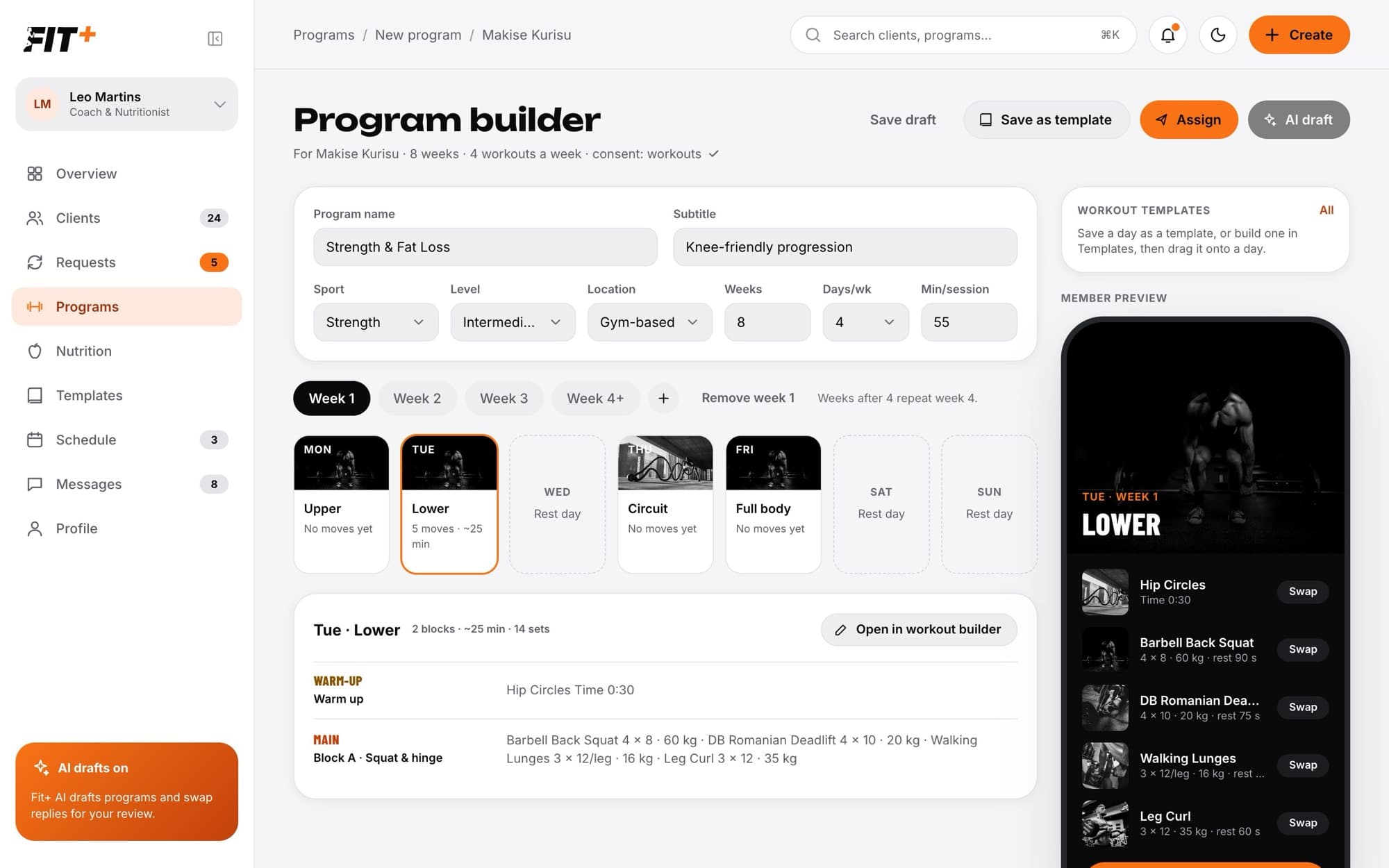
Fill in the program details: Program name, Subtitle, Sport, Level, Location, how many Weeks it lasts, Days/wk and Min/session.
Plan the weeks and days
- By default every week is the same (Every week). To make weeks different, select + next to the week tabs. The new week starts as a copy of the last one, so you only change what's different. You can have up to 12 different weeks.
- Weeks after your last one repeat it. For example, with Week 1, Week 2, Week 3 and Week 4+, weeks 5 to 8 repeat week 4.
- To delete a week, select it, then Remove week.
- Each day of the week has a card. A day without a workout is a rest day. Select Add workout on a rest day to turn it into a training day, or Make rest day on a workout to clear it.
Build a workout
Select a day, then Open in workout builder. Give the workout a Workout name.
Select Add block and choose the kind of block: Warm-up, Main, Superset, Circuit, Finisher or Cool-down.
In the block, select Add exercise and choose From My exercises, From the Fit+ catalog or Blank exercise.
Set the sets, reps, load and rest for each exercise (see below).
Repeat for the other blocks and days. Your changes show in the member preview as you go.
To build a superset from two exercises, open the menu on the first one and select Group with next as superset. In a superset or circuit, the exercises alternate, and you set how many Rounds to do.
Pick from the exercise catalog
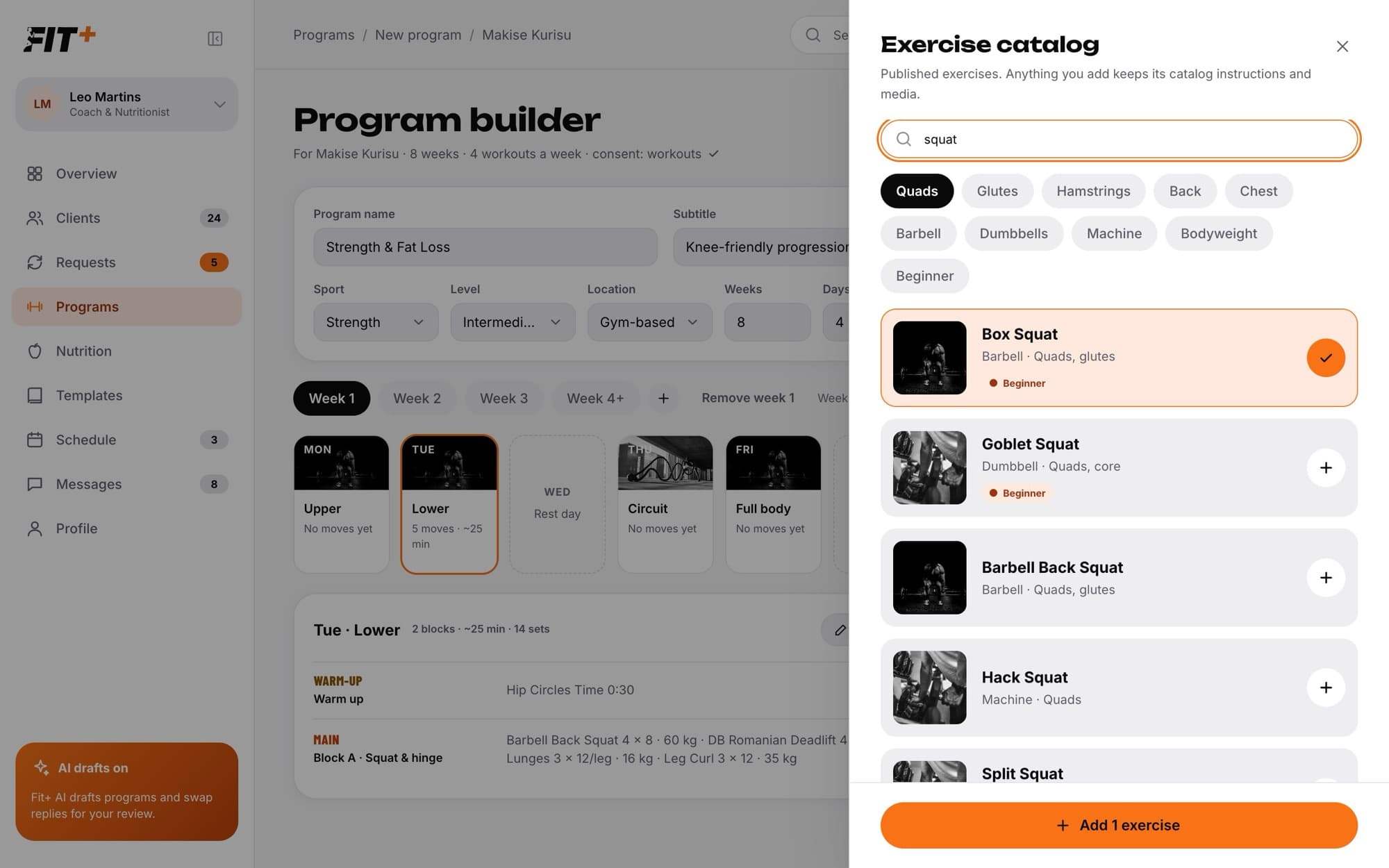
The Exercise catalog lists every published Fit+ exercise, with its instructions and videos. Search by name and filter by muscle, equipment and level. Tick as many as you like, then select Add at the bottom. To watch an exercise's technique video and read its cues first, open it in the exercise library.
Set sets, loads and rest
For each exercise you can set:
- Reps, Time or Distance. Reps can be per side, like 12 per leg.
- Load in kilograms, or BW for bodyweight. Your client sees loads in their own units, so a client who uses pounds sees them in pounds.
- Rest between sets.
- Tempo, for example 3-1-1-0 (down, pause, up, pause).
- Effort, if you want to set one: RPE or RIR for reps, or Easy, Moderate or Hard for timed steps. When your client logs a set, they rate how it felt as Easy, Good, Hard or Max.
- A Note for the client.
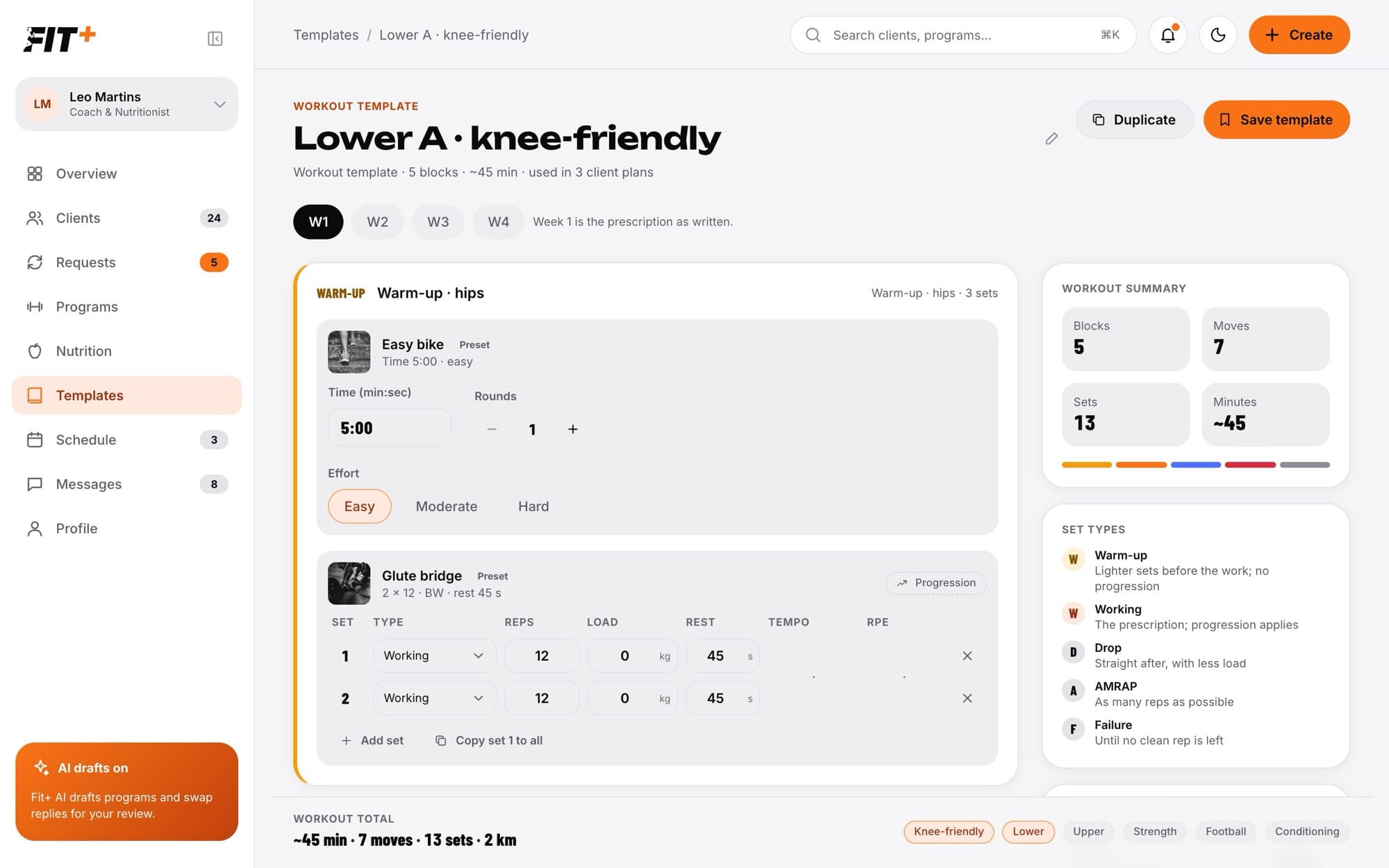
When sets differ, give each set its own row with Add set, and choose its type: Warm-up, Working, Drop, AMRAP (as many reps as possible) or Failure. Copy set 1 to all makes every set match the first one.
Add progression
Select Progression on an exercise to make it harder week by week. Choose one of these rules:
- Add a fixed load each week, for example +2.5 kg a week.
- Add one rep a week, then add load when you reach the top of the rep range.
- Add a percentage each week.
Use the week chips (W1, W2 and so on) to see what each week will look like.
Save your work
| Button | What it does |
|---|---|
| Save draft | Saves the program without sending it. Only you can see drafts. |
| Save as template | Saves the program as a template you can reuse for other clients. It names no client. |
| Assign | Sends the program to your client. See Assign and follow a program. |
| AI draft | Describe the program in your own words and let Fit+ fill in the builder for you to review and edit. |
AI draft only uses the description you type. Your client's data is never sent to the AI service.
Speed things up
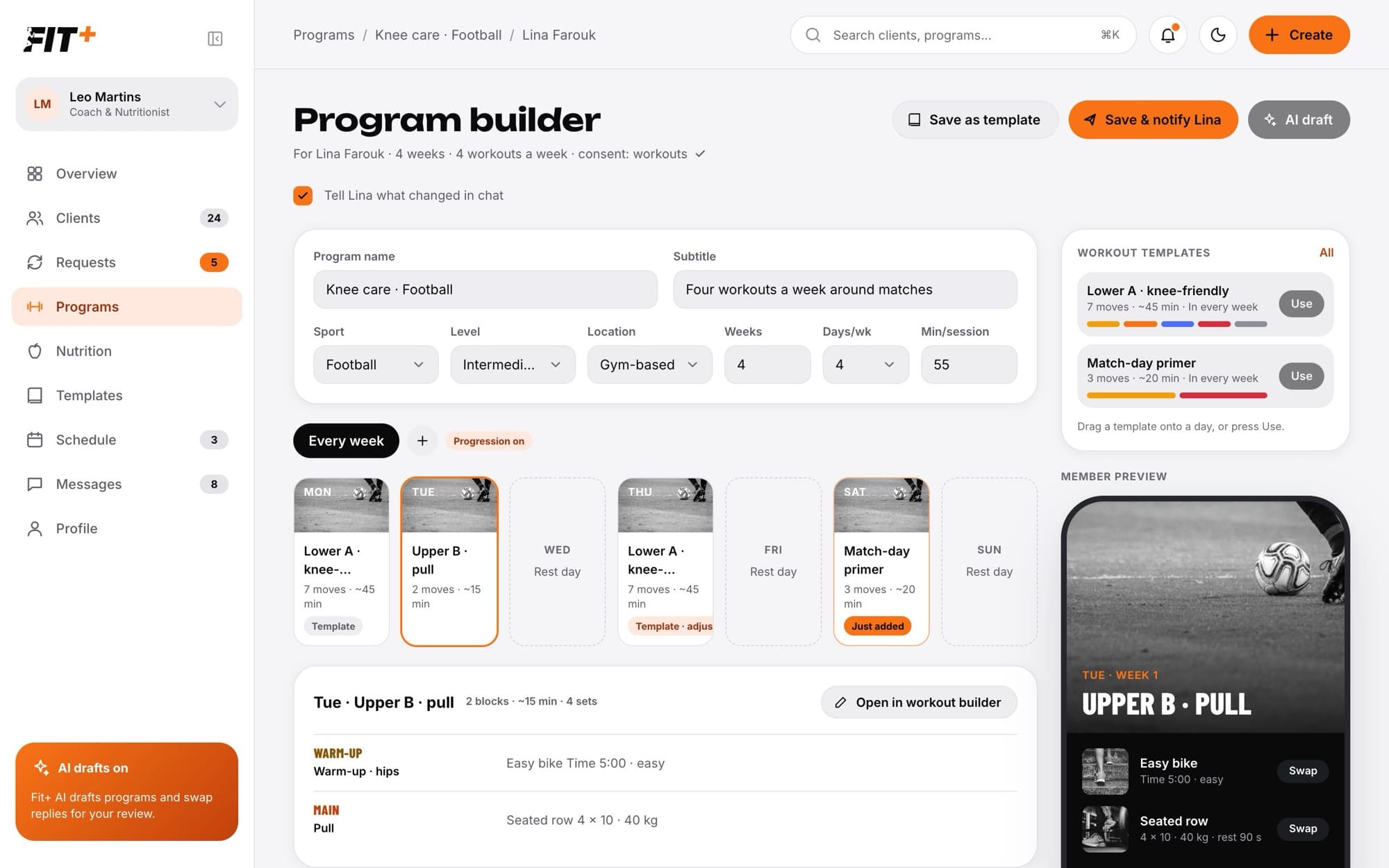
- Workout templates on the right: drag a template onto a day, or select Use. See Use and assign a template.
- Save as template on a day saves that workout to reuse later. In a block's menu, Save block as template saves just that block.
- My exercises holds your favourite exercises with your usual sets, reps and loads. See Save your own exercises.
A program can run up to 52 weeks, with up to 30 exercises in a day and 240 in the whole program.
It shows where the workout came from: Template, Template · adjusted (you changed it after adding it), Built (written by you) or Just added.
Fit+ lists what's missing under Before this can be saved, for example a program name. Fix each item and save again.