

Use and assign a template
Assign a program or nutrition plan template to several clients at once, and drop a workout, block or meal template into a client's plan.
Templates save you from starting from scratch. You can assign a whole program or nutrition plan template to many clients in one go, or drop a single workout, block or meal into a plan you are writing. If you haven't made any templates yet, see Build templates.
Using a template always makes a copy. You can change the copy for one client without touching the template, and editing the template later never changes plans that already use it.
Assign a program or nutrition plan template
Select Templates in the sidebar, then Assign on a card in Programs & plans. You can also select Assign… while you're editing the template.
Tick the clients you want to give it to. Search by name if your list is long. A client who already follows a plan from you shows Replaces with the name of their current plan.
Choose when it starts: Next Monday, Today or Pick a date.
Add a note if you like. It shows on each client's plan.
Confirm. Fit+ tells you how many clients got the plan, and whether any couldn't.
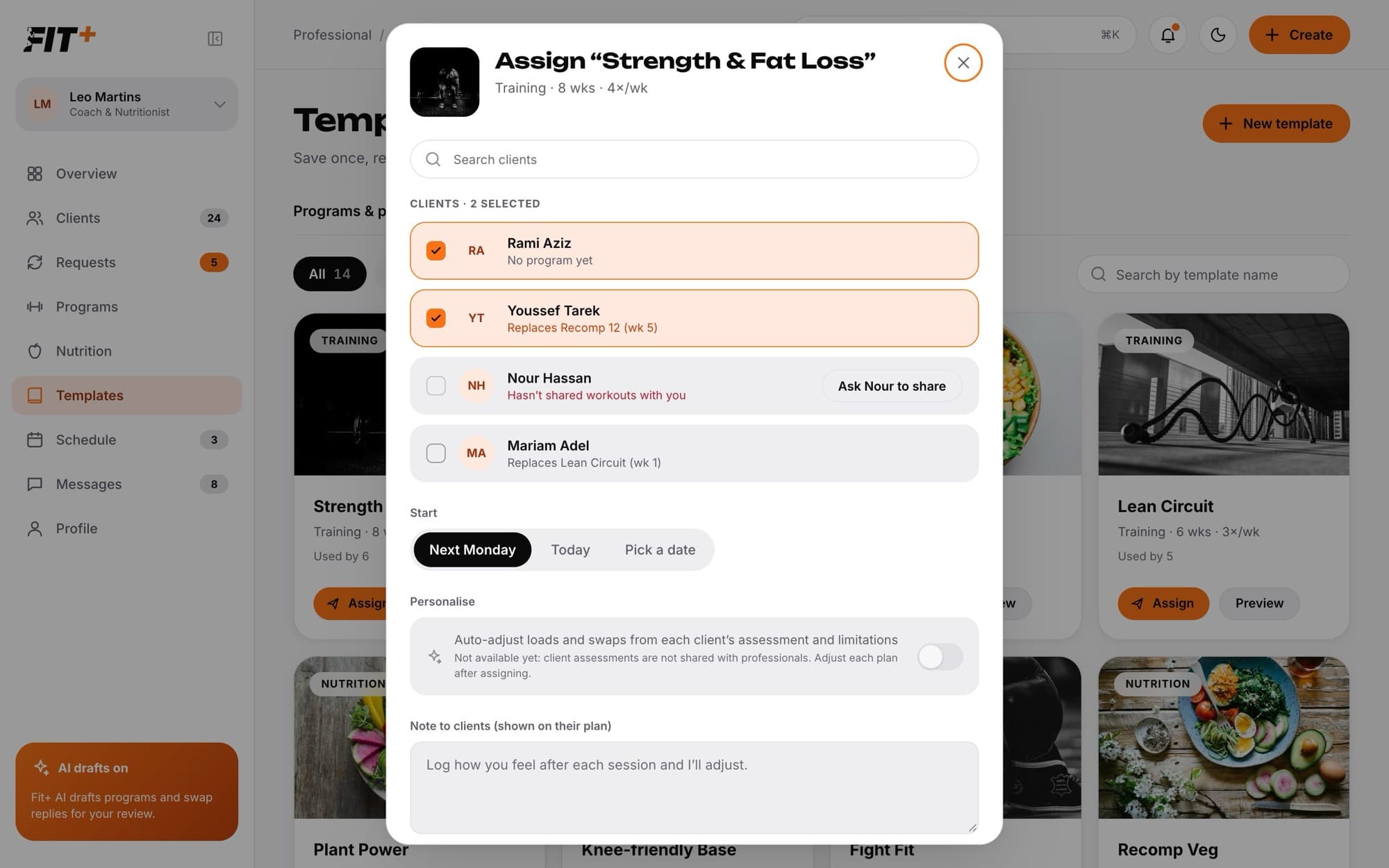
Clients who don't share what the template needs (workouts for a program, nutrition for a nutrition plan) can't be ticked. Select Ask [name] to share next to them instead.
What happens next
- Each client gets their own copy of the plan and a message in chat about it. They accept it in the Fit+ app.
- If a client already had an active plan from you, the new one replaces it.
- The template's Used by count goes up.
Use a workout template in a program
In the program builder, drag a template from Workout templates onto a day, or select Use next to it. You can also start from Templates: open the Workouts tab, select Use template and pick the client's program.
Choose where it goes:
- Program week: pick the weeks (All weeks or single weeks like W1) and the day.
- Client day: pick one day in the client's current week. Later weeks keep their workout.
Leave Continue progression on to keep each exercise's progression going across the weeks you picked. The panel shows the starting and ending loads.
Switch on Use [name]'s loads to use the weights your client actually lifted in their latest sessions, where the exercises match.
Check the warning, for example "Replaces the workout on Mon in every week", and the preview. Then select Use template.
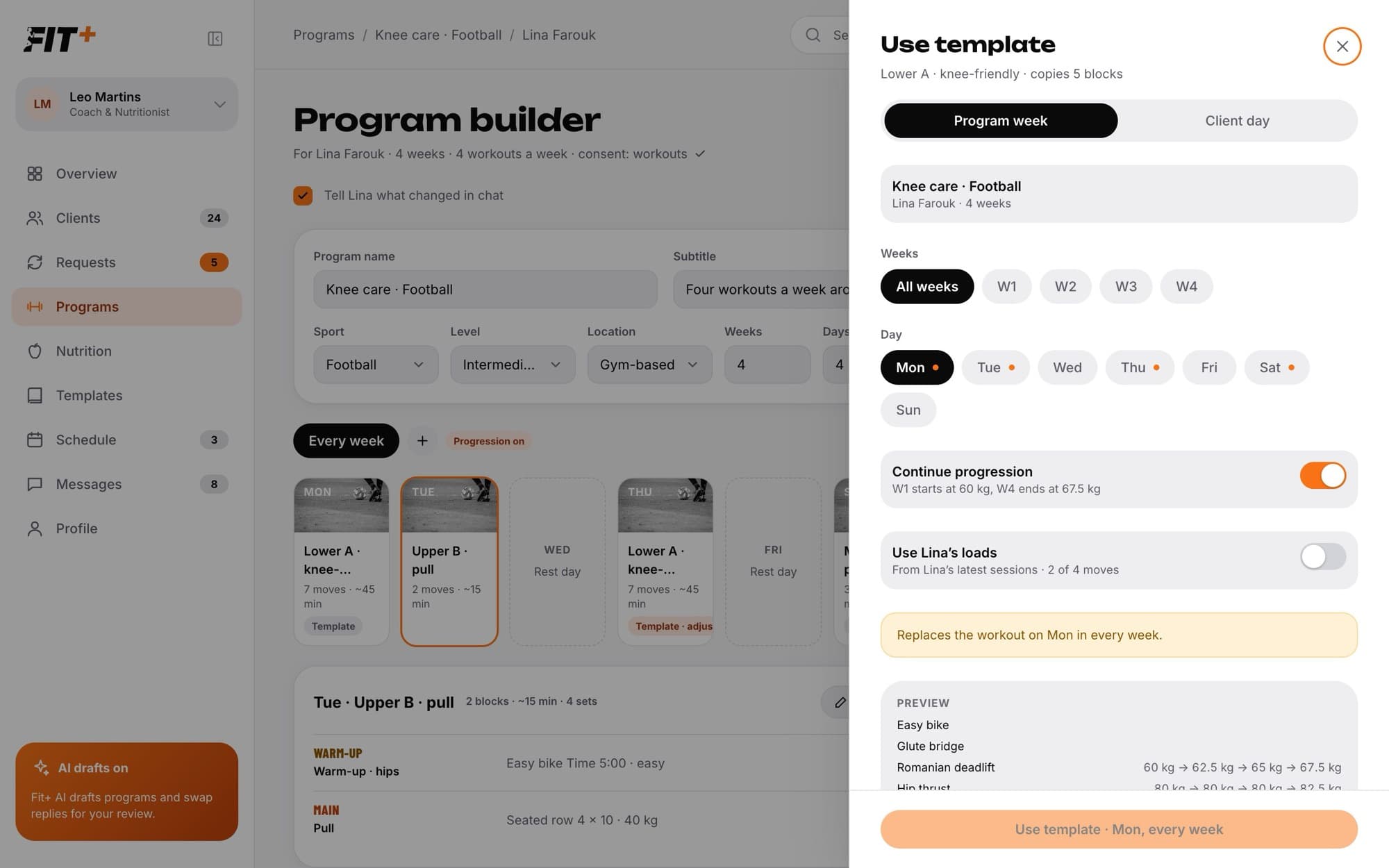
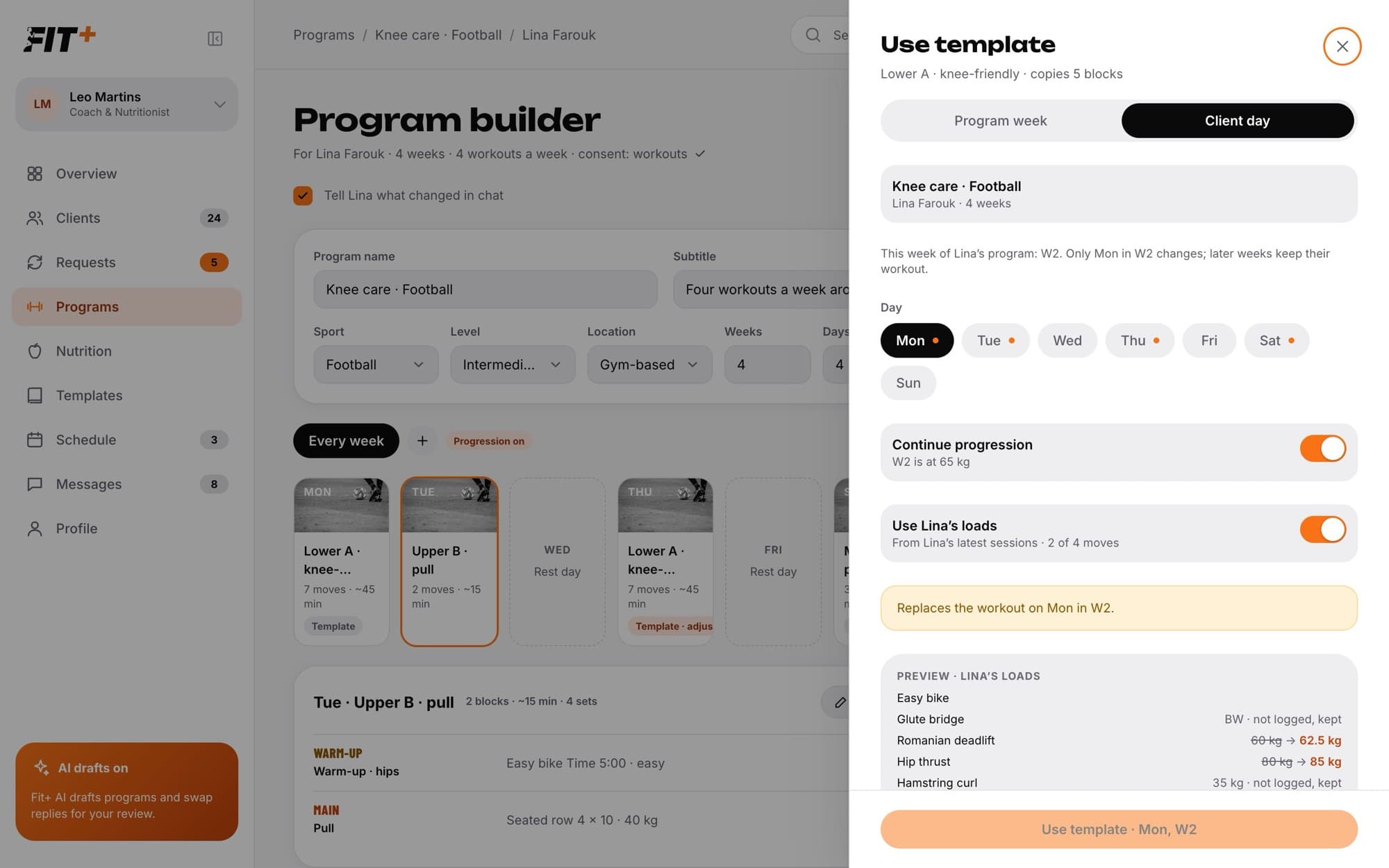
The day card then shows Template, or Template · adjusted once you change it. Remember to save the program.
Use a block template
- While building a workout template, find the block under Block templates on the right and select Use to add it.
- On the Blocks tab in Templates, select Use to start a new workout template that begins with that block.
Use a meal template in a nutrition plan
Open the meal template from Templates, Meals, and select Use template. You can also select Add to [slot] on a meal template in the nutrition plan builder.
Choose the client.
Choose Training day or Rest day, which weekdays, and which slot the meal goes in.
Under Adjust for [name], change quantities for this client if needed. Only this copy changes.
Select Use template. The button shows how many days it will fill.
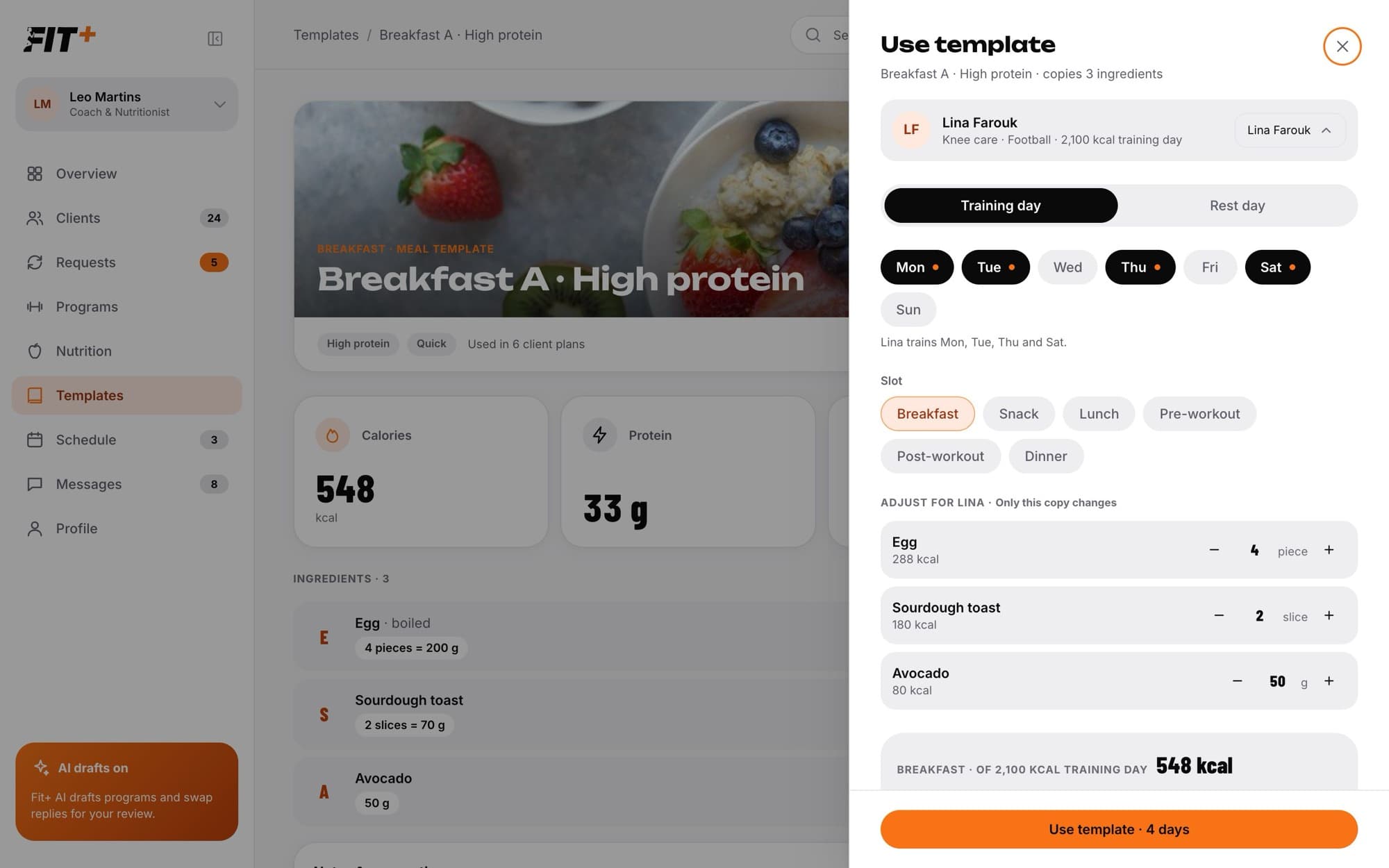
The meal replaces whatever was in that slot on those days. If you changed a quantity, the meal shows Template · adjusted in the plan.
Up to 50 at a time.
No. Workout, block and meal templates are used inside a client's program or nutrition plan. Assign a program or nutrition plan template to send a whole plan.
Usually because they stopped sharing with you. Check their profile and ask them to share again.