

Assign and follow a program
Send a training program to a client, see how they are getting on, update it and end it.
Once a program is built, you assign it to your client. They accept it in the Fit+ app and start training, and you follow their progress from Fit+ Pro.
Your programs
Select Programs in the sidebar.
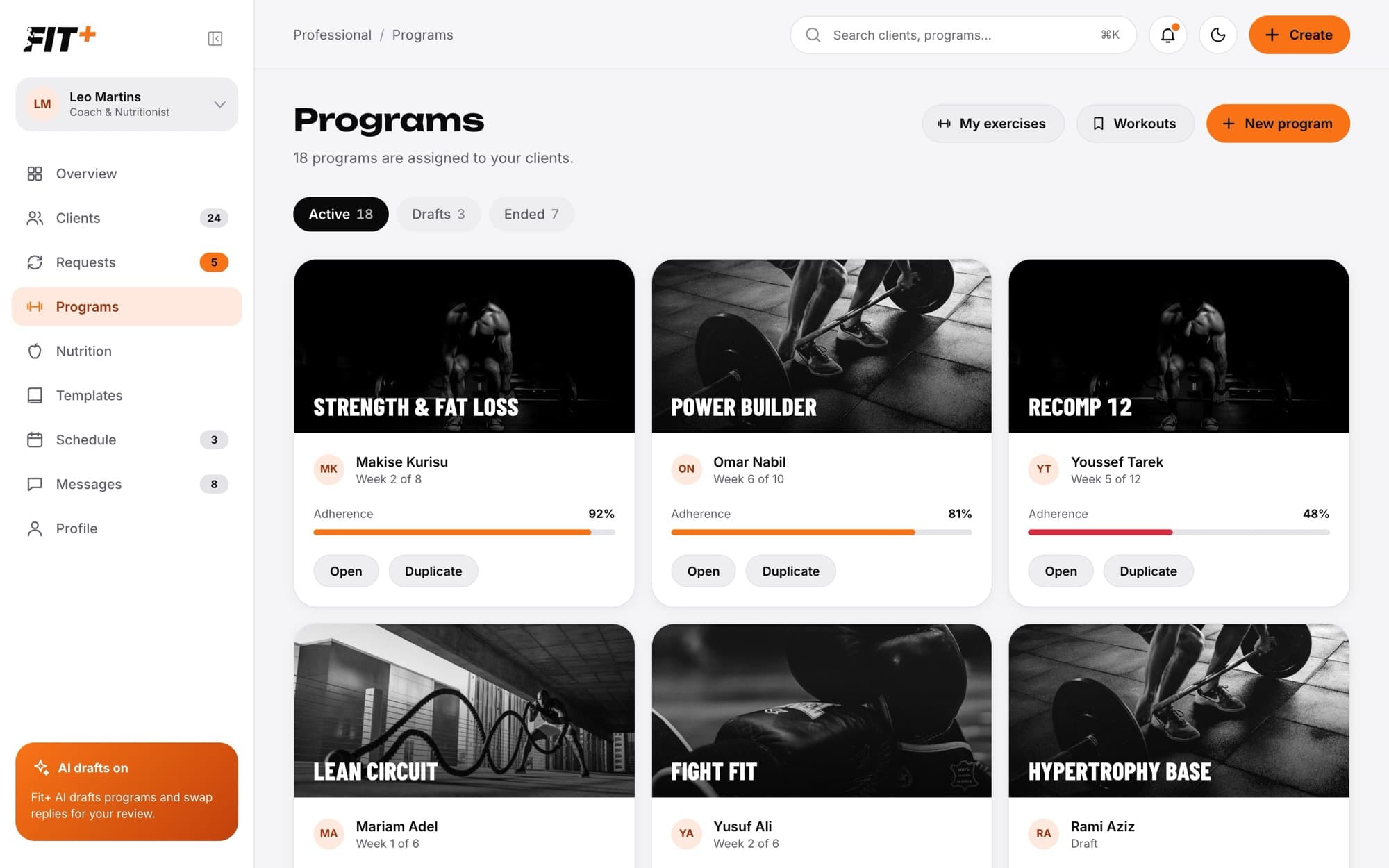
- Active lists programs your clients are following or haven't started yet.
- Drafts lists programs you saved but haven't sent.
- Ended lists finished programs.
Each card shows the client, the current week (for example "Week 2 of 8") and their adherence. Select Open to see the progress, or Duplicate to start a new program from a copy. My exercises and Workouts at the top open your libraries.
Assign a program
Build the program for your client. See Build a training program.
Select Assign.
Choose when it starts: Next Monday, Today or Pick a date.
Add a Note to [name] if you like. It shows on their plan.
Leave Tell [name] in chat on to send them a message about it, then confirm.
If you already have an active program with this client, the new one replaces it. Fit+ warns you before you confirm. The old program moves to Ended.
What happens next
- Your client gets the program in the Fit+ app and accepts it there.
- If you left the chat option on, they get a message like "I've assigned Strength & Fat Loss, starting Monday. Open My plan to accept it."
- The program's progress page opens for you, and the program appears under Active.
Follow your client's progress
Select Open on a program card, or Program progress on the client's Training tab.
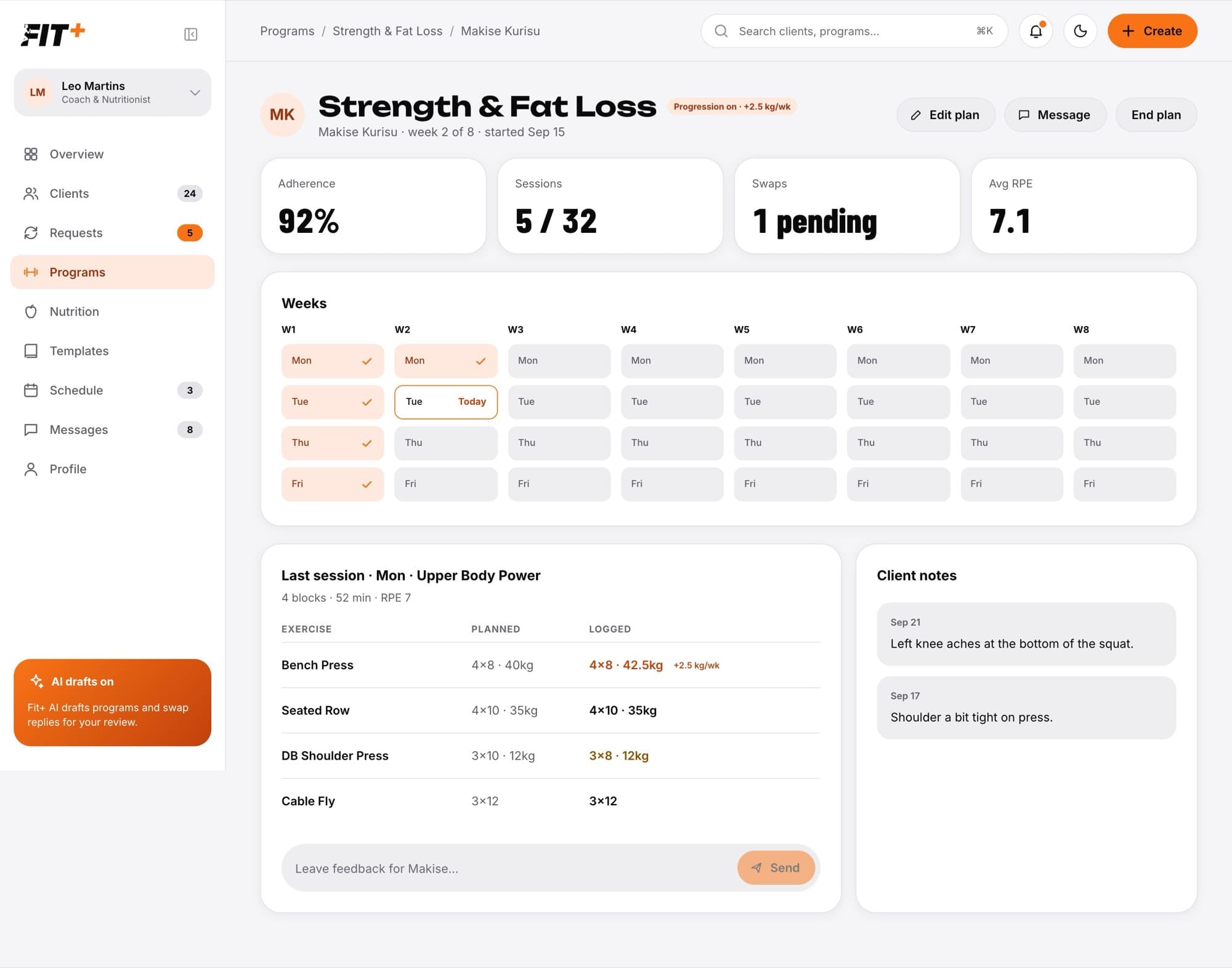
You see:
- Adherence, Sessions done, pending Swaps and average effort (Avg RPE).
- Weeks: every training day in the program, with a tick on the ones done and today highlighted.
- Last session: what you planned next to what the client actually logged.
- Client notes the client wrote about their training.
To send quick feedback, type in Leave feedback for [name] and select Send. It goes to your chat with them.
For every workout the client logged, including routines they made themselves, their progress charts and the weekly reports they share with you, open the Training tab on their profile. See Follow a client's progress.
Update a program
On the progress page, select Edit plan. You can also select Edit on the current program on the client's profile.
Make your changes in the builder.
Keep Tell [name] what changed in chat ticked if you want them to know.
Select Save & notify [name], or Save changes if you unticked the box.
Your client sees what changed in the app. If you left the box ticked, they also get a message like "I updated Strength & Fat Loss: 3 changes."
End a program
On the progress page, select End plan and confirm. The program moves to Ended and stays in your client's history.
Yes. Save it as a template, then assign the template to as many clients as you like at once. See Use and assign a template.
They need to accept it in the Fit+ app. Until then, the card says "Waiting to start". Send them a reminder in chat.
You can only assign a program to a client who shares workouts with you. Ask them to share first. See Ask a client to share more.
Assigning a draft turns it into the client's program, so it leaves Drafts and appears under Active.