

Review and approve organizations
Check a new gym, club, academy or team, then approve it, ask for changes or reject it.
Every gym, club, academy or team on Fit+ is an organization. A new organization waits in review until someone on the Fit+ team approves it. This page shows you how to find organizations waiting for review, check what the owner sent, and make a decision.
Before you start
- Only Platform admins can approve or reject. Support can check everything and ask for changes. Finance can look but not change anything.
Find organizations waiting for review
Open Organizations
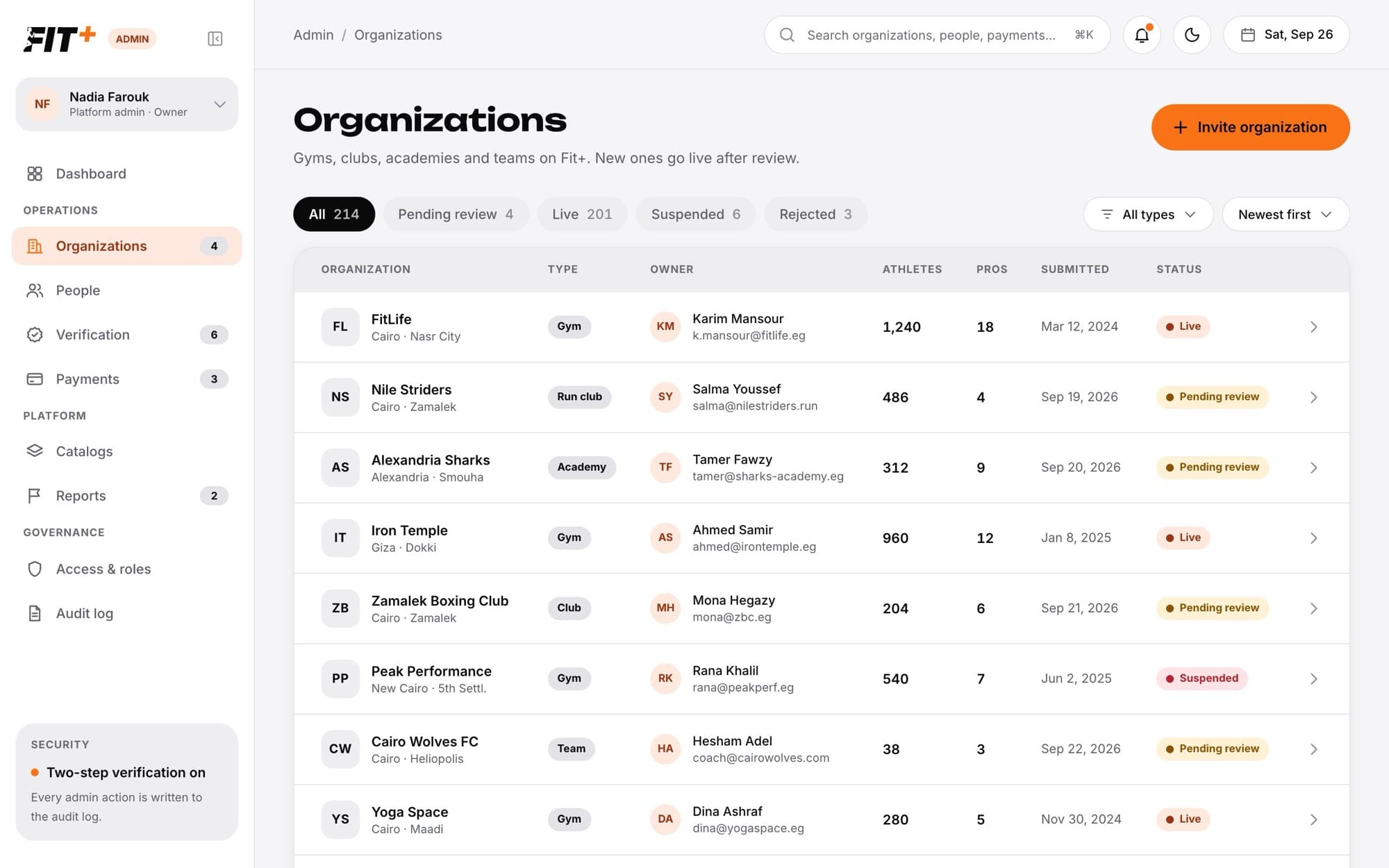
Choose Organizations in the sidebar. The number next to it is how many are waiting for review. You can also choose Review next to Organizations to review on the dashboard.
Choose Pending review
The tabs split organizations by status: All, Pending review, Live, Suspended and Rejected.
Narrow the list if you need to
Filter by type (gym, club, academy, team and so on), sort by Newest first, Oldest first, Name or Most athletes, or search by name.
Open an organization
Choose a row to open its review page.
Check the submission
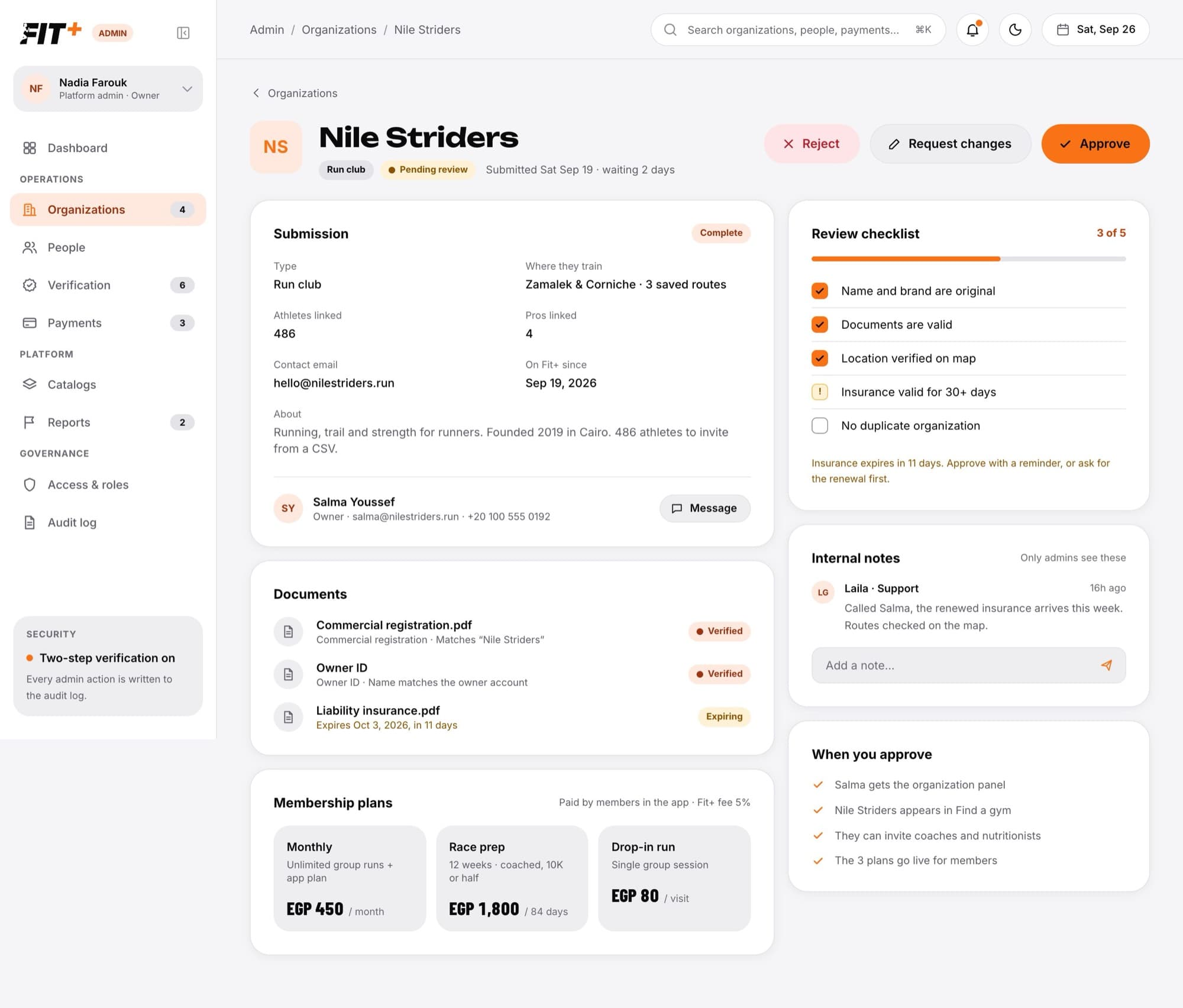
The review page shows everything the owner sent:
- Submission: the type, where they train, how many athletes and pros are linked, the contact email and an about text. It's marked Complete when there's a description and at least one document.
- Owner: their name and contact details. Choose Message to email them.
- Documents: the commercial registration, owner ID, liability insurance and anything else they uploaded. Open a document to read it, then choose Verify or Reject. Insurance that's about to run out shows Expiring.
- Membership plans: the plans the owner wants to sell.
- When you approve: a reminder of what approval will switch on.
Work through the review checklist
The Review checklist has five checks: Name and brand are original, Documents are valid, Location verified on map, Insurance valid for 30+ days and No duplicate organization. Choose a check to mark it passed. Choose it again to flag it, and once more to clear it.
Leave a note for the team
Type in Add a note... under Internal notes and send it. Only admins see these notes; the owner never does.
Watch the insurance date
The checklist warns you when the insurance has expired, expires within 30 days, or when no documents were uploaded. Ask the owner for a renewal before approving.
Make a decision
- Choose Approve.
- Add a Note for the owner if you like.
- Confirm.
The organization goes live. The owner gets their organization panel, the organization appears in Find a gym, they can invite coaches and nutritionists, and their plans go on sale.
What happens next
- The owner gets a notification in the Fit+ app with your decision and your note.
- The decision is saved in the Review history on the organization's page and in the audit log.
- If another admin decided at the same moment, you'll see a message that the organization already has this status. Refresh to see their decision.
Invite an organization
Platform admins can set up an organization for an owner, whether or not they already have a Fit+ account.
Choose Invite organization
It's at the top of the Organizations page.
Fill in the details
Enter the Organization name, choose the Type, add the City or area and type the Owner's email.
Choose Send invite
If the owner already has a Fit+ account with a confirmed email, the organization is created in review under their account and they're told in the app to add their documents and plans. You then review it like any other.
If the owner doesn't have a Fit+ account yet, the invitation is saved. Ask them to sign up for Fit+ with the same email. The organization then appears in their account and in Pending review.
Common questions
Both are waiting for a decision. Changes requested means an admin has asked the owner to fix something.
Yes. The owner can send a new submission, and it comes back to Pending review.
Suspend it. See Suspend or restore an organization.