

Check payments, payouts and subscriptions
See membership payments, follow up failed ones, check what each organization is owed, set the Fit+ fee and review subscriptions.
Payments shows the membership payments members make to gyms, clubs and teams in the Fit+ app. Use it to follow up a failed payment, check what each organization will be paid, and see who has an active membership. Coaches and nutritionists are paid by members directly, outside Fit+, so their fees never appear here.
Before you start
- Everyone on the Fit+ team can see payments, send reminders and ask owners for bank details.
- Only Platform admins and Finance can cancel a membership or change the Fit+ fee.
See transactions
Open Payments
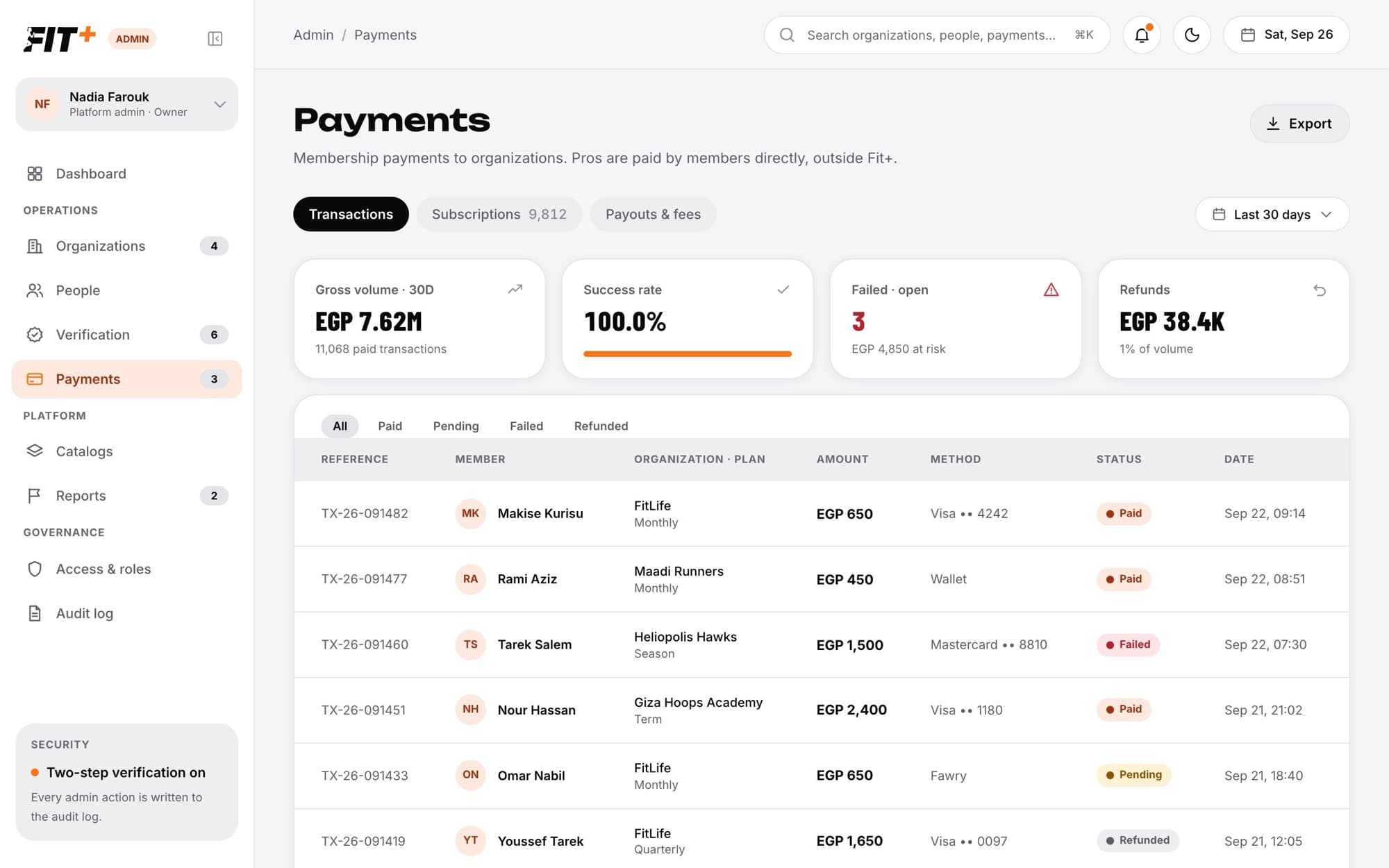
Choose Payments in the sidebar. The number next to it is how many payments have failed and still need attention.
Pick a period
Choose Last 7 days, Last 30 days or Last 90 days.
Read the tiles
Gross volume is the total paid in the period. Success rate is how many attempted payments went through. Failed · open shows how many failed payments are waiting and how much money is at risk. Refunds shows what was refunded.
Filter the list
Choose All, Paid, Pending, Failed or Refunded. Each row shows the payment reference, the member, the organization and plan, the amount, how they paid, the status and the date.
Choose Export to download the list you're looking at as a spreadsheet.
Follow up a failed payment
Open the failed payment
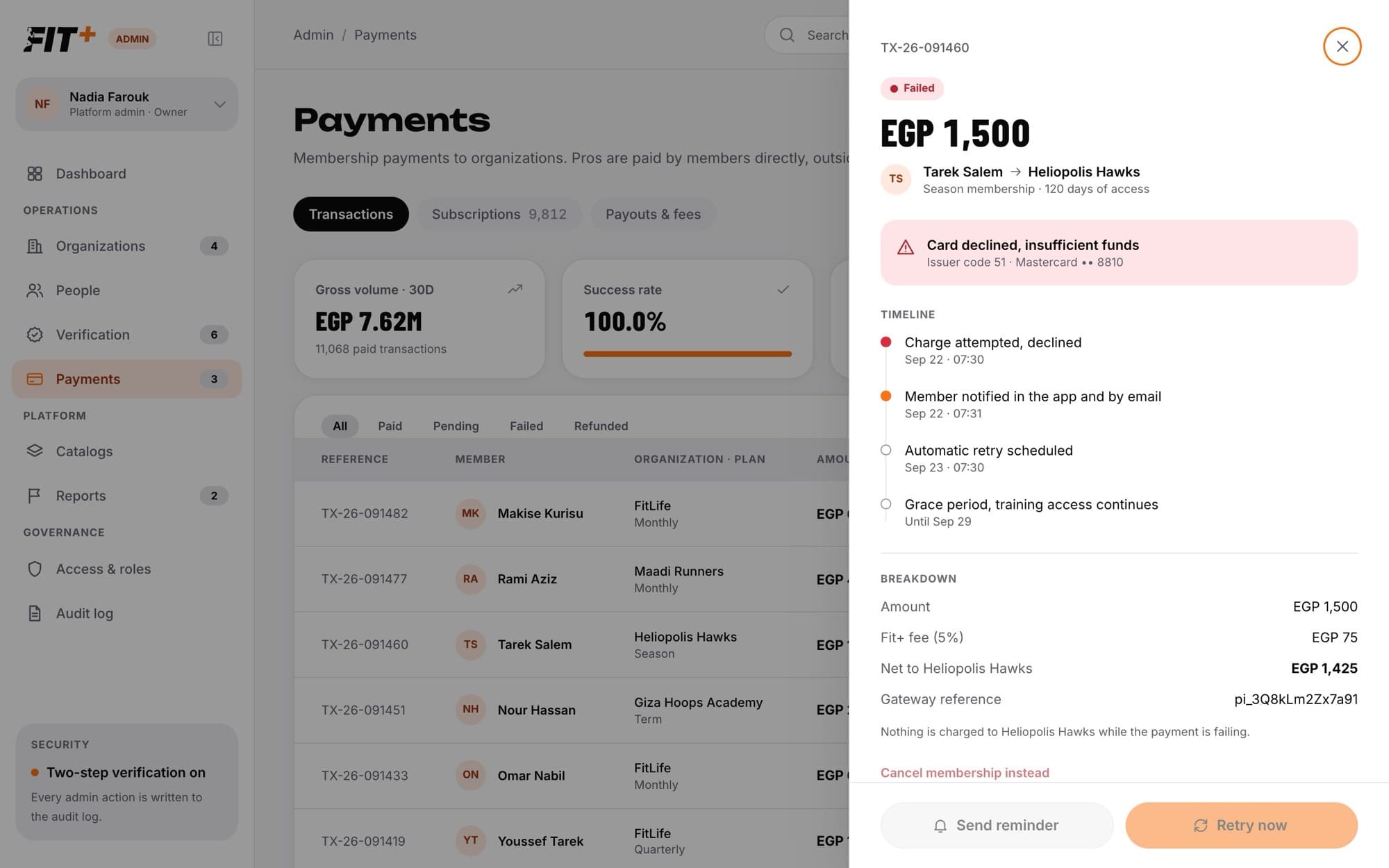
Choose the Failed filter, then choose the payment. You can also get there from Failed payments on the dashboard or from a notification.
Check what happened
The panel shows why the card was declined, a Timeline of what has happened so far, and a Breakdown of the amount, the Fit+ fee and what the organization would get.
Choose what to do
- Send reminder: the member gets a notification in the app asking them to update their card to keep their membership.
- Retry now: adds a retry request to the payment's timeline. You can request one retry an hour.
- Cancel membership instead: ends the member's active passes with that organization and tells them. Only Platform admins and Finance can do this.
Nothing is charged to the organization while a payment is failing. Every follow-up is recorded in the audit log.
Check payouts and the Fit+ fee
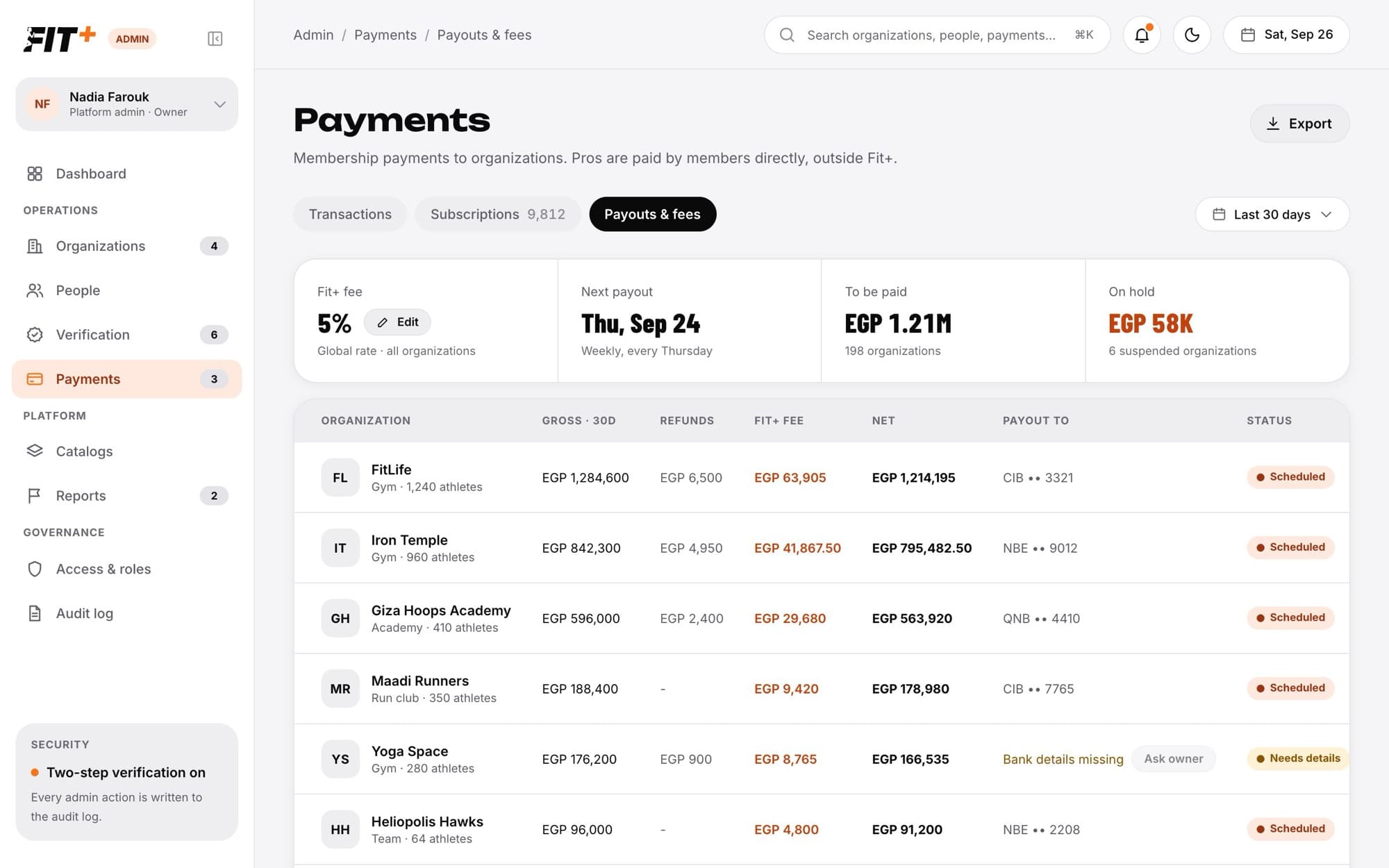
Fit+ collects membership payments, keeps its fee, and pays the rest to each organization every Thursday. Choose the Payouts & fees tab to see:
- Fit+ fee: the rate that applies to every organization.
- Next payout: the date of the next payout.
- To be paid: what's owed to organizations that have added their bank details.
- On hold: what's owed to suspended organizations.
The table lists each live organization with its gross, refunds, Fit+ fee, net amount, payout account (bank name and last four digits) and status: Scheduled, On hold, Needs details or Paid.
Refunds come off first, then the Fit+ fee is taken from what's left. Gym owners see the same figures in their own payments screen.
Change the Fit+ fee
Choose Edit
It's next to the fee on the Payouts & fees tab.
Enter the new rate
Type a percentage between 0 and 30.
Save
The new rate applies to every organization from the next payment.
Ask an owner for bank details
When a row says Bank details missing, choose Ask owner. The owner gets a notification that their payout is on hold until they add their bank details.
Review subscriptions
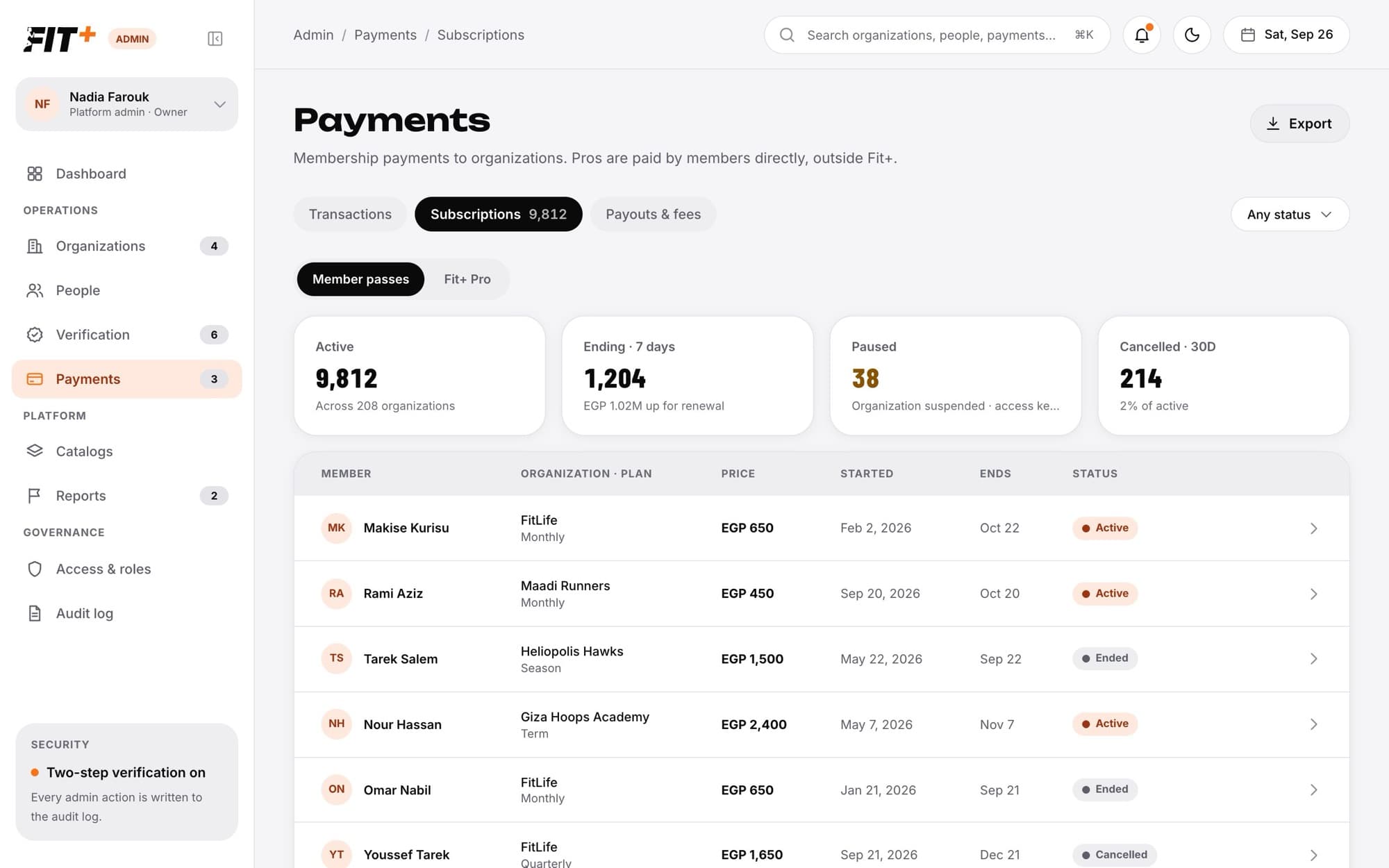
Choose the Subscriptions tab, then switch between:
- Member passes: gym and club memberships bought in the app. The tiles show how many are active, ending in the next 7 days, paused because the organization is suspended, and cancelled in the last 30 days. Passes are paid once and end on their date.
- Fit+ Pro: the member subscription bought in the App Store or Google Play, with the store, the renewal or end date and the status.
Use the status menu to filter either list.
Common questions
No. Payments are updated only by the payment provider. You can follow up a failed payment, but you can't create, edit or refund one.
Totals are never added up across currencies, so each figure is in a single currency.
It's suspended. Its payout goes out on the next payout day after it's restored. See Suspend or restore an organization.
The page notes when card payouts aren't connected yet. Until then, the amounts shown are what each organization is owed.