

Share your data with a coach or nutritionist
Choose exactly what a coach or nutritionist can see, for how long, and stop sharing whenever you like.
Your data is private until you decide otherwise. On Data sharing you choose who sees what: one person, one kind of data, for a set time. You can stop at any time.
Select Data sharing in the sidebar to open it.
What you can share
| Share | They can see | They can also |
|---|---|---|
| Workouts | Your programs and workouts | Assign training programs and leave notes |
| Schedule | Your bookings | |
| Sleep | Your sleep readings | |
| Recovery | Recovery, heart rate, steps and daily check-ins | |
| Nutrition | Your food diary and water | Assign nutrition plans and leave notes |
| Measurements | Weight, height and body fat readings |
Share a category
Choose a person
In Share with, pick the coach, nutritionist or other person by name. If you don't see them in the list, type part of their name in Search by name above it, then pick them from the results.
Choose what to share
Select one category. A sentence explains exactly what it lets them see and do.
Choose for how long
Under For how long, pick 7 days, 30 days, 90 days or 1 year.
Check the summary
For example: "Sam will see your workouts for 30 days. You can revoke it at any time."
Select Share access
You'll see "Sharing enabled for the selected category and duration." The person appears under Who can see your data.
To share more than one category with the same person, repeat these steps for each one.
Joining a gym never shares your data by itself. Gym owners and staff only see what you share with them personally.
Your progress photos and tape measurements aren't part of any category here. Progress photos are only for you, even when you share everything else with a coach. See Measurements and progress photos.
See who can see your data
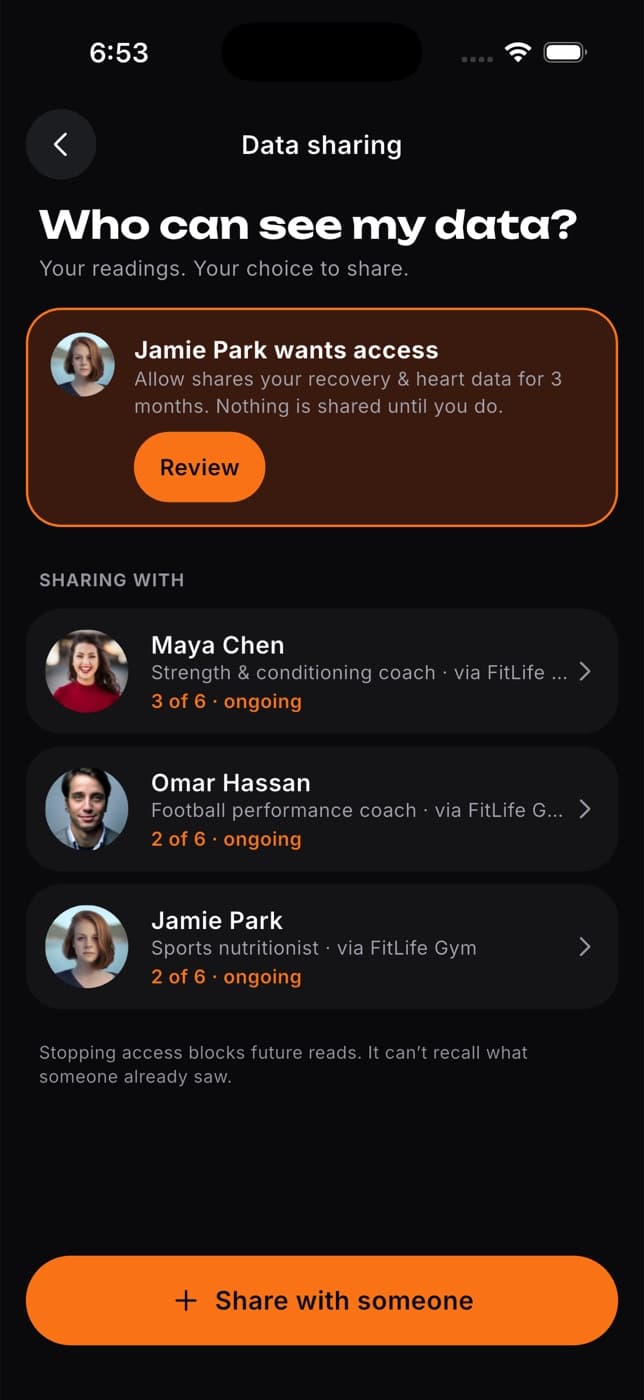
Who can see your data lists everyone you share with, what they can see, and when each permission ends. Permissions ending in three days or less are highlighted. Nothing renews on its own: when the time is up, sharing stops.
Past permissions are under Ended permissions.
Stop sharing
Find the person
Under Who can see your data.
Select Revoke
You'll be asked "Stop sharing with" and their name.
Select Revoke access
Sharing stops straight away. They can no longer see that data or add plans and notes for it.
Stopping sharing blocks anything new, but it can't take back what someone already saw.
Common questions
Coaches and nutritionists can ask you to share. Review and answer requests in the Fit+ app under Me, then Data sharing. Or share with them here yourself.
On the website the longest option is 1 year. When it ends, simply share again.
Yes. Sharing works the same everywhere, whether you set it up on the web or in the app.
They need a Fit+ account. Ask them to sign up, then try again.