

Verify your email and reset your password
Confirm a new account with the link in your email, get a new email, reset a forgotten password and change your password.
When you sign up with email, Fit+ sends you an email with a link to make sure the address is yours. This page also explains how to get back into your account if you forget your password.
Verify your email
Before you start: you've just tapped Create account after signing up with email.
Fit+ opens Check your inbox and shows the address the email was sent to.
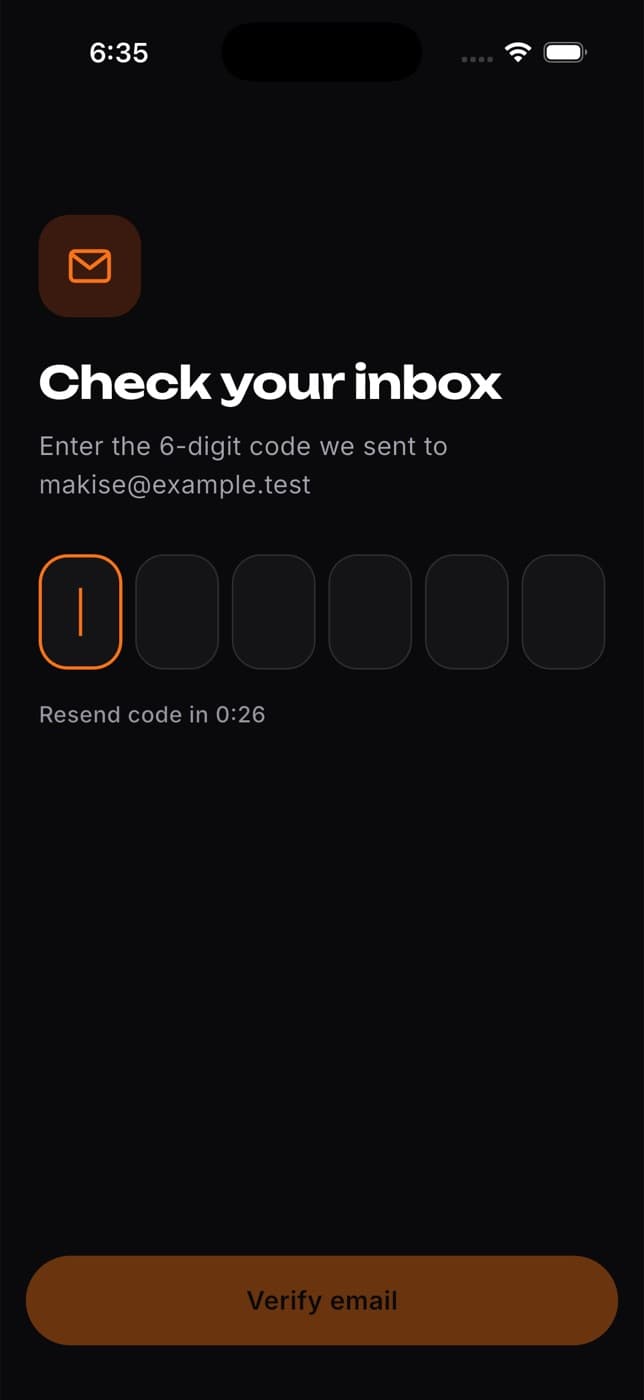
On the same phone, open the email from Fit+ and tap the link.
Fit+ opens, confirms your email and signs you in. You see "You're in" and Fit+ starts setting up your plan.
Opened the link on another device, such as your computer? Your email is still confirmed. Come back to the app, tap Sign in and use your email and password.
If the email doesn't arrive
- Check your spam or junk folder, and make sure you typed your address correctly.
- Tap Resend email to get a new one. It appears 30 seconds after the last email was sent. Until then you see a short countdown.
- Use the link in the newest email.
Reset a forgotten password
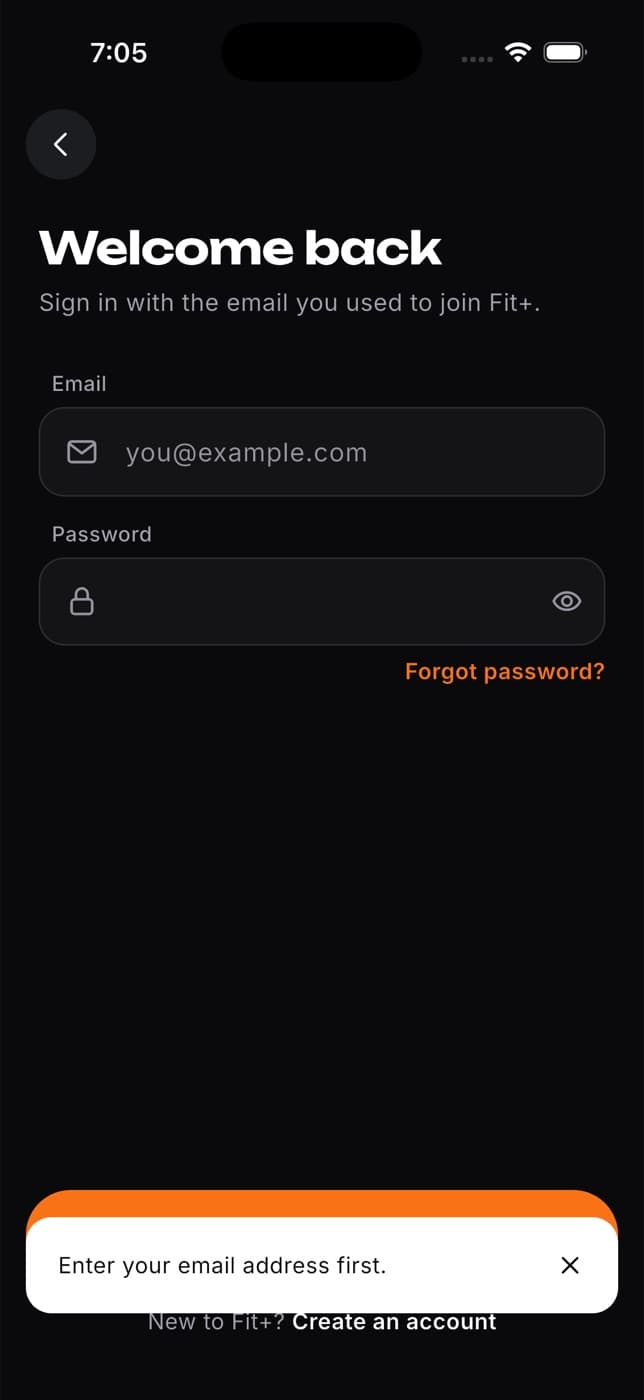
On the welcome screen, tap Sign in.
Type your email address in the Email field.
Tap Forgot password?. Fit+ tells you to check your email for a reset link. If you haven't typed an email yet, it asks you to enter one first.
Open the email on your phone and tap the reset link. Fit+ opens on A fresh start.
Enter your new password in New password and again in Confirm new password. It must be at least 8 characters and both entries must match.
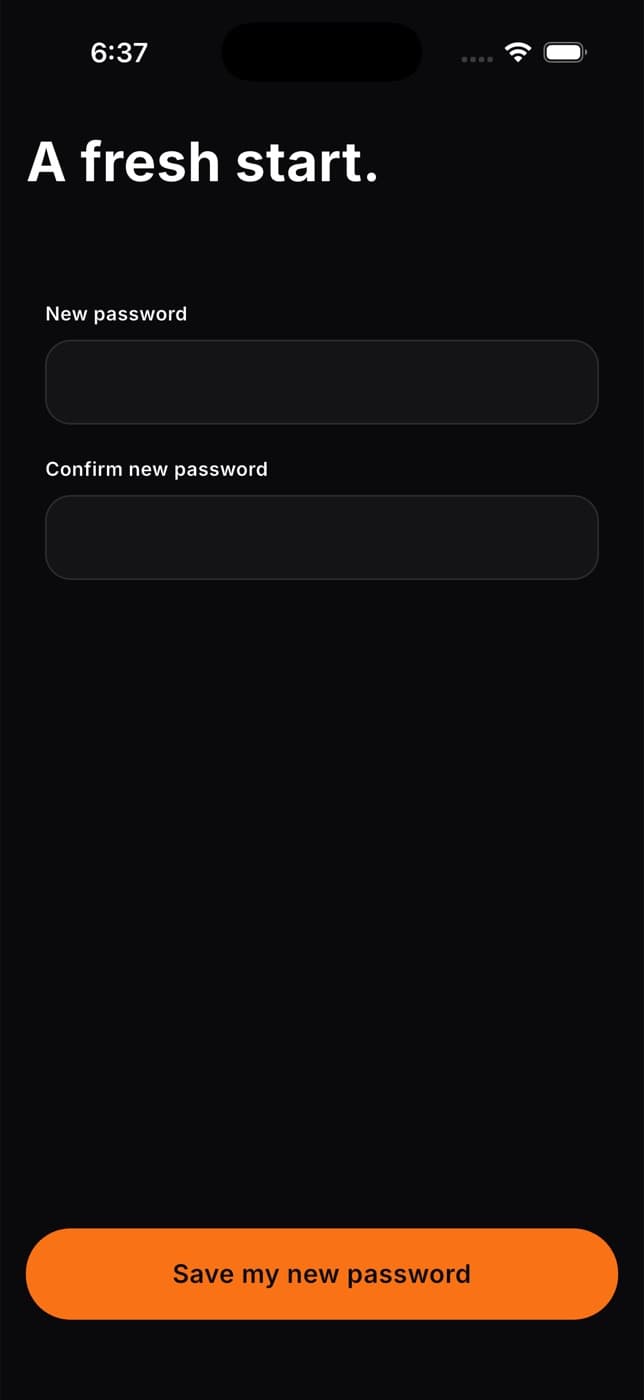
Tap Save my new password. You're signed in and can carry on as usual.
For your privacy, Fit+ never says whether an email address has an account. If no email arrives, check the address and your spam folder, then try again.
Change your password
If you're signed in and want a new password:
Tap Me, then the gear icon to open Settings.
Tap Security, then Change password.
Fit+ sends a reset link to your email. Open it on your phone and follow the steps in Reset a forgotten password from step 4.
Common questions
No. Your account is still there. Open the link in the email from Fit+ on your phone to confirm it. After that, you can sign in with your email and password at any time.
Not by yourself yet. Go to Me, Settings, Email and tap Message support. The team checks the new address and changes it for you.
Not yet. You may see these options in Security, but the Face ID lock and two-factor sign-in aren't available yet.
You don't have a Fit+ password. Sign in with the same Apple or Google button you used before. If you can't get into that account, reset it with Apple or Google.