

Create your account and sign in
Open Fit+ for the first time, create an account with Apple, Google or email, sign in again later and log out.
This page helps you get into Fit+: from opening the app for the first time to your first screen after signing in. If you need to confirm your email or reset your password, see Verify your email and reset your password.
Open the app
When you open Fit+, you see an orange screen where a runner sprints in and the Fit+ logo forms around them while the app gets ready. This usually takes a second or two. If your phone is set to reduce motion, the logo simply fades in. If it takes longer, the line under the logo changes to "Getting things ready…".

If Fit+ can't connect, you see Unable to open Fit+. Check that you're online, then tap Retry connection. Your account is not affected.
The welcome screen
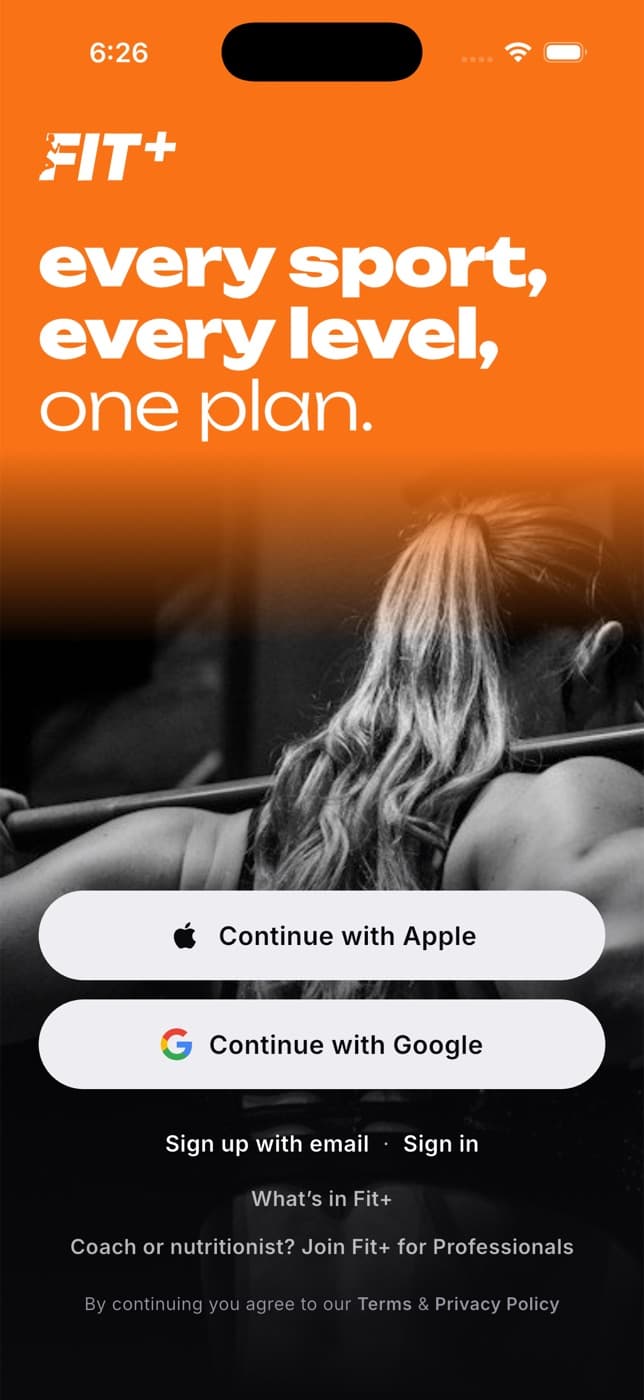
The welcome screen has:
- Continue with Apple and Continue with Google, the quickest way in.
- More options, for a short tour of Fit+ and every way to create an account, including email.
- Sign in, if you already have an account with an email and password.
- The language, at the top. Tap it to choose your language before you start.
Take a quick tour (optional)
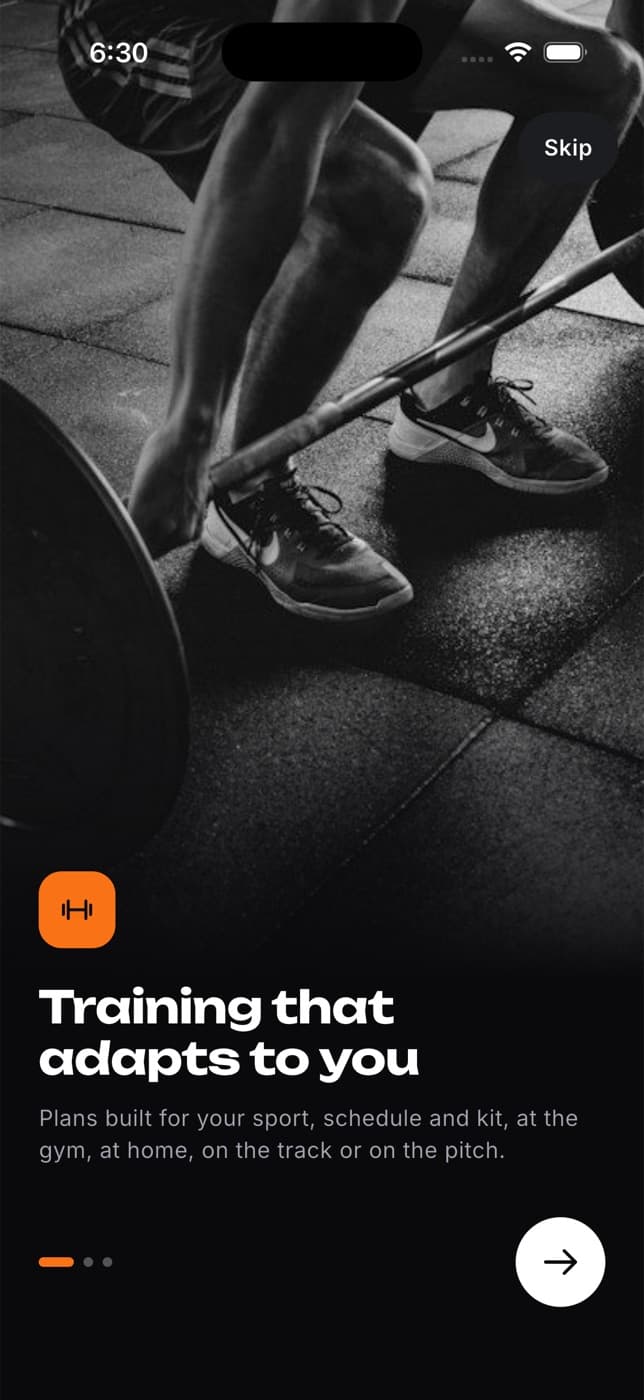
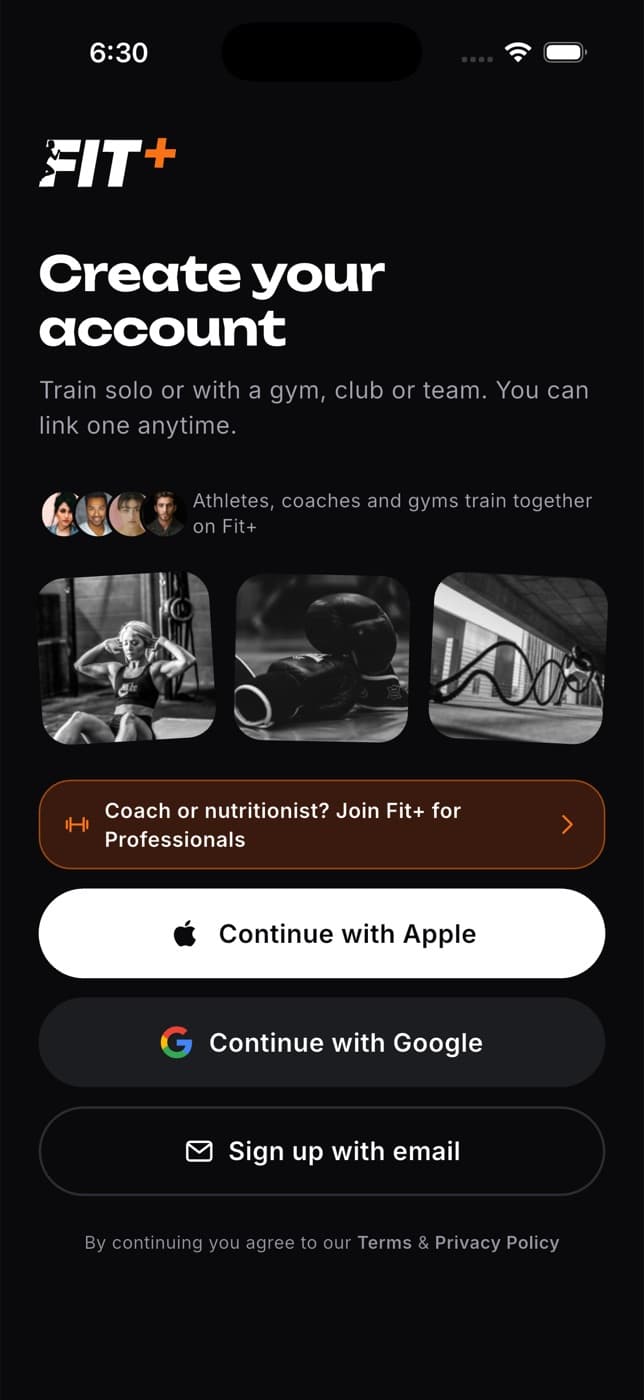
Tap More options to swipe through a short introduction to training, food and the AI coach. At the end, tap Get started, or tap Skip at any time, to reach Create your account.
Create an account with Apple or Google
The quickest way to start. You don't need a new password.
On the welcome screen, tap Continue with Apple or Continue with Google.
Confirm with your Apple or Google account in the window that opens.
You come straight back to Fit+, signed in. With Google, your name and photo are added to your profile if you haven't set them yet.
If you close the Apple or Google window, nothing happens and you can try again.
Create an account with email
On the welcome screen, tap More options, then Skip, then Sign up with email.
Enter your Full name, Email and a Password of at least 8 characters. Tap the eye icon to check what you typed.
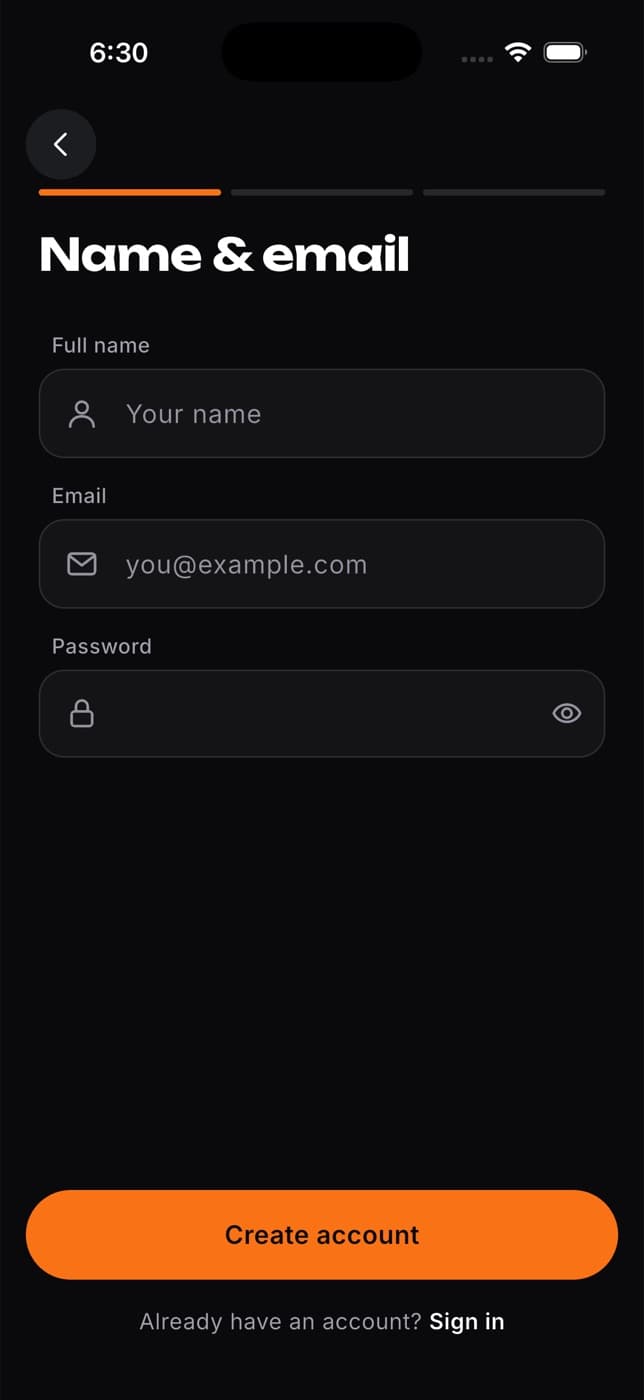
Tap Create account.
Fit+ opens Check your inbox. Open the link in the email from Fit+ to confirm your address and sign in. See Verify your email.
By continuing you agree to the Fit+ Terms and Privacy Policy. You can open both from the bottom of the welcome screen.
Sign in
If you already have an account:
On the welcome screen, tap Sign in. If you signed up with Apple or Google, tap that button instead.
Enter the Email and Password you used to join Fit+.
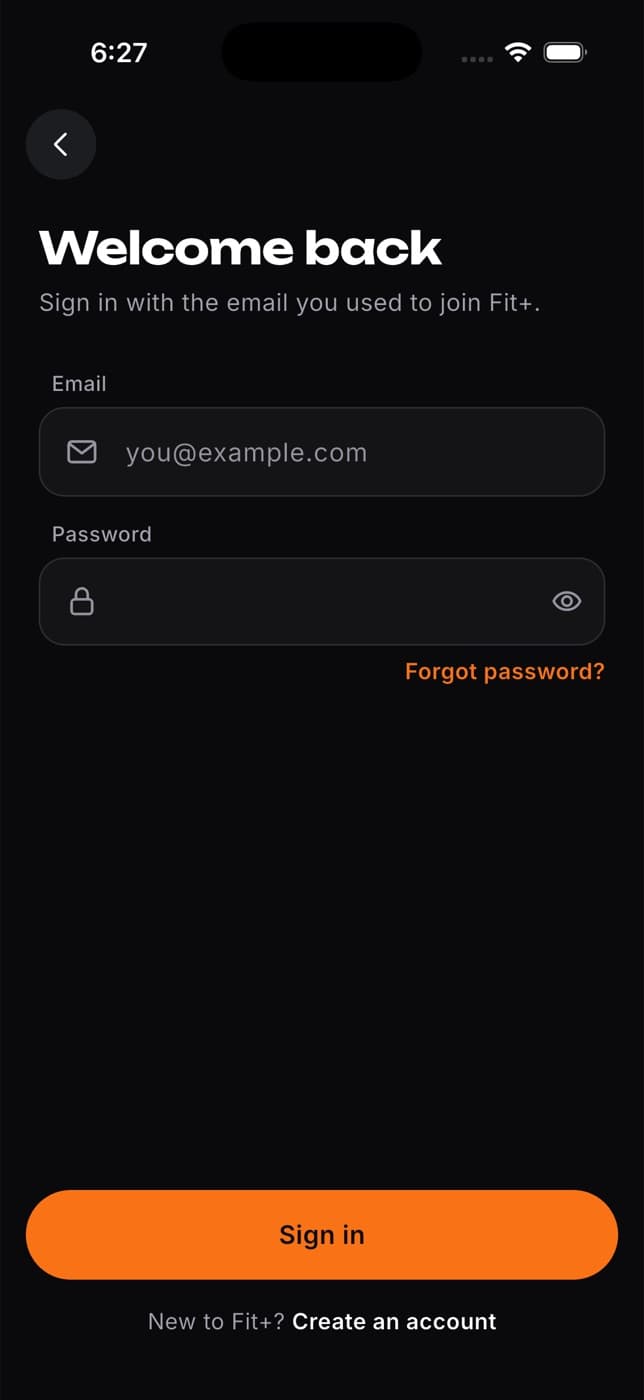
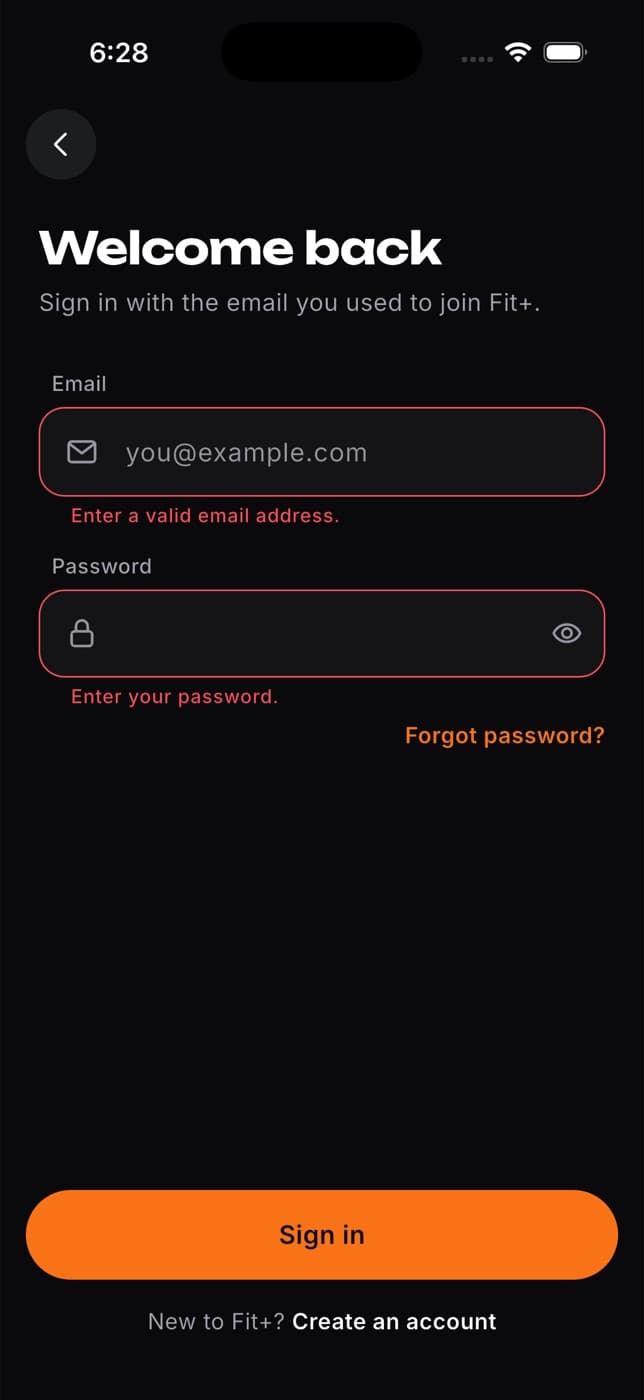
Tap Sign in.
If your details don't match, a message under the form tells you what went wrong. Forgot your password? Tap Forgot password? and follow these steps.
What opens after you sign in
- New to Fit+? You go to a short setup where you answer seven questions and get your first plan. Then a 30-second tour shows you around the tabs: tap Show me around, or Skip. You can replay it any time from Settings, App tour.
- Coach or nutritionist who was just approved? Fit+ offers to activate your professional workspace.
- Everyone else lands on Home, or on the workspace you used last.
If you had a workout in progress when you last used Fit+, it's still there, ready to resume.
Once you've finished setup, Fit+ asks one time whether you'd like to share usage statistics to help improve the app. Tap Allow or Not now. Nothing is shared unless you allow it, and never your health data. See Help improve Fit+.
Log out
Tap Me, then the gear icon to open Settings.
Tap Log out.
Tap Log out again to confirm, or Stay signed in to cancel.
Your data stays in your account and you can sign in again at any time. After you log out, this phone stops receiving notifications for your account.
Common questions
Yes. On a tablet or a wide window the sign-in screen looks a little different, but it asks for the same details and works the same way.
No, you sign in with the same Apple or Google button each time. You only need a password if you signed up with email.
Open the email from Fit+ called "Name set up your Fit+ account", with your coach's name, and select Set your password. Choose your own password, then come back to the app, tap Sign in and use that email address and your new password. See Set your password from a setup email.
Yes. Log out first, then they can sign in with their own account. Nothing from your account is shown to them.
On the welcome screen, tap More options, then Skip, then Coach or nutritionist? Join Fit+ for Professionals. See Apply as a coach or nutritionist.