

Set your password from a setup email
Choose your own password from a Fit+ setup email, when a coach, a gym or the Fit+ team created your account, or when your professional application was approved.
Sometimes your Fit+ account is made for you: by your coach or nutritionist, by your gym, or by the Fit+ team. Nobody chooses a password for you. Instead, Fit+ emails you a link, and you choose your own password.
If someone created your account for you
You get one of these emails from Fit+:
- From a coach or nutritionist: the subject is "Name set up your Fit+ account", with their name.
- From a gym or the Fit+ team, for professionals: the subject is "Your Fit+ professional account is ready".
Open the email
Can't find it? Check your spam or junk folder.
Select Set your password
A page opens where you choose your password.
Choose your password
Use at least 8 characters, and type it twice so you know it's right.
Sign in
- Members: open the Fit+ app on your phone, tap Sign in, and enter the same email address and your new password.
- Coaches and nutritionists: sign in to Fit+ on the website with the same email address and your new password. Then finish your profile and prices.
If your coach or nutritionist made your account, they don't see any of your data yet. Nothing is shared with them until you choose what to share in Data sharing in the Fit+ app.
If the link in your email has expired
The link works once and only for a limited time.
- Open the link anyway. The page tells you it has expired and lets you ask for a new link. Use the newest email.
- Or use Forgot password? on the sign-in screen and follow the steps. See Forgot or change your password.
- You can also ask the person who made your account to send the email again.
If your application was approved
When Fit+ approves your application to coach or advise on nutrition, you get an email inviting you to set up your account. The link opens a page where you choose a password and activate your professional workspace.
Before you start
- The setup email from Fit+. The link in it works for 7 days and only once.
- Open it on the computer and browser you want to use.
Select the link in the email
A page opens that says Welcome to Fit+ Pro with your name. Your email address is already filled in.
Choose a new password
Type it in New password. Use at least 8 characters. The bar under the fields tells you how strong it is.
Type it again
Enter the same password in Confirm password.
Select Activate account
Your password is saved and your professional access is switched on.
Set up your profile
Fit+ takes you straight to setting up your professional profile. See Fit+ for professionals for the next steps.
If your setup link has expired
If the link is too old or was already used, you'll see This link has expired.
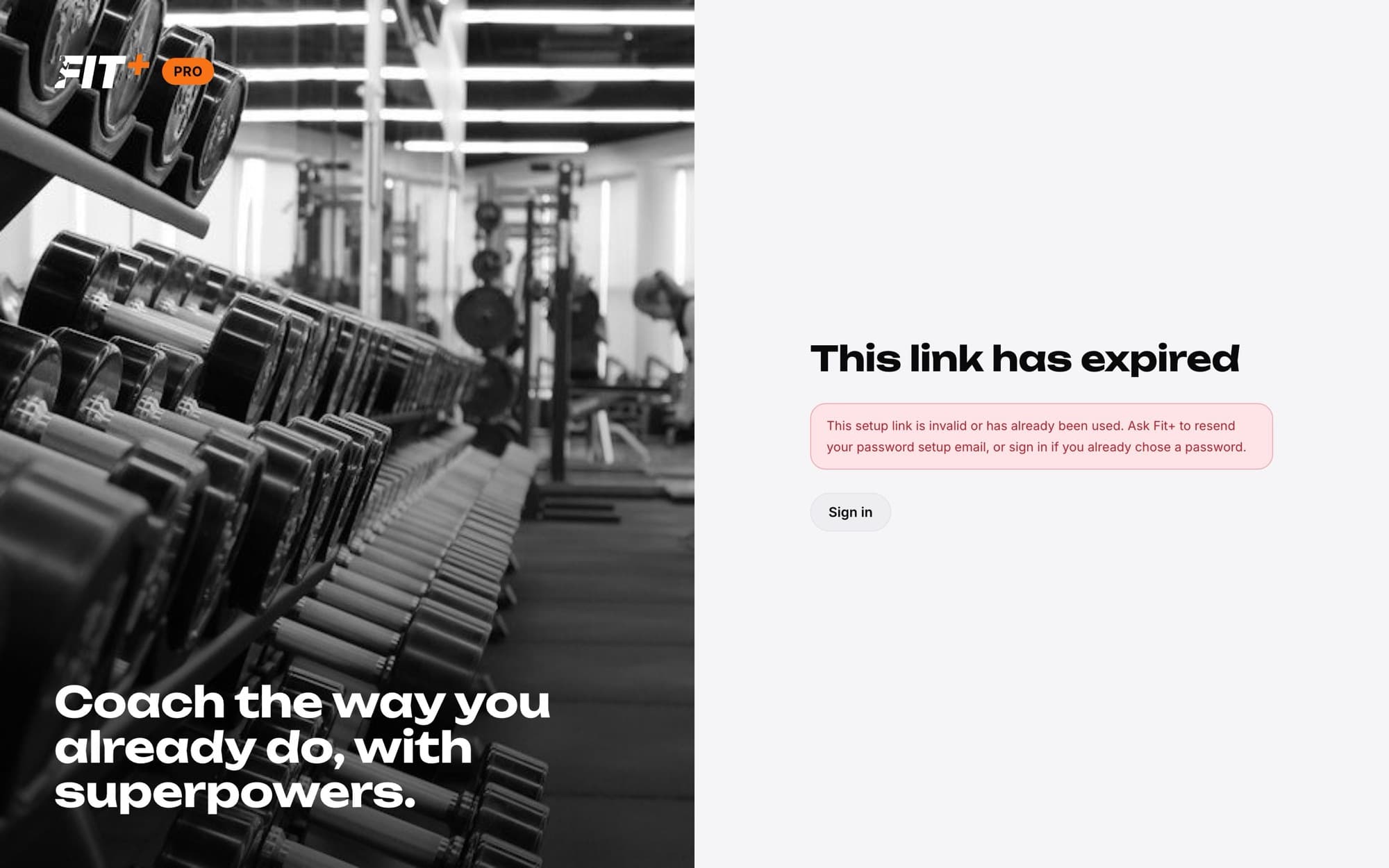
- Already chose a password? Select Sign in and use it.
- Haven't set one yet? Ask the Fit+ team to send the setup email again. See Getting help.
Already had a Fit+ member account with the same email? You keep it. Your professional workspace is added to the account you already have, and your own training stays under My fitness.
Common questions
Your password is safe. Select Try activating again. If it still doesn't work, contact support.
Check that your password has at least 8 characters and that both boxes match.