

Your profile and settings
Find your way around the Me tab and Settings, edit your profile and photo, choose dark or light mode and your language, manage your privacy and usage analytics, get help and delete your account.
The Me tab is where your profile and your account live. From here you can edit your details, change how the app looks, control your privacy, get help and upgrade to Fit+ Pro.
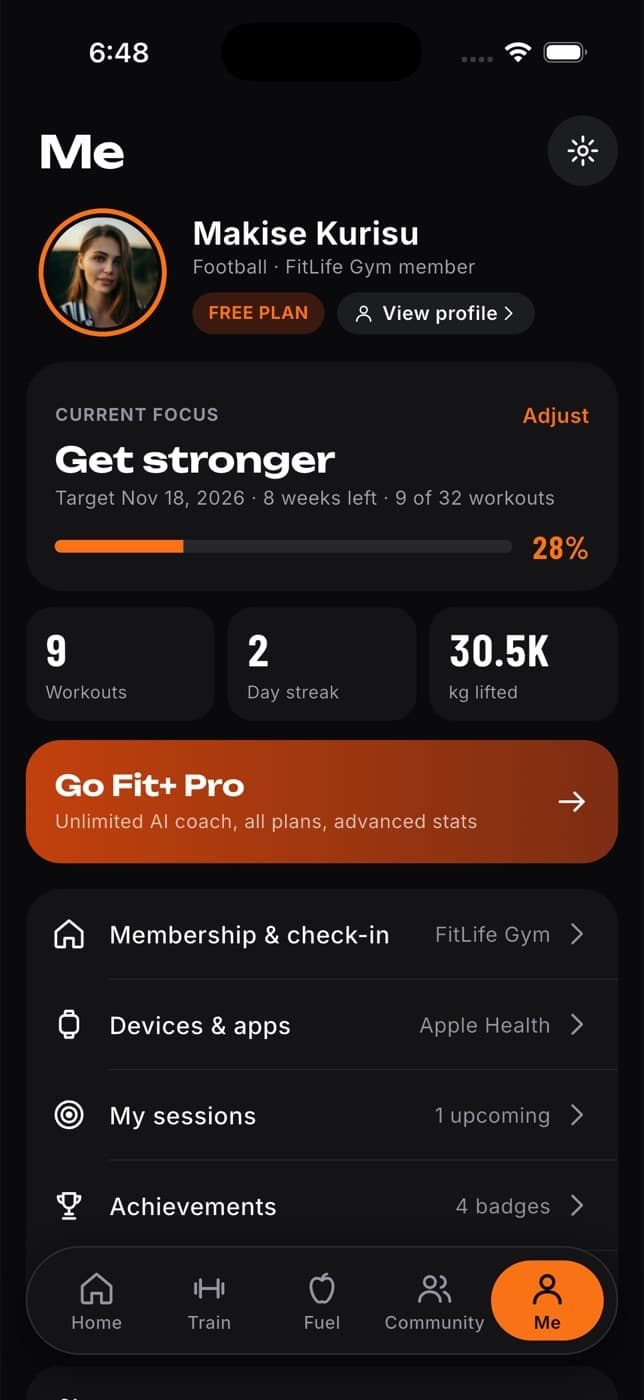
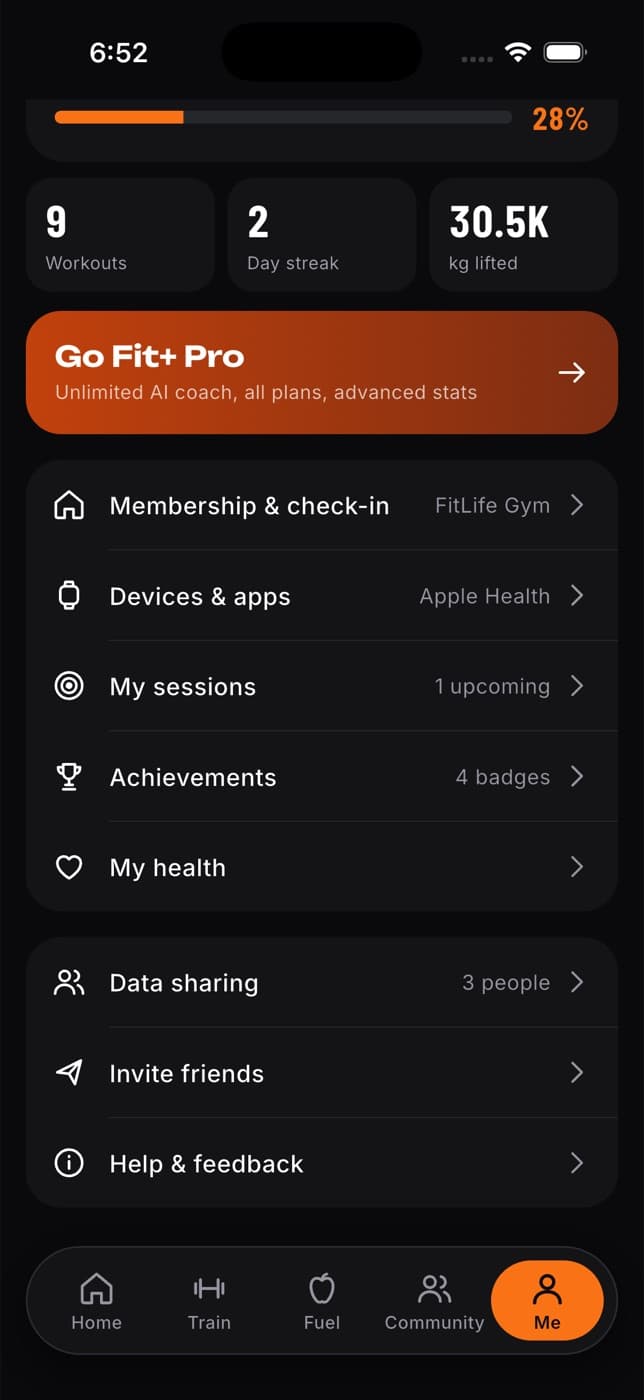
What's on the Me tab
- Your profile: your photo, name, sport and whether you're on the free plan or Pro. Tap View profile to see your profile the way others see it.
- Current focus: your goal and how far you are through your plan. Tap Adjust to change your answers.
- Your stats: workouts completed, your day streak and the total weight you've lifted, in your units. Warm-up sets don't count toward the total.
- Go Fit+ Pro: upgrade for the unlimited AI coach, all plans and advanced stats. You only see this if you're not on Pro yet.
- Membership & check-in: your gym pass and check-in code. See Join a gym, club or team.
- Devices & apps: connect your watch or health app. See Health and devices.
- My sessions: your bookings with coaches. See Coaching.
- Achievements: your badges and records. See Messages and community.
- My health: your health readings and trends, your body measurements and your progress photos. Progress photos are only ever visible to you.
- Data sharing: who can see your data. See Choose who can see your data.
- Invite friends and Help & feedback, described below.
- Fit+ for Professionals: apply as a coach or nutritionist. See Apply as a coach or nutritionist.
Edit your profile and photo
On Me, tap your photo. (Or open Settings and tap Personal info.)
To change your photo, tap Change profile photo and pick one from your library. Photos must be smaller than 2 MB.
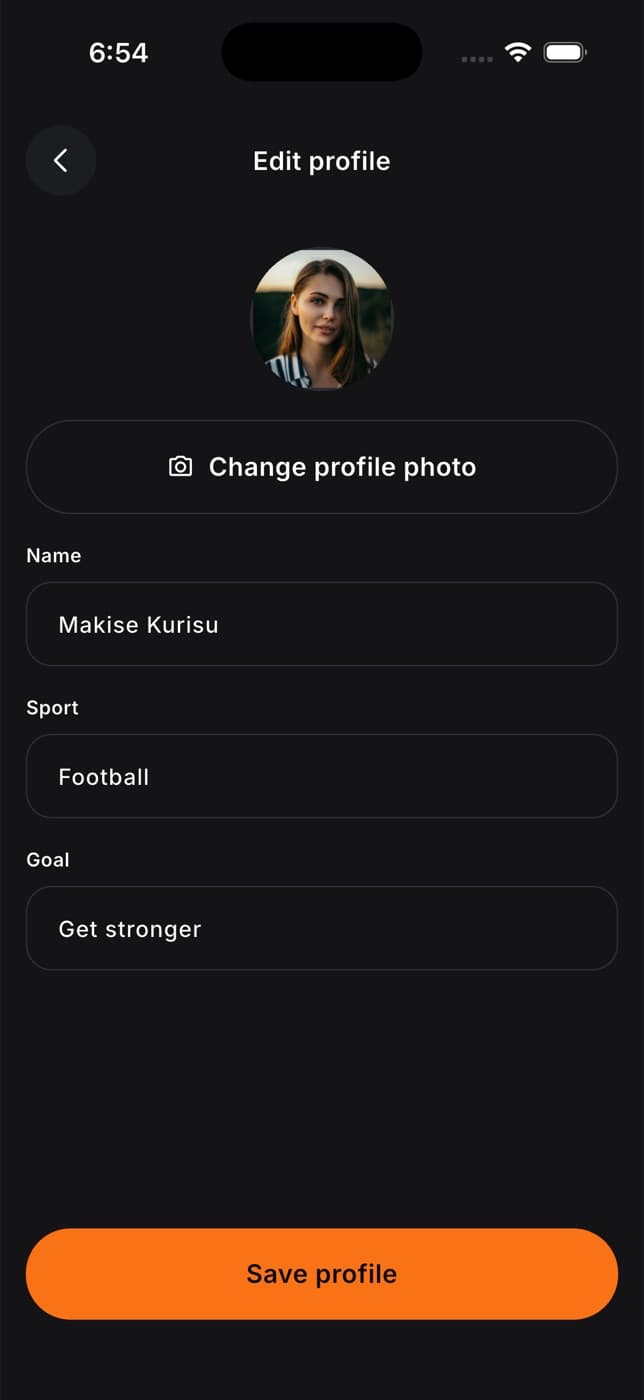
Update your Name, Sport and Goal. Your name can't be empty.
Tap Save profile. Your new photo is only kept once you save.
Upgrade to Fit+ Pro
On Me, tap Go Fit+ Pro.
Choose yearly or monthly.
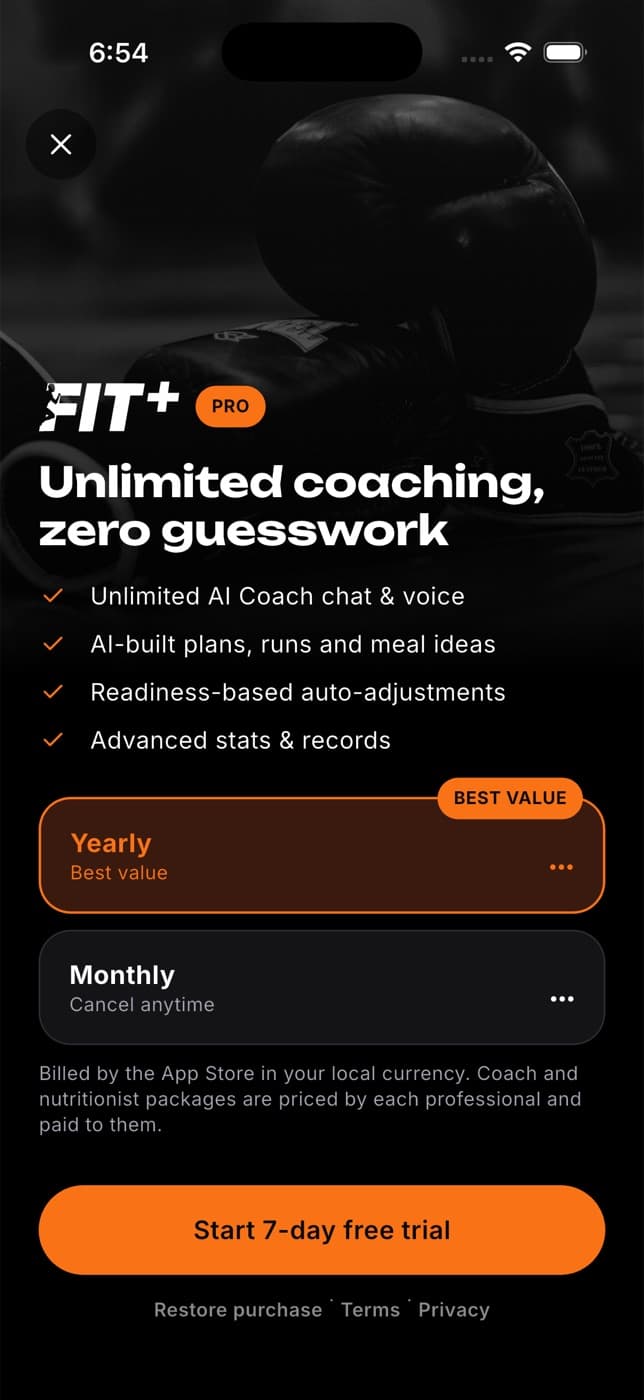
Confirm with your App Store account on iPhone, or your Google Play account on Android. You're billed, and can cancel, through the same store.
Some gym passes include Fit+ Pro. If yours does, you'll see "Included with" and your gym's name, and you don't need to subscribe.
Open your settings
On Me, tap the gear icon in the top corner.
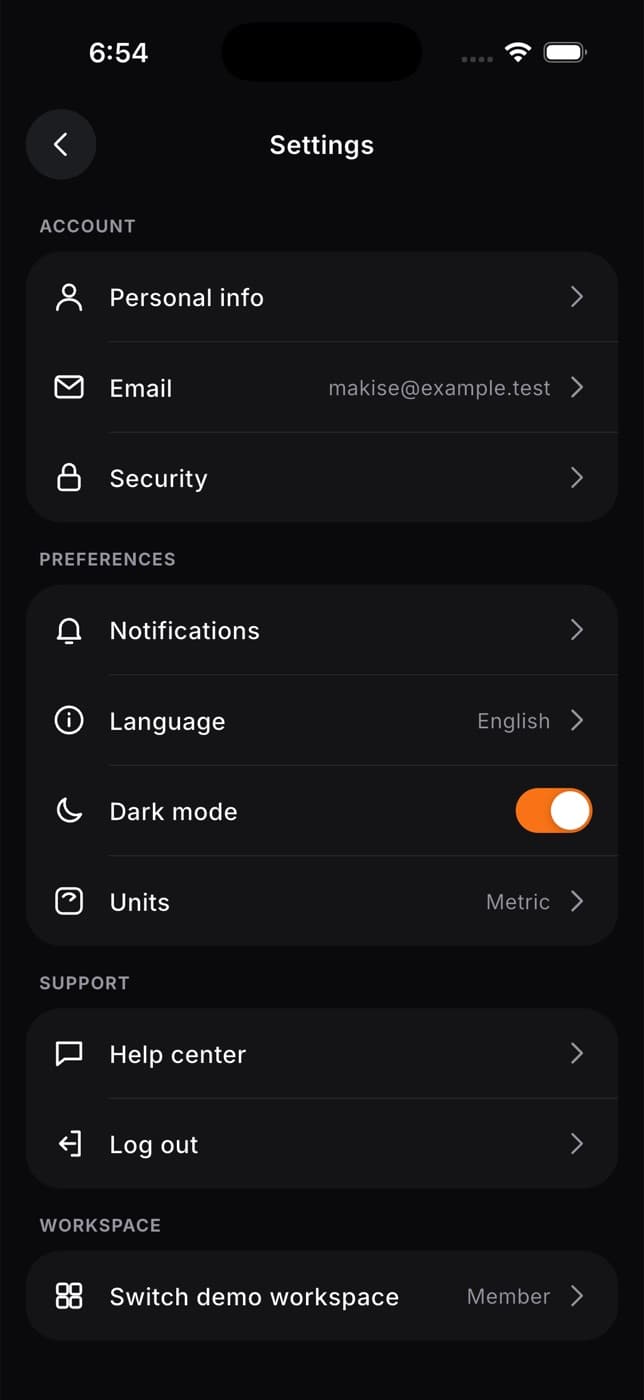
Settings is grouped into Account, Preferences and Support, plus Workspace if you have more than one workspace.
Account
| Setting | What it does |
|---|---|
| Personal info | Edit your name, photo, sport and goal. |
| Shows the email you sign in with. To change it, tap Message support. | |
| Security | Sign-in, privacy, your data and deleting your account (below). |
Preferences
| Setting | What it does |
|---|---|
| Notifications | Choose which alerts and reminders you get. See Manage notifications and Workout and meal reminders. |
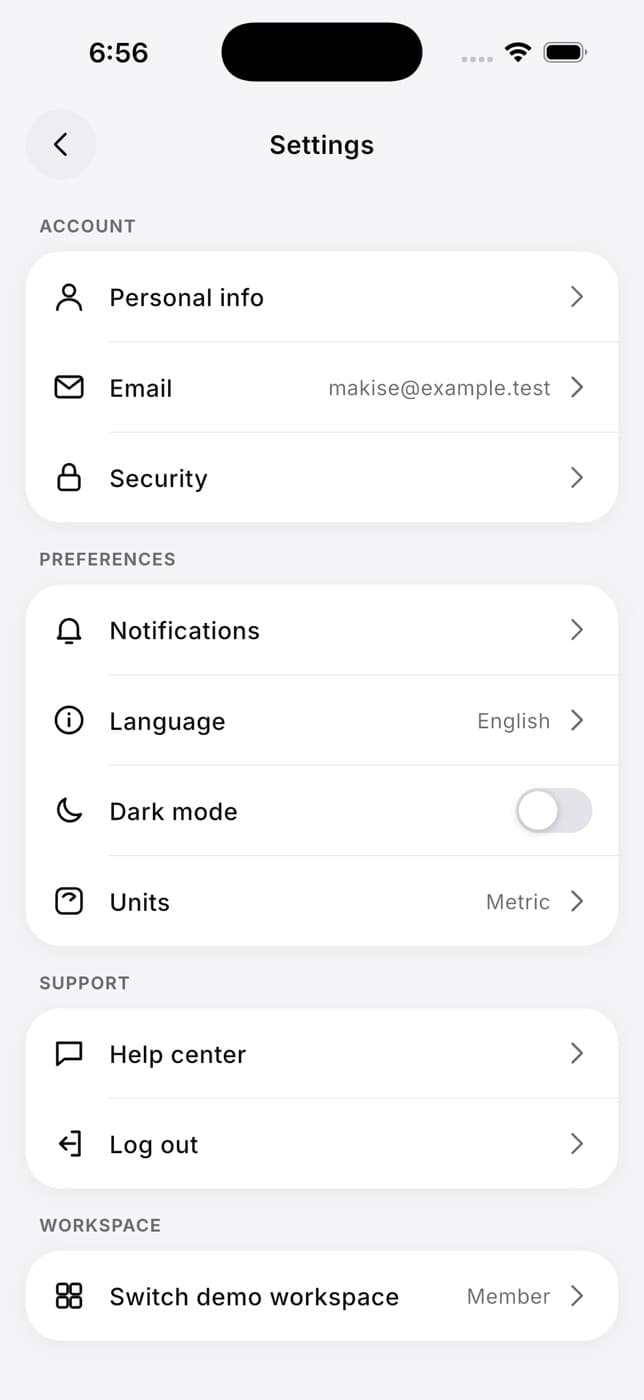
| Dark mode | Switch between dark and light. |
| Units | Choose kg or lb, km or miles, kcal or kJ and more. See Choose your units. |
| Language | Device language, or English, العربية (Arabic), Español, Français, Deutsch, Português or Türkçe. |
| Rest timer | Default rest times and rest timer options for your own routines. |
| Progression | Whether Fit+ suggests your next weights and reps in your own routines, and how. |
Support
| Setting | What it does |
|---|---|
| App tour | Replay the short tour of the app's tabs. |
| Help center | Answers to common questions and a way to contact support. |
| Log out | Sign out of Fit+ on this phone. |
Your language, units and notification choices follow you if you sign in on another phone.
Rest timer and Progression only apply to workouts you plan yourself. When you follow a coach's plan, their rest times and progression are always used instead. See Set your rest timer and progression.
Switch between dark and light mode
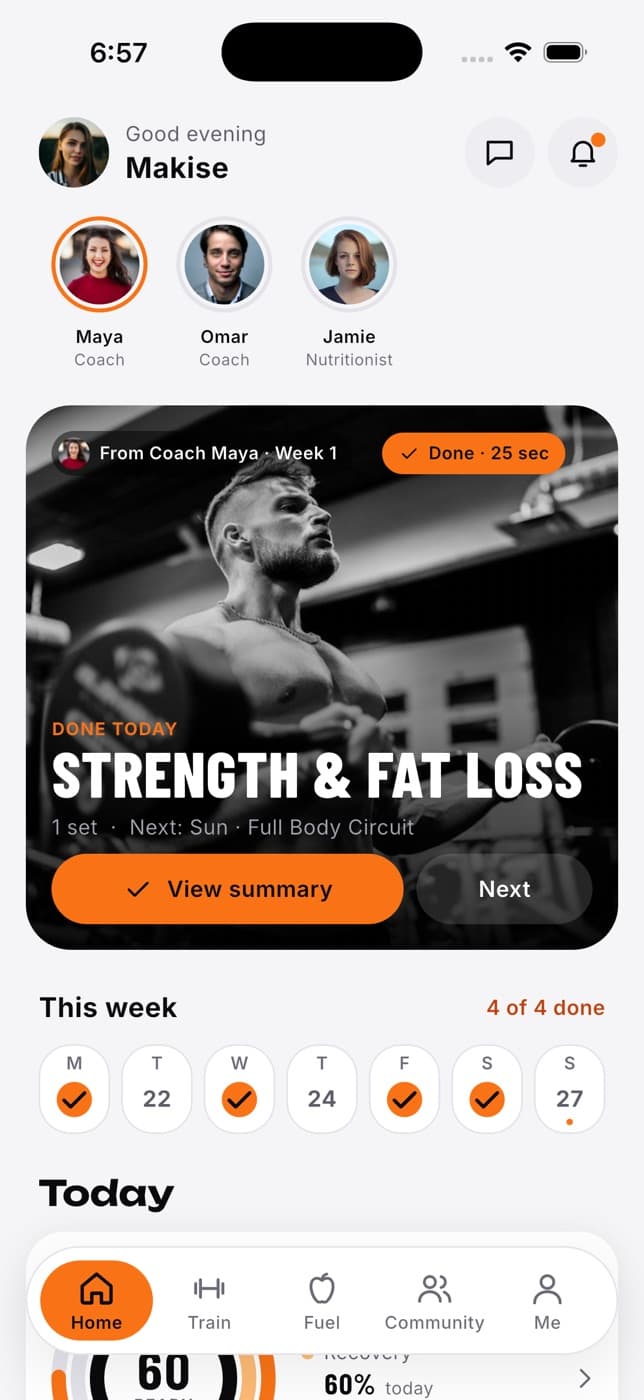
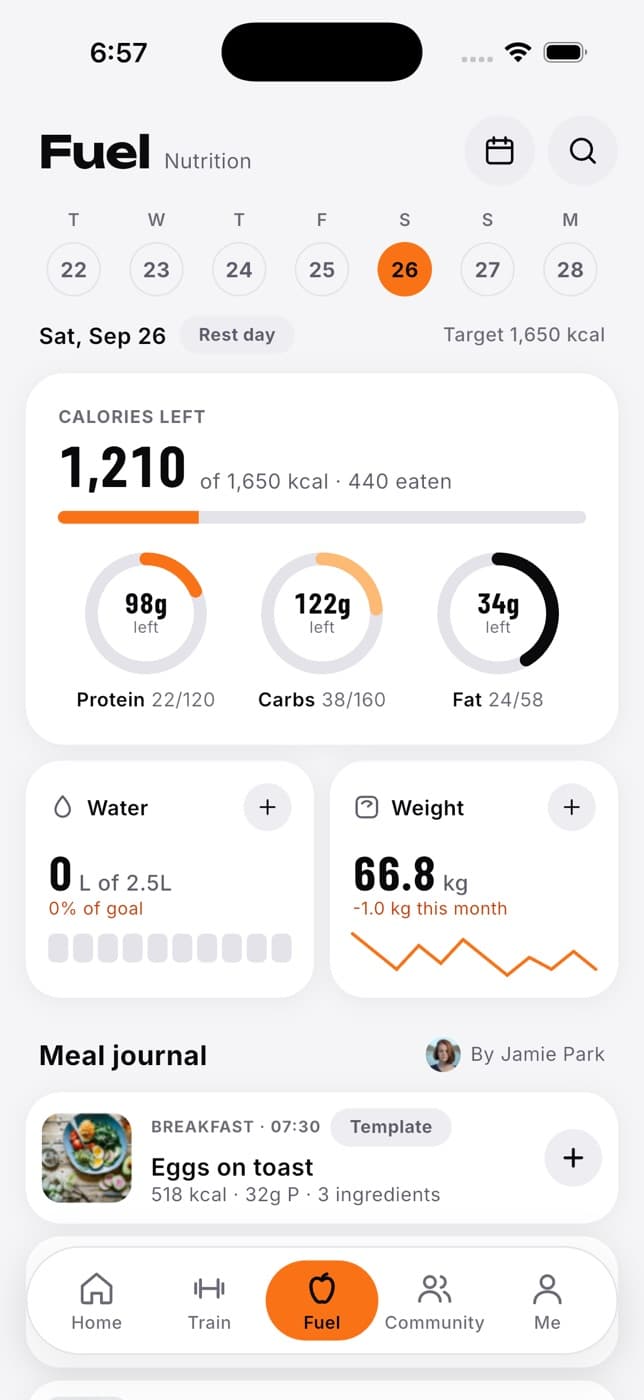
Fit+ starts in dark mode. To use light mode, open Settings and turn Dark mode off. The change is instant, and it's remembered on this phone.
Manage your privacy and your data
Open Settings, then Security.
Sign-in
- Change password: see Change your password.
- Face ID and Two-factor auth aren't available yet.
Privacy
- Profile visible to: choose Everyone, one of your gyms, or Only me.
- Share workouts: choose who sees your workouts in the community (Everyone, Friends or Only me).
- AI processing: this is off until you turn it on. It lets Fit+ use AI for the AI Coach, meal photos and swap ideas. You're asked to agree before it turns on, and you can turn it off at any time.
- Usage analytics: optional usage statistics, off until you allow them. See Help improve Fit+ below.
Your data
- Import your history: bring your workouts from Strong, Hevy or another app, or your food diary from MyFitnessPal.
- Export data: save your data as a spreadsheet or a JSON file.
- Home screen widgets: preview the Fit+ widgets and choose whether health numbers show on your lock screen.
See Import and export your data and Home screen widgets.
Who can see your workouts, health and meals is covered in Choose who can see your data.
Help improve Fit+
Once you've finished setup, Fit+ asks one time whether you want to share usage statistics, such as which screens you open and which features you use. It never asks during sign-up or a workout.
- Tap Allow to share them, or Not now to keep them off. Closing the question also keeps them off.
- The statistics are linked to a random account ID, never your name or email.
- Fit+ never sends your health data, food, weights, messages or photos.
To change your mind, open Settings, then Security, and turn Usage analytics on or off.
Delete your account
Open Settings, then Security, and tap Delete account at the bottom.
Read what gets deleted, then tap Delete my account. Or tap Keep my account to cancel.
Fit+ deletes your account and data straight away and signs you out. Your coaches and gyms lose access at once.
If your account owns a gym or business on Fit+, the Fit+ team needs to finish the deletion. You see a message saying so. Your data sharing stops at once, and the team finishes within 30 days.
You can also delete your account from a browser: select Delete account at the bottom of any public Fit+ web page, such as the sign-in page. See Delete your account on the website.
Deleting your account can't be undone. If you want to keep your history, export your data first. Deleting your account doesn't cancel a Fit+ Pro subscription: cancel it in your Google Play or App Store subscriptions.
Get help or send feedback
On Me, tap Help & feedback (or Settings, then Help center).
- Search the answers to common questions, like how to adjust your plan, link a gym or sync your watch.
- Message support if you can't find an answer. The team replies by email within one business day.
- Send feedback to report a problem, suggest an idea or say thanks.
- Rate your experience from 1 to 5 stars.
Please don't include health details you don't want to share in your message.
Invite friends
On Me, tap Invite friends. You'll see your personal invite code. Tap Copy to copy it, or Share invite link to send it by message, email or any app on your phone.
Switch workspace
If you're also a coach, nutritionist, gym owner or admin, you have more than one workspace. On Me, tap Open Coach workspace (or Open and the name of your other workspace), or open Settings and tap Switch workspace. Fit+ remembers your choice and opens there next time. See Using the app as a coach, gym owner or admin.
Common questions
For your security, email changes go through support. Open Settings, tap Email, then Message support, and the team checks the new address with you.
No. Dark or light mode is set on each phone separately. Your language, units and notification choices do follow you.
Yes. Open Settings and tap App tour under Support. The tour is for the member app.
Your coaches lose access as soon as you tap Delete my account, because your account and data are deleted straight away.
A Face ID lock isn't available yet. You may see a Face ID switch in Security, but it doesn't lock the app yet.
What your watch saves
Where your Apple Watch workouts are saved, in your Fit+ history and in Apple Health, how your heart rate becomes heart-rate zones, and how to bring watch-only workouts into Fit+.
Choose your units
Pick kilograms or pounds, kilometres or miles, calories or kilojoules and more, set the plates you own and choose the first day of your week.