

Using the app as a coach, gym owner or admin
Look after your clients, answer requests, run your schedule and manage your gym from your phone, plus what gym owners, admins and finance viewers can do in the app.
The Fit+ app isn't only for members. If you're a coach, nutritionist, gym owner, staff member or part of the Fit+ team, you can do your daily work from your phone. For bigger jobs, such as building complex plans or setting up your gym, the Fit+ website has more room. See Professionals, Organizations and Admin.
Switch between your workspaces
Most professionals also have a member account for their own training. Each role has its own workspace.
- From your professional home, tap Member at the top to switch to your member app.
- From the member app, tap Me, then Open Coach workspace (or your other workspace). You can also open Settings and tap Switch workspace.
Fit+ remembers which workspace you used last and opens it next time. If you're both a coach and a nutritionist, you work in one combined Coach & Nutritionist workspace.
For coaches and nutritionists
Your workspace has five tabs: Home, Clients, Requests, Schedule and Inbox.
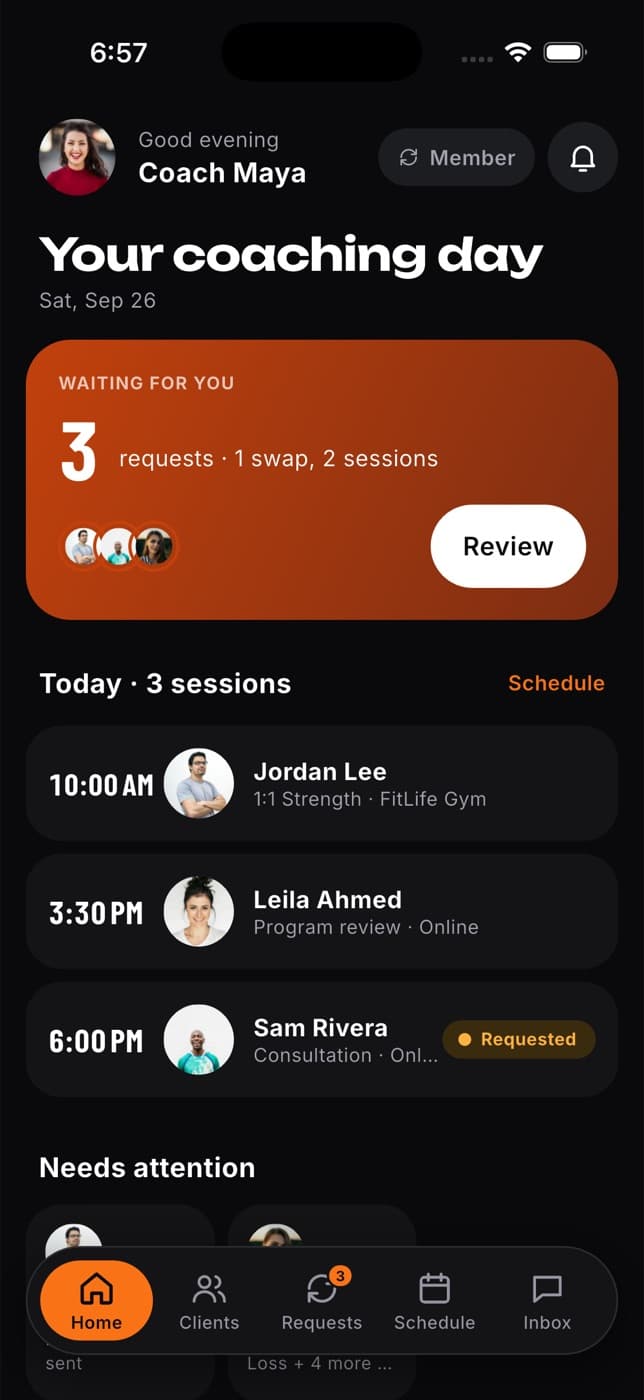
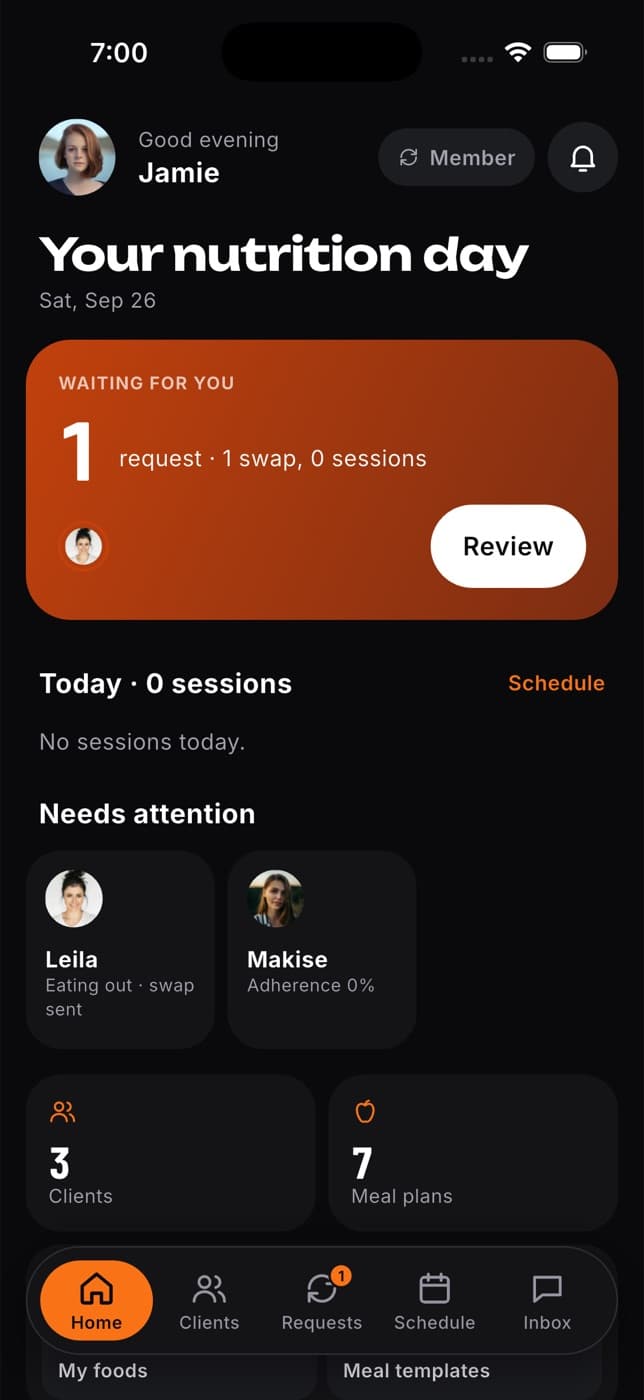
Start your day on Home
- Waiting for you shows how many requests need an answer. Tap Review to go through them.
- Today lists your sessions. Tap Schedule to see the full day.
- Needs attention points out clients with a pending swap, a workout to review or low adherence. Tap a client to open them.
- Quick links take you to your clients, programs, meal plans, templates, exercises and foods.
- Weekly summary suggests a check-in message for a client, ready for you to edit and send.
The first time you open your workspace, Fit+ asks to send you notifications so new requests reach your phone.
Look after your clients
Tap Clients. Search by name, or filter by All, Training, Nutrition or Attention.
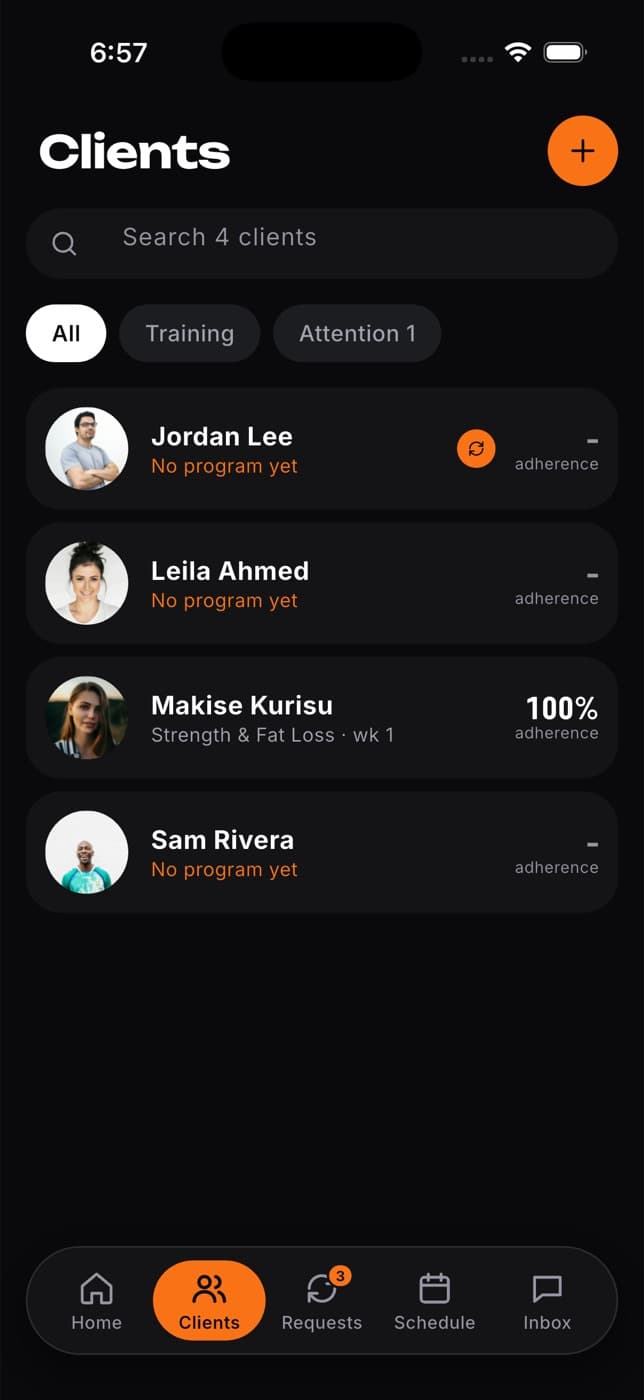
Tap a client to see their program, meal plan, health trends, next session and anything to plan around, such as sore areas and their diet.
Tap Review last workout, Assign a program or Assign a meal plan as needed. If your client changed a workout after finishing it, the review says "edited" and the day, so you know it isn't exactly as first logged.
Add a note. Keep it private ("Only you can read it"), or share it so your client receives it as a coach note.
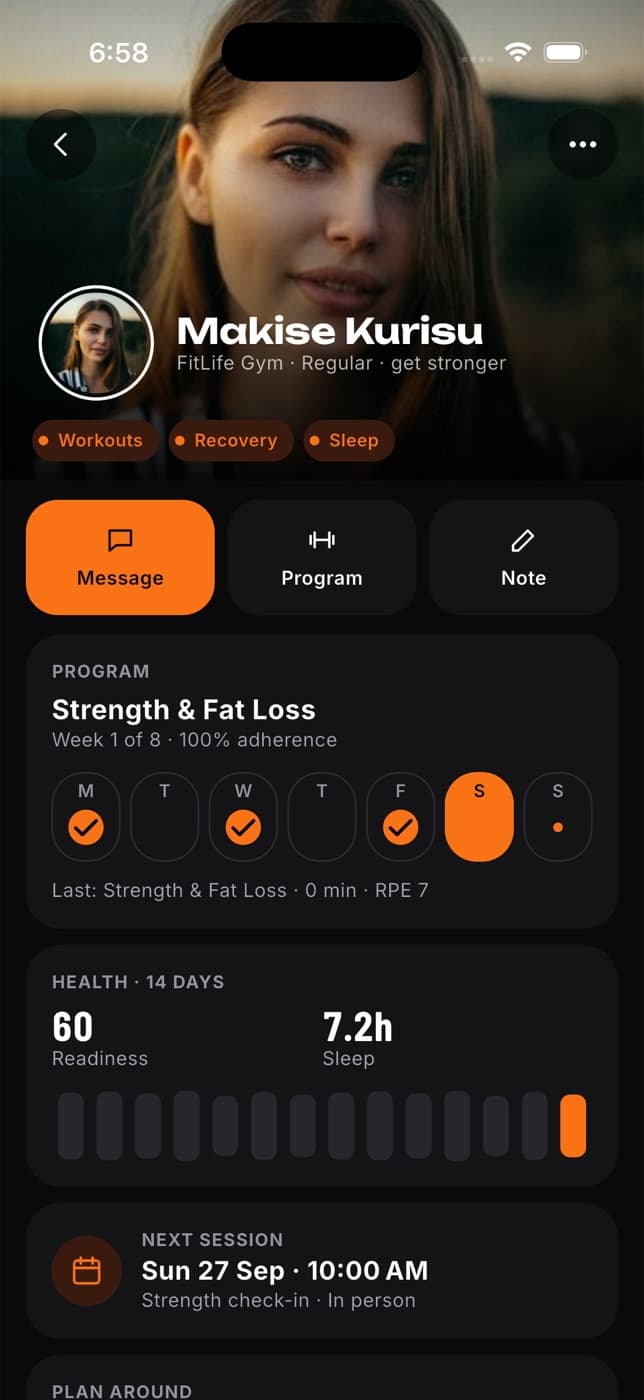
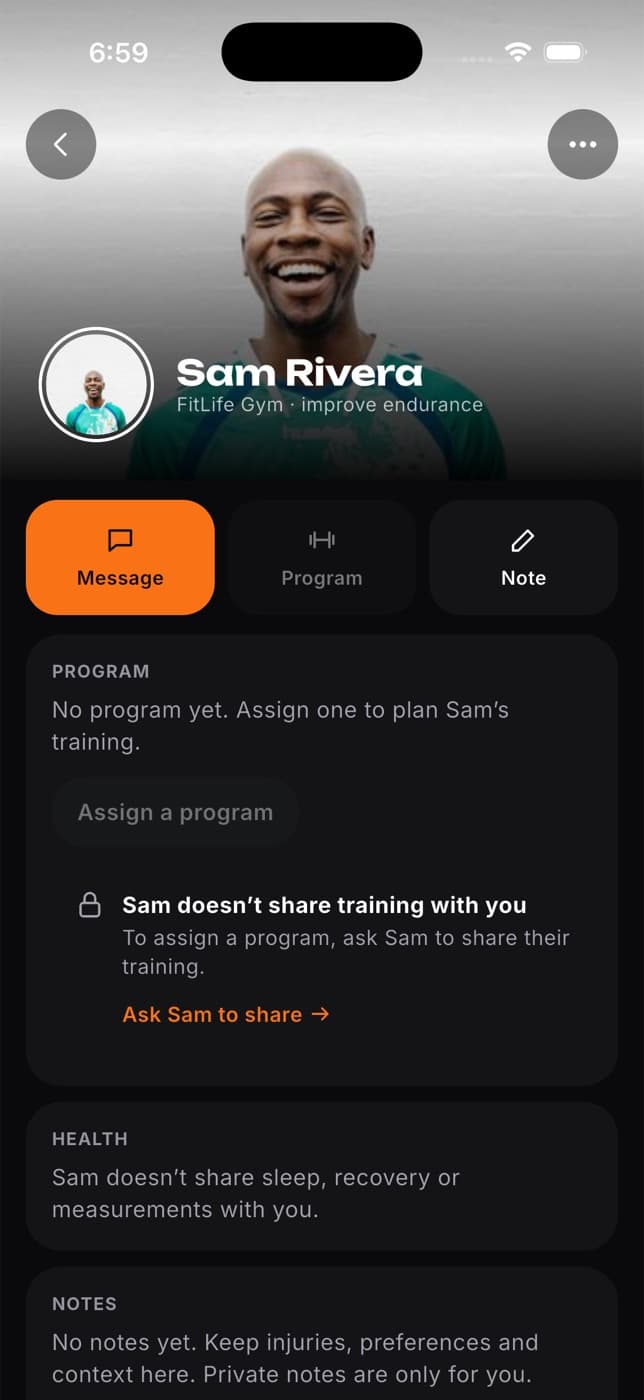
You only see what each client chooses to share with you. The What they share section shows exactly what that is. Only your client can change it. If you need something they haven't shared, Fit+ offers to send them a request, which they can allow or decline.
A client's weights, calories, water and distances show in their own units, so you both read the same numbers. Targets you send, such as a heavier weight for next week, also reach them in their units.
Clients appear in your list once they share data with you, book you or follow your plan. To bring someone in, tap Invite a client to send them a message with instructions to find you on Fit+ and share their data.
Answer requests
Tap Requests to see everything waiting for you. Filter by Waiting, Swaps, Meals, Sessions, Join requests or History.
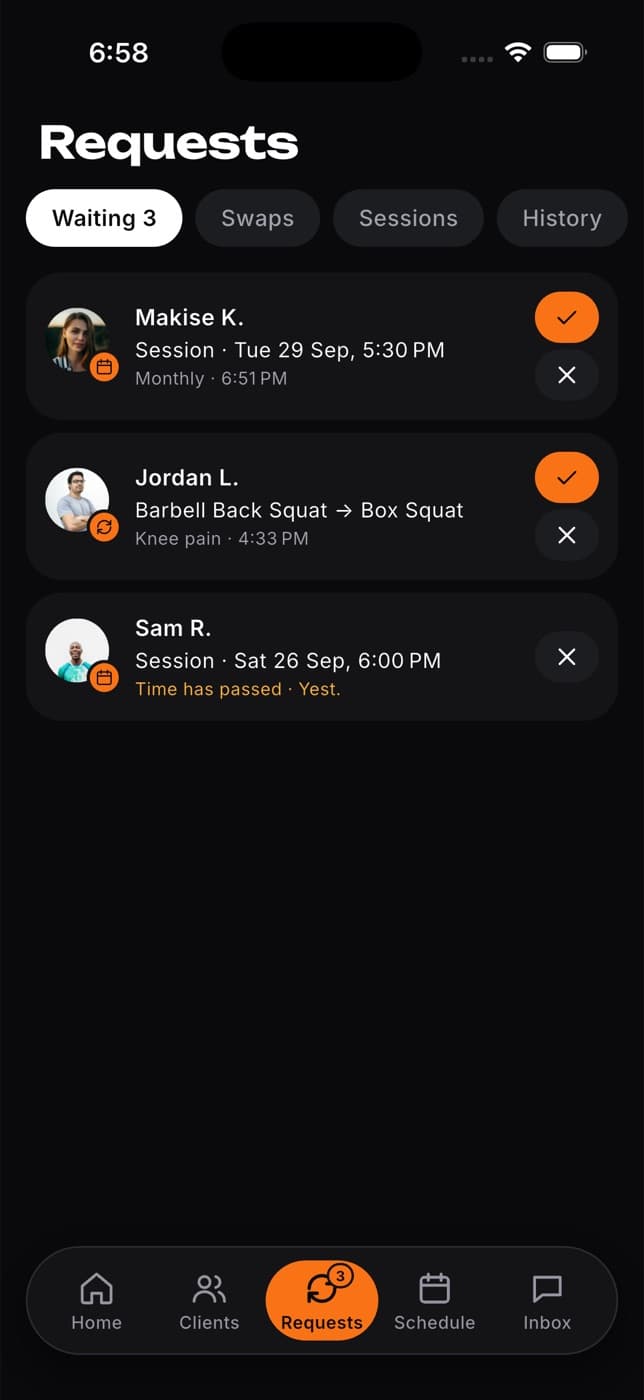
- Exercise swaps: see why your client wants to swap, the suggested exercise and any sore areas. Approve it, decline it or suggest something else.
- Meal swaps: compare the new meal with the plan's targets before you decide.
- Session requests: confirm, suggest another time (your client must accept it) or decline with a reason.
- Join requests: if you run a gym, approve or decline people who want to join.
Your client gets a notification with your answer.
Run your schedule
Tap Schedule to see your week. Move to the previous or next week with the arrows.
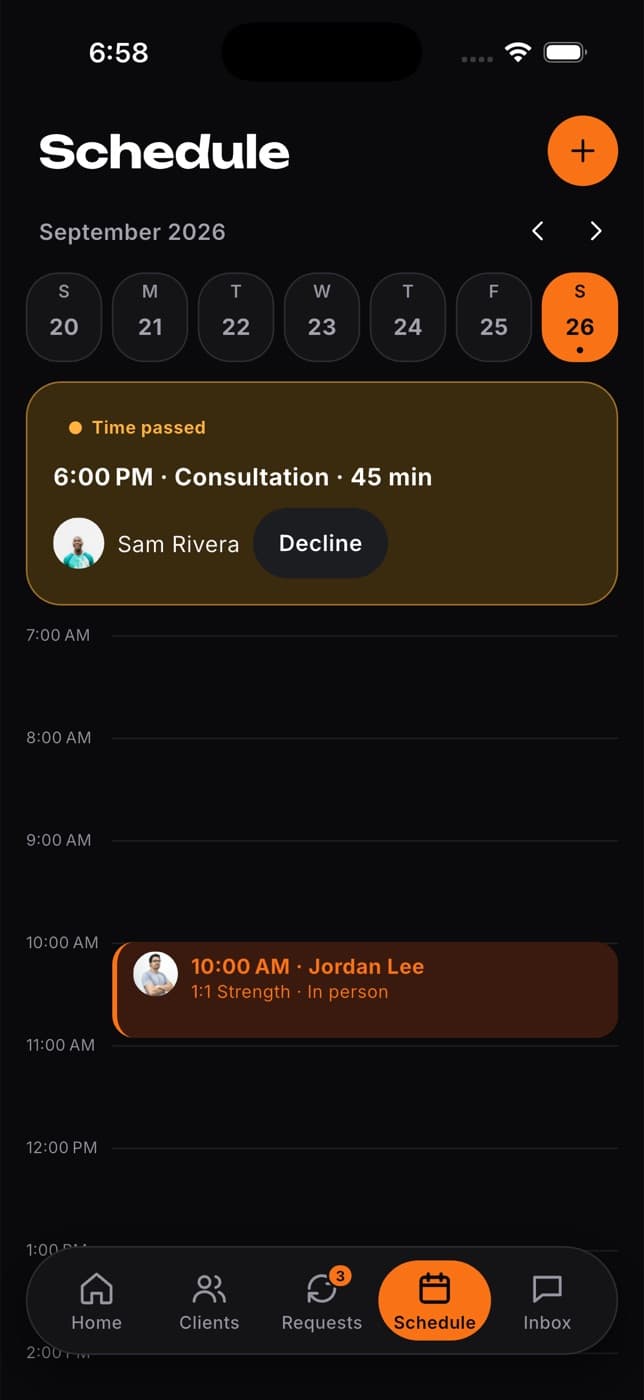
To add a session:
Tap Add a session.
Choose the client and the type: Coaching session, Program review, Nutrition check-in or Consultation.
Choose online or in person (and where), then pick a start time and length. Fit+ warns you if it overlaps another session.
Save. Your client sees the session in My sessions.
Tap any session to message the client, Move to another time or Cancel session. Your client is told either way.
Message your clients
Tap Inbox to see your conversations. In a chat, a waiting swap request is pinned above the message box, and Fit+ can suggest a reply based on your client's latest message and plan. You can edit it before sending.
Build programs and templates
Open your programs, meal plans, templates, exercises and foods from Home or from the menu behind your photo.
Open a client's program. It's laid out week by week, with a workout or rest day on each weekday.
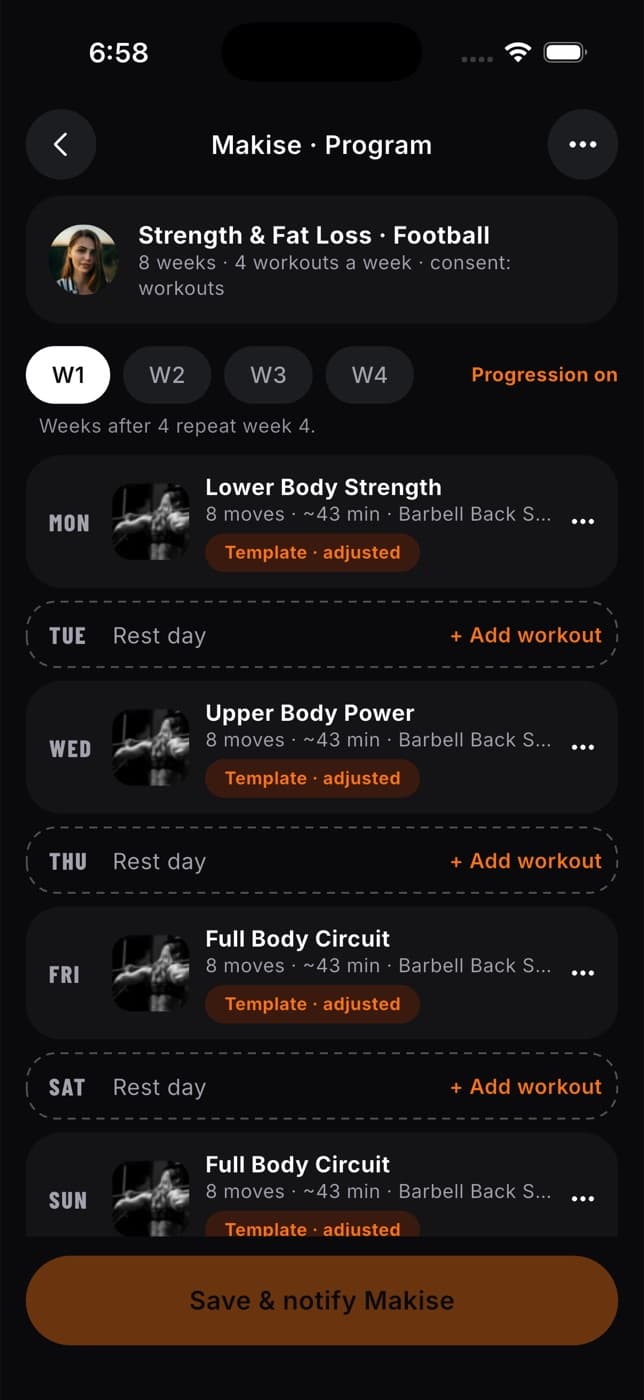
Tap a workout to open Build workout. Add exercises, supersets and weekly progression, such as adding 2.5 kg (or 5 lb) each week. Loads and distances use your own units while you build. Fit+ warns you if an exercise loads an area your client has reported as sore.
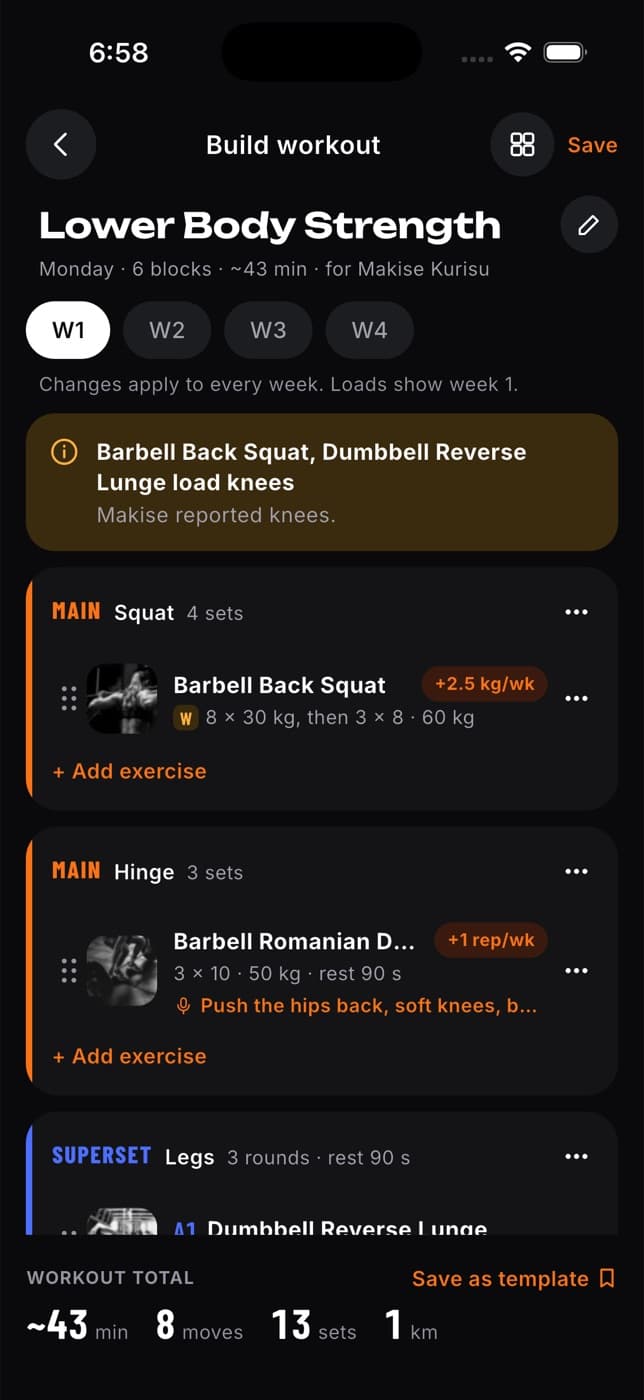
Tap Save as template to reuse the workout with other clients.
Back on the program, tap Save & notify. Your client sees the change on their Home.
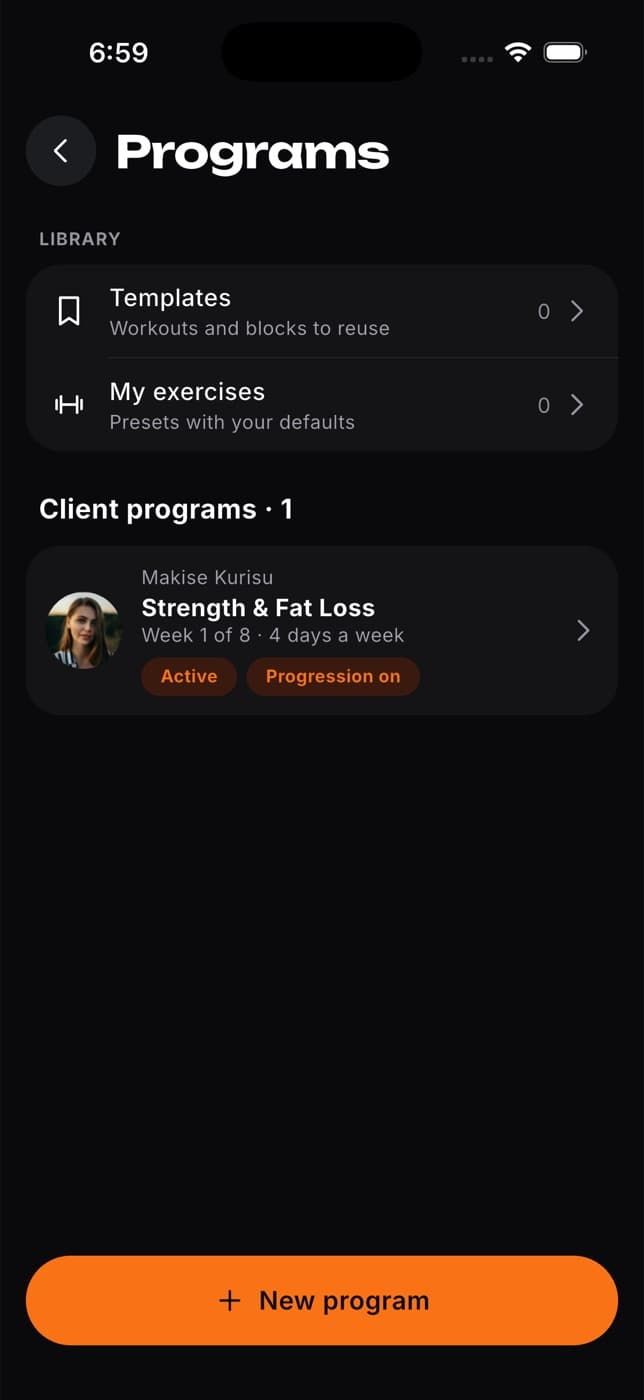
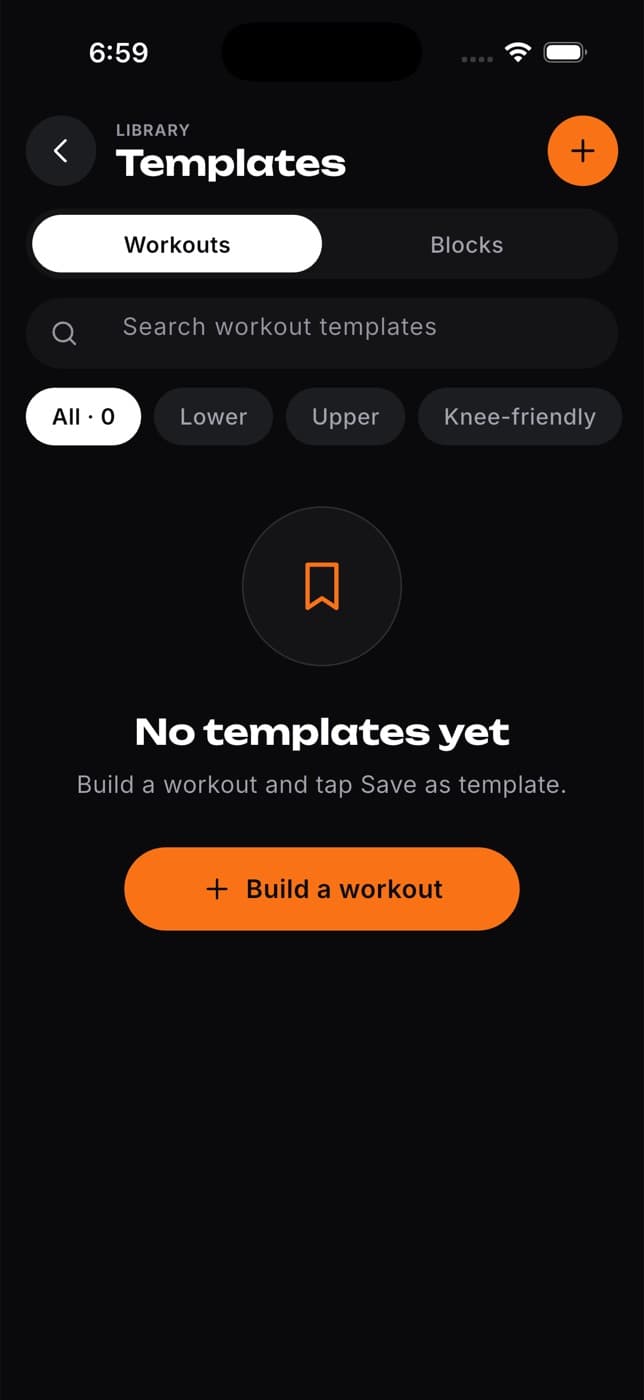
When you assign a program or meal plan from a template, you review it before it's sent. Your client sees it on their Home and accepts it.
Manage your offers and profile
Tap your photo on Home to open the menu.
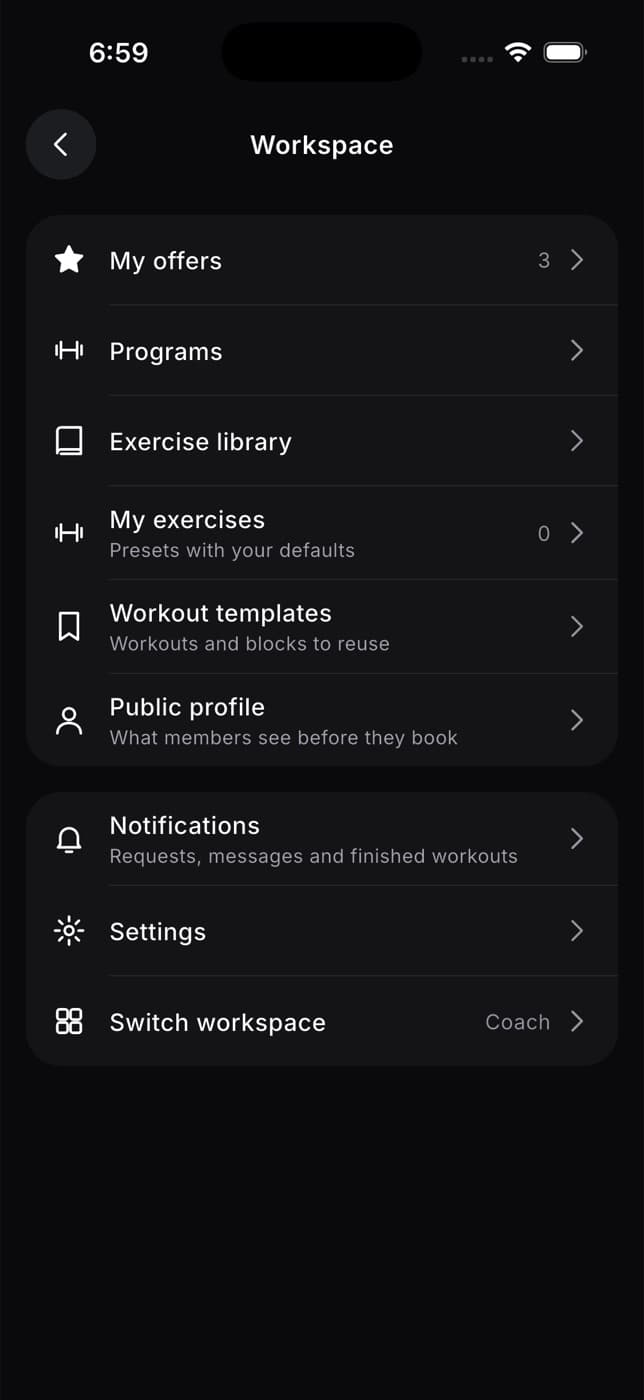
- My offers: set your prices for hourly sessions, packs and monthly coaching.
- Public profile: edit what members see before they book you.
- Your gym: your gym's join code, members and requests (if you run one).
- Notifications: choose alerts for requests, messages and finished workouts.
- Switch workspace: go to your member app or another workspace.
If you run a gym as a coach
If you own or work at a gym and you're also a coach or nutritionist, your gym lives inside your professional workspace. Tap the gym card on Home, or Your gym in the menu.
- Join code: your gym's six-character code and QR code. Tap Share to send it to members, with instructions to join from Me, Membership & check-in, Add a membership.
- Members: your member list with their pass, last visit and any payment due. You never see members' health data here.
- Join requests: approve or decline people who want to join. See Join a gym, club or team.
- Classes: add weekly classes with a name, category, days, start time, length and number of places. Once saved, members can book them straight away.
For gym owners and staff
If you own or work at a gym and you're not a coach or nutritionist, your workspace has a menu on the left (tap the three lines) and a bar at the bottom with Home, Athletes, Schedule, Messages and You.
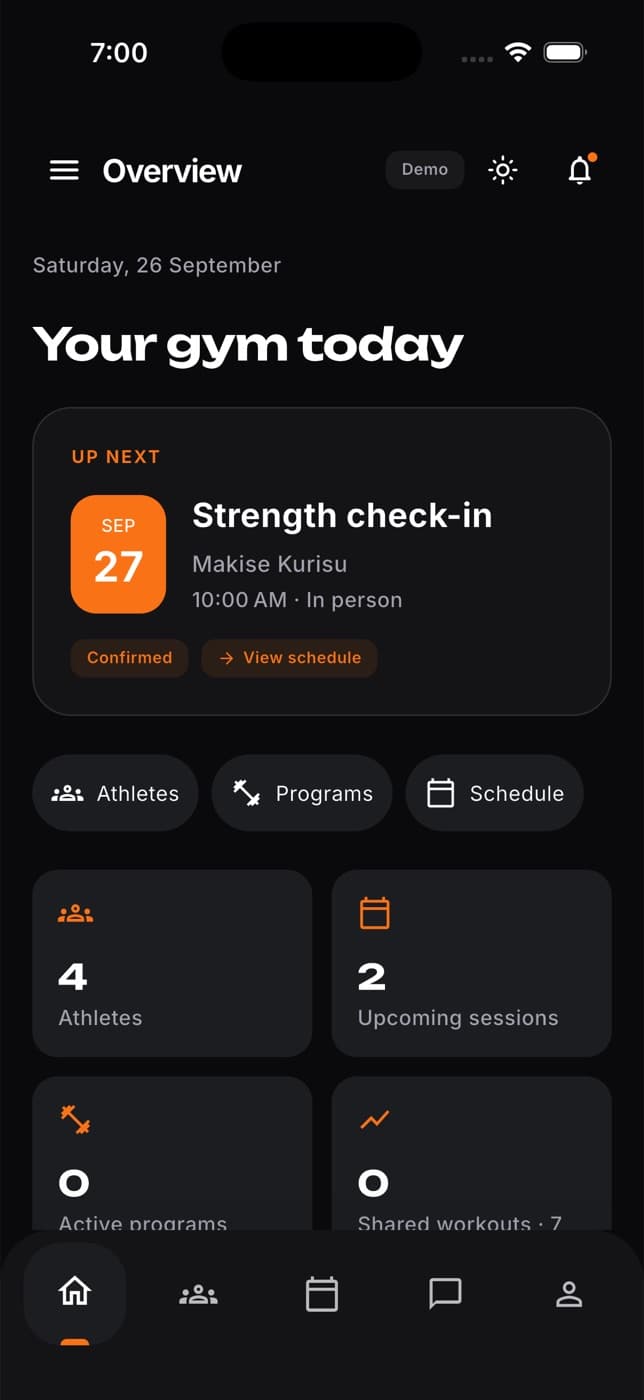
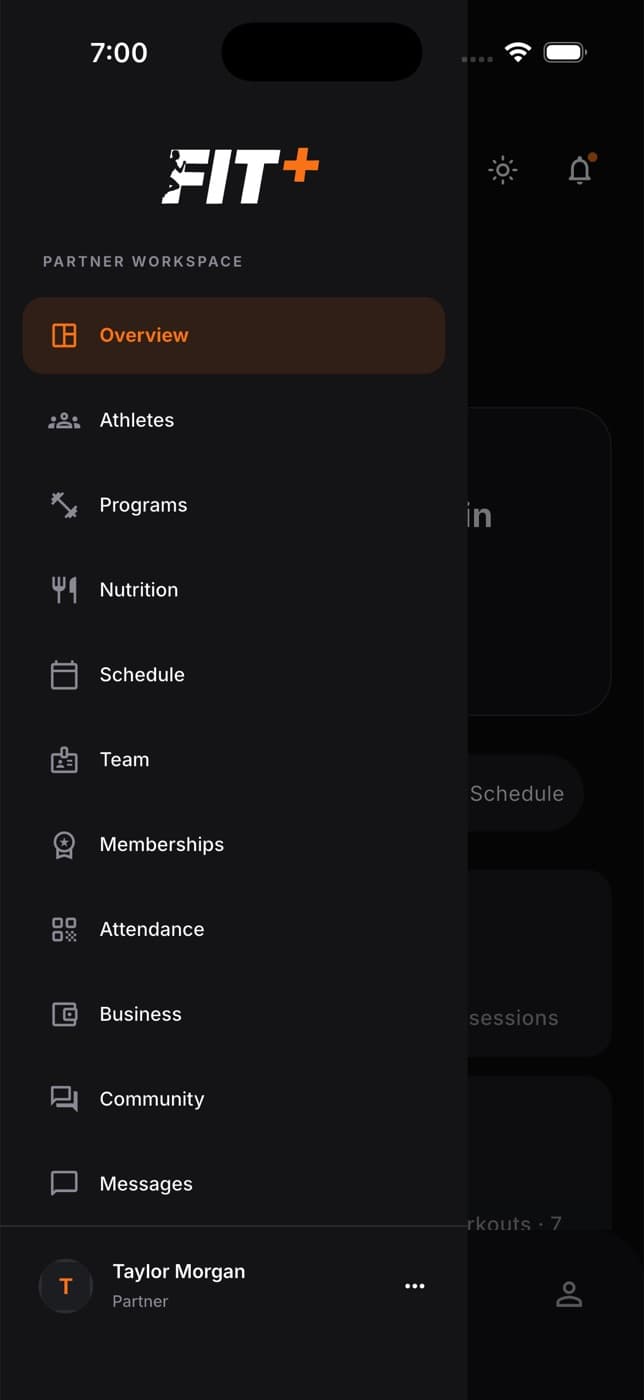
From the menu you can see your athletes, schedule and team, approve membership requests, manage your membership offers, see check-ins and follow payments.
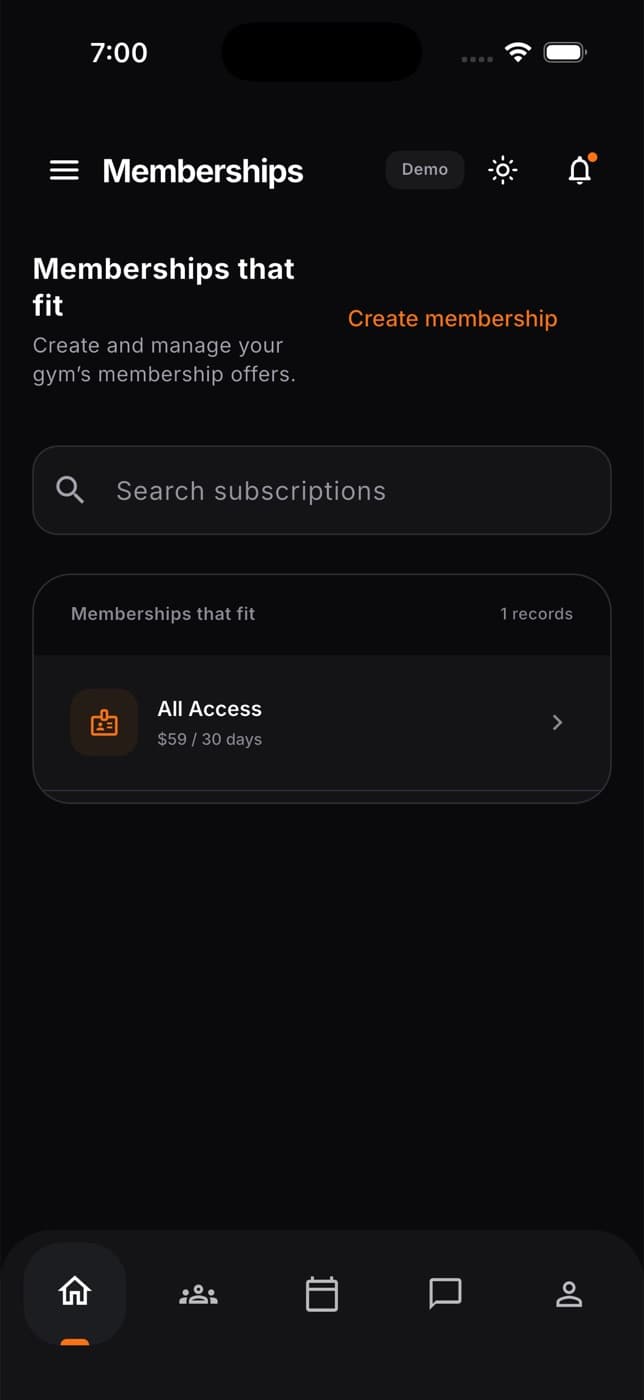
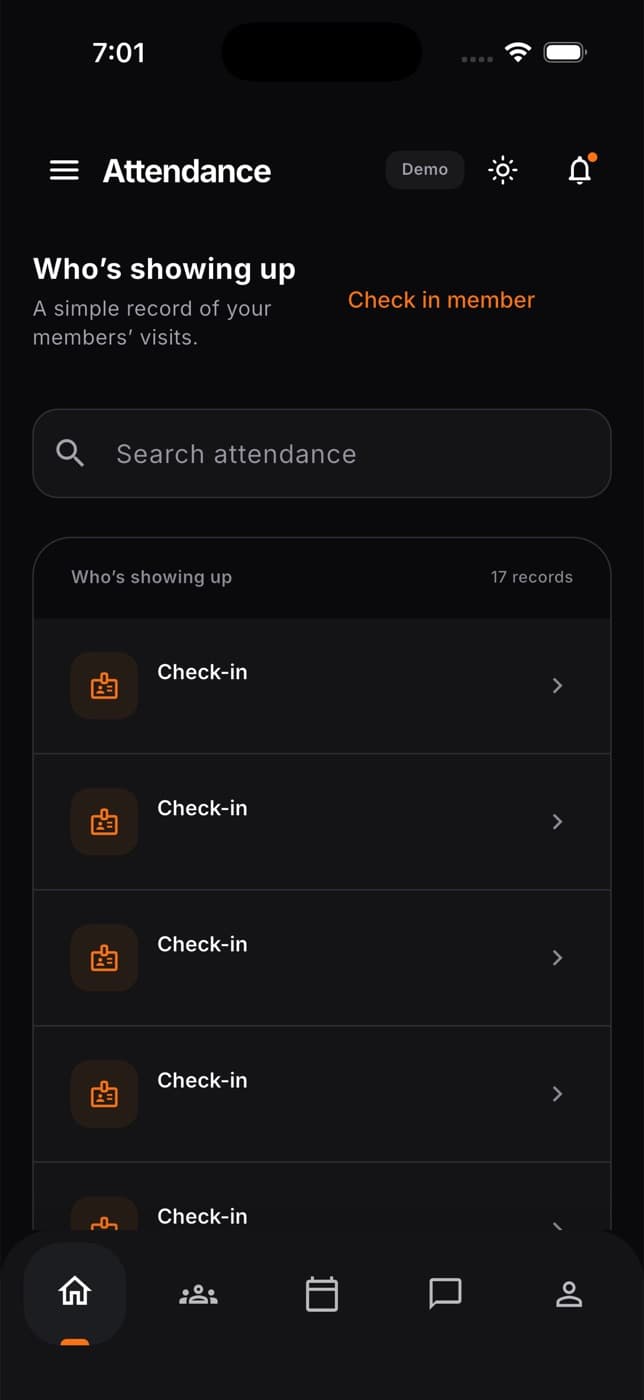
The phone app covers the essentials. For setting up your gym, staff permissions, payouts and detailed reports, use the Fit+ website. See Organizations.
For the Fit+ team
Admins
Admins can review partner applications, look up gyms and partners, users and payments, and check the exercise catalog, access, audit logs and support messages. Use the bar at the bottom (Home, Partners, Users, Payments, You) or the menu on the left.
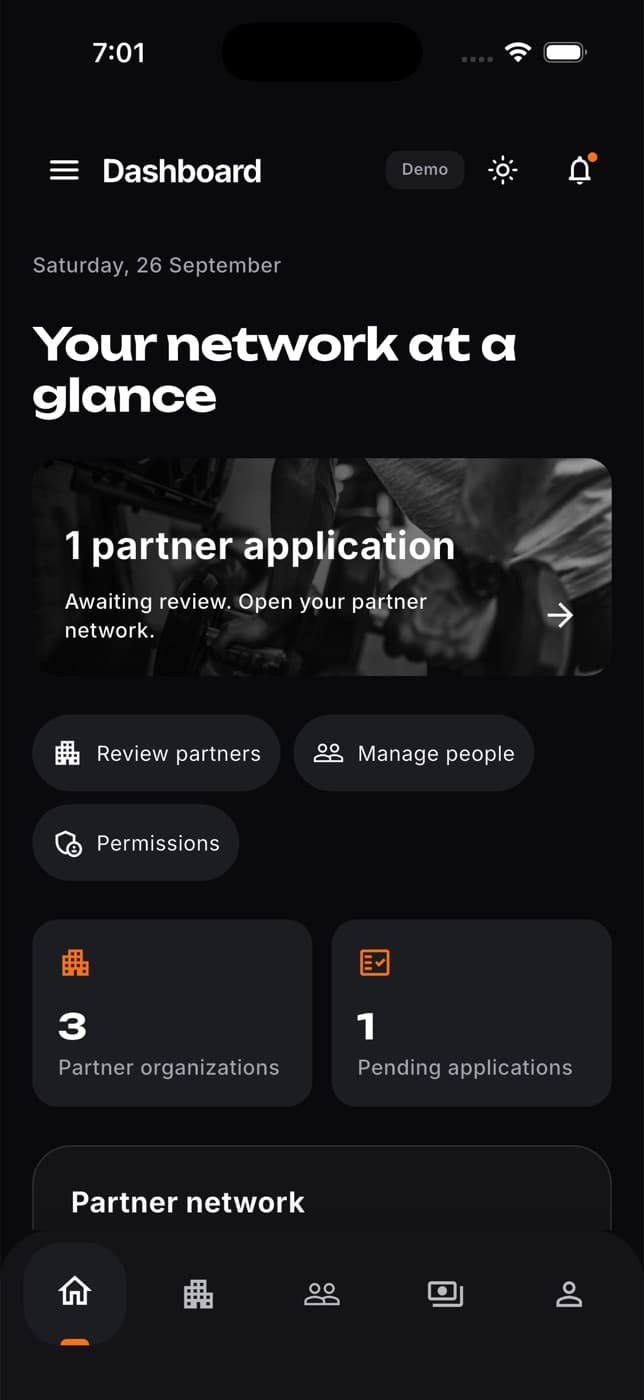
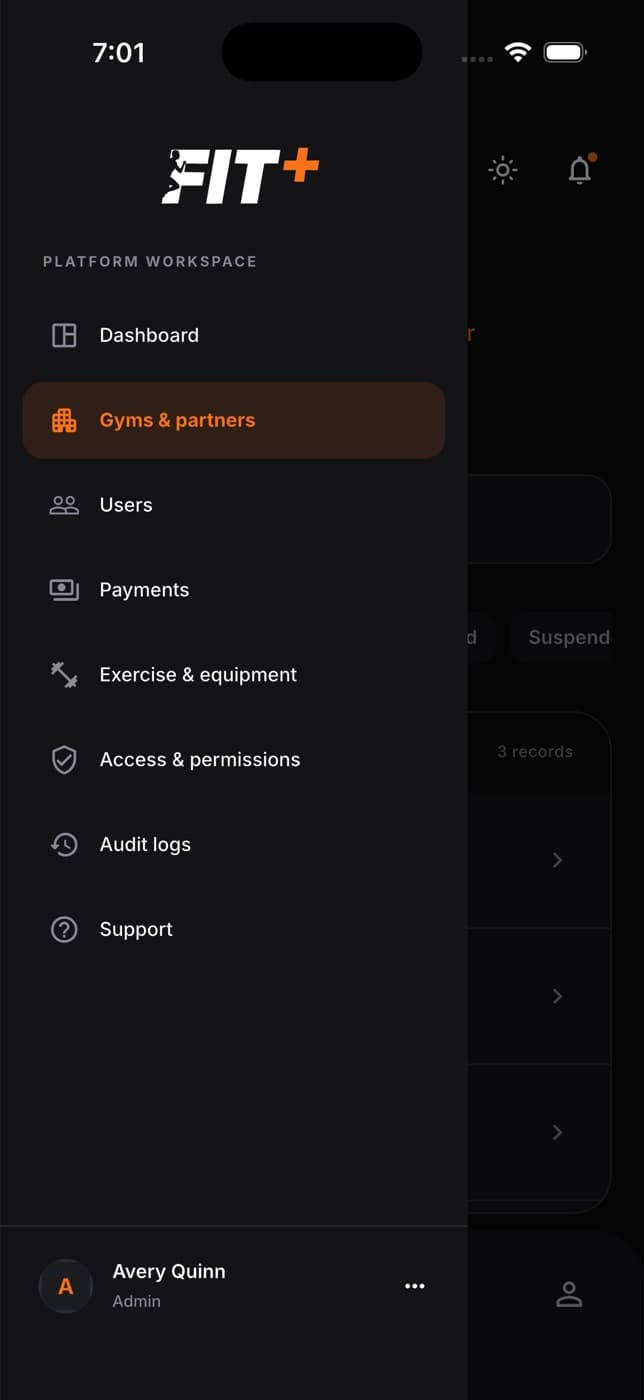
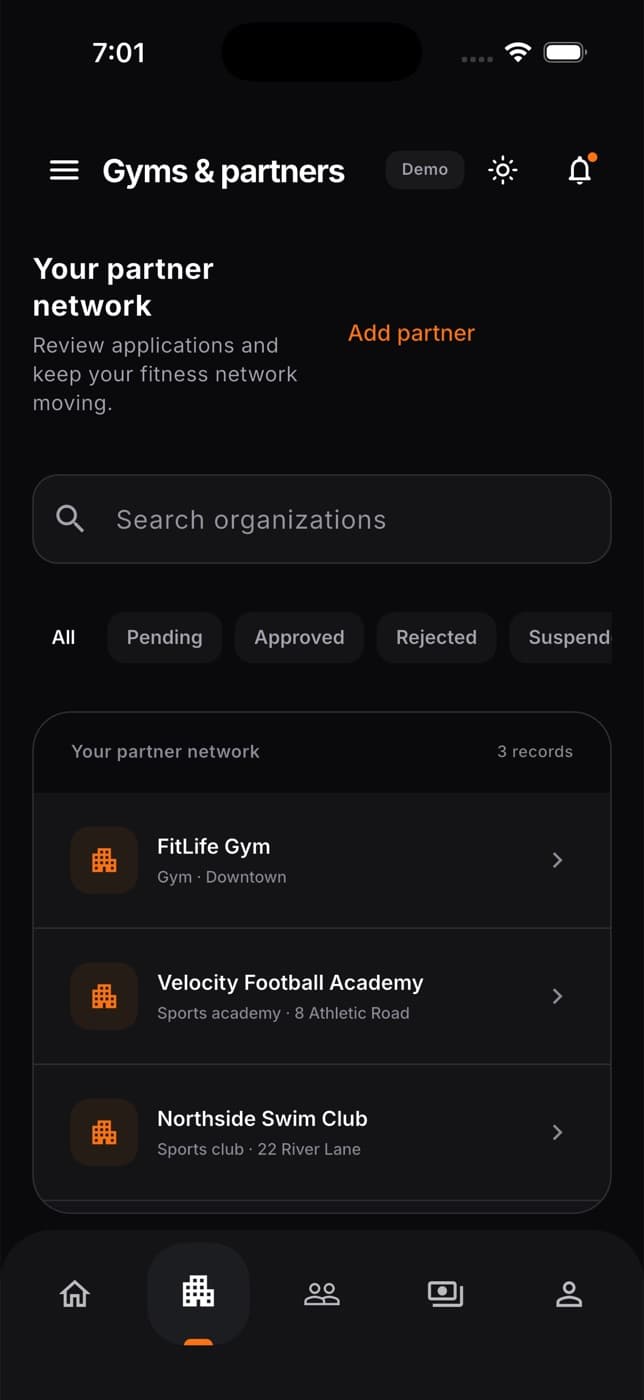
On a phone these are simple lists you can search. For full reviews and settings, use the Fit+ website. See Admin.
Finance viewers
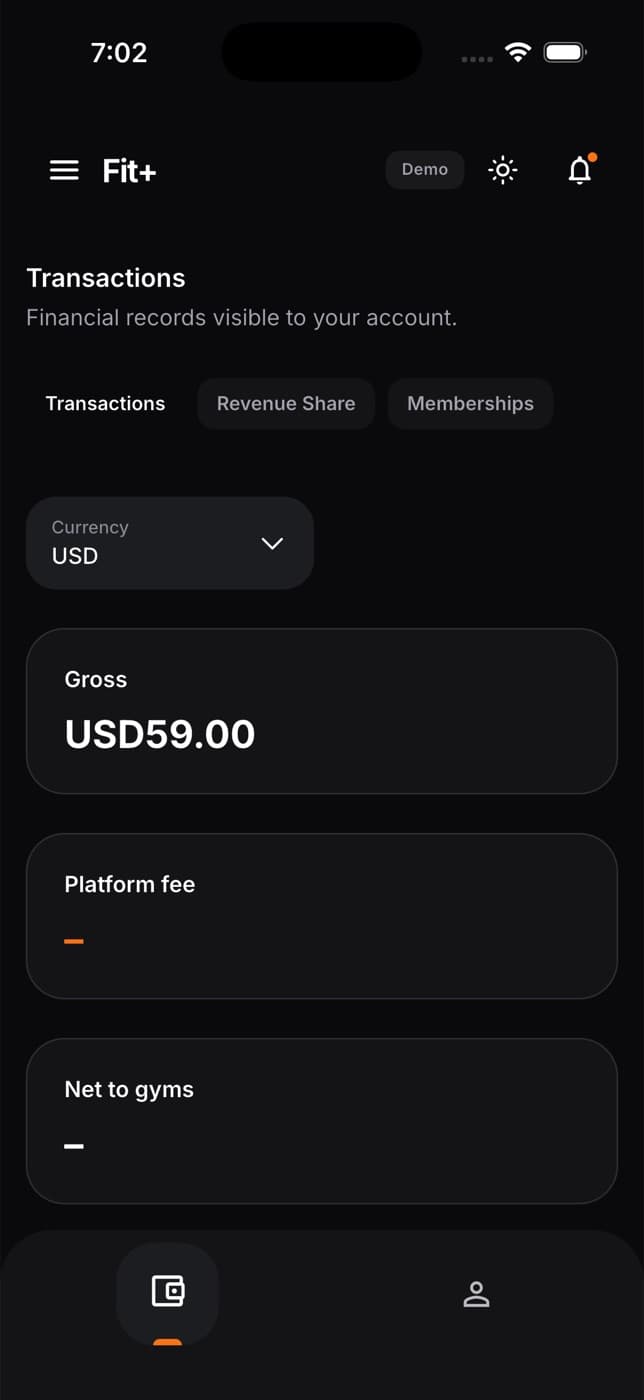
If you've been given finance access, you can see transactions, revenue share and memberships, with the gross amount, the platform fee and what goes to each gym, in each currency. You can view these records but not change them. Your access ends on the date it was given for, and the workspace then disappears from your app.
Common questions
Yes. A program you assign on the website shows up in the app, and a request you answer in the app is answered everywhere.
They haven't shared that with you yet. Open the client and check What they share. You can send them a request for access, and they decide.
Send an application from the app. See Apply as a coach or nutritionist.
Open the menu from your photo, then Notifications. See Manage notifications.