

Apply as a coach or nutritionist
Send your application to join Fit+ as a coach or nutritionist, find out what happens during review, activate your workspace and publish your profile.
Coaches and nutritionists join Fit+ by sending a short application, which the Fit+ team reviews. Once you're approved, you activate your professional workspace and set up the profile members see before they book you.
Before you start: have your qualifications to hand (name, awarding organization and year). The application takes about five minutes.
Start your application
You can apply whether or not you already use Fit+:
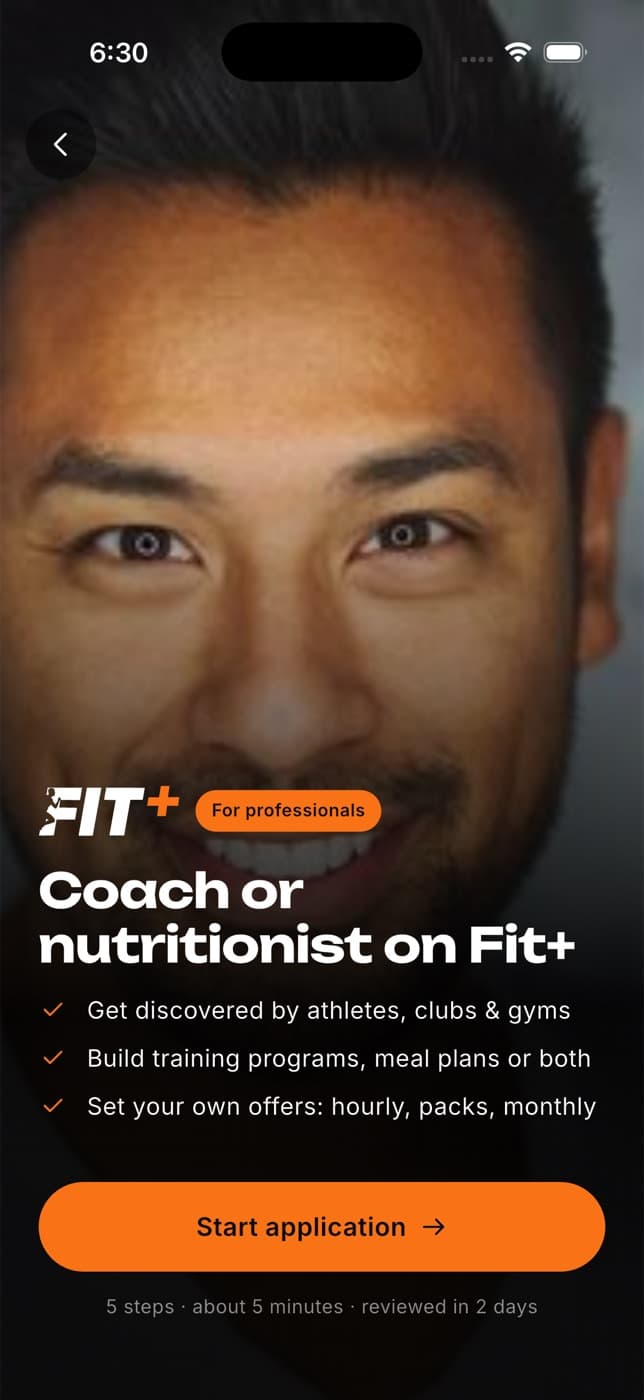
- New to Fit+: on the welcome screen, tap Coach or nutritionist? Join Fit+ for Professionals.
- Already a member: tap Me, then Fit+ for Professionals.
Then tap Start application.
Fill in the five steps
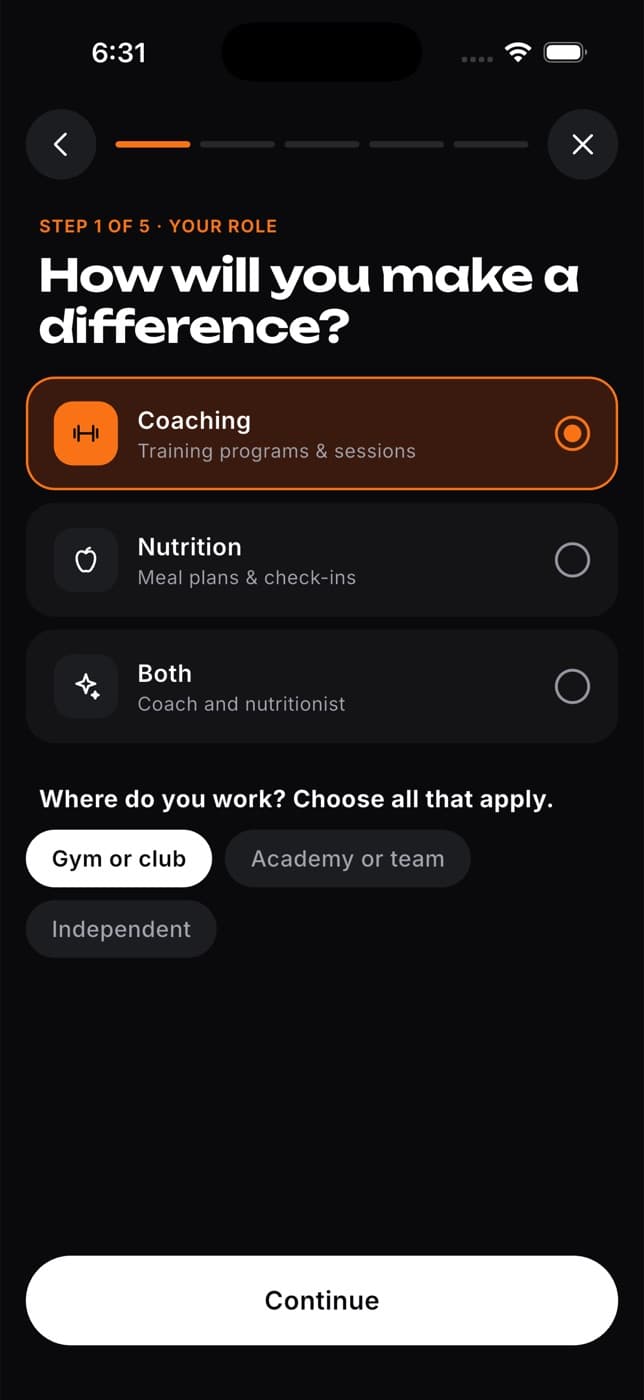
Your role. Choose Coaching, Nutrition or Both, and where you work: gym or club, academy or team, or independent. Pick as many as apply.
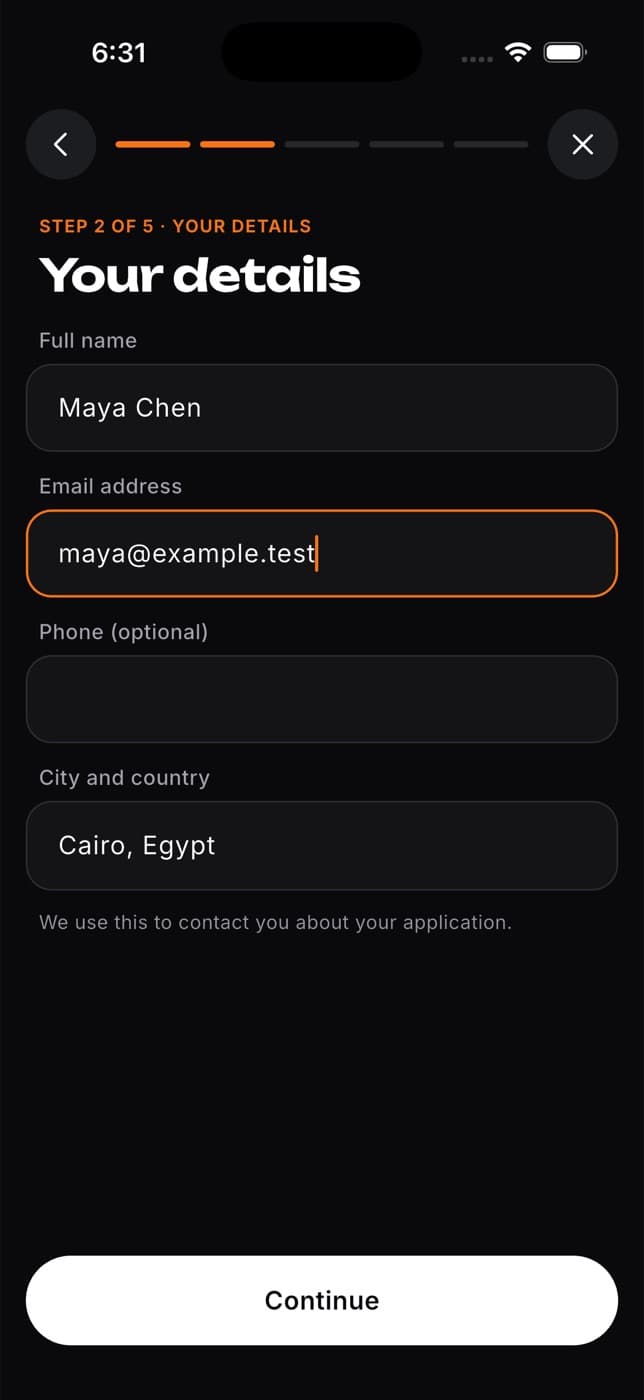
Your details. Enter your full name, email, phone (optional) and city and country. If you're signed in, your name and email are filled in for you. The team uses these to contact you about your application.
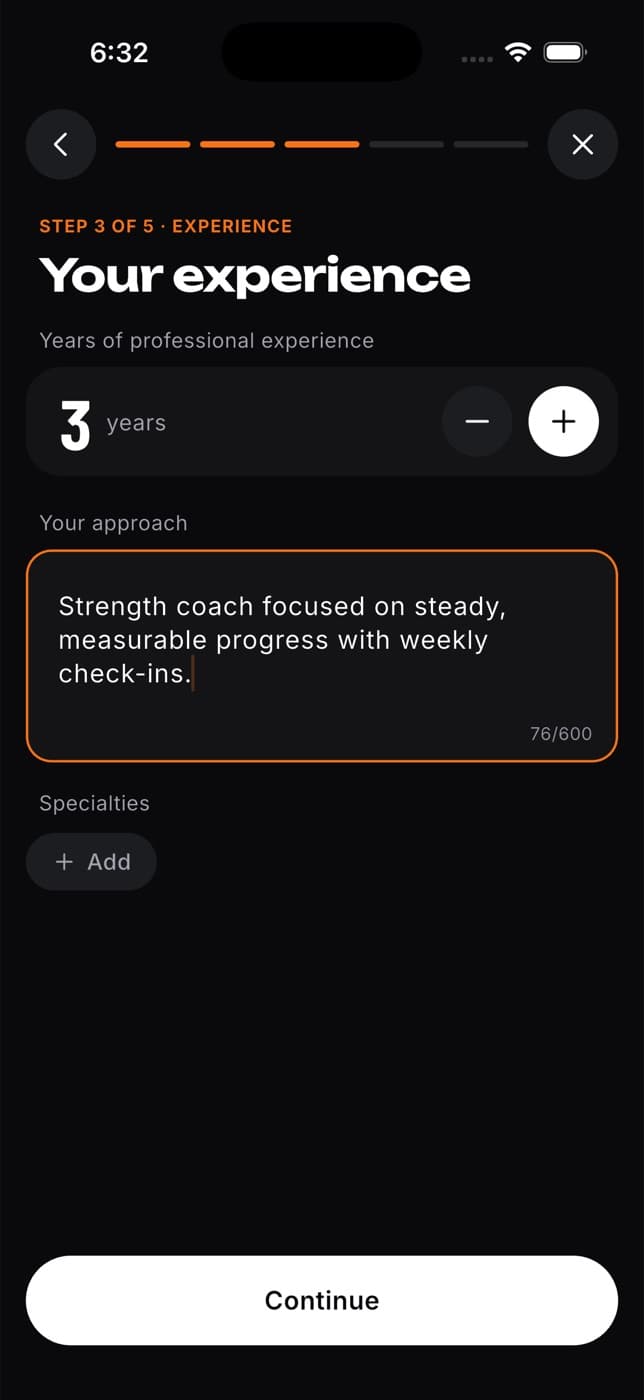
Your experience. Set your years of experience, describe your approach in at least 30 characters and pick your specialties, such as Strength, Mobility, Sports nutrition or Plant-based. You can add your own.
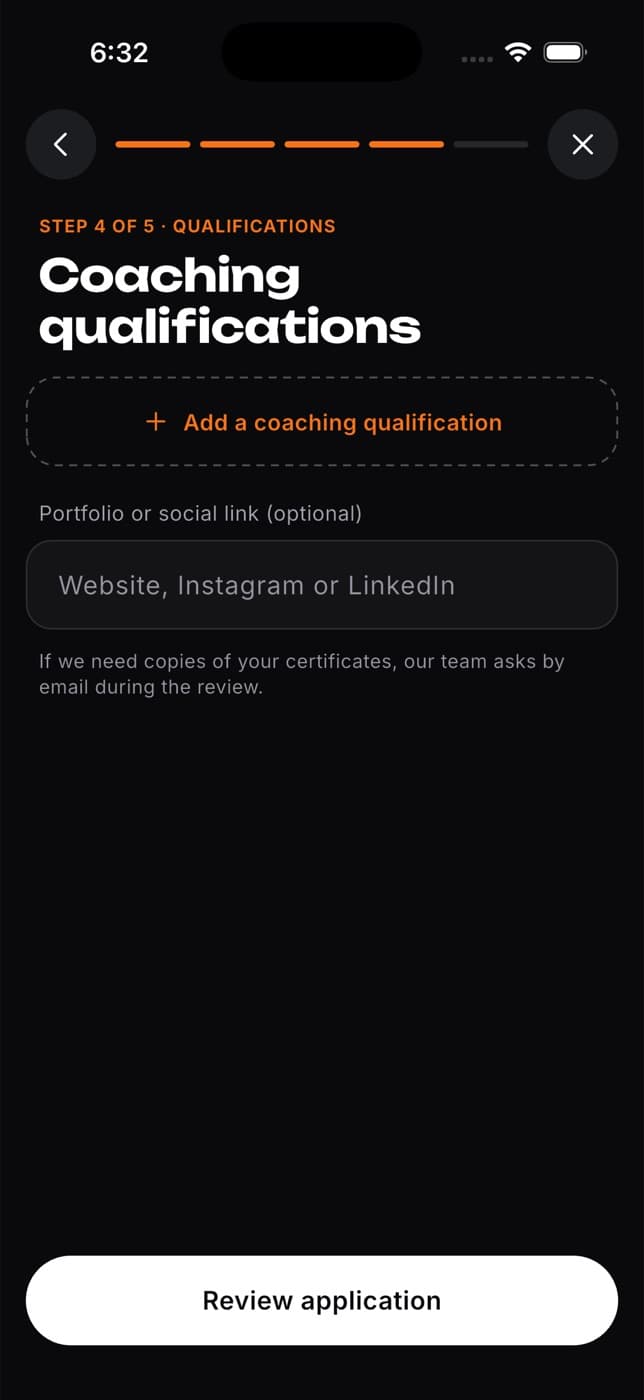
Your qualifications. Tap Add a qualification and enter its name, the organization and the year. If you chose both roles, add at least one for coaching and one for nutrition. You can also add a link to your portfolio or social profile.
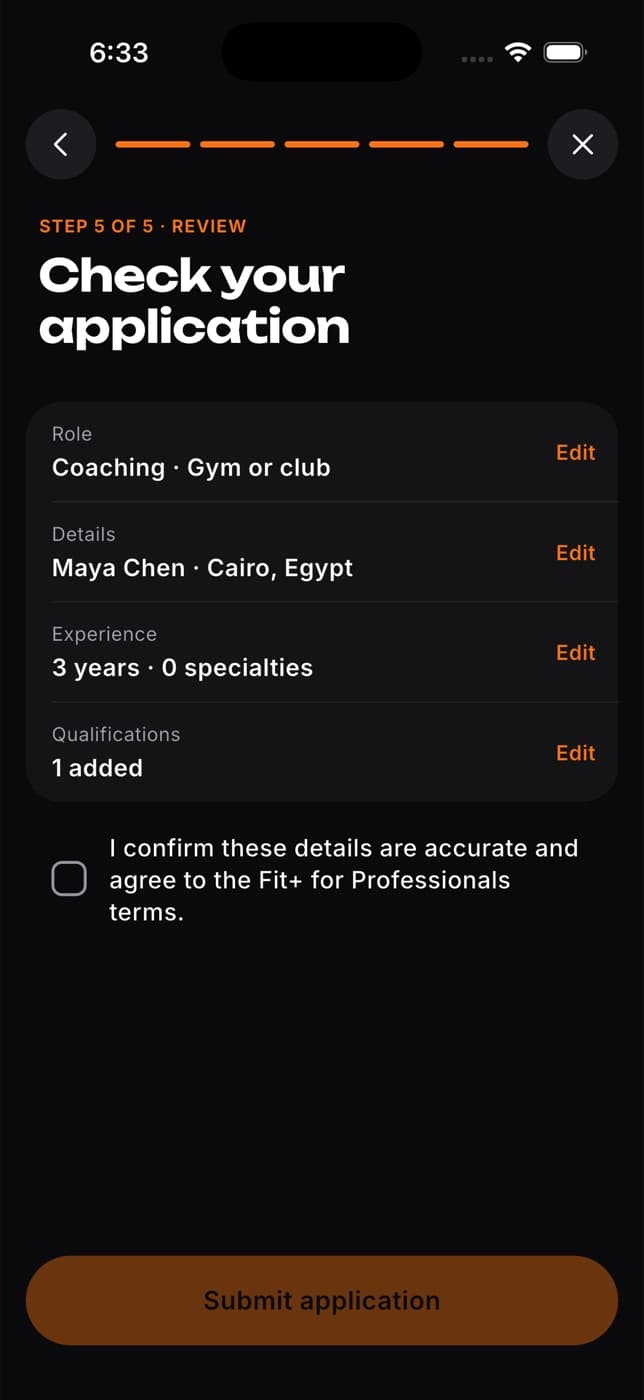
Review. Check each section and tap Edit to fix anything. Tick the box to confirm your details are accurate and agree to the Fit+ for Professionals terms, then tap Submit application.
Your application isn't saved until you submit it. If you close it part way, what you entered is lost.
What happens next
You see Application received, with three stages:
- Submitted: your application is with the Fit+ team.
- Under review: this takes up to 2 business days. If the team needs copies of your certificates, they'll ask by email.
- Activate your workspace: once you're approved, sign in to Fit+ with the same email and activate it in the app.
You get an email with the decision either way. While you wait, Me shows Under review next to Fit+ for Professionals.
Applied without an account? Tap Create your account on the confirmation screen, or do it later. Use the same email you applied with, so Fit+ can connect your application to your account.
Activate your workspace
Sign in to Fit+ with the email you applied with. Fit+ shows You're approved. (If you close it, tap Me, then Approved · Activate to open it again.)
If you signed up with Apple or Google, set a password for your professional account. It must be at least 8 characters.
Tap Activate my workspace.
Your member account stays as it is. You can switch between your member and professional workspaces at any time.
Publish your profile
After you activate your workspace, Fit+ helps you set up the profile members see. Most of it is already filled in from your application.
Let members get to know you. Add a photo (optional), your name, a short headline and a few lines about you.
Your expertise. Check your specialties, the languages you speak, your experience and qualifications, and whether you work online, in person or both. For in-person sessions, add where you meet clients.
Preview. See your profile the way members will.
Tap Publish profile to appear in the Fit+ directory. Not ready yet? Tap Save draft for later and finish on any device.
Once your profile is published, your workspace opens on its home. See Using the app as a coach, gym owner or admin.
Common questions
You're signed in with a different email from the one you applied with. Log out and sign in (or create an account) with the email on your application.
Confirm your email address using the code or link Fit+ sent you, and set a password if you signed up with Apple or Google. Then try activating again.
Wait a minute and try again. Your workspace is being set up.
No. If the team needs copies, they'll ask you by email during the review.
Yes. Everything you do in the app also appears in the Fit+ workspace on the web. See Professionals.
Using Fit+ without a connection
What still works when you're offline, how your workouts are kept safe, and how to pick up a workout that was interrupted.
Using the app as a coach, gym owner or admin
Look after your clients, answer requests, run your schedule and manage your gym from your phone, plus what gym owners, admins and finance viewers can do in the app.