

Join a gym, club or team
Join your gym, club or team with a code or QR, join a club from Community, buy a membership pass and check in at the front desk with your phone.
If you train at a gym, club, academy or team that uses Fit+, you can link it to your account. You'll see its classes and events, can buy a pass in the app and check in at the front desk with your phone.
Joining a gym never shares your health data. You choose what its coaches can see in Data sharing.
Ways to join
There are two ways to join. Fit+ doesn't have a list of every gym to search, so ask your gym for its code if you don't see it.
- With a code or QR. Your gym, club or team has a six-character code and a QR code, usually at reception or on a Fit+ poster.
- From Community. Some clubs are listed under Community, Groups, Discover, where you can tap Join.
Join with a code or QR
Before you start: get the code from reception, your coach or your gym's Fit+ poster.
Tap Me, then Membership & check-in.
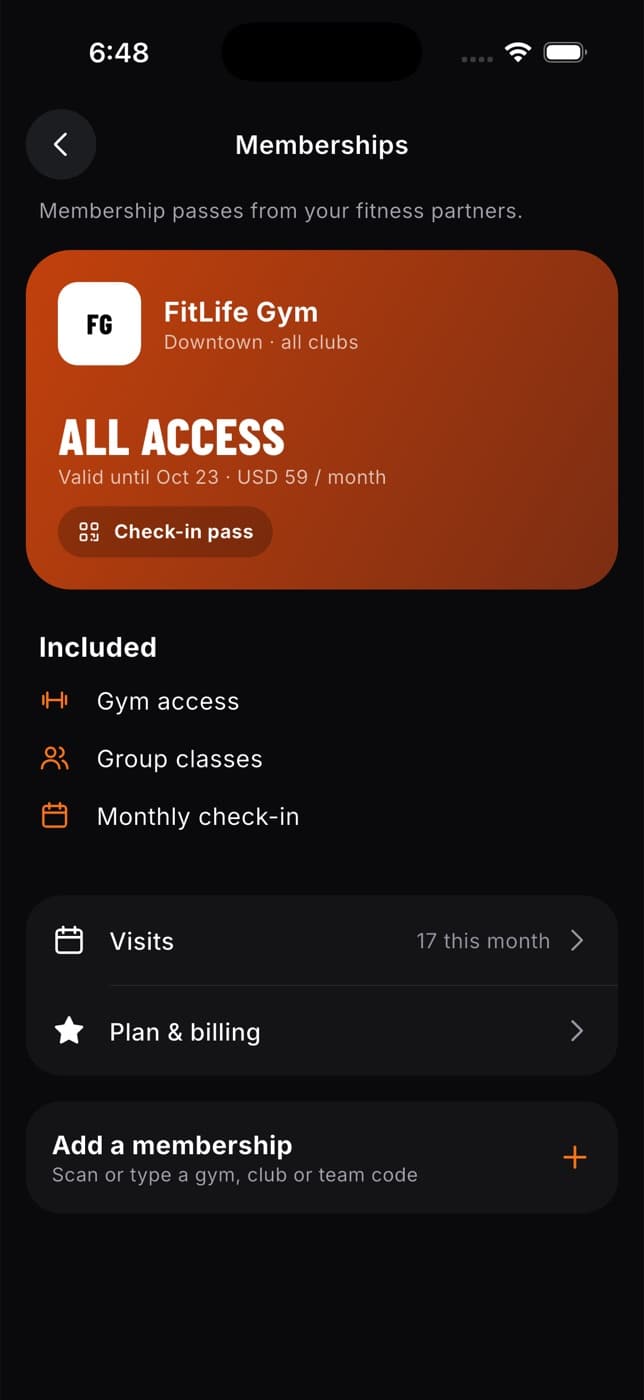
Tap Add a membership.
Fit+ asks to use your camera. Allow it to scan the QR code, then point your camera at the code.
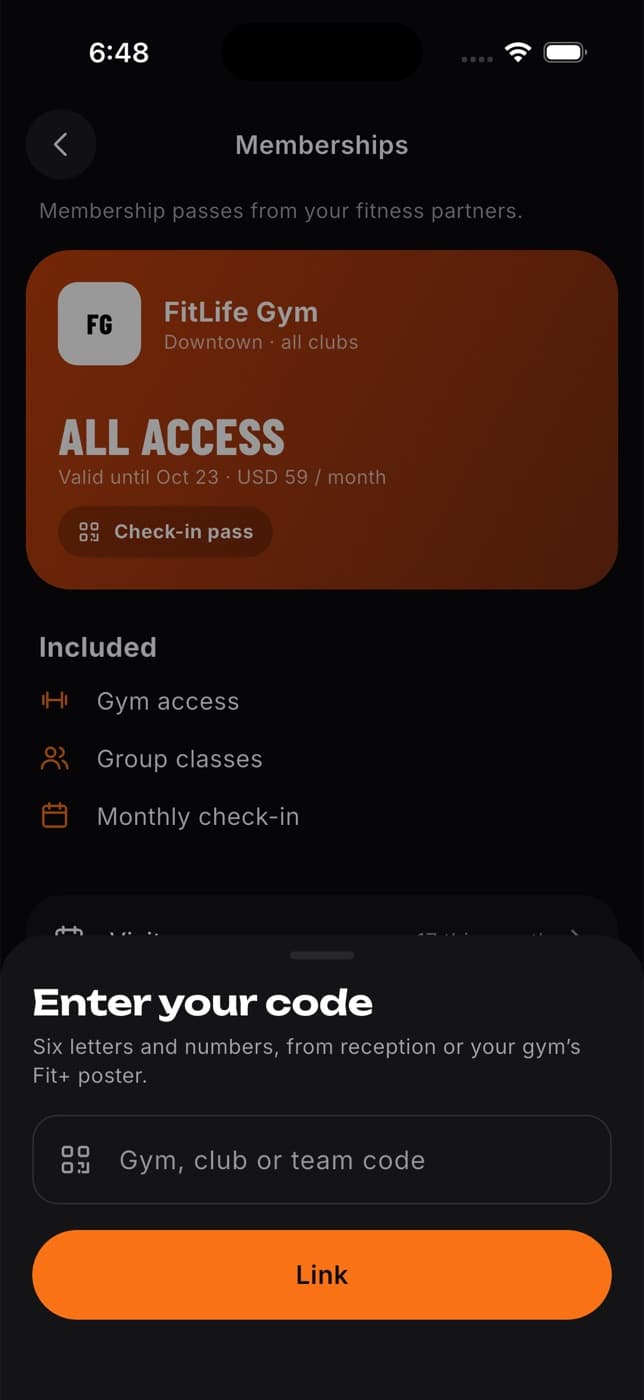
Rather type it? If you don't allow the camera, the Enter your code sheet opens. Type the six letters and numbers and tap Link.
Check that it's the right place: you'll see its photo, name, address and number of coaches.
Tap Ask to join and the gym's name.
You can also scan a code during setup, when Fit+ asks where you train.
What happens next: the gym gets your request and approves it. Until then, Membership & check-in shows that your request was sent, with Cancel if you change your mind. When the gym answers, you get a notification:
- Approved: "Welcome to" the gym. If it sells passes, you're asked to choose one. Otherwise your check-in code is ready in Membership & check-in.
- Declined: the gym couldn't add you. Ask at reception if you think this is a mistake.
If Fit+ says the code isn't a Fit+ gym, club or team yet, check the code with your gym. The gym might not be set up on Fit+ yet.
Join a club from Community
Tap Community, then Groups.
Under Discover, find the club you want.
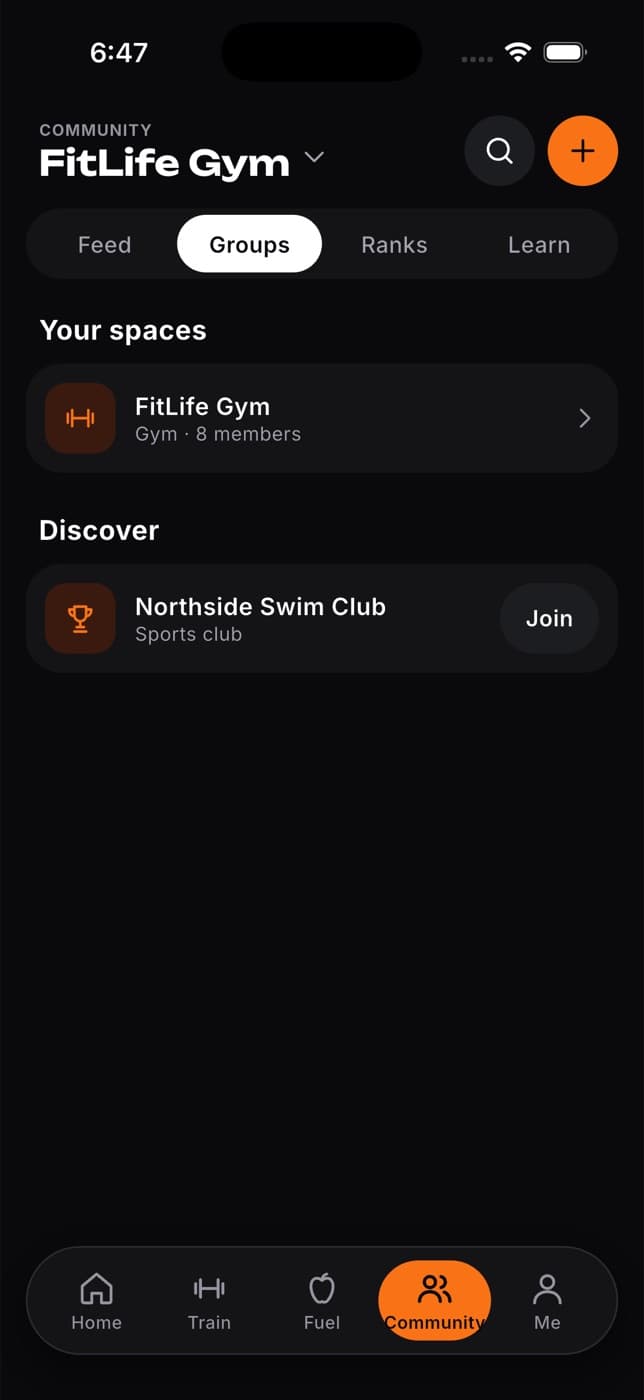
Tap Join. The button changes to Requested while the club reviews your request.
Buy a membership pass
If your gym sells passes in Fit+, you'll see them under Available at your gym in Membership & check-in.
Tap Me, then Membership & check-in.
Tap the pass you want.
Check the details on Review your membership, then tap Continue to secure checkout.
Pay on the secure payment page that opens. Fit+ never stores your card.
Your pass appears once the payment is confirmed. If it doesn't show yet, tap Refresh payment status.
Your gym might not sell passes in the app. In that case, buy one at reception. You can still check in with your phone as a member.
Check in at the front desk
Tap Me, then Membership & check-in.
Tap Check-in pass (or Check in).
Show the QR code to the front desk. Your screen brightens so it's easy to scan.
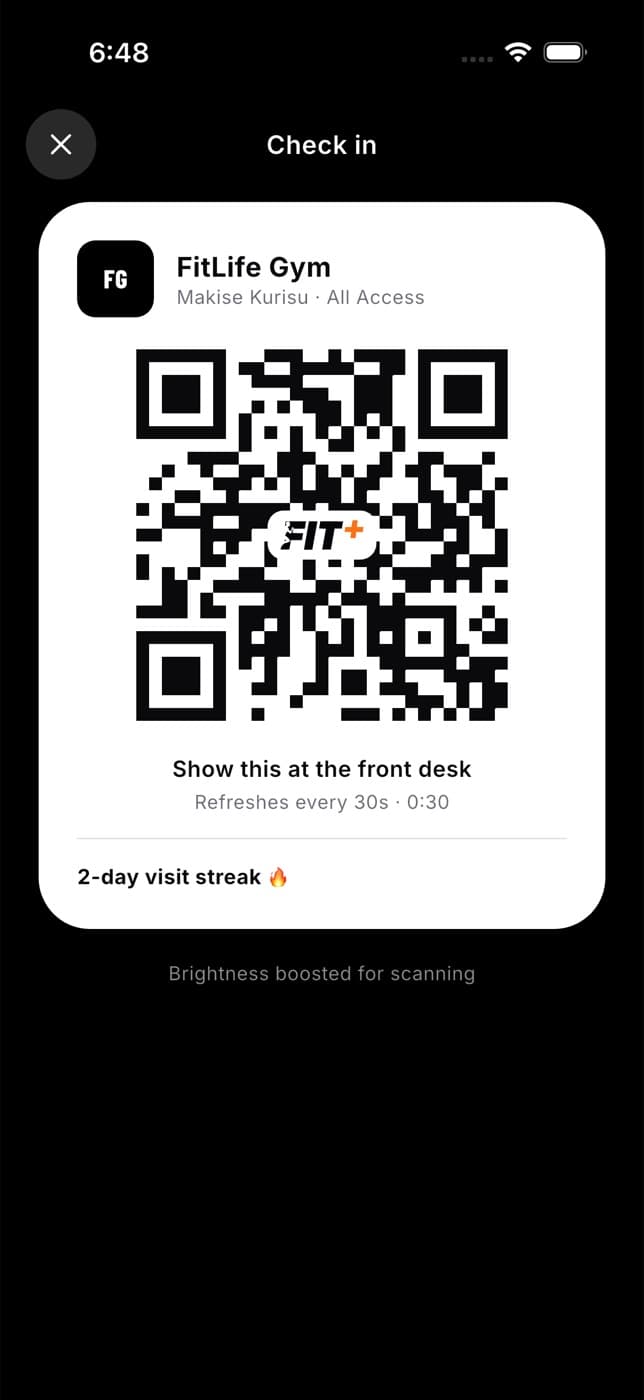
The code changes every 30 seconds, so a screenshot of it won't work. Always open it fresh at the desk. If it doesn't load, tap Try again.
See your visits and billing
In Membership & check-in:
- Visits shows your check-ins month by month, with times in and out.
- Plan & billing shows your Fit+ plan, your recent payments and how you pay. Coach and nutritionist fees are arranged directly with them in chat.
- Classes lists your gym's weekly classes so you can book one. See Coaching.
Common questions
Yes. Join each one with its code. In Community you can switch between them.
You can't leave from the app yet. Ask your gym to remove you.
The app doesn't show email invitations yet. Accept the invitation on the Fit+ website, or ask your gym for its code and join in the app.
Your name, your membership and your last visit. It never sees your health data unless you share it in Data sharing.
If you're a coach or nutritionist, your gym is in your professional workspace. See Using the app as a coach, gym owner or admin.
Import and export your data
Bring your workout history from Strong, Hevy or another app, bring your food diary from MyFitnessPal, undo an import, and export your data as a spreadsheet or JSON file.
Manage notifications
Turn on notifications, see and filter your alerts, choose which ones reach your phone, including workout and meal reminders, and set quiet hours.