

Choose who can see your data
Share your workouts, health and meals with a coach, nutritionist or gym, choose what they see and for how long, answer access requests and stop sharing at any time.
Your data is yours. Nothing you record in Fit+ is visible to a coach, nutritionist or gym until you choose to share it. This page shows you how to share, what each person can see, and how to stop.
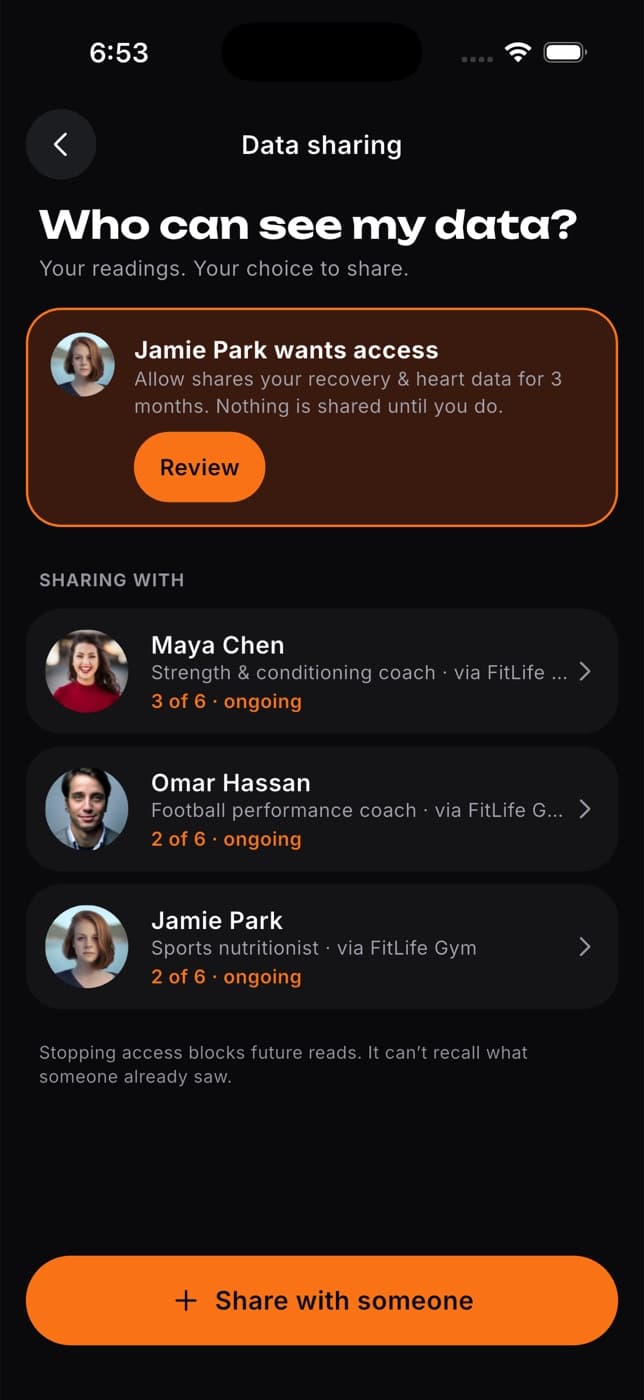
Joining a gym, booking a session or messaging a coach never shares your data on its own. You always decide.
What you can share
You choose from six kinds of data, and you can pick different ones for each person:
| Category | What it includes |
|---|---|
| Workouts & training | Your sessions, sets, effort and notes |
| Schedule | Your bookings and planned sessions |
| Sleep | How long you sleep and your trends |
| Recovery & heart data | Recovery, heart rate, HRV and your check-ins |
| Nutrition | Your meals, food logs and nutrition notes |
| Body measurements | Your weight, height, body fat and tape measurements |
Whoever you share with sees your numbers in your own units, for example pounds or kilojoules.
Progress photos are never shared, with anyone, even your coach. They're only for you.
Fit+ suggests the categories that usually make sense: training, schedule, recovery and sleep for a coach; nutrition and body measurements for a nutritionist; schedule and workouts for a gym. You can always change them.
Share with someone
Tap Me, then Data sharing.
Tap Share with someone.
Choose who you want to share with. You'll see the coaches, nutritionists and gyms you already work with. To find someone else, use Search coaches, clubs & gyms.
Choose what they can see. The suggested categories are already switched on. Turn any of them on or off.
Choose For how long?: 1 month, 3 months or Until I stop.
Tap Share. You'll see "Now sharing with" and their name.
What happens next: the person can see the data you chose right away, until the end date or until you stop.
Can't find your coach? Tap Invite a professional by email to send them an invitation to join Fit+.
Change what someone can see
Tap Me, then Data sharing.
Tap the person under Sharing with.
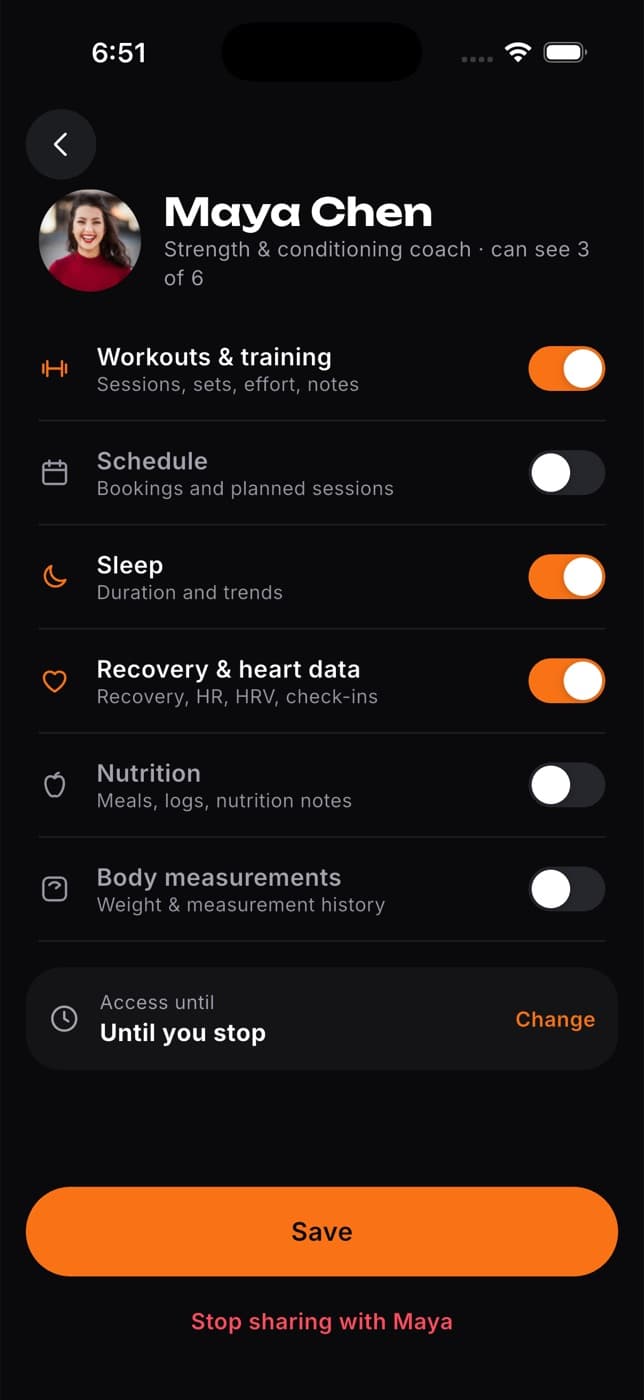
Turn categories on or off.
To change how long they have access, tap Change next to Access until and choose 1 month, 3 months, 6 months or Until I stop.
Tap Save.
Stop sharing
Tap Me, Data sharing, then the person.
Tap Stop sharing with and their name.
Confirm. Or tap Keep sharing to cancel.
They can't see anything new from that moment.
Stopping access can't take back what someone has already seen. For example, notes they wrote or a plan they built using your data stay with them.
Answer a request for access
Sometimes a coach or nutritionist asks to see more, for example your recovery data so they can adjust your plan. You get a notification, and the request appears at the top of Data sharing.
Tap the notification, or tap Review on the request in Data sharing.
See who's asking, what they want to see and for how long. Turn off anything you'd rather not share.
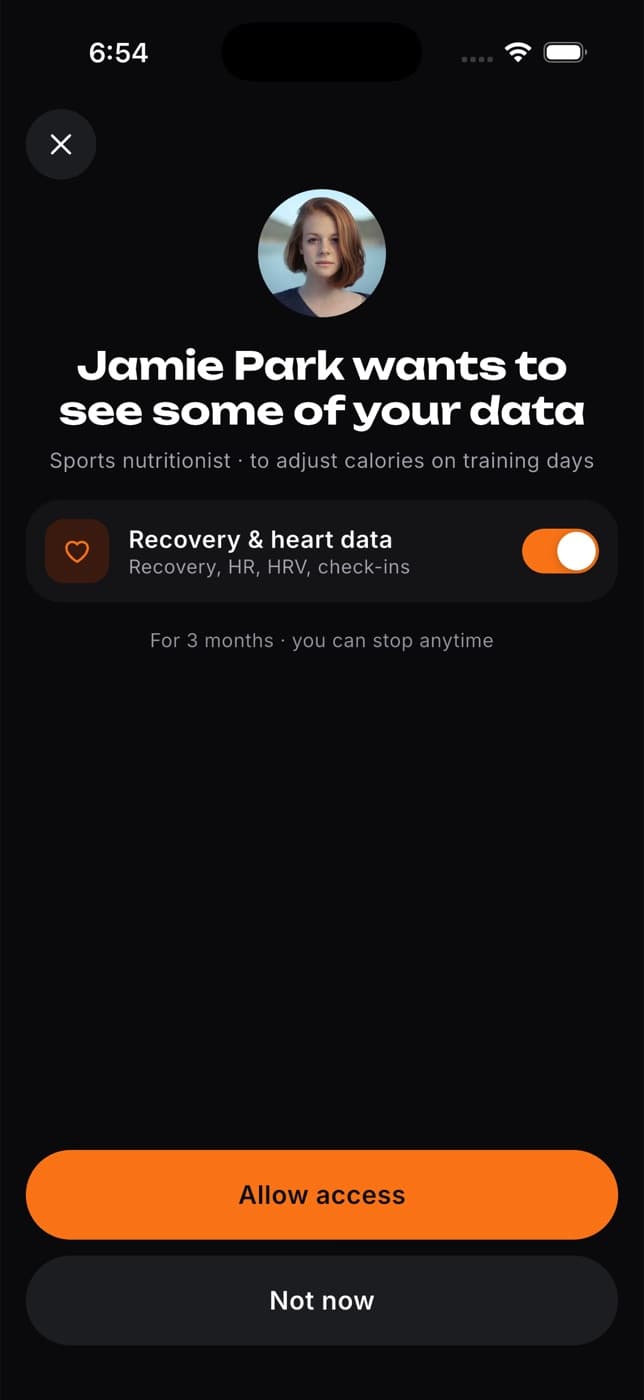
Tap Allow access to share, or Not now to decline. Nothing is shared until you allow it.
If you already share with them, allowing a request adds the new categories to what they can see.
Keep track of end dates
Each person under Sharing with shows how many categories they see (for example "3 of 6") and when access ends: a date, or "ongoing" if you chose Until I stop. When access ends within a week, you'll see a warning so you can renew it if you want.
Common questions
No. Joining a gym shares no health data. If you want a gym's coaches to see something, share with them here.
It means that person sees your data because you shared it with their gym, and they work there. If they stop working at the gym, they lose that access.
Your gym can see your name, your membership and your last visit. It never sees your health data unless you share it.
Requests expire after seven days. Message the coach or nutritionist and ask them to send a new one, or share with them yourself using Share with someone.
All sharing stops as soon as you delete your account. See Delete your account.
Choose your units
Pick kilograms or pounds, kilometres or miles, calories or kilojoules and more, set the plates you own and choose the first day of your week.
Import and export your data
Bring your workout history from Strong, Hevy or another app, bring your food diary from MyFitnessPal, undo an import, and export your data as a spreadsheet or JSON file.