

Your privacy and sharing
How Fit+ keeps your health data private and how you choose who sees it, for how long and how to stop.
Your workouts, meals, sleep and health readings belong to you. Nobody else sees them unless you decide to share, and you can stop sharing at any time. This page explains how that works in plain words.
Private by default
When you use Fit+, everything you record is private to you. That includes:
- Workouts you log, on your phone or your Apple Watch.
- Meals, water and your nutrition diary.
- Steps, sleep and heart data from Apple Health, Health Connect or WHOOP.
- Your body measurements, progress photos and setup answers.
- Your own routines and anything you import from another app.
None of these are shared just because you use Fit+ with other people.
Progress photos are only for you
Your progress photos stay private to you. Sharing your data with a coach, nutritionist or gym never includes them, even when you share Body measurements.
These never share your data on their own
- Joining a gym, or having a membership there.
- Booking a session with a coach or nutritionist.
- Messaging someone.
- Someone being your coach, your gym's owner or a member of the Fit+ team.
Your gym sees that you're a member and when you visit, but not your health data. The Fit+ team can't see your health data at all.
What you can share
You share in categories, so you can give each person only what they need.
| Category | What it covers |
|---|---|
| Workouts & training | Your sessions, sets, effort and notes |
| Schedule | Your bookings and planned sessions |
| Sleep | How long you sleep and your sleep trends |
| Recovery & heart data | Recovery, heart rate, heart rate variability and daily check-ins |
| Nutrition | Your meals, food diary and nutrition notes |
| Body measurements | Your weight and measurement history |
When you share Workouts & training with a coach, they can also send you training programs and leave notes on your workouts. When you share Nutrition with a nutritionist, they can send you meal plans and leave notes on your meals.
Share with someone in the app
Tap Me, then Data sharing. You'll see Who can see my data? and everyone you share with now.
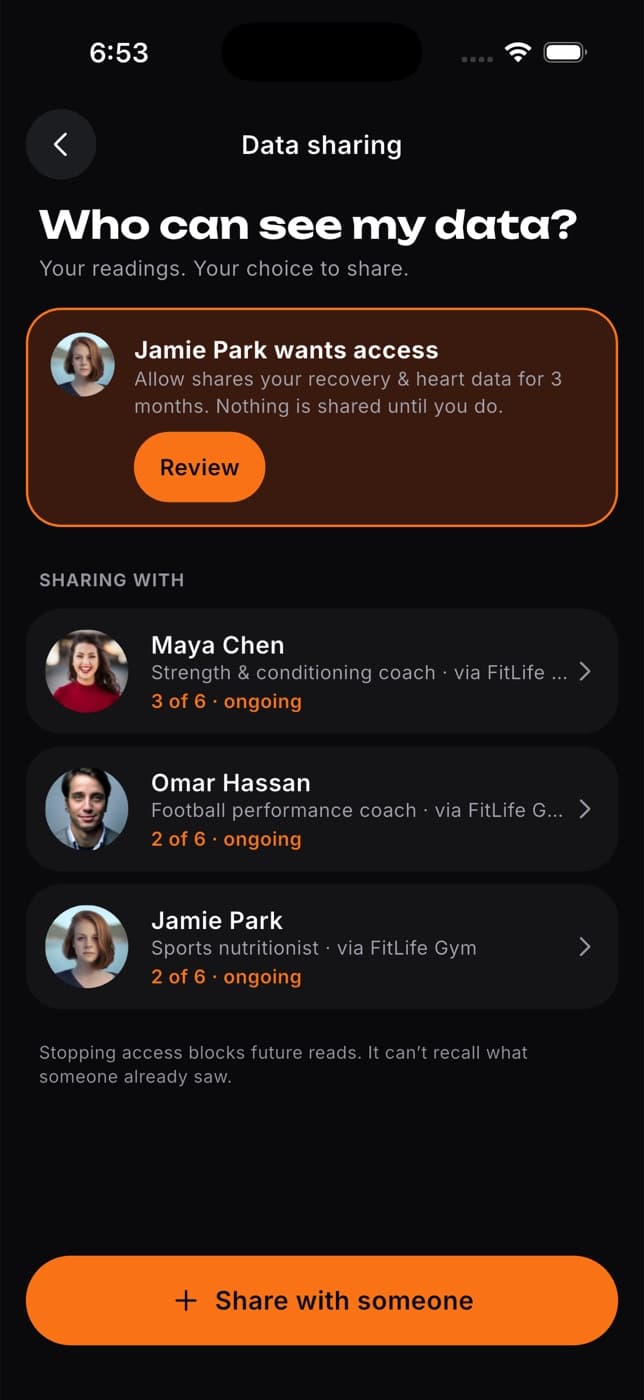
Tap Share with someone and choose your coach, nutritionist or gym. If they aren't listed, search for them.
Choose what they can see. Fit+ suggests categories that suit their role, and you can switch any of them on or off.
Under For how long?, choose 1 month, 3 months or Until I stop.
Tap the share button. You'll see "Now sharing with" and their name.
Share with someone on the website
Open Data sharing in the sidebar.
Under Share with, choose the person.
Choose one category, then choose how long: 7 days, 30 days, 90 days or 1 year. A sentence above the button sums up what you're about to share.
Select Share access. To share more than one category with the same person, repeat these steps for each one.
Sharing you set up on the website ends on the date you chose. Nothing renews by itself.
Change or stop sharing
You're always in control, and you can change your mind at any time.
Tap Me, then Data sharing, and tap the person.
Switch categories on or off. To change how long, tap Change next to Access until. Then tap Save.
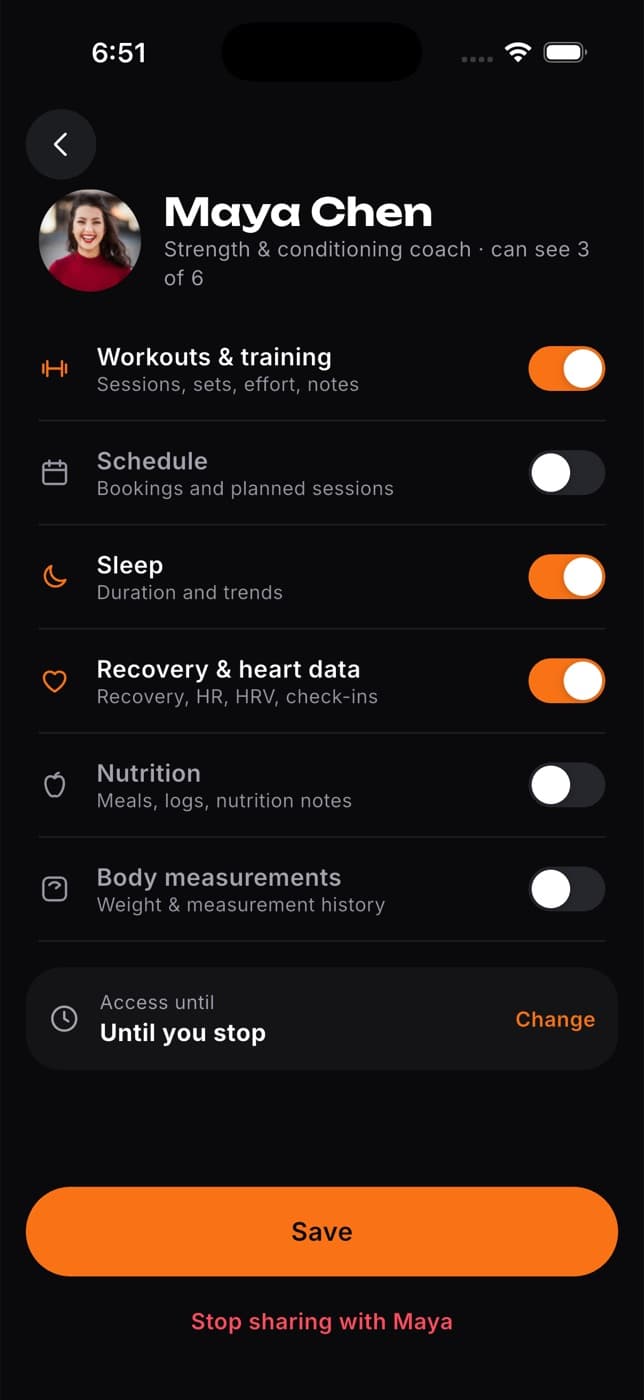
To stop completely, tap Stop sharing with and their name, then confirm.
Stopping sharing blocks anything new from that moment on. It can't take back what the person has already seen.
When a coach asks to see your data
Sometimes a coach or nutritionist asks you to share, for example so they can review a workout. Nothing is shared until you say yes.
Open the request from your notifications, or tap Review at the top of Data sharing.
Check which categories they asked for and for how long. Switch off anything you don't want to share.
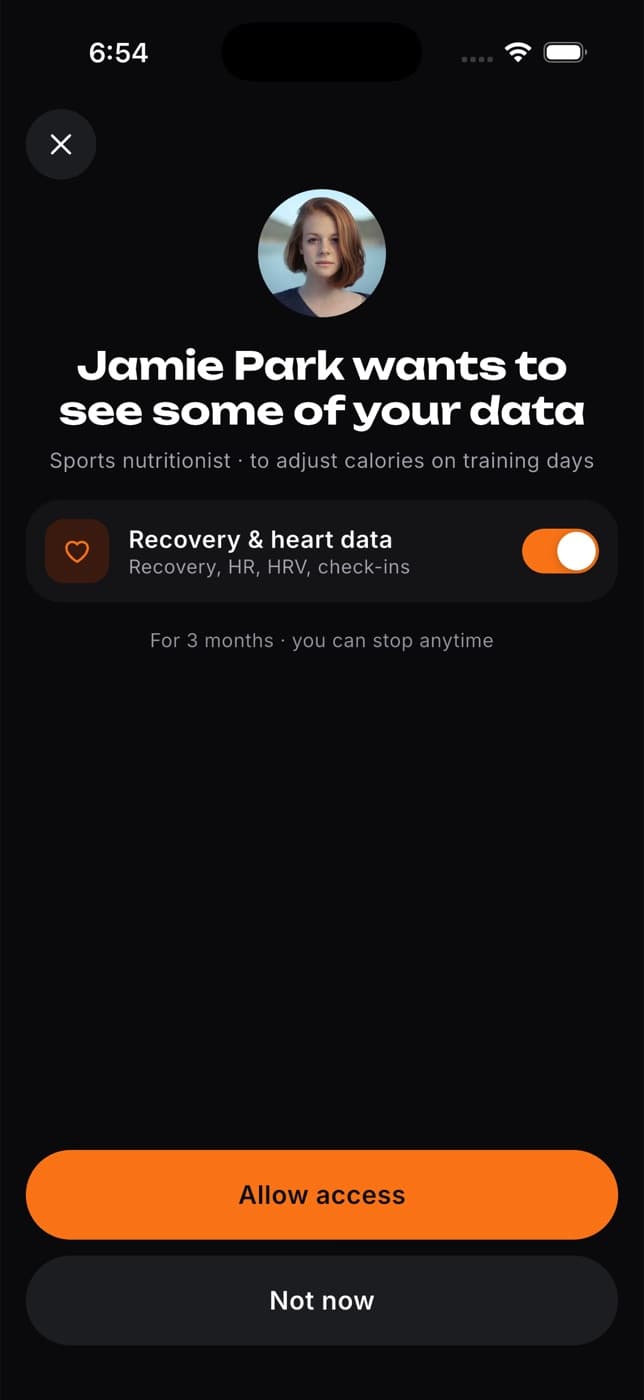
Tap Allow access to share, or Not now to decline.
Requests expire after 7 days. If you miss one, message the person and they can ask again.
The AI coach
The Fit+ AI coach is off until you turn it on. When you do, it can use your own data to answer your questions and estimate meals from photos. You can turn it off any time in Me, Settings, Security, under AI processing.
Usage analytics
After you set up the app, Fit+ asks once, on Help improve Fit+, whether it can collect usage analytics, such as which screens you open and which features you use. Nothing is sent unless you tap Allow. Not now keeps it off. It's linked to a random account ID, never your name or email, and it never includes your health data, food, weights, messages or photos.
You can change your answer any time in Me, Settings, Security, with the Usage analytics switch. Turning it off, signing out or deleting your account stops it straight away. The Fit+ website doesn't use usage analytics.
Your copy of your data
Your data is yours, and you can take it with you or bring it in.
- Export data gives you a copy of your workouts, food diary, weight and measurements, health imports and notes, as a spreadsheet (CSV) or a JSON file. In the app, tap Me, Settings, Security, then Export data. On the website, open Profile and select Export data.
- Import your history brings in workouts, food and weigh-ins from Strong, Hevy, MyFitnessPal or another app's CSV file. It's in the same place in the app, and on the website's Export data page under Bring your history.
Delete your account
You can delete your account and data in the app (Me, Settings, Security, then Delete account), on the Delete your Fit+ account page of the Fit+ website (select Delete account at the bottom of any page), or by email. In the app or on the website, it happens straight away. See How do I delete my account? for the steps and what is kept.
More detail
- Data sharing in the app
- Data sharing on the website
- You can read the full Privacy Policy from the Privacy link at the bottom of the Fit+ website, or Privacy Policy on the app's welcome screen.
Common questions
No. They only see the categories you picked, for the time you chose. For example, a coach you share Workouts & training with can't see your meals.
No. Joining a gym shares nothing. Your gym sees your membership and your visits. If you'd like a coach at your gym to see your workouts, share with them yourself.
When the end date passes, or you stop sharing, the person can no longer see anything new in those categories. If you still want to work together, share again.
No. Only you can share your data, change what you share or stop sharing.