

Common questions
Quick answers about signing in, your password, supported devices, your data and getting help.
Here are answers to the questions people ask most when they start with Fit+. If yours isn't here, contact support.
Signing in
Check that you're using the email you signed up with, and that Caps Lock is off. If you signed up with Continue with Apple or Continue with Google in the app, use the same button again. On the website, use Email me a sign-in link instead.
If you still can't get in, reset your password. See Forgot your password.
Open the email from Fit+ that we sent when you signed up, and select the link. In the app you can ask for a new email with Resend email.
Wait a moment, then try again. If you've forgotten your password, reset it instead of guessing.
Sign-in and reset links only work once and for a limited time. Ask for a new one and use the newest email.
Nobody chose one for you. Open the email from Fit+, select Set your password and choose your own. Then sign in with that email address. If the link has expired, open it anyway to ask for a new one. See Set your password from a setup email.
Use the switcher at the top of the sidebar to move to your other spaces. If you don't see the space you expect, your gym may still be waiting for approval, or your role may not be active yet. Ask your gym owner or contact support.
Emails from Fit+
- Wait a couple of minutes. Emails can take a little while.
- Check your spam, junk or promotions folder.
- Make sure you typed your email address correctly.
- Ask for a new email: Resend email in the app, or request the link again on the website.
For your security, Fit+ shows the same message whether or not an email has an account. If nothing arrives after a few minutes and it's not in spam, you may have signed up with a different email, or with Apple or Google.
Your account
In the app, tap Me, Settings, Security, then Change password. We email you a link to choose a new password.
On the website, open Profile in the sidebar and select Change password at the bottom of the page.
You can't change it yourself yet. Message support from the app and we'll verify your new email for you.
Not yet for members. You'll see Two-factor auth marked "Coming soon" in Security.
In the app, tap Me, then Settings, then Log out. Your data stays in your account and you can sign in again at any time.
Yes. In the app, tap Me, Settings, then Units, and choose your units for weight, distance, height and body, energy and liquids. You can also choose the day your week starts on.
On the website, open Profile in the sidebar, make the same choices under Units, then select Save units.
Your units apply in the app and on the website, to workouts, food and health, and to what your coach sees. Switching never changes your records.
Devices
- iPhone and Android phones, with the Fit+ app.
- Apple Watch, with the Fit+ watch app paired to your iPhone.
- Any computer, with a modern web browser, on the Fit+ website.
On an iPad or tablet, the app shows the phone layout.
Yes. On iPhone, Fit+ reads from Apple Health. On Android, it reads from Health Connect. Most watches and fitness trackers save their data there, so it reaches Fit+ too. If you wear a WHOOP, you can connect it directly. Set all of this up in the app under Me, then Devices & apps.
Yes. Fit+ can import a CSV export from Strong, Hevy or MyFitnessPal, or any CSV with a date, exercise, weight and reps. You see what Fit+ found before anything is added, and you can undo an import later.
- In the app: tap Me, Settings, Security, then Import your history.
- On the website: open Profile, select Export data under Your data, then Import history.
Nearly everything for members happens in the app. The website is handy on a computer for checking your training and progress, logging food, messages, bookings, sharing, and importing or exporting your data. Some things are app only, such as your setup questions, connecting health apps, photo and barcode food logging, and linking a gym.
Your data
Only the people you share with, for the categories and time you choose. You can stop sharing at any time. See Your privacy and sharing.
- In the app: tap Me, Settings, Security, then Export data. Choose what to include, the format (CSV spreadsheet or JSON) and the date range, then tap Export and share.
- On the website: open Profile and select Export data under Your data. Make the same choices, then select Export and download.
The file holds only records you made yourself, never your coach's notes or anyone else's data.
Only if you allow it. The app asks you once whether it can collect usage analytics, such as which screens you open and which features you use. Nothing is sent unless you tap Allow, and it never includes your health data, food, weights, messages or photos. See Usage analytics.
You can delete your account in the app, on the Fit+ website or by email. Want a copy first? Use Export data before you start.
- In the app: tap Me, Settings, Security, then Delete account at the bottom. Read the summary and tap Delete my account.
- On the website, without the app: select Delete account at the bottom of any page on the Fit+ website. On the Delete your Fit+ account page, select Sign in to delete and sign in. Then select Delete my account, tick I understand this can't be undone. and select Delete my account again.
- By email: write to support@usefitplus.com from the email address you use for Fit+. We may reply to check it's you, and we finish within 30 days.
In the app or on the website, your account and data are deleted straight away and you're signed out. Your coaches and gyms lose access. Payment records for gym memberships are kept without your name, because the law requires it.
If your account owns a gym or another business, the Fit+ team finishes the deletion for you. Data sharing stops straight away, and we finish within 30 days.
Deleting your account doesn't cancel a Fit+ Pro subscription. Cancel it in your Google Play or App Store subscriptions.
The Delete your Fit+ account page also lists exactly what is deleted and what is kept.
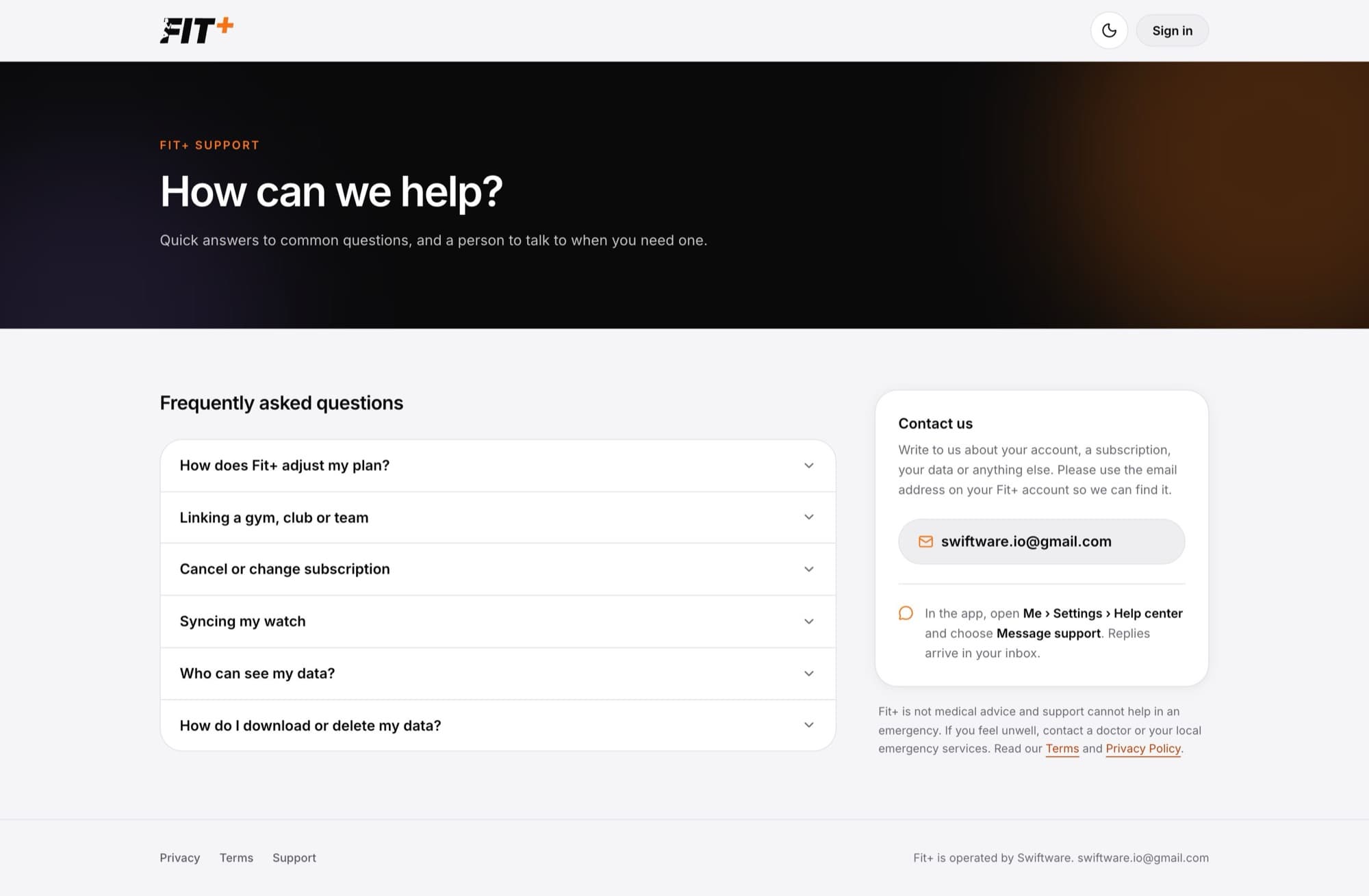
Contact support
In the app: tap Me, then Help & feedback, and choose Message support. We aim to reply within one business day. Please don't include health details you don't want to share.
On the website: select Support at the bottom of any page, then use Contact us to email the team. Write from the email address on your Fit+ account so we can find you.
No. Fit+ isn't medical advice, and support can't help in an emergency. If you feel unwell or get hurt, contact your local emergency services or a doctor.
In the app, tap Me, then Help & feedback, and choose Send feedback. Pick a category, such as a suggestion or a technical issue, and send it. We read every message.