

Create your account
Sign up for Fit+ in the app or on the website, confirm your email and sign in.
You need one Fit+ account to use the app, your Apple Watch and the website. This page walks you through signing up, confirming your email, signing in and getting back in if you forget your password.
Before you start
- An email address you can open right now, to confirm your account.
- The Fit+ app from the App Store or Google Play, or a web browser on your computer.
It doesn't matter where you sign up. The account you create in the app also works on the website, and the other way round.
Sign up
Open the Fit+ app. On the welcome screen, choose how you want to sign up: Continue with Apple or Continue with Google. To sign up with your email, tap More options, then Skip (or swipe through the short tour and tap Get started), then Sign up with email.
If you pick Apple or Google, follow their prompts and you're done. Skip to What happens next.
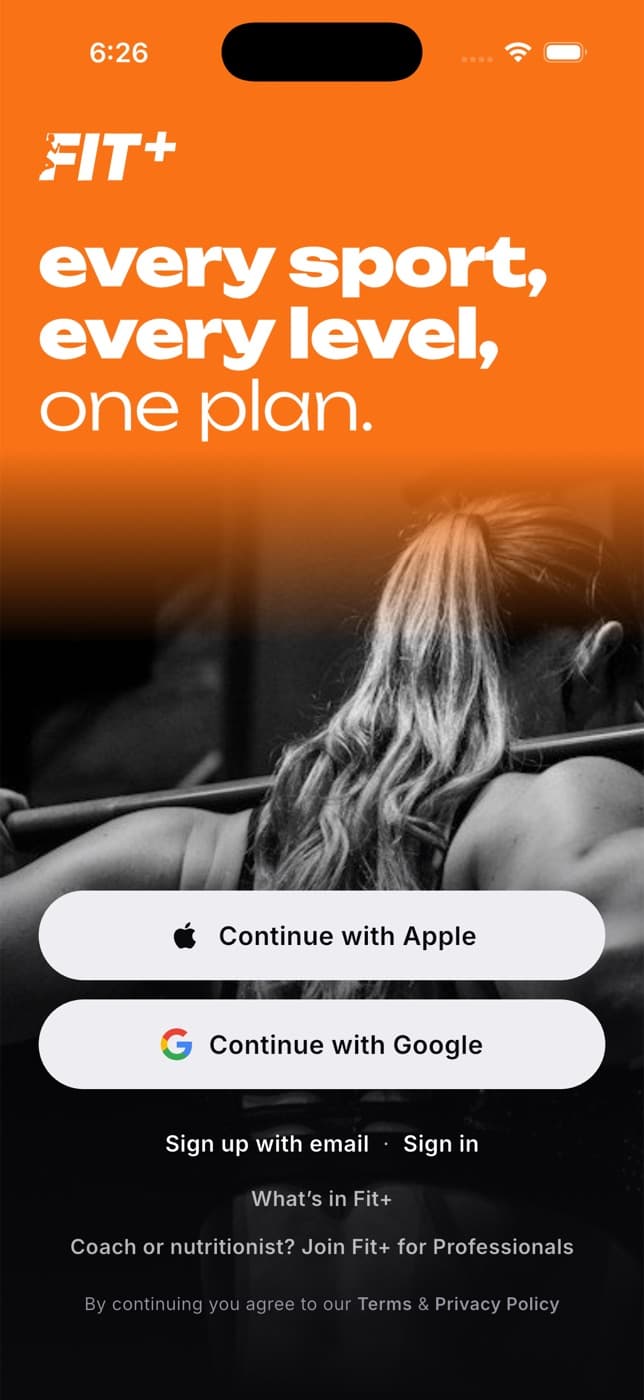
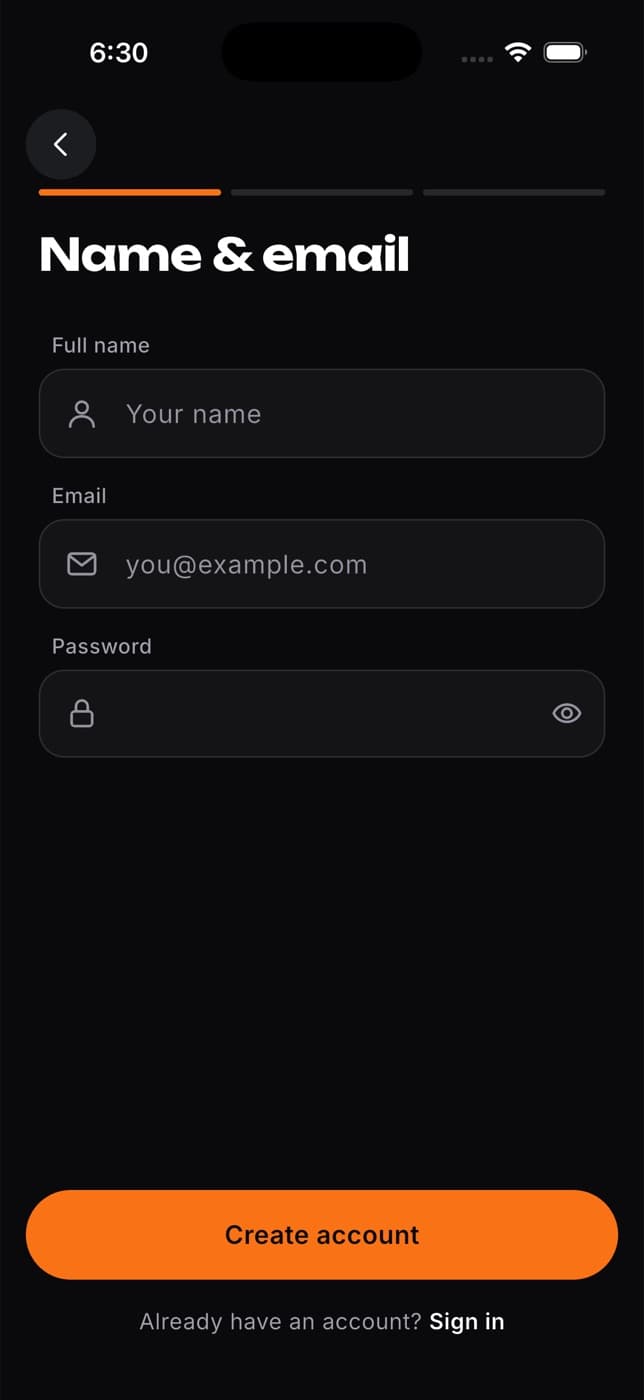
If you chose email, enter your Full name, Email and a Password of at least 8 characters, then tap Create account.
Fit+ opens Check your inbox. On the same phone, open the email from Fit+ and tap the link to confirm your address and sign in.
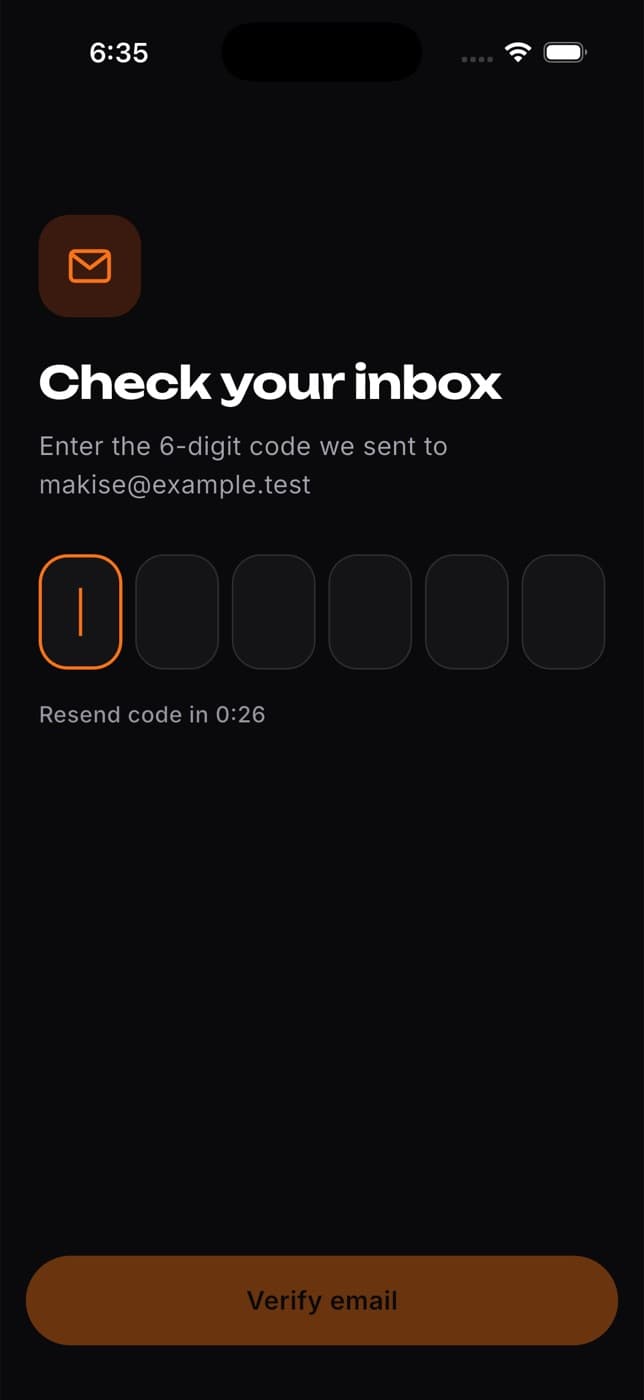
If the email doesn't arrive: tap Resend email to get a new one. It appears 30 seconds after the last email was sent. Use the link in the newest email.
What happens next
- In the app, you'll see a short setup that asks about your goal, your experience, your body and how you eat. Fit+ uses your answers to build your first plan. Your answers stay private to you. See Setup and assessment.
- On the website, you land on your member dashboard. You can answer the setup questions later in the app.
Sign in
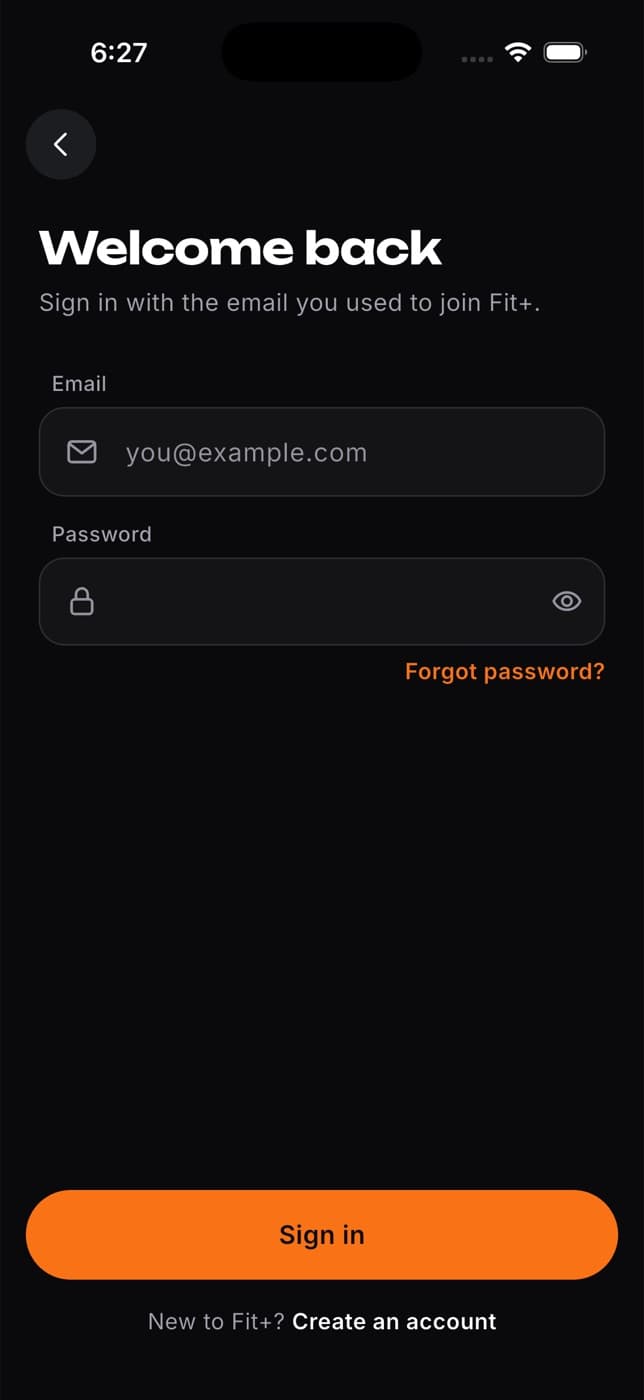
On the welcome screen, tap Continue with Apple or Continue with Google if that's how you signed up. Otherwise tap Sign in.
Enter your Email and Password, then tap Sign in.
Forgot your password
On the welcome screen, tap Sign in and type your email address in the Email field.
Tap Forgot password?. You'll see "Check your email for a link to reset your password."
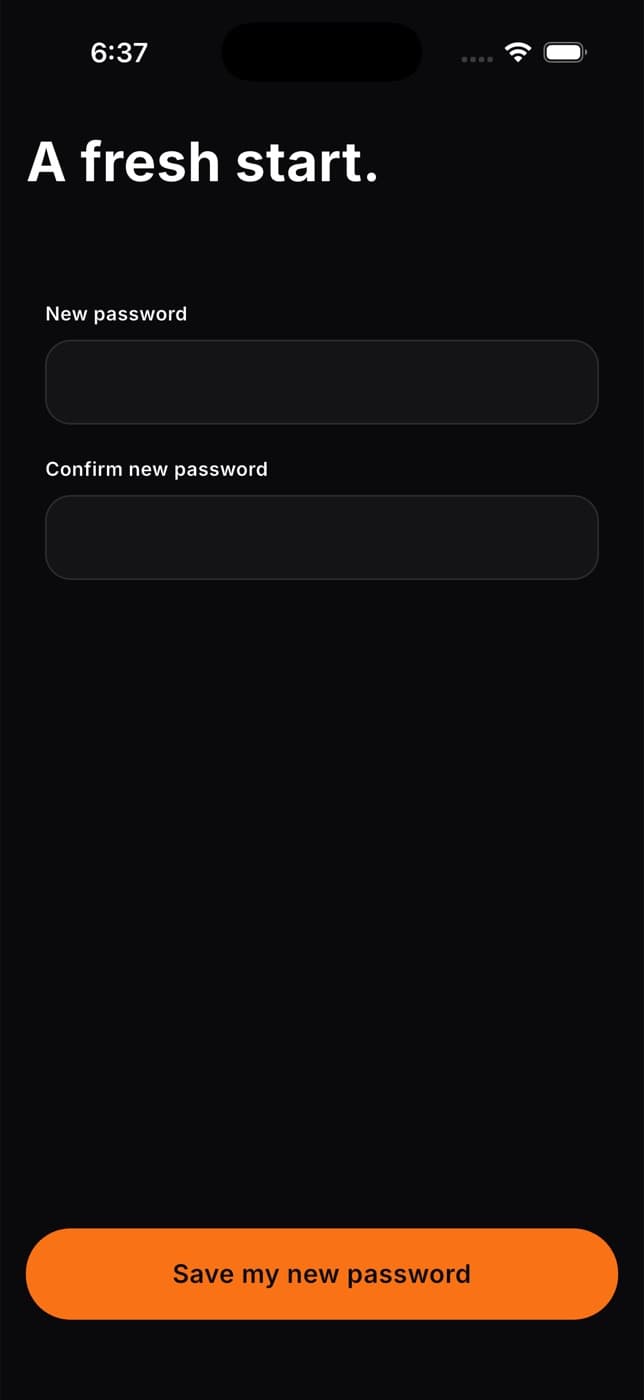
Open the email on your phone and tap the link. Fit+ opens on A fresh start.
Enter your new password twice (at least 8 characters) and tap Save my new password. You're signed in.
For your security, Fit+ never tells anyone whether an email address has an account. You'll see the same message either way, so check that you typed the email you signed up with.
More detail
- In the app: Sign in to the app and Confirm your email and reset your password.
- On the website: Sign in, Create an account and Forgot or change your password.
- Want to leave Fit+? See How do I delete my account?
Common questions
Wait a minute or two, then check your spam or junk folder. Make sure you typed the right address. In the app, tap Resend email after 30 seconds to get a new one.
No. Your account is still there. Open the link in the email from Fit+ to confirm it, then sign in with the same email and password.
Links only work once and for a limited time. Ask for a new one: request another sign-in link or reset link and use the newest email.
You don't need to sign up. Open the email from Fit+ and select Set your password to choose your own password, then sign in. See Set your password from a setup email.
Use Email me a sign-in link instead on the website's sign-in page. If you'd rather have a password, select Forgot password? to set one.