

Post and chat in Community
Read the Community feed, share a post, like and comment, and follow other members in the Fit+ app.
Community is where you share wins, ask questions and cheer on other members. You can see posts from your gym, from people you follow or from everyone on Fit+.
Read the feed
Tap Community in the tab bar. The Feed tab shows the newest posts first.
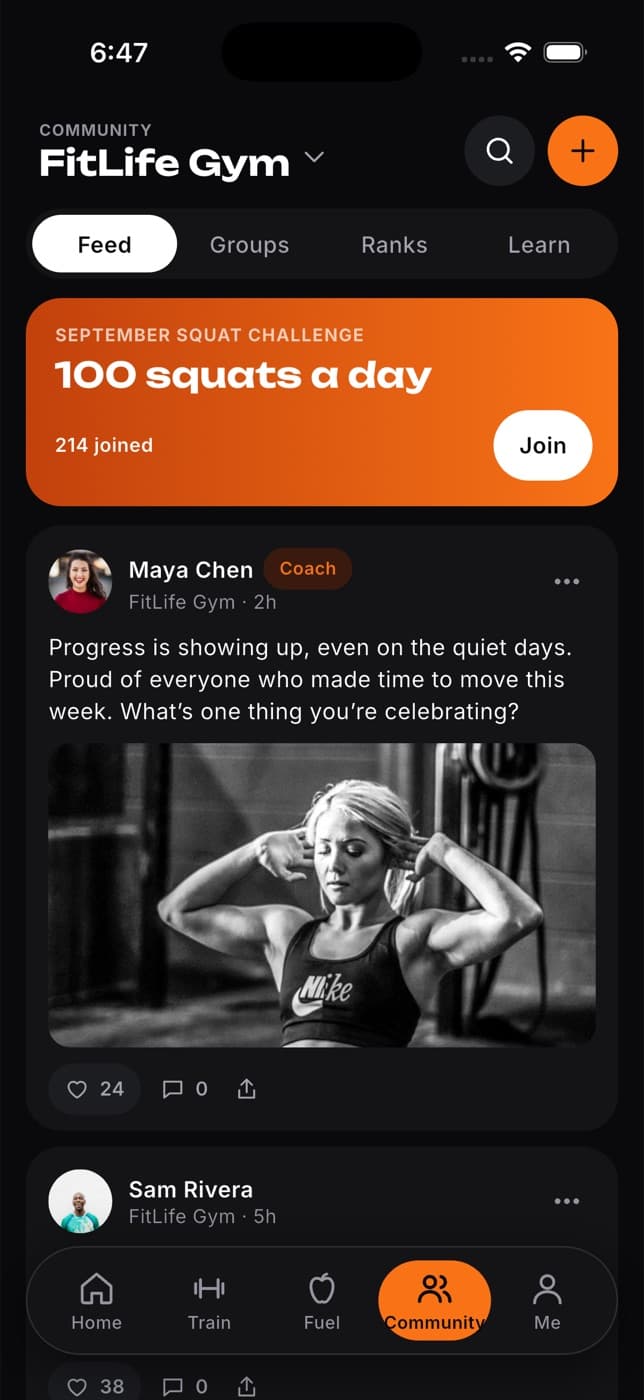
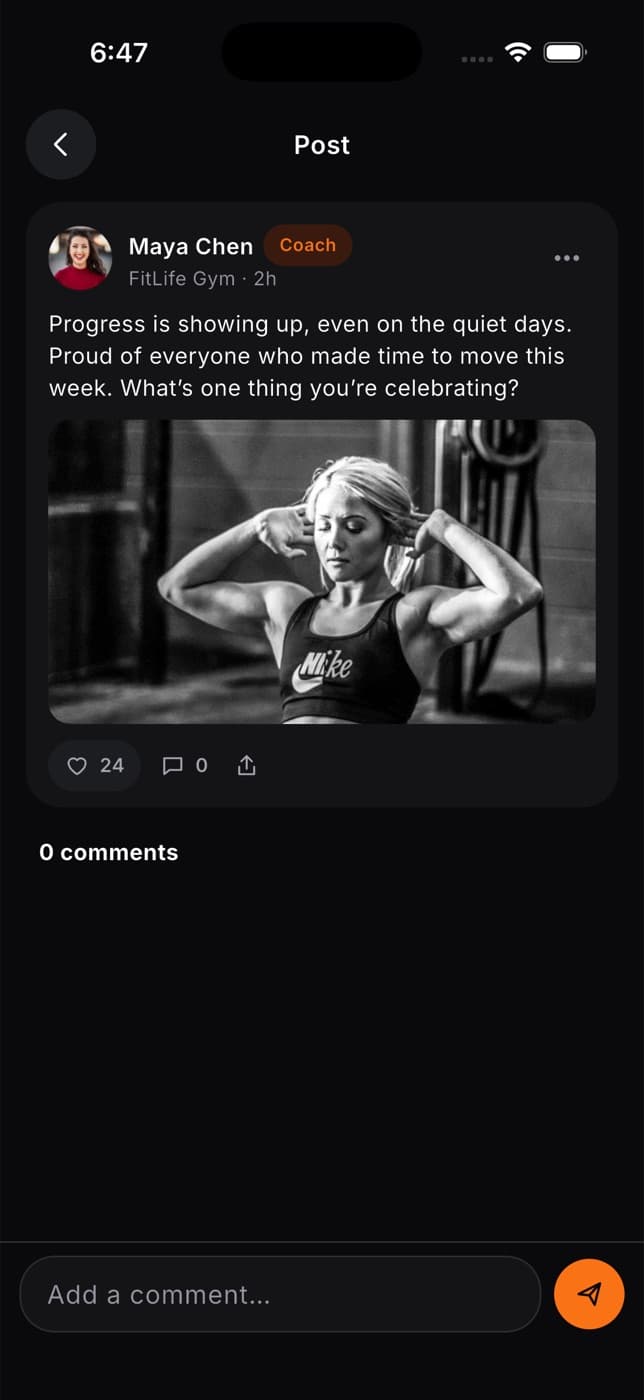
- Posts from coaches have a Coach tag.
- If your gym is running a challenge, a banner appears at the top. Tap Join to take part.
- Tap someone's name or photo to open their profile.
Choose whose posts you see
Tap the name at the top of the screen (for example your gym's name) and pick where to show posts from:
- Your spaces: the gyms, clubs and teams you belong to.
- Following: people and coaches you follow.
- All of Fit+: everyone on Fit+.
Share a post
Tap the orange + button at the top.
Check where your post will go, shown next to your photo. Tap it to choose All of Fit+ or one of your spaces.
Write your post. You can use up to 300 characters.
Add up to four photos if you like: tap the camera to take one, or the gallery icon to choose from your library.
To show off a workout, tap the activity icon to attach your most recent one.
Add a tag if you like: PR, Workout, Nutrition, Motivation or Question.
Tap Post.
You can also share straight from a workout summary, a workout preview or a new badge. Fit+ fills in the details for you.
Like and comment
- Tap the heart on a post to like it. Tap it again to remove your like.
- Tap a post to open it, type in Add a comment... and tap send.
- Tap the share icon to send a post to someone outside the app.
What happens next: the author gets a notification when you like or comment on their post, or when you follow them.
Hide, report or delete a post
Tap ... on a post to see more options:
| Option | What it does |
|---|---|
| Share post | Shares the post text with another app. |
| Copy text | Copies the post text. |
| Hide this post | Removes the post from your feed on all your devices. |
| Report post | Hides the post and sends it to the Fit+ team to review. |
| Delete post | Removes your own post. Only shown on your posts. |
Search Community
Tap the magnifying glass at the top to search for people, groups and posts. Start typing a name or a few words from a post.
Follow people and view profiles
Tap anyone's name or photo to open their profile.
- On a member's profile you'll see their posts, workouts and badges, with Follow and Message buttons.
- On a coach's profile you'll see their posts, packages and reviews, with a button to request coaching or book a session.
To preview how your own profile looks to others, tap Me, then View profile.
Control who sees your profile
Tap Me, then the settings button, then Security. There you can choose:
- Profile visible to: everyone, the members of one of your gyms, or only you. Your posts follow this setting too.
- Share workouts: everyone, friends (people you follow who follow you back) or only you. Only a short summary is shared, never your sets or health data.
Whether you appear on leaderboards is a separate choice. See See where you rank.
Common questions
Not yet. You can delete your own post and share it again. Comments can't be edited or deleted.
They've set their profile to private, or to show only to members of their gym.
Community opens on your first gym, club or team (or All of Fit+ if you don't have one). Tap the name at the top to switch.