

Preview a workout
See what's in a workout before you start, schedule it, read how to do each move and swap a move that doesn't work for you.
Before you start, you can look at a workout in as much detail as you like: the blocks it's made of, every move with its sets and weights, and tips on how to do each exercise.
Open the workout preview
On Train, tap your next workout card. You can also tap Preview on the workout card on Home.
The preview shows the workout name, the week and day of your program, its length and the equipment you'll need.
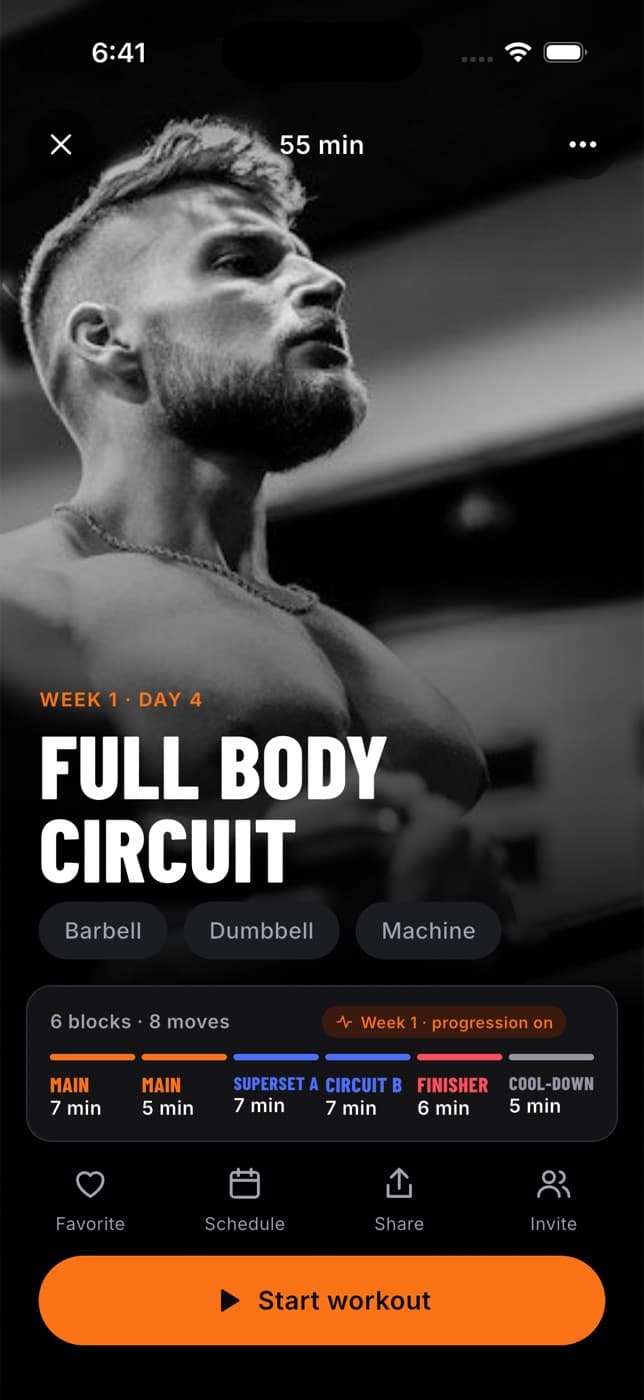
The summary card lists the workout's blocks, such as Main, Superset, Circuit, Finisher and Cool-down, with how long each one takes. "Progression on" means your coach set your weights to go up week by week.
When you're ready, tap Start workout.
Under the summary you'll find four buttons:
- Favorite saves the workout to your saved plans.
- Schedule lets you pick a day and time to do it (see below).
- Share posts the workout to the community.
- Invite opens the Community tab so you can invite friends.
See every move
Tap the More button (three dots) at the top of the preview to open the full outline. Each block lists its moves with what to do, for example:
- "4 × 8 · 60kg" means 4 sets of 8 reps at 60 kg (weights show in pounds if you use them)
- "3 × 30 sec" means 3 holds of 30 seconds
- "30 min" or "5 km" for a run or walk, in your distance unit
- a W badge means your coach planned warm-up sets before your working sets
- a tag like "+2.5 kg next week" shows how your coach will progress the move
In a superset or circuit, moves are labelled A1, A2 and so on. You do them one after another.
Learn how to do a move
Tap any move in the outline, or the i button during a workout, to open its guidance page. It has three tabs:
- Technique: the muscles it works and up to six key cues. If your coach wrote a cue for you, it comes first under From your coach.
- History: your best set so far and your recent sessions with this move.
- Swap: ask for a different move (see below).
Schedule a workout
On the preview, tap Schedule.
Pick a day from the next seven days.
Pick a time. Times that have already passed today are hidden.
Tap Save. The preview now shows the day and time you chose. To remove it, open Schedule again and tap Clear schedule.
Scheduling is a note for yourself. Fit+ doesn't send a reminder or add it to your phone's calendar.
Swap a move
If a move doesn't work for you today (it hurts, the equipment is busy or you just don't have it), you can swap it for another move that trains the same muscles. Swaps work on your own program, including a program from your coach.
Open your program's workout from This week on Train, then tap Swap next to the move. You can also use the Swap tab on the move's guidance page.
Choose what's wrong: Pain or discomfort, Equipment is busy, Too hard right now, Don't have equipment or Just prefer another. You can add a note for your coach.
Tap Ask AI for options and pick one of the suggested moves. Fit+ only suggests moves that avoid your sore joints and suit your equipment.
Tap Swap exercise on your own plan, or Send swap request on your coach's plan.
What happens next
- Your own plan: the swap is made straight away.
- Your coach's plan: your coach gets the request and decides whether to keep the swap, for how long, or suggest something else. You can use the new move today while you wait. You'll find the request and its status under Change requests in My plan.
Your coach can only see a swap request if you share your training with them. If you stopped sharing, the button reads Share with your coach to send this instead.
To do a workout with your swaps in it, open that day from This week on Train and start it from there.
Common questions
No. Swaps apply to your own program. If you're doing an extra workout, pick a different workout from Train instead.
Not in the plan itself. During the workout you can log whatever weight and reps you actually did. To change the plan, ask your coach, or swap the move. To set every set, rep and rest yourself, build your own routine. See Build your own routine.
Many exercises have a technique video in the exercise library. The guidance page in a workout shows a photo, key cues and your history.
Start and follow a program
Start a Fit+ plan, switch to another one, accept a program from your coach and keep track of everything in My plan.
Build your own routine
Make your own workouts with My routines, choose every set, rep and rest, group moves into supersets, keep folders and start a routine in one tap.