

Train with your Apple Watch
Start a planned workout on your Apple Watch, log sets, rest, pause and finish your workout from your wrist.
With Fit+ on your Apple Watch, you can follow your planned workout, log each set and rest between sets without reaching for your phone. Your heart rate shows at the top of the screen while you train.
Before you start
Set up and link your watch first. See Set up Fit+ on Apple Watch.
Start a planned workout
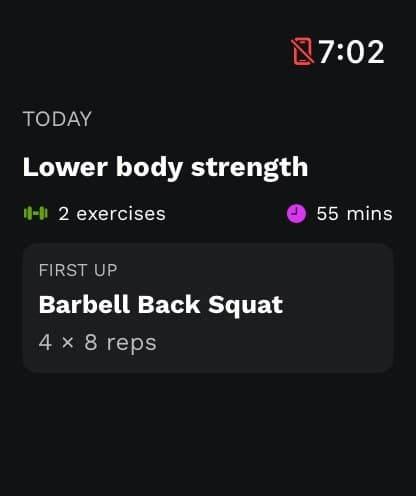
Open Fit+ on your watch. The Today screen shows your workout, how many exercises it has and the first exercise.
Scroll down and tap Start workout.
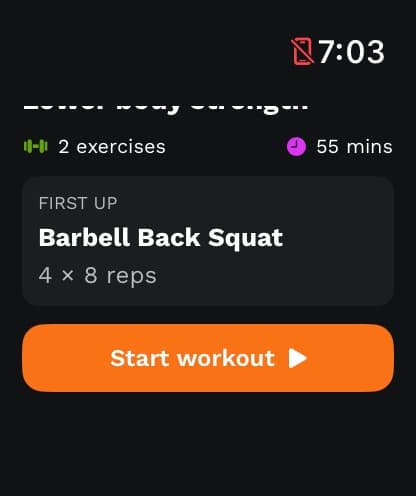
What happens next: if your iPhone is nearby, Fit+ starts the same workout on your phone and your watch follows along. If your phone isn't nearby, your watch records the workout on its own.
You can also start a workout on your iPhone. Fit+ opens on your watch and follows along.
No plan on your watch?
If there's no planned workout, Today offers Strength, Run, Cycle and Mobility. Tap one to start a free workout. The watch shows your time and calories, with Finish workout and Pause buttons.
Log your sets
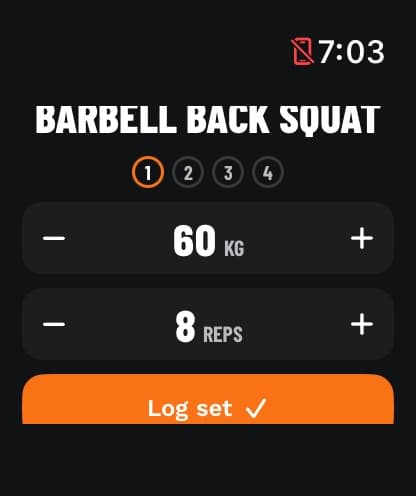
Check the exercise name and the set dots. The outlined dot is the set you're on.
Use - and + to adjust the weight (KG) and REPS if you did something different from the plan. Timed exercises show seconds instead. The watch shows weights in kilograms, even if you use pounds on your phone.
Tap Log set. Your rest timer starts.
Swipe left or right to see an overview of every exercise, or the coaching tips for the current one.
When your watch is recording on its own, you can tap Skip to move to the next exercise without logging the rest of the sets.
Rest between sets
The rest screen counts down and shows what's up next. When the time is up, your watch taps your wrist so you know to start the next set. In a superset, there's no rest between the moves, only after each round.
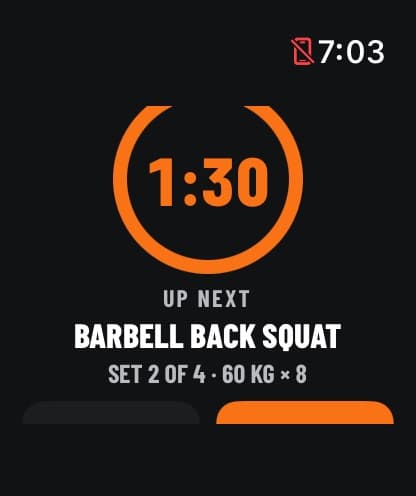
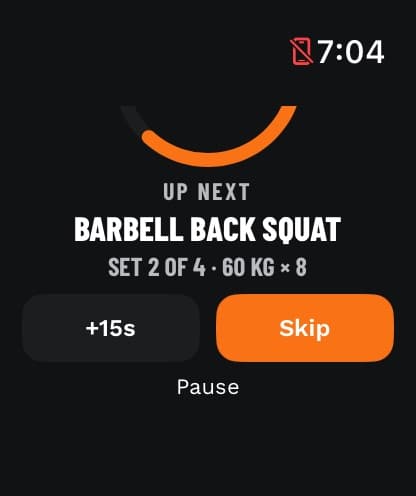
Scroll down for these buttons:
- +15s: add 15 seconds of rest.
- Skip: end the rest now.
- Pause: pause the whole workout.
Pause and resume
Tap Pause on the set or rest screen. The paused screen shows your time, how many sets you've done and which exercise you're on. Tap Resume to carry on.
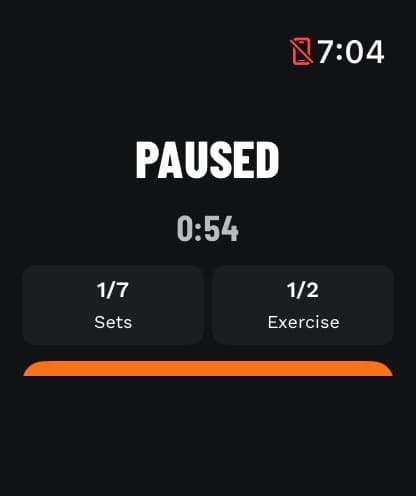
If your workout is running on your iPhone too, pausing on one device pauses both.
Finish your workout
How you finish depends on where the workout is running.
Workout running on your iPhone
When you've logged every set, your watch shows ALL SETS DONE. Finish the workout on your iPhone, where you rate it and save it. Your watch then shows a summary.
Workout recorded on your watch
After your last set, the watch asks How did it feel? automatically. To finish early, tap Pause, then End workout. For a free workout, tap Finish workout.
Set your Session effort from 1 to 10 with - and +.
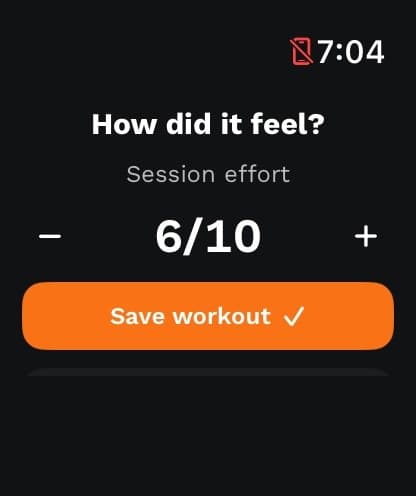
Tap Save workout.
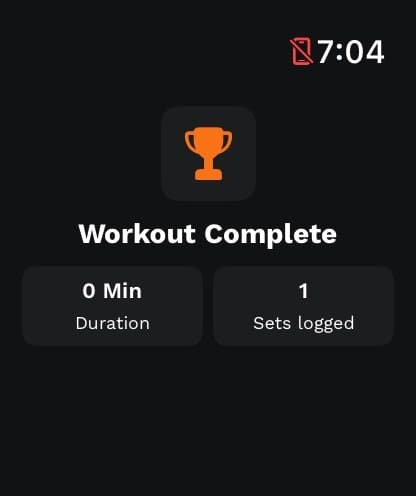
What happens next: the Workout Complete screen shows your time and the number of sets you logged. Tap Done to go back to Today. To see what was saved and where, see What your watch saves.
Common questions
A planned workout needs at least one logged set. Log a set, or go back and continue your workout.
Fit+ needs permission to read your heart rate. Check that Fit+ has access to heart rate in the Health app on your iPhone. The first reading can also take a few seconds.
Check that Fit+ is allowed to save workouts in the Health app on your iPhone, then tap Try again.
Fit+ saves the time you spent in each heart-rate zone with your workout. Your individual readings stay in Apple Health. See What your watch saves.
No. When a workout is running on your iPhone, finish it there so you can rate it and save it.
Set up Fit+ on Apple Watch
Install Fit+ on your Apple Watch, allow Health access and link the watch to your Fit+ account on iPhone.
What your watch saves
Where your Apple Watch workouts are saved, in your Fit+ history and in Apple Health, how your heart rate becomes heart-rate zones, and how to bring watch-only workouts into Fit+.