

Keep a gym library and defaults
Give your coaches and nutritionists the gym's own exercises, workouts, programs, foods and recipes, and set the training defaults they start from.
Library and defaults holds what your gym owns for its team: exercises, workouts and programs, foods, recipes and nutrition plans, and the defaults your coaches start from. Every coach and nutritionist of your gym can use these in their plans and copy them to change them. Members never see this library.
Who can manage it
The gym owner, and managers with the Publish training plans to members permission. Anyone else who opens the page sees Only the owner and managers can open this. See Staff roles and permissions.
Open Library and defaults
Select Library and defaults in the sidebar, under Library. The page has five tabs:
| Tab | What it holds |
|---|---|
| Exercises | Gym exercises with a starting prescription, steps and video links |
| Workouts and programs | Programs, workouts and blocks every coach of the gym can use and copy |
| Foods | Foods your nutritionists build meals from, such as what the gym cafe serves |
| Recipes | Meals and nutrition plans every nutritionist of the gym can use and copy |
| Defaults | The training defaults every coach of the gym starts from |
Use Search to find an item on a tab.
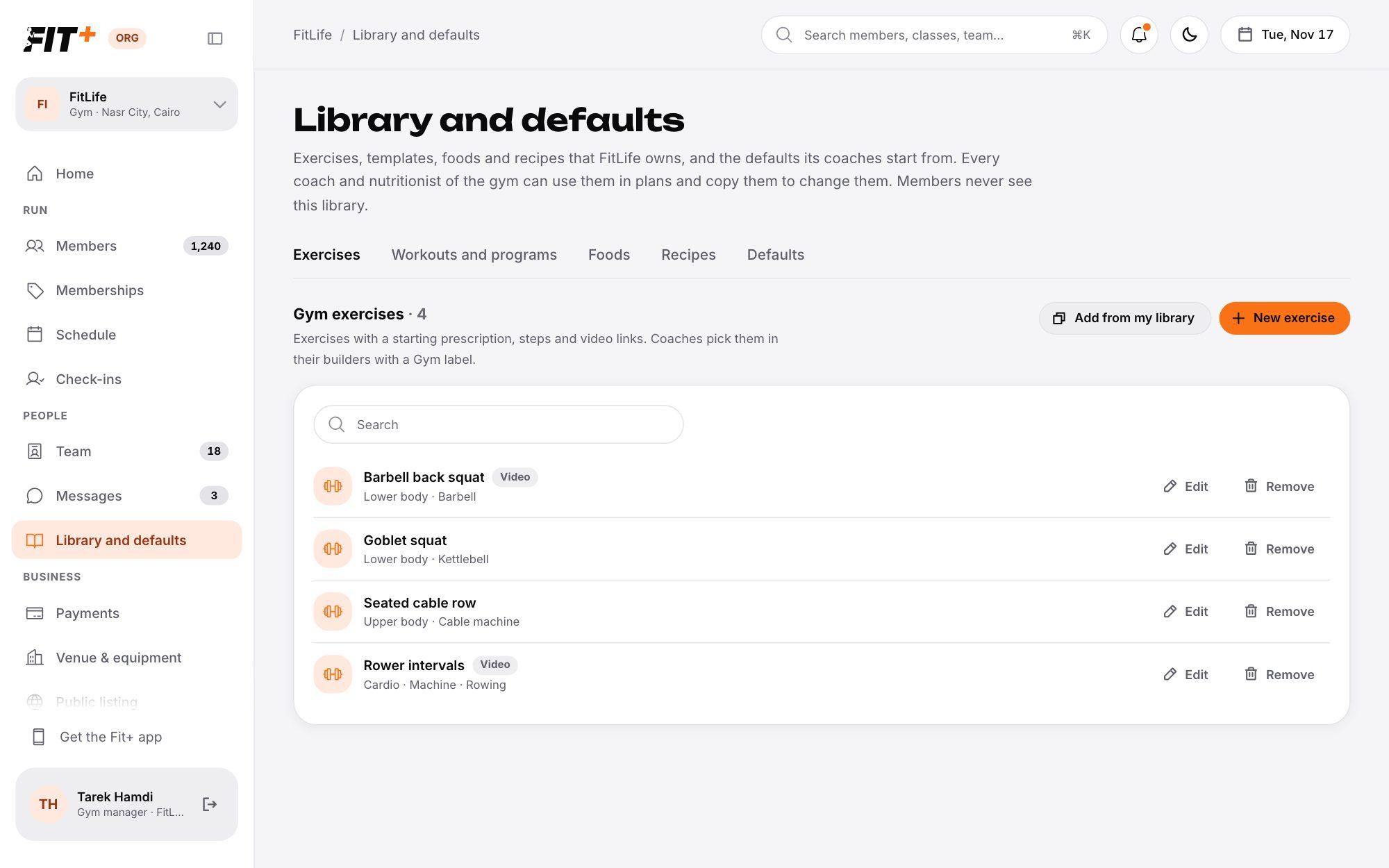
Add a new exercise or food
On Exercises, select New exercise. On Foods, select New food.
Fill in the form.
- For an exercise: the Name, Category, Equipment, an optional Sport or style, the Starting prescription (Sets, Reps and Rest), the Steps, one per line, and up to 5 Video and photo links that start with https://.
- For a food: the Name, Brand, Serving size and Unit, Grams per serving, and the Calories, Protein, Carbs and Fat for one serving, with Fibre, Sugar and Sodium if you know them.
Select Save.
Add from your own library
If you also work as a coach or nutritionist, you can add what you already built.
Open the tab, then select Add from my library.
Find the item and select Add.
The gym gets its own copy. Later changes to your own item don't change the gym copy. A meal or nutrition plan brings the foods it uses along as gym foods. An exercise brings its links, but uploaded files stay in your own library.
Workouts, programs, recipes and nutrition plans can only be added this way: build them in your own library first, then add them here.
Edit or remove an item
- Select Edit on an exercise or food to change it, or Rename on a workout, program or recipe. Coaches see the new name in their pickers. Plans already written keep their own titles.
- Select Remove, then Remove again, to take an item out of the library. Coaches and nutritionists can no longer pick it. Plans already written and copies people made keep what they have.
Set the gym's defaults
On Defaults, set how your coaches' new exercises start: sets, reps, rest, tempo, effort and progression for each type of exercise, the rest choices and the weight steps. The My lists tab inside it holds the gym's own workout tags, exercise categories and equipment, which sit beside the Fit+ ones in your coaches' pickers.
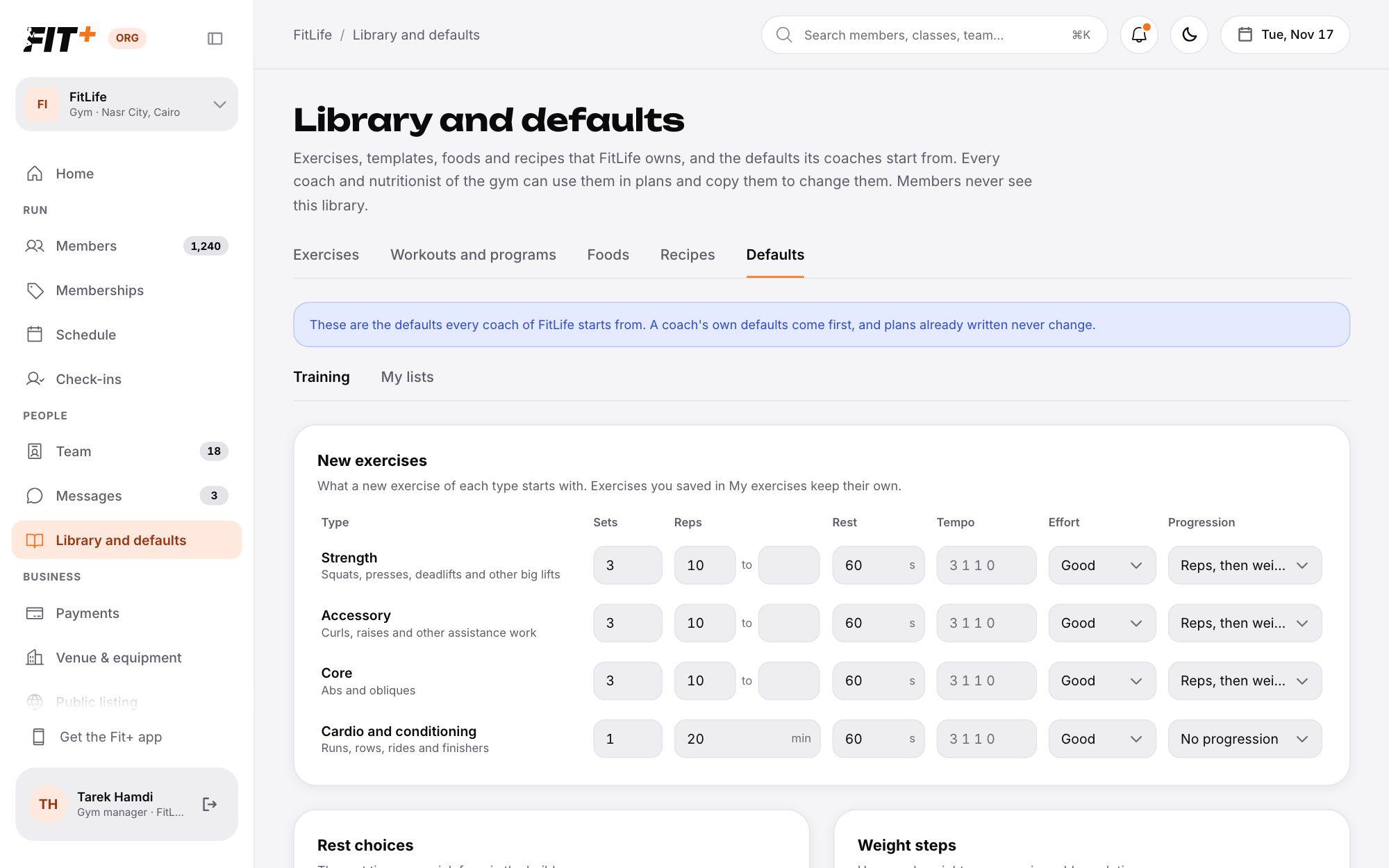
It's the same editor coaches use for their own defaults. See Set your training defaults.
A coach's own defaults come first. A coach who hasn't saved any starts from the gym's, and plans already written never change.
What your team sees
Your coaches and nutritionists find the library on their Team page, and in the app under Gym library. Items show a Gym label in their pickers. See Use your gym's library.
Common questions
No. Members only see the plans their coach or nutritionist writes for them.
No. Plans already written, and copies your team made, keep what they have.
Yes. On Defaults, select Reset to Fit+ defaults, then Reset. Your coaches' own defaults don't change.