

Run your class schedule
Add weekly classes with a room, coach and places, then move, cancel or message a class when plans change.
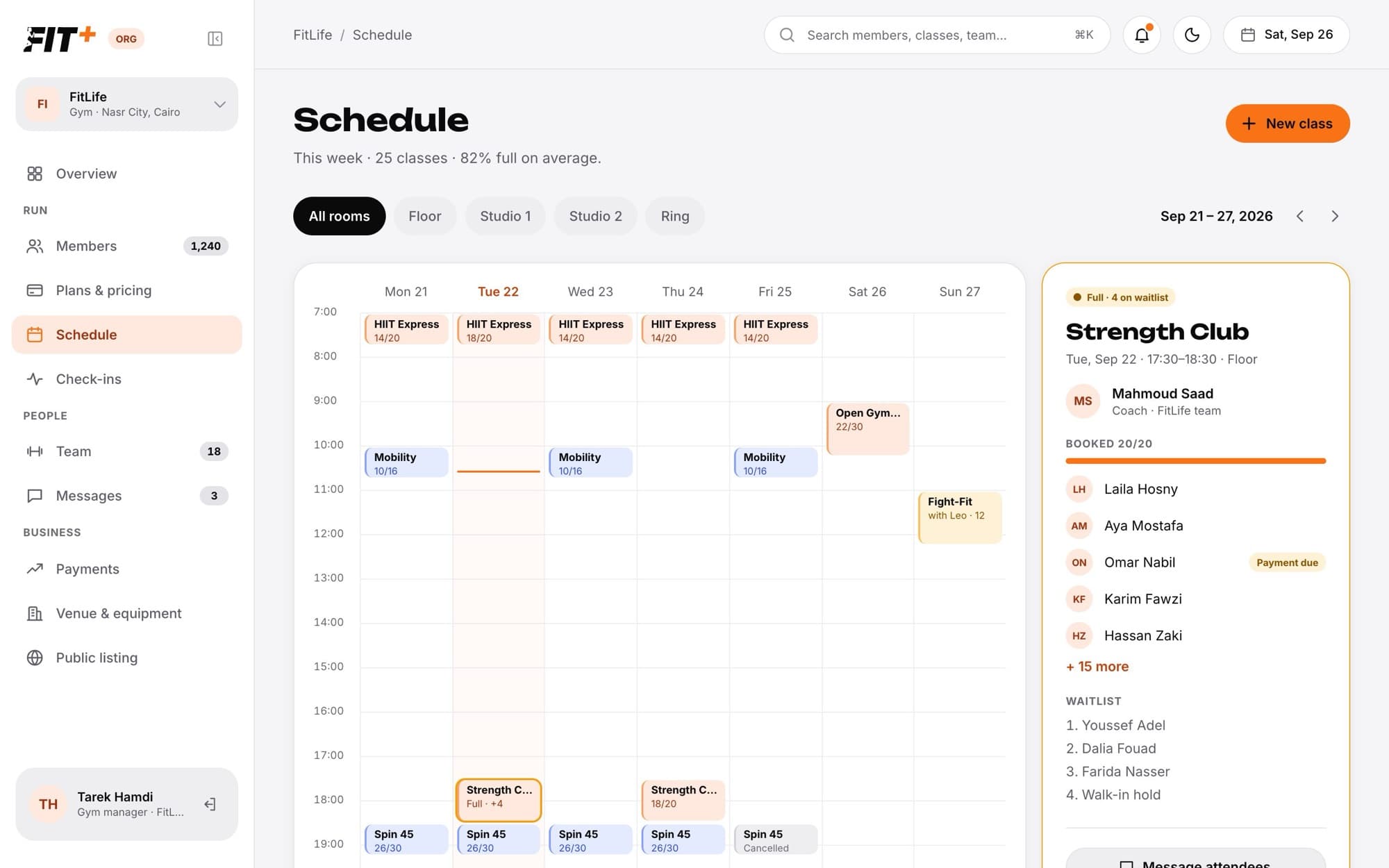
Schedule shows your classes week by week. Members book them in the Fit+ app, and when a class is full they can join the waitlist.
Before you start
- Everyone on your team can see the schedule.
- To add, change, move or cancel classes, you need to be the owner, or staff with Edit classes and plans.
- Add your rooms first on Venue & equipment. See Set up your venue.
- Only coaches on your team whom Fit+ has verified can teach a class.
Find your way around
- The top line shows how many classes are on this week and how full they are on average.
- Use the arrows to move between weeks, and the room chips (such as All rooms, Floor, Studio 1) to see one room at a time.
- Click a class to see who booked, the waitlist and what you can do with it.
Add a class
The class appears on the schedule for the next 8 weeks and keeps rolling forward. Members can book it in the app right away.
When a class is full
Members can join the waitlist. When someone cancels their place, the first person on the waitlist gets it automatically.
Change a class
Click the class on the schedule, then choose what to do:
Click Message attendees, write your message and click Send. Everyone booked gets it as a message from you, and their replies arrive in Messages.
Common questions
Only coaches on your team whom Fit+ has verified can teach. A new coach shows "Can't teach yet" on Team until Fit+ has checked their credentials.
Your gym's local time.
The classes stay on the schedule. They just no longer have a room.
No. Message attendees works once at least one person has booked.