

Set up your gym
Work through the first-time checklist so members can find your gym, buy a plan and get paid out.
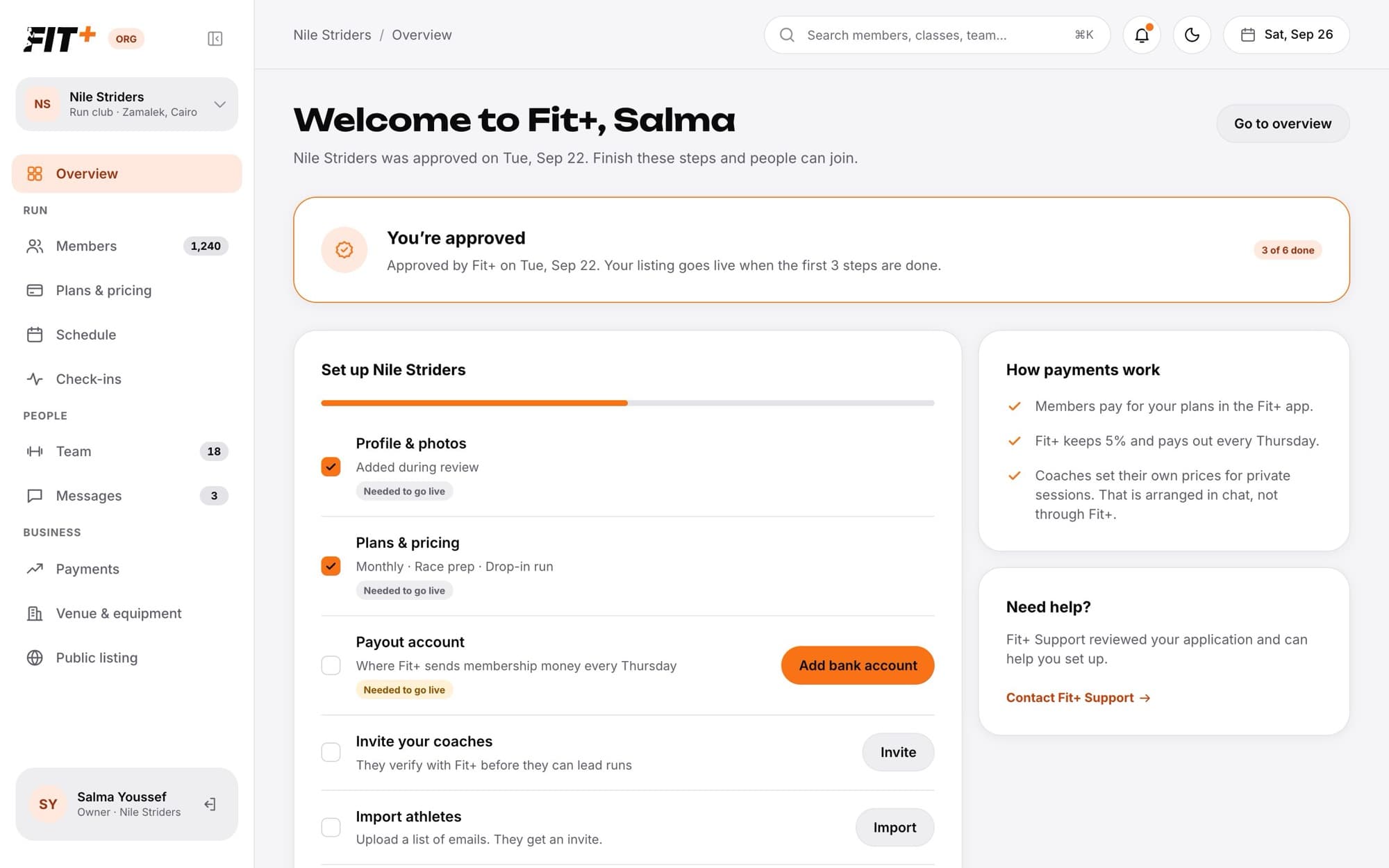
Once Fit+ approves your gym, a short checklist helps you get ready. Three steps are needed before your listing goes live. The other three are optional, but they help you get going faster.
Before you start
- Your gym must be approved. See Bring your gym to Fit+.
- Only the owner can add the bank account. Staff can help with everything else.
Open the checklist
When you open Gym management, the checklist appears in place of the overview until the three required steps are done. To skip it for now, click Go to overview. The checklist ticks each step off by itself as you finish it.
The six steps
| Step | Needed to go live | Done when | Click |
|---|---|---|---|
| Profile & photos | Yes | Your listing has at least one photo, and a tagline or description | Edit listing |
| Plans & pricing | Yes | You have at least one live plan | Add a plan |
| Payout account | Yes | Your bank account is saved | Add bank account (owner only) |
| Invite your coaches | No | A coach or nutritionist is on your team or invited | Invite |
| Import members | No | A member has joined or been invited | Import |
| First class on the schedule | No | You have a class on the schedule | Add a class |
Clubs, teams and academies see "athletes" instead of "members" in some steps.
Add your bank account
How payments work
Members pay for your plans in the Fit+ app. Fit+ keeps a small fee (shown on your plans) and pays out every Thursday. Coaches set their own prices for private sessions with their clients. That is arranged in chat, not through Fit+.
What happens next
When the three required steps are done, the banner says "Your listing is live in the Fit+ app." From then on, Gym management opens on your overview.
Common questions
That's expected. Only the owner can add or change the bank account. Managers with the See payments permission can see the bank name and the last four digits.
Yes. Until the required steps are done, it opens each time you open Gym management. Click Go to overview whenever you want to skip it for now.
Click Contact Fit+ Support on the checklist. The same team that reviewed your gym can help you set up.