

Check your gym at a glance
Use the overview to see who is in, what needs your attention, your key numbers and today's classes.
The overview is your home page in Gym management. It shows how busy the gym is right now, the few things that need you today, and how the month is going.
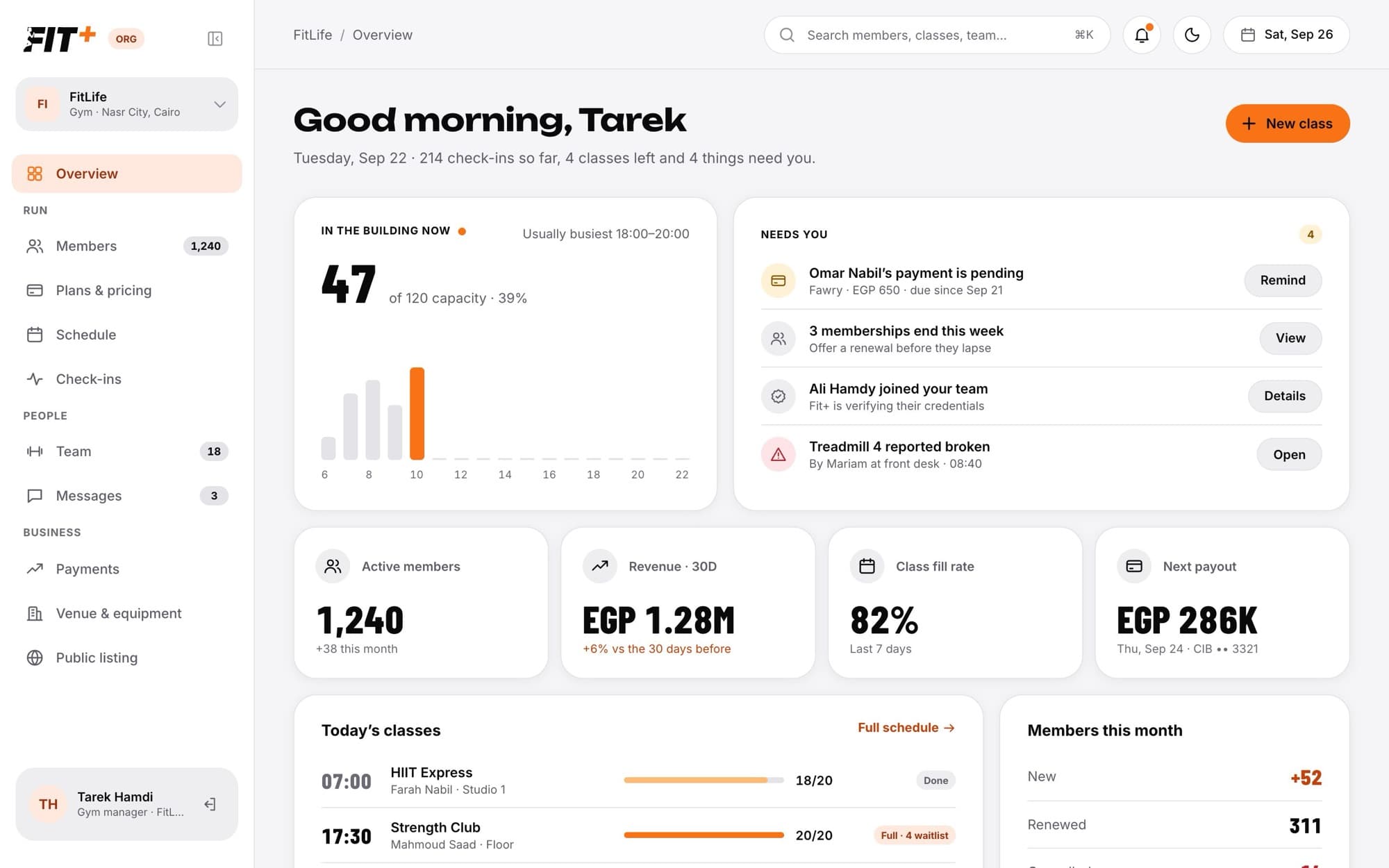
Open the overview
Click Overview at the top of the sidebar. At the top you get a greeting, today's date and a one-line summary, for example "214 check-ins so far, 4 classes left and 4 things need you."
What's on the page
In the building now. How many people are in right now, against your venue's capacity, with a bar for each hour of today and your usual busiest time. Fit+ counts anyone who checked in during the last 90 minutes, since members don't check out.
Needs you. A short to-do list, with a button on each item:
| Item | Button | What it does |
|---|---|---|
| A member's payment is pending | Remind | Sends the member a reminder in the Fit+ app (at most once a day) |
| Memberships end this week | View | Shows the members whose membership is ending soon |
| People ask to join | Review | Opens your join requests |
| A new coach joined your team | Details | Opens Team, where you can see their Fit+ verification |
| A machine was reported broken | Open | Opens the equipment that needs attention on Venue & equipment |
Numbers. Active members (and how many are new this month), revenue for the last 30 days, how full your classes were over the last 7 days, and your next payout.
Today's classes. Each class with its time, coach, room and how full it is. Click Full schedule to open the schedule.
Members this month. How many members are new, renewed, cancelled or paused.
What you see depends on your role. Revenue, payouts and payment reminders need See payments. Join requests need See and add members. See Staff roles and permissions.
Add a class from the overview
If you can edit classes, click New class at the top right. It opens the class form on the schedule.
Common questions
Your gym is new, or nothing has happened yet today. Numbers fill in as members check in, book classes and pay.
Yes. Type a name in the search box at the top of any page and press Enter. It opens your member list filtered to that name.