

Invite and manage your team
Invite coaches, nutritionists and staff, choose what they can do, and suspend or remove someone when you need to.
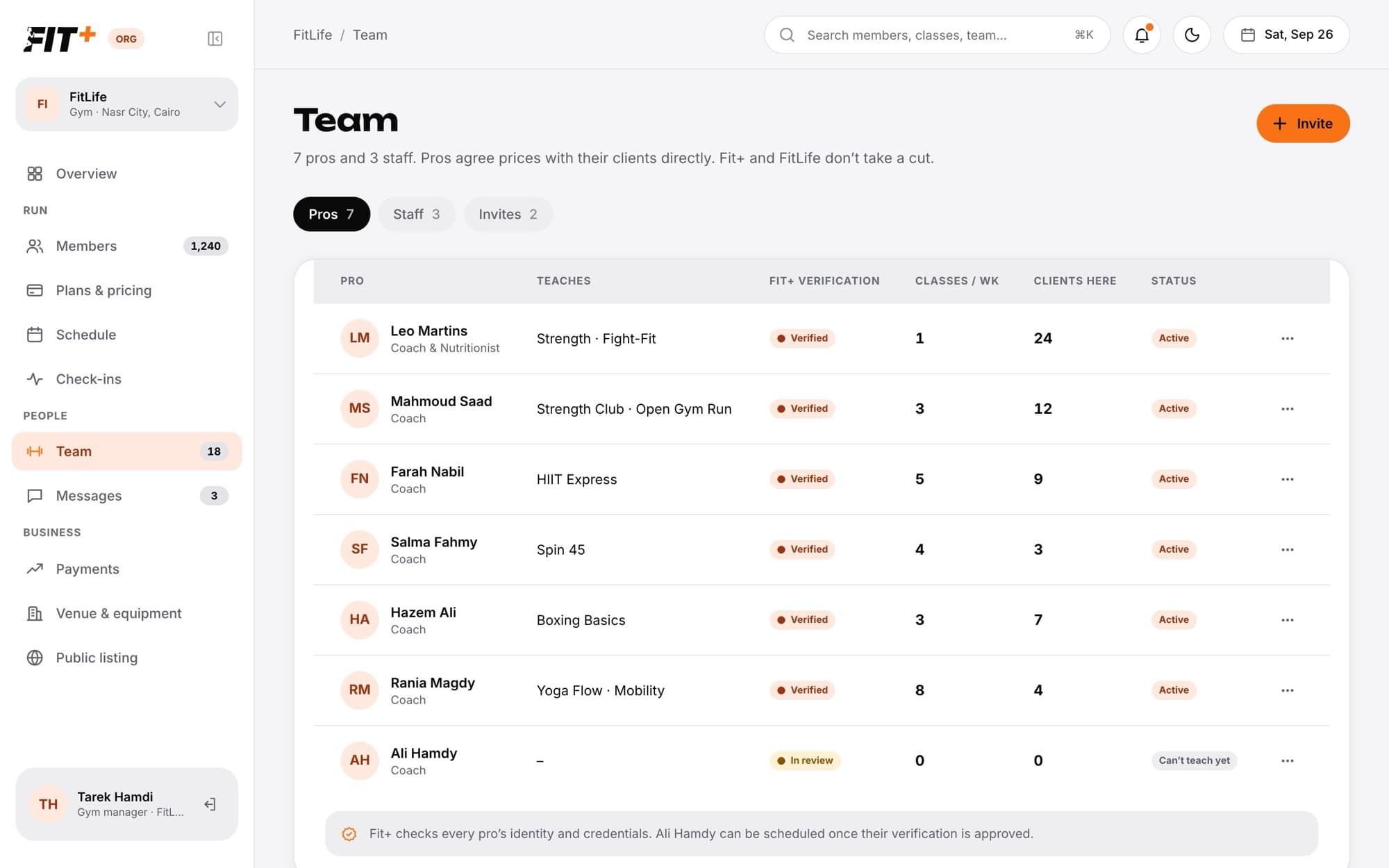
Team lists everyone who works at your gym: coaches and nutritionists (called pros) and your staff. As the owner, you invite people here and decide what each person can do.
Before you start
- Everyone on your team can see this page.
- Only the owner can invite people, add a professional's account, change roles, and suspend or remove someone.
The three tabs
- Pros: your coaches and nutritionists, with what they teach, their Fit+ verification (Verified or In review), classes a week, clients at your gym and status.
- Staff: your front desk staff and managers, with what each can do.
- Invites: invitations that are still waiting (owner only). Click Withdraw to cancel one.
Invite someone
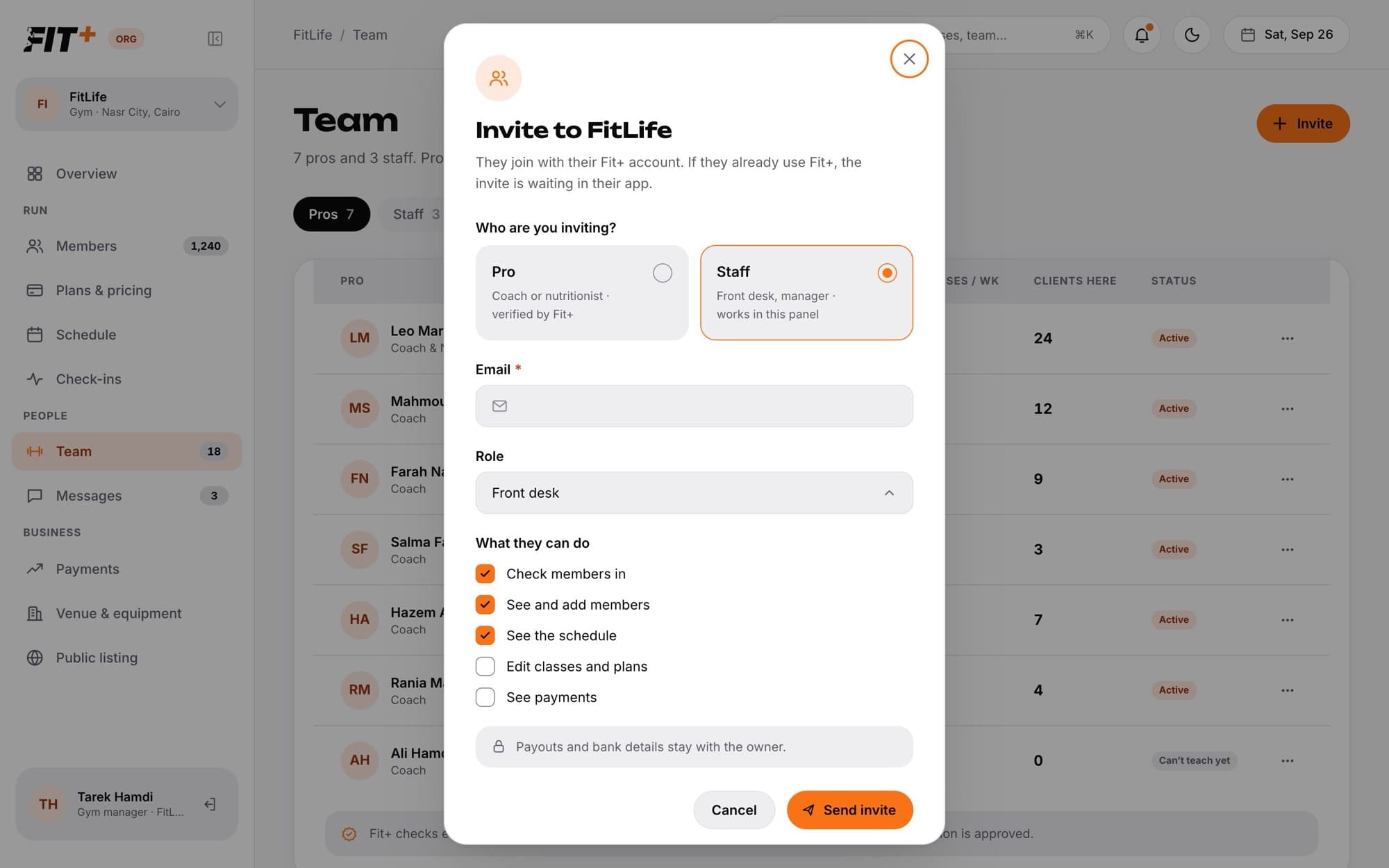
Not sure which boxes to tick? See Staff roles and permissions. Payouts and bank details always stay with the owner.
To invite members, use Members instead. See Invite and import members.
What happens next
- If the person already uses Fit+, the invitation waits for them in the app: "You are invited to join FitLife. Open Fit+ to accept." Otherwise they can create an account with the same email address.
- Invitations last 7 days. Each email address can only have one invitation waiting at a time.
- Staff who accept can open Gym management straight away, with the permissions you chose.
- Pros who accept appear on the Pros tab and on your overview ("Name joined your team"). They work in Fit+ Pro. Until Fit+ has verified them, they show Can't teach yet and can't be picked to teach a class.
Add a professional who has no Fit+ account
If a coach or nutritionist doesn't use Fit+ yet, the owner can create their account and add them to your gym in one go. Only the owner sees Add professional. If the person already has a Fit+ account, use Invite instead.
Fit+ emails them straight away, with the subject "Your Fit+ professional account is ready" and a Set your password button. Then they:
- Open the email and select Set your password.
- Choose their own password on the page that opens.
- Sign in to Fit+ on the website with the same email address and their new password, and finish their profile and prices.
The link works once and only for a limited time. If it has expired, they can still open it and ask for a new one there, or use Forgot password? on the sign-in page.
Until they choose their password, they show Waiting for password. If they can't find the email, or the link has expired, select Resend setup email next to their name. Fit+ sends them the email again with a new link.
A member's health data still stays private until that member chooses to share it with them. If the account wasn't fully set up, open Add professional again in the same browser tab and use the same name and email address to try again.
Change someone's roles
Suspend a staff member or pro
Suspending takes away someone's access to your gym without removing them, for example while you look into a problem.
Suspended staff can no longer open Gym management for your gym, and suspended pros lose their link to it. To give access back, open the same menu and click Reinstate.
Remove someone from your team
Common questions
No. A coach's clients, and what those clients choose to share, belong to the coach and the clients. If a coach leaves your team, their clients go with them.
No. Pros agree prices with their clients directly. Neither Fit+ nor your gym takes a cut.
Fit+ checks every pro's identity and credentials. Your overview shows "Fit+ is verifying their credentials" until it's done. Contact Fit+ Support if it seems to be taking too long.
They stay with your gym. Classes and membership plans a staff member set up are kept, so your members keep their bookings and plans.
No. Ownership can only be changed by the Fit+ team.