

Add and edit exercises
Keep the shared exercise catalog up to date so coaches can build programs and members can find exercises.
Catalogs holds the shared exercise library that coaches and nutritionists build programs from. Exercises you publish here also show up in the member exercise library. This page shows you how to find, add and edit exercises.
Before you start
- Only Platform admins can add, edit and publish exercises. Support can look through the catalog. Finance can't open it.
Browse the catalog
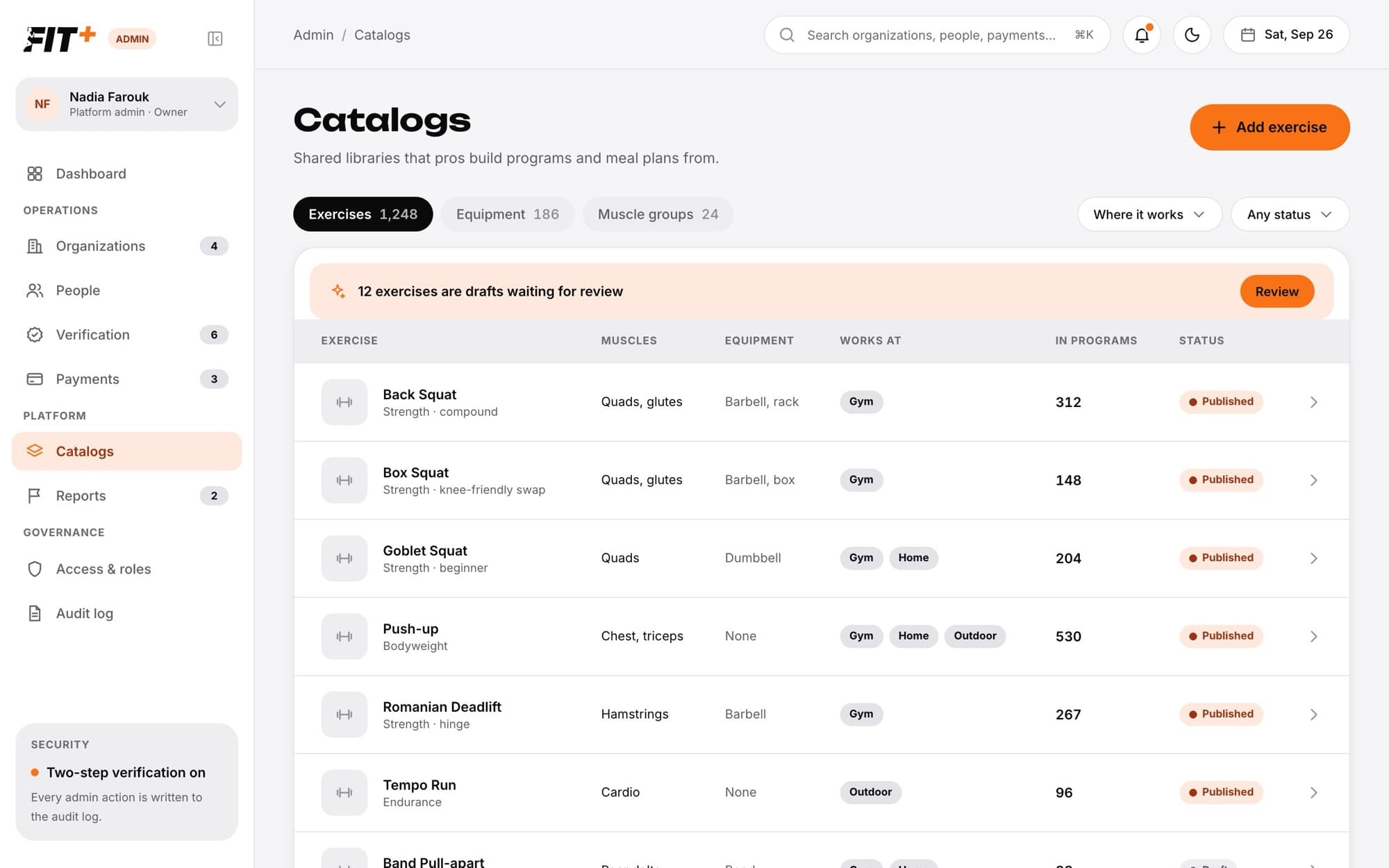
Open Catalogs
Choose Catalogs in the sidebar.
Pick a tab
Exercises lists every exercise. Equipment and Muscle groups list the terms you can tag exercises with.
Filter the list
Use Where it works (gym, home or outdoor) and the status menu (Published, Draft or Archived).
Each exercise shows its muscles, equipment, where it works, how many programs use it and its status. Draft changes means a published exercise has edits that aren't published yet.
When drafts are waiting, a banner at the top of the list tells you how many. Choose Review to open them in the exercise library tools.
Add an exercise
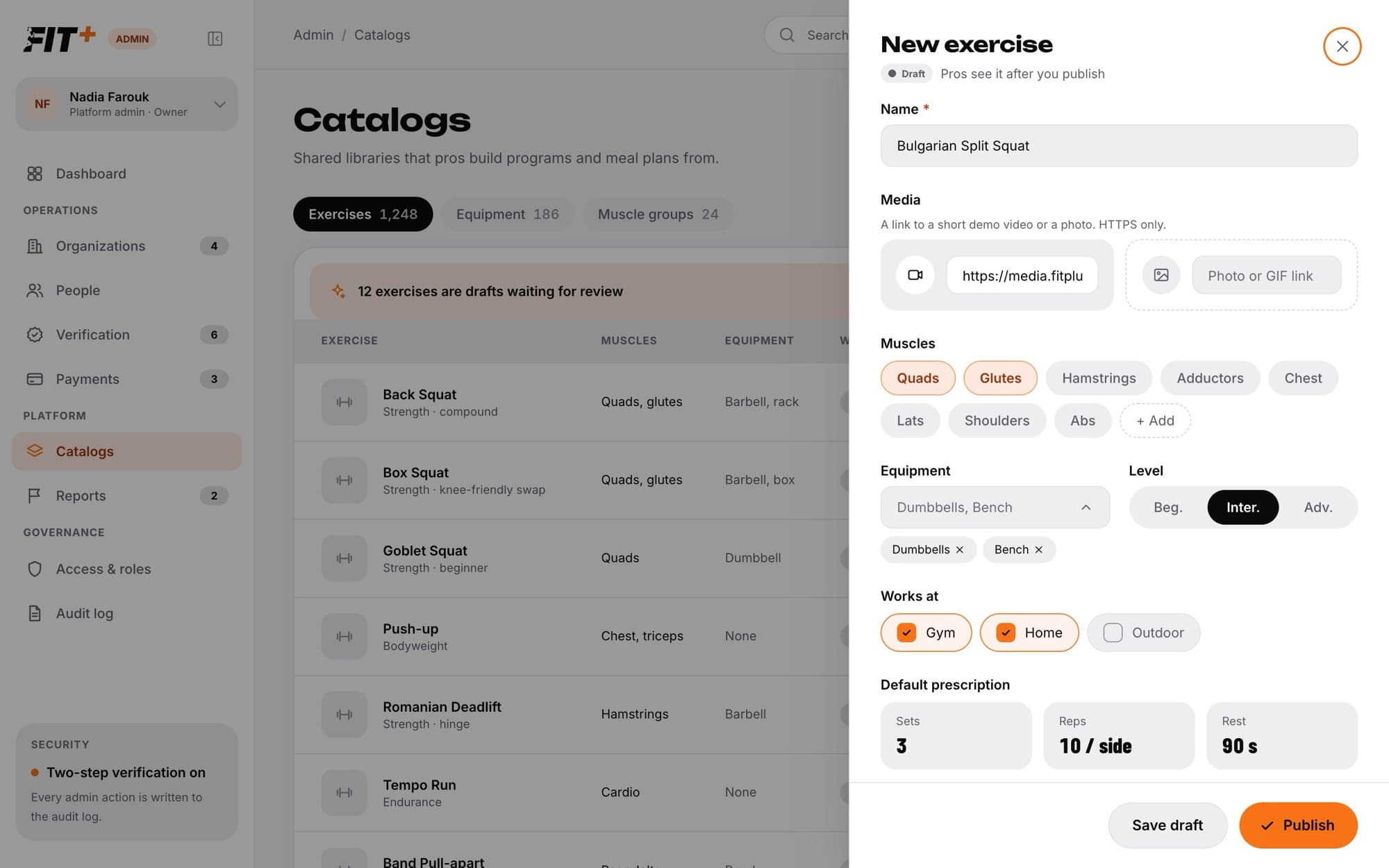
Choose Add exercise
The New exercise panel opens on the right.
Name it
Type the Name.
Add media
Paste a link to a short demo video, a photo or a GIF. Links must start with https.
Tag it
Choose the Muscles it works (at least one), the Equipment it needs, the Level (Beg., Inter. or Adv.) and where it Works at (Gym, Home, Outdoor).
Set the default prescription
Enter the usual Sets, Reps and Rest.
Add swaps and steps
Pick up to 8 published exercises the Fit+ AI may swap to when a member reports pain or lacks equipment. Under How to do it, write one step per line.
Save draft or publish
Choose Save draft to keep working on it later. Pros only see it after you publish. Choose Publish to make it available straight away.
If it isn't ready to publish
Before an exercise can be published, it needs content in both English and Arabic, supporting evidence and a review by a qualified reviewer. If anything is missing, the exercise is saved as a draft and the panel lists what's still needed. Choose Open full editor to finish it.
Edit an exercise
Open the exercise
Choose it in the catalog list. The full editor opens.
Choose the language
Switch the Content language between English and Arabic.
Work through the sections
Use the tabs: Content, Steps, Classification, Evidence, Relationships, Media and Review & history. The editor lists what still needs to be done before the exercise can be published.
Save your changes
Choose Save draft. For a published exercise, the button says Save as new draft: members keep seeing the published version until you publish the new one.
Get it reviewed
On the Review & history tab, open Assign a qualified reviewer to record a reviewer's verified qualification and choose Assign review. The reviewer picks a Review specialty, adds Review notes and chooses Approve saved version or Request changes. A review only covers the saved version, so saving another edit needs a new approval.
Publish
Once the saved version is approved, choose Publish reviewed version on the Review & history tab. Coaches can add it to programs straight away.
Revision history lists every version of the exercise. Choose Compare to see what changed, or Restore publication to bring back an earlier published version.
To take an exercise out of the catalog, choose Archive exercise. Choose Restore to catalog to bring it back.
Technique videos
Many exercises have a short technique video. Members see it in the exercise library in the app and on the website, and professionals see it in Exercise library on the Fit+ website. Lines and labels are drawn over the video as it plays, and the captions come from the exercise's steps, so they appear in the viewer's language.
In the full editor, the Media tab lists each photo and video with its HTTPS address, the step it belongs to, a description and Rights and attribution. A video that has technique lines and labels says how many phases and labels it has. To change a caption, edit the exercise's steps: the video itself has no text in it.
Use the exercise library tools
On the Equipment or Muscle groups tab, choose Open the exercise library tools. There you can search by name or description, see which areas still need exercises, find possible duplicates, add equipment and muscle terms, and download the catalog.
Common questions
Not yet. The catalog in the admin website covers exercises.
It still needs both languages, evidence or a review. Open it in the full editor to see what's missing.
No. Your changes are saved as a new draft. Members keep seeing the published version until the new one is reviewed and published.
Check payments, payouts and subscriptions
See membership payments, follow up failed ones, check what each organization is owed, set the Fit+ fee and review subscriptions.
Handle reported content
Review what people flagged in Community, on profiles and in chats, then dismiss it, warn the author, suspend them or remove it.