

Find a workout or program
Search Fit+ plans and single workouts in plain words, narrow them down with filters and keep the ones you like for later.
Looking for something new to train? This page shows you how to browse the plans on the Train tab, search for exactly what you want and save plans to come back to.
Browse plans on Train
When you don't have a program running, the Train tab opens on Discover:
- For you and a chip for each sport (for example Football, Mobility, Strength). For you sorts every plan by how well it matches you.
- Matched to your goal: multi-week plans, each with a match score such as "82% match". Tap See all to open the full list.
- Quick workouts: single workouts, shortest first.
Below that are My routines (workouts you build yourself, see Build your own routine), Workout history and Find a coach or nutritionist, if you'd like a person to guide you.
With a program running, the same section appears lower down as Explore more workouts. Anything you do from there is a one-off extra and never changes your program.
The match score comes from the answers you gave when you set up Fit+: your goal, where you train, your sport, your experience and any sore joints. You can change those answers from the Me tab.
Search for a workout
On Train, tap the search field (Plans, workouts, classes...) or the search button at the top.
Type what you're after in your own words. Results update as you type.
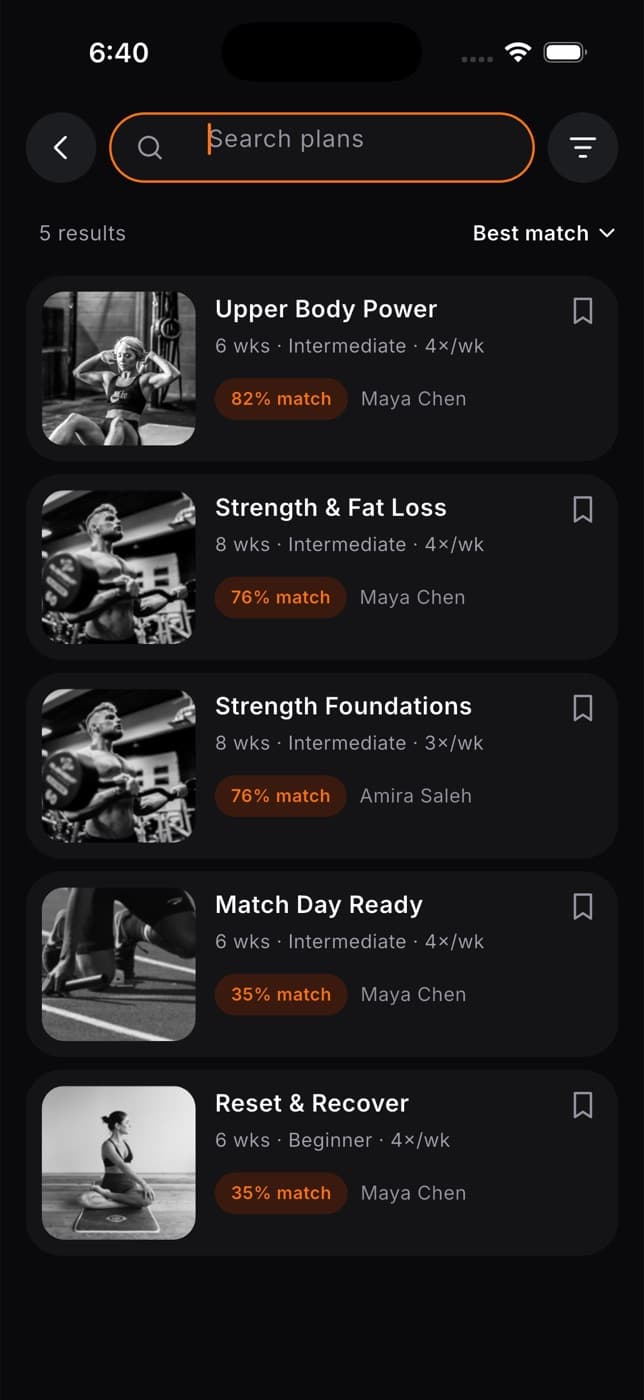
Tap a result to open its details.
Fit+ understands everyday phrases, so you can mix and match:
| Try typing | To find |
|---|---|
| "20 min", "half an hour", "quick" | Workouts of about that length, or short ones |
| "strength", "mobility", "run", "football" | Plans for that goal or sport |
| "legs", "upper", "core", "full body" | Workouts that train that area |
| "no equipment", "dumbbell", "at home", "gym" | Workouts that suit your space and kit |
| "beginner", "intermediate", "advanced" | Workouts at your level |
| An exercise name, such as "squat" | Every plan that includes it |
To change the order, tap the sort link above the list and choose Best match or A to Z.
Narrow it down with filters
Tap the Filters button next to the search field.
Pick what you want. Tap a chip again to clear it.
- Type: Plans or Single workouts
- Level: Beginner, Intermediate or Advanced
- Where: Gym, Home or No gear
- Coaching: Self-guided or With coach
- Session length: drag the two handles to set the shortest and longest workout you want
- Duration: how many weeks the plan lasts
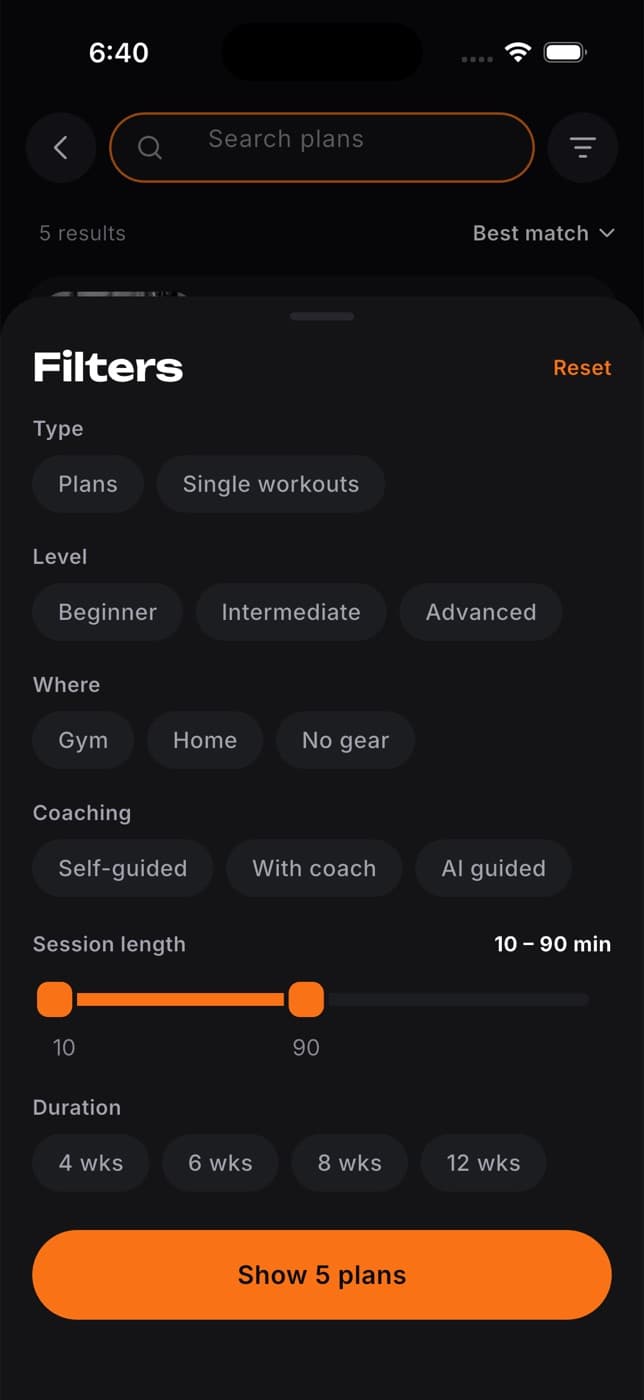
Tap Show and the number of plans (for example Show 12 plans). If nothing matches, the button reads No plans match: loosen a filter and try again.
Your filters appear as orange chips under the search field. Tap the x on a chip to remove it, or open Filters and tap Reset to clear everything.
Look at a plan before you start
Tapping a plan opens its details. You'll see:
- how many weeks it runs, how many times a week, how long each workout is and its level
- Why it fits you: the reasons behind the match, and anything Fit+ changed for you (for example, "Left out Jump Squat to spare your knees")
- Week 1 at a glance: each training day and its workout
- Coached by, if a coach created the plan
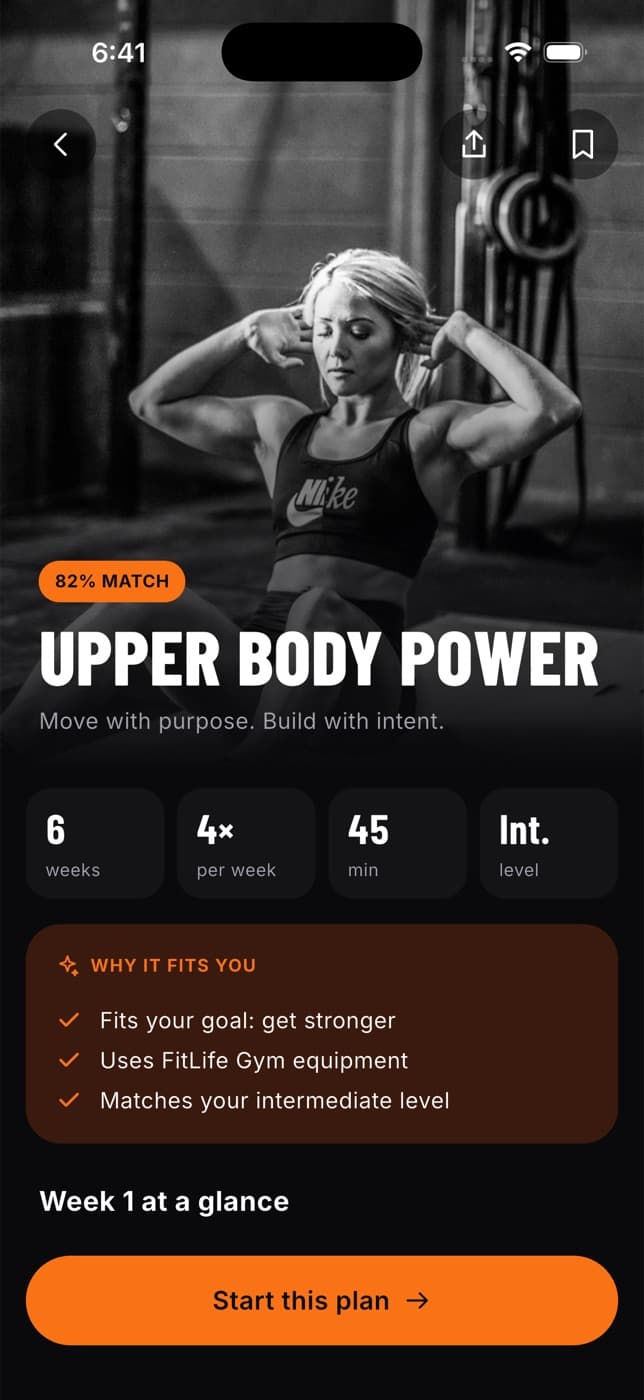
When you're ready, tap Start this plan. See Start and follow a program.
Save plans for later
Tap the bookmark on a search result, on a plan's details or on a workout preview (Favorite). To see what you've saved, open Train and tap the bookmark button at the top (shown when you don't have a program running).
Saved plans stay on this phone. They don't appear on your other devices or on the Fit+ website.
Common questions
Try a different word, or remove a filter. If you set a session length, plans without a set length in minutes are hidden, so tap Reset in the filters to clear it.
Once you start a plan, it becomes your program. You'll find it on the Train tab and in My plan, not in search. Finished plans are listed under Past plans in My plan.
Yes. Search works on the plans already on your phone.