

Open an invitation link
A friend sent you a Fit+ invitation link. Here's what the page shows and how to get started.
Fit+ members can invite friends from the app. If someone sent you an invitation link, opening it shows a Fit+ welcome page with your friend's invite code and a way to get the app. You don't need an account to open it.
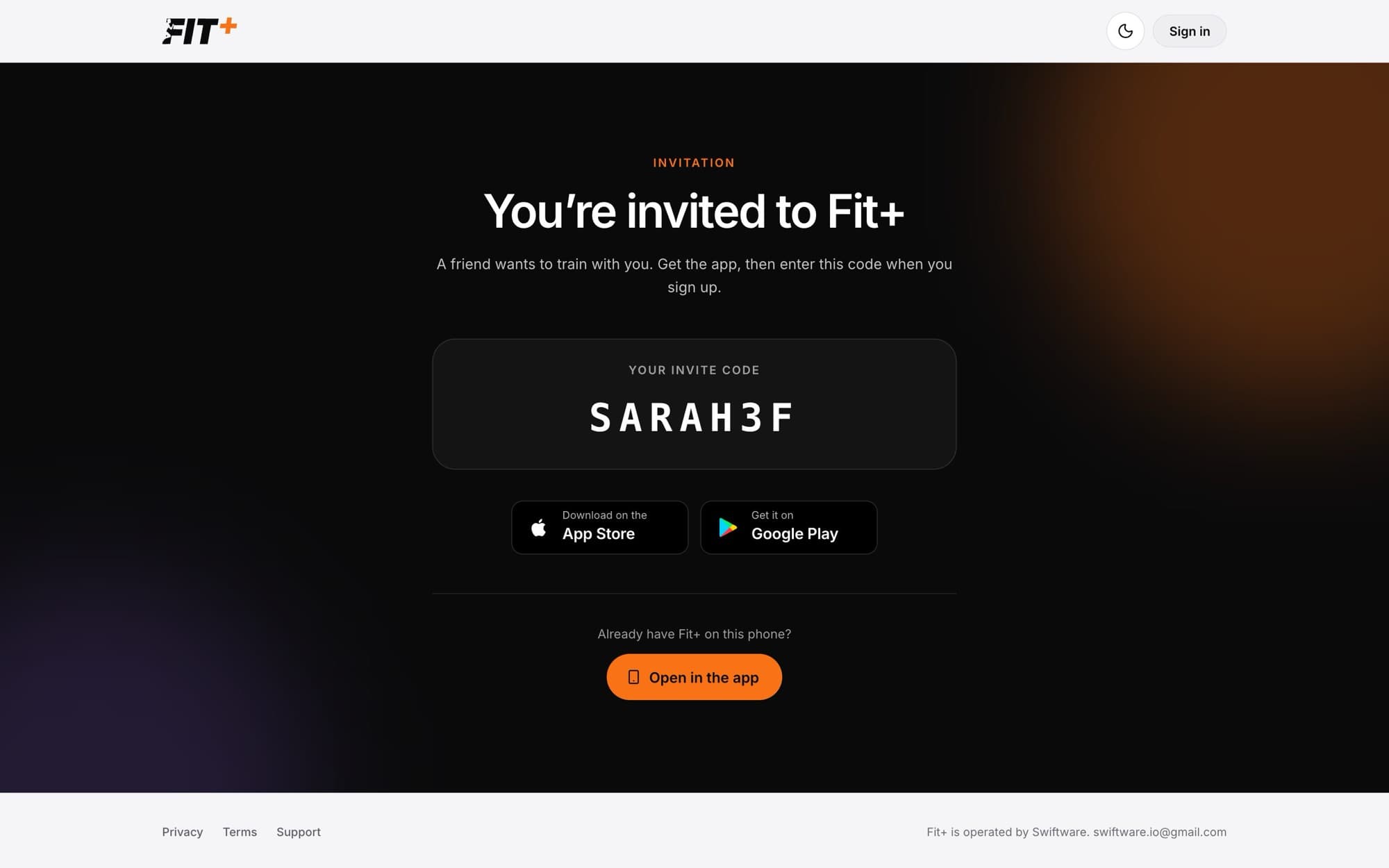
Open the link
Open it on your phone if you can. You'll see You're invited to Fit+ and your friend's invite code.
Get the app
Select App Store or Google Play to download Fit+.
Already have Fit+ on this phone? Select Open in the app instead.
Create your account
Sign up in the app, or create an account on the website.
Say hello
Find your friend in Messages and start training together. See Send a message.
If the link doesn't work
If part of the link is missing, you'll see This invite link is not complete. You can still download Fit+ from the store buttons on that page, or ask your friend to send the link again.
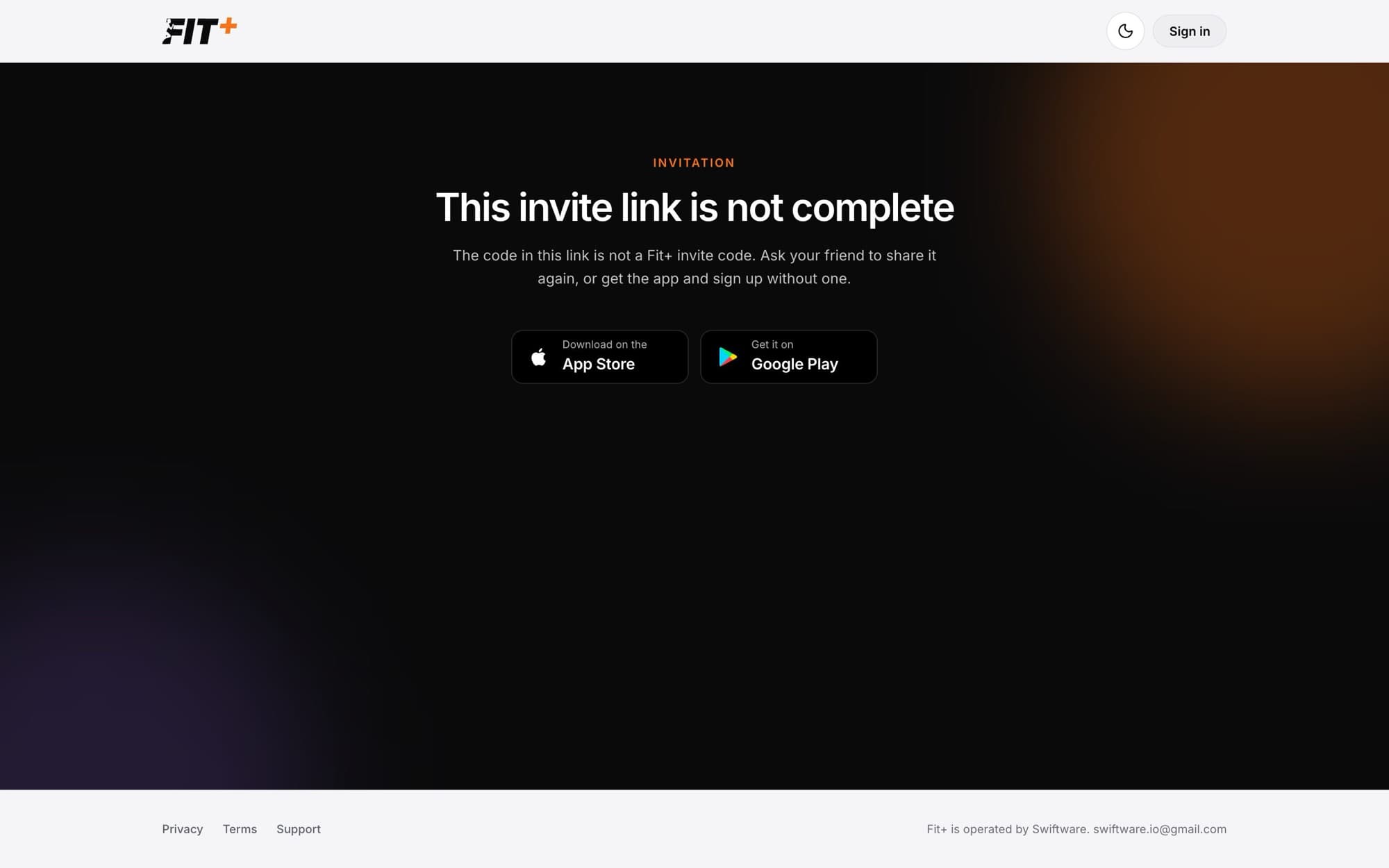
Invite your own friends
In the Fit+ app, tap Me, then Invite friends, and share the link however you like. See Fit+ on your phone.
Common questions
No. The page only shows the invite code. Nothing about you or your friend is looked up or shared.
Just sign in. There's nothing else you need to do.
Set your password from a setup email
Choose your own password from a Fit+ setup email, when a coach, a gym or the Fit+ team created your account, or when your professional application was approved.
When you see "no access"
What it means when Fit+ says you don't have access to a workspace, and how to get back to your own space.