

Do a workout
Use the workout player step by step, from the countdown to logging and fixing each set, using the lifting tools, resting between sets and pausing.
The workout player takes you through your workout one set at a time. It shows what to do next, keeps time for you and remembers what you've lifted before.
Before you start
- You need a program, a routine of your own or a workout you picked from Train.
- You can run one workout at a time. If one is already running, any Start button takes you back to it.
Start the workout
Tap Start on your next workout on Train, Start workout on Home or the workout preview, or Start on a routine in My routines.
A 3, 2, 1 countdown shows what comes first. Tap anywhere to skip it, or tap Cancel to back out.
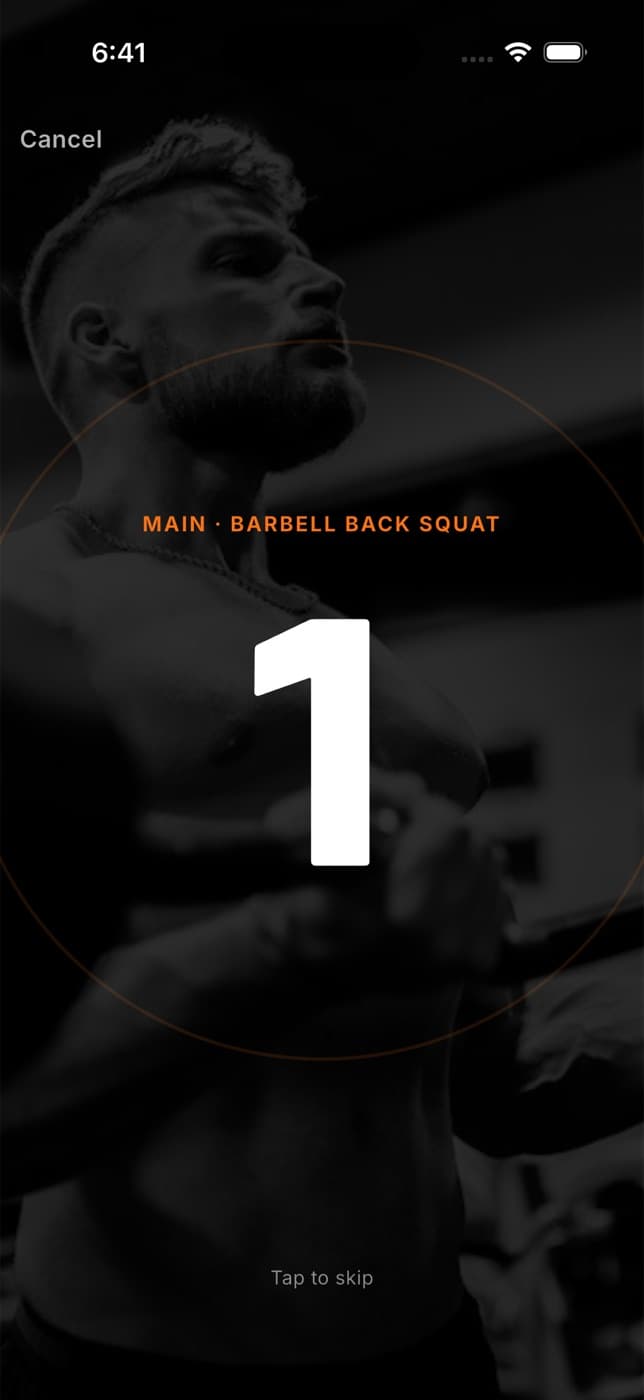
On GO, the workout clock starts and the player opens. The tab bar is hidden until you finish.
Your workout only starts with a warm-up if you or your coach added one to it. Otherwise it starts on the first move.
Log a set
At the top you see the workout clock, how much of the workout you've done (as a percentage) and the current block with its moves. The panel at the bottom is where you log each set.
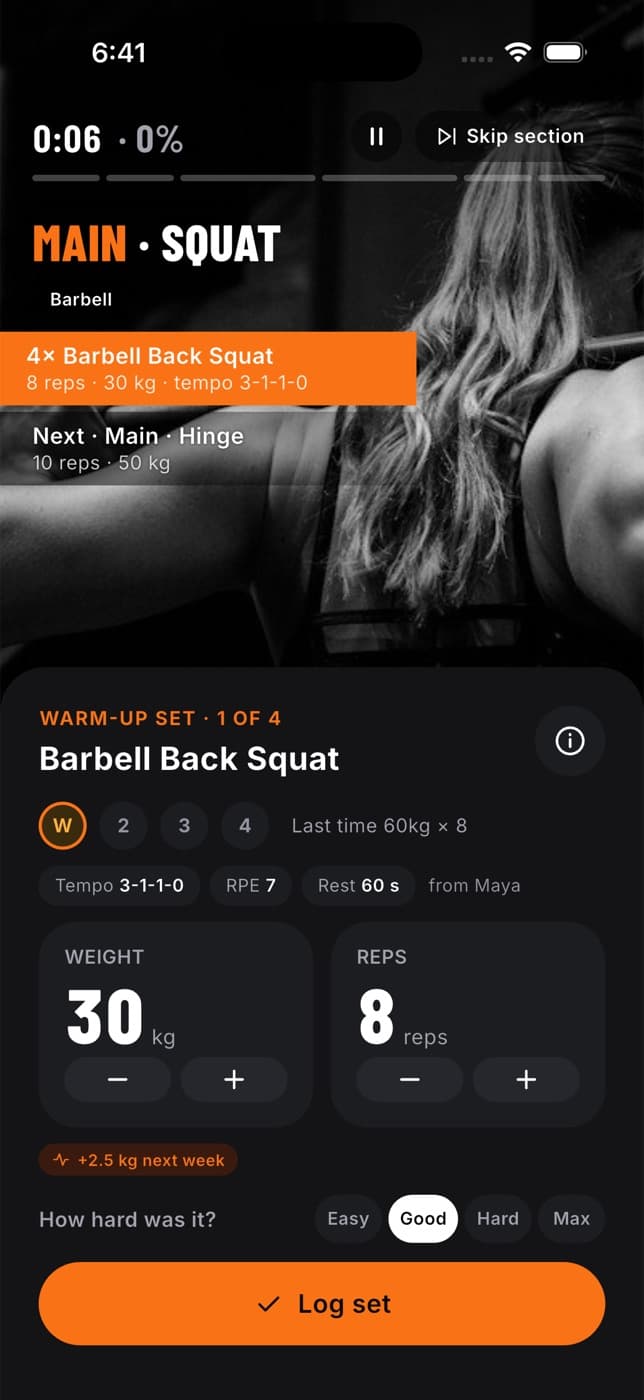
Check the set you're on, for example Set 2 of 4. The dots show sets you've done (with a tick), your current set, and any warm-up sets (W). "Last time" shows your best set of this move from your previous workout. In your own routines it shows every working set from last time, for example "Last 55 × 8, 8, 8".
Read your targets. If your coach set a tempo, effort or rest time, they appear as chips, and your coach's cue for the move appears on a card.
Set the Weight and Reps you did with + and -. Weight is shown in your unit and goes up in 2.5 kg steps (5 lb if you use pounds). To type an exact number, tap the number itself.
Choose How hard was it?: Easy, Good, Hard or Max.
Tap Log set.
The weight and reps start from your coach's plan for that set, or from what you did in your last set. In your own routines, the first working set starts from Fit+'s suggestion (see below). When all sets of a move are done, tap Next exercise. On the last move, the button reads Finish workout.
Bodyweight moves have no weight counter. A move that uses equipment, such as a cable row or a machine, always has one, even if no weight was planned.
To jump to another move in the block, tap it in the list at the top. To skip the rest of the block, tap Skip section.
Fix a set you logged
Tap a ticked set dot to open that set. Change the weight, reps, How hard was it? or Set type, then tap Save changes. To remove the set, tap Delete this set, then Undo on the message if you change your mind.
You can also fix a workout after you've saved it. See Edit or delete a past workout.
Suggestions and lifting tools
Suggested weight and reps
In your own routines, and plans you started yourself, the player suggests what to lift next, based on your last session with that move. For example "Suggested 57.5 kg × 8. You hit every set last time." After three sessions in a row that missed the target, it may suggest a lighter session to build back from.
You choose how suggestions work in your progression settings. See Set your rest timer and progression.
A coach's plan never gets suggestions. Your weights start from what your coach wrote, and their progression shows as a tag instead.
Plates
For barbell moves, tap Plates to see which plates go on each side of the bar for the weight you've set.
- Choose your Bar (or No bar).
- Tap My plates to tell Fit+ which plates you have and how many pairs of each.
- If your plates can't make the exact weight, Fit+ shows the closest one you can load. Tap Use and the weight to switch to it.
Warm-up sets
Before you log the first set of a move, tap Warm-up sets to see a ramp up to your working weight, for example the empty bar, then lighter sets. Choose a Scheme (Standard, Light or Heavy) and tap the add button, for example Add 3 warm-up sets.
Nothing is added unless you tap the add button. Warm-up sets don't count toward your volume or records. If your coach already planned warm-up sets, the button doesn't show.
Your note from last time
If you left yourself a note on this exercise when you last finished a workout, it shows under your set as "Your note from last time". See Finish and rate a workout.
Rest between sets
If your plan has rest after a set, the rest timer appears as soon as you log it.
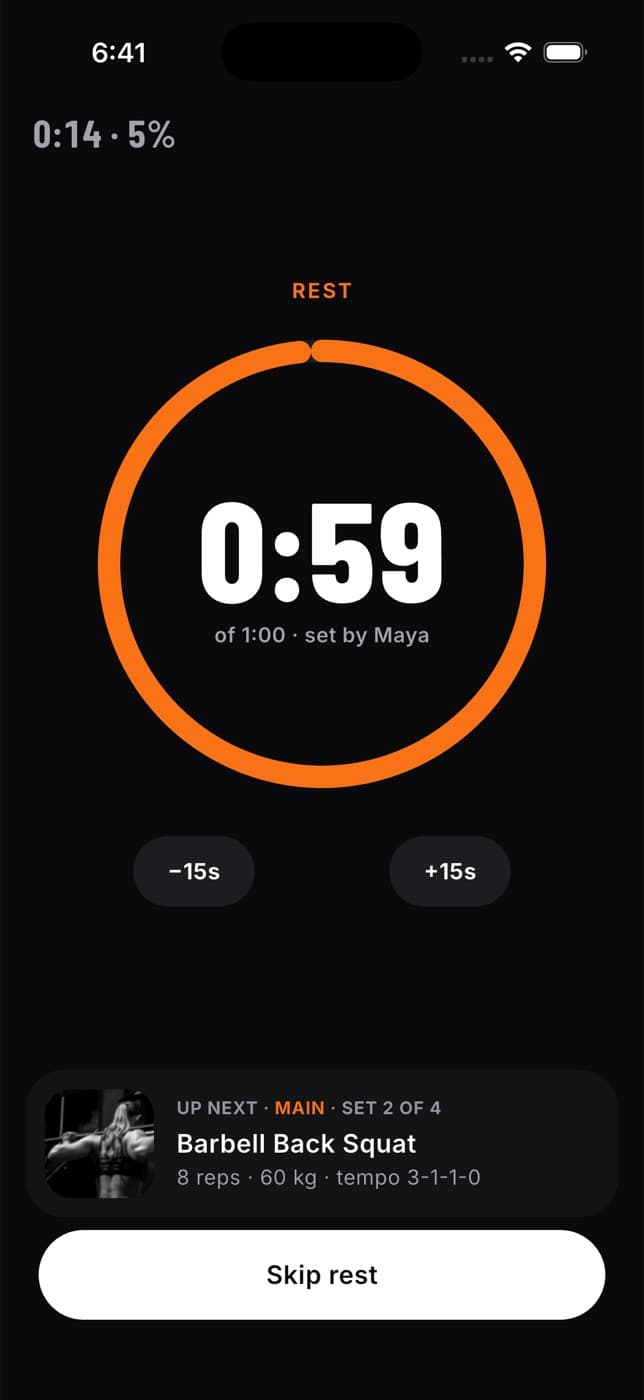
- Tap +15s or -15s to change the rest.
- Up next shows the move and weight for your next set.
- Tap Skip rest to carry on straight away.
- Tap the gear button at the top to open your rest timer settings.
When the time runs out, the player moves to your next set. The timer keeps going even if you lock your phone.
In your own routines, a move without its own rest uses your default rest. A coach's plan always uses your coach's rest times. In the same settings you can turn on a sound when rest ends and a buzz 10 seconds before. See Set your rest timer and progression.
Timed moves and runs
Some moves are done for time or distance instead of reps.
- Holds and timed moves: tap the start button (for example Start 30 s hold). A timer counts down. Tap Done early to log the time you actually did, or let it run to the end.
- Timed steps: the timer fills the screen. Use +15s and -15s to adjust, and Finish step when you're done. At zero, the step is logged and you move on.
- Runs and walks by distance: the player estimates your distance from your coach's target pace. Tap the distance to enter what your watch or treadmill shows. Finish step asks how far you went. Fit+ doesn't use GPS.
Supersets and circuits
In a superset or circuit, the player takes you round the moves in turn: the first set of A1, then the first set of A2, then the second set of A1, and so on.
- Superset: you go straight from one move to the next, with no rest in between. You rest at the end of each round.
- Circuit: you rest between stations only if the plan sets a rest there, and again at the end of each round.
If a move has fewer sets than the others, it drops out of the later rounds.
Pause the workout
Tap the pause button at the top. Swiping back also pauses the workout, so you can't leave it by accident.
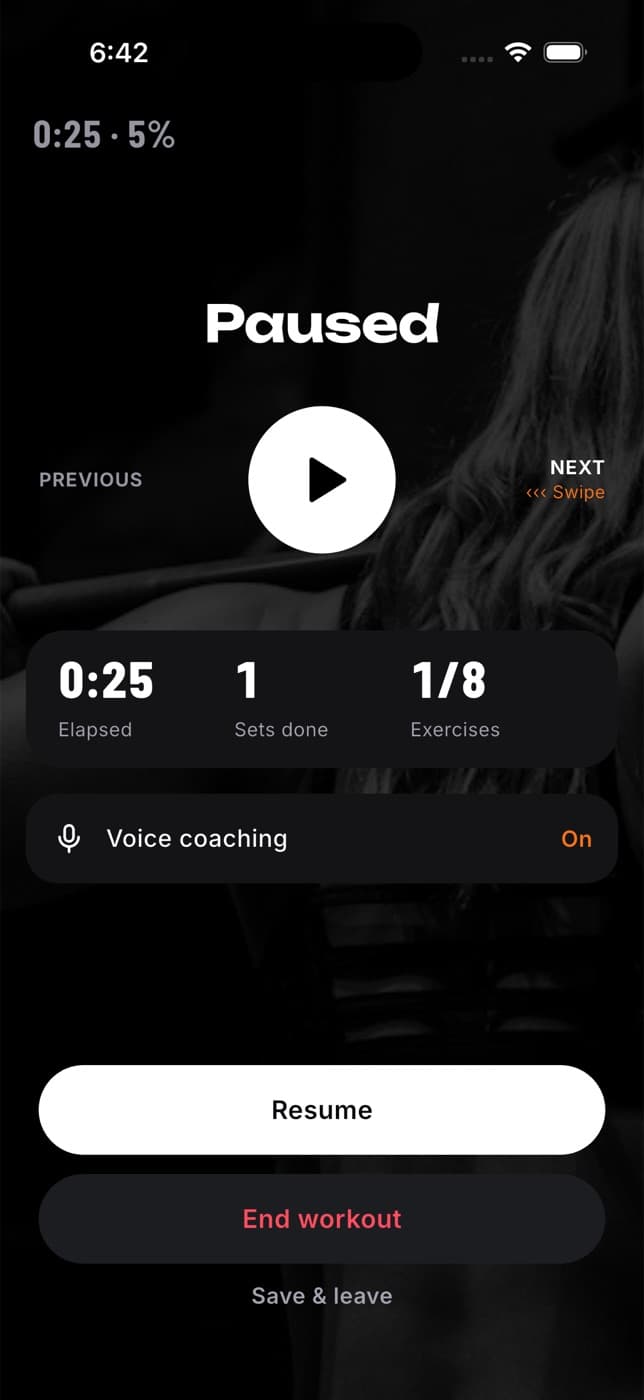
From the pause screen you can:
- move to the Previous or Next move (or swipe left and right)
- see the time so far, sets done and exercises done
- turn Voice coaching on or off. With it on, Fit+ reads your coach's cues aloud at the start of each set.
- tap Resume to carry on
- tap End workout to finish now and rate it. See Finish and rate a workout.
- tap Save & leave to keep the workout for later. It stays paused until you come back to Train.
Locking your phone or switching to another app doesn't pause your workout. The clock keeps running until you pause it. On iPhone, your workout also shows on the Lock Screen while it runs.
Common questions
Log what you actually did. Your history, records and next "Last time" are based on what you log.
Yes. Your workout appears on the watch too, and you can log sets, rest and pause from either device. See Apple Watch.
Your sets are saved on your phone as you log them. When you open Fit+ again, tap Resume workout. See If the app closes mid-workout.
Turn off Voice coaching on the pause screen. It's the same setting as Coach voice cues in workouts, which you'll find on Me, then Settings, then Notifications.
Yes. Tap the ticked set dot to change it or tap Delete this set. See Fix a set you logged.
Build your own routine
Make your own workouts with My routines, choose every set, rep and rest, group moves into supersets, keep folders and start a routine in one tap.
Finish and rate a workout
Rate how your workout felt, add notes, save it and read your summary, including what to do without a connection.